Configuring Process Monitoring
The various configuration options for process monitoring are presented and described below.
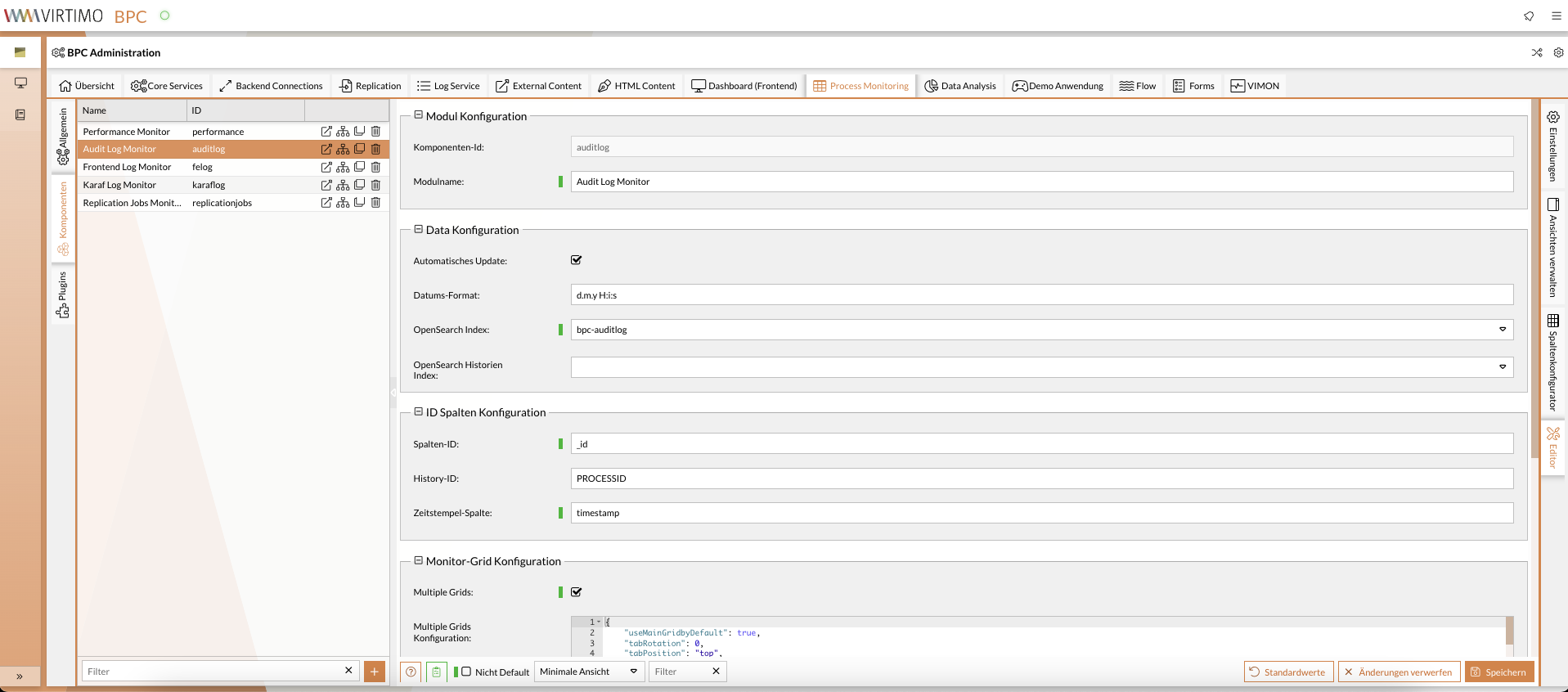
General Module Configuration
You can access the settings via the administration area under the Process Monitoring > General.
Module
General module settings
Name (ID) |
Description |
|---|---|
Icon |
Individually selectable icon that is displayed before the title. |
Base Path REST API |
Base path of the module to its offered REST API. |
Data View Limit |
Queries can query data up to this limit. If in doubt, the query should filter the data more specifically. A very high value can have a negative impact on performance. |
Data Count Limit |
When querying or searching via an index, the number of data records that match the current query is only counted up to this value. A very high value can have a negative impact on performance. |
OpenSearch Buffer Limit |
Maximum result quantity in MB that is accepted when querying the data from OpenSearch. A limit that is too large can have a negative impact on the RAM consumption of the system. |
Plugin
Settings for managing plugins in the module
Name (ID) |
Description |
|---|---|
Plugin Configuration |
Configuration of plugins that are to be displayed within this module. The plugin configuration page of the respective module should be used for customization. |
Component Configuration
You can access the configuration options via the administration area under the Process Monitoring > Components.
Module
General module settings
Name (ID) |
Description |
|---|---|
Name |
Name or title of the module/component. |
Description |
Can be used as an additional description that is displayed in the module header. |
Icon |
Individually selectable icon that is displayed before the title. |
State in URL |
Changes to the monitor (e.g. filters) are mapped in the URL. This allows you to switch between these states using the browser's forward/back function. |
Resource-Saving Mode |
In resource-saving mode, aggregations to the index are prevented in order to reduce memory consumption in OpenSearch. This can lead to individual functions being restricted. |
Toolbars
Settings for the toolbars
Name (ID) |
Description |
|---|---|
Module Header Content |
Additional content in the module header. |
Left Toolbar |
An array is defined in these settings. Each array element consists of either a string that corresponds to the ID of the desired action or an object that has at least one id attribute and refers to the desired action. If only a string is specified, the action is displayed with the default values for the options. If an object is specified, the options of the actions can be influenced via an additional config attribute. |
Right Toolbar |
An array is defined in these settings. Each array element consists of either a string that corresponds to the ID of the desired action or an object that has at least one id attribute and refers to the desired action. If only a string is specified, the action is displayed with the default values for the options. If an object is specified, the options of the actions can be influenced via an additional config attribute. |
Custom Views |
Enables the 'Views Menu' for the monitor. |
Data
Settings for the data
Name (ID) |
Description |
|---|---|
Automatic Refresh |
Activates automatic data updating. Changes to the data are automatically recognized and reloaded. |
Index |
OpenSearch index name for monitor data. |
Child Index |
OpenSearch index name for child data that can be viewed via the detail view |
Data Filter |
This filter can be used to restrict the data displayed. Users do not have the option of bypassing it. The filter can also take into account the organizations, roles, rights or names of the current user. |
Filter Operator |
The operator specifies how the filters for organisations, roles, rights and users are logical linked. With OR (default), all data that fulfils one of the filter settings is displayed. With AND, only data that fulfils all filter settings is displayed. |
Date Format |
Standard format for displaying dates |
Excluded Fields |
List of data fields that are excluded from the monitor data. This means that the fields are not transferred to the monitor, even if they are in the index. For example, sensitive or large unused data can be excluded. |
Refresh Buffer |
During this period (in seconds), change events are collected by the monitor backend before data is reloaded for display in the monitor. This setting is particularly useful for monitors where the data is constantly changing. |
Data Count Limit |
When querying or searching via an index, the number of data records that match the current query is only counted up to this value. A very high value can have a negative impact on performance. |
Data View Limit |
Queries can query data up to this limit. If in doubt, the query should filter the data more specifically. A very high value can have a negative impact on performance. |
Default MIME Type |
Defines the default MIME type for displaying attached documents. |
Consider Filters |
When this value is active, the suggestion lists in the filters will consider already applied filters. |
Data Rendering
Settings for rendering and styling of data (custom renderers, dynamic row styles)
Name (ID) |
Description |
|---|---|
Custom Renderer |
Definition of custom renderers to customize the display of column values. |
Dynamic Row Styles |
Enables the feature for customizing the appearance of a monitor row based on its content. |
Dynamic Row Styles Configuration |
Settings for dynamic styling. In |
Sorting
Settings for the initial and multi-column sorting of the grid
Name (ID) |
Description |
|---|---|
Column |
Column by which initial sorting takes place. |
Direction |
Direction in which the initial sorting is performed. |
Sorting by Multiple Columns |
Allows sorting by multiple columns. |
Number of Columns |
Maximum number of columns to be sorted by. If this is exceeded, the sorting is removed from the column with the currently lowest priority. |
Reversed Multi-Sort Order |
Applies the columns for sorting in reverse order for multiple sorting. |
Grid
Settings for the grid (table) display and behavior
Name (ID) |
Description |
|---|---|
Enable Multiple Grids |
Enables the use of multiple grids (tables) in one monitor. These are displayed in different tabs. Each grid can be assigned a basic filter that is used to filter the data. |
Multiple Grid Configuration |
Configuration of the various monitor grids and the data filters used. |
Filter Bar |
Toggle to show or hide the grid filter bar. |
Load Mask |
Display a load mask during data load. |
Count Filtered Column |
Count filters by affected columns, not by the number of filters themselves. This can be different if multiple filters have been applied to a single column. |
Hide Tooltip in Table Header |
Prevents the tooltip display of the technical field name underlying the current column. |
Text Selection |
Enables text selection in the table. This can be disruptive when selecting multiple rows. |
Columns
Settings for the columns and their underlying data fields
Name (ID) |
Description |
|---|---|
Column Configuration |
Configuration of the view and filter settings for monitor columns. |
Primary Key |
Name of the field containing the unique ID of the record. |
Child ID |
Name of the field in the child data that establishes the foreign key reference to the primary data. |
Child Sub ID |
Name of the field that, in addition to the Child ID, forms the primary key. |
Timestamp |
Name of the field defining the reference to the timeline. This is important for sorting and widgets. |
Grouping |
Field by which the display should be initially grouped. The user can change the grouping independently via the interface. |
Grouping direction |
Initial sort direction for grouped values (ASC or DESC). |
Status |
Name of the field containing the status of the record. |
Child Column Configuration |
Configuration of the columns for displaying the child data in the detailed views. |
Field List |
List of the fields contained in the data and their data types. This corresponds to the mapping of the OpenSearch index. |
Child Field List |
List of the fields contained in the data and their data types. This corresponds to the mapping of the OpenSearch index. |
HTTP Proxy
Settings for downloading files via an HTTP proxy
Name (ID) |
Description |
|---|---|
File download endpoint |
HTTP proxy and REST endpoint for file download |
Process Starter
Settings for starting new processes from the monitor
Name (ID) |
Description |
|---|---|
Enable |
Enables the use of process starters. See Process Starter |
Endpoint or Processor |
Selection of the REST endpoint or processor for the process starter |
Configuration |
Configuration for the forms in the process starter. See Process Starter |
Process Actions
Settings for triggering actions on individual process instances
Name (ID) |
Description |
|---|---|
Enable |
Enables the usage of process actions |
Endpoint or Processor |
Selection of the REST endpoint or processor for the process actions |
Parallelism |
Allows the user to trigger several multiple actions at once. |
Column Prefix |
Columns/fields with this prefix are used as the source for the process actions offered. |
Separator |
Separator for multiple process actions within a field. |
Metadata |
Any JSON object that is transferred together with the action to add additional configuration values or context information. |
Bulk Actions
Settings for bulk actions
Name (ID) |
Description |
|---|---|
Enable |
Allows the use of bulk actions. |
Endpoint or Processor |
Selection of the REST endpoint or processor for the bulk actions |
Actions |
The actions that the user can use are configured in this JSON. |
Parallelism |
Allows the user to trigger several multiple actions at once. |
Metadata |
Any JSON object that is transferred together with the action to add additional configuration values or context information. |
Change State
Settings for manually changing the state of a process instance
Name (ID) |
Description |
|---|---|
Enable |
Enables the manual state change function. |
Endpoint or Processor |
Selection of the REST endpoint or processor for the state change |
Configuration |
Configuration of function parameters for state change. |
Detail View
Settings for the different detail windows that can be enabled in the monitor
Name (ID) |
Description |
|---|---|
Popup |
Enable pop-up detail view for monitor. |
Popup Configuration |
Configuration for the popup detail view in the monitor. |
Inline |
Enable inline detail view for monitor. |
Inline Configuration |
Settings for the detailed view for process data in the inline view. The inline view is displayed via a + symbol at the beginning of the line. |
Split Modew |
Activates the split view option in the context menu. This can be used to display the detail view in split mode. |
Split Mode Configuration |
Settings for the detailed view for process data in the split view. |
Initial Split Mode |
Automatically opens the detail view in split mode when the monitor loads. |
Export
General settings for data export
Name (ID) |
Description |
|---|---|
Enable |
Allows the export of data from the monitor. The formats offered can be activated and configured separately. |
Export Dialog |
Defines the default setting in the export window. |
CSV Export
Settings for exporting data in CSV format
Name (ID) |
Description |
|---|---|
Enable |
Activates the option to perform the export in CSV format. |
Configured Column Names |
Column label is used from the column configuration. Otherwise the field name is used as it appears in the index. |
Include Hidden Columns |
Include hidden columns in the export |
CSV Separator |
Defines the CSV column separator. |
JSON Export
Settings for exporting data in JSON format
Name (ID) |
Description |
|---|---|
Enable |
Activates the option to perform the export in JSON format. |
Configured Column Names |
Column label is used from the column configuration. Otherwise, the field name is used as it appears in the index. |
Include Hidden Columns |
Include hidden columns in export |
UTC Date Format |
Specifies whether dates are to be output in UTC format or in the format "yyyy-MM-dd HH:mm:ss" and the time zone of the user/browser. |
XLSX Export
Settings for exporting data in XLSX format
Name (ID) |
Description |
|---|---|
Enable |
Activates the option to export in Excel format (XLSX). |
Automatic Column Width |
Column width is determined automatically. |
Include Hidden Columns |
Include hidden columns in export |
Configured Column Names |
Column label is used from the column configuration. Otherwise the field name is used as it appears in the index. |
Maximum Records |
Maximum number of data records contained in the export. This value can be changed in the export dialog. A high value can have a negative impact on the server's RAM consumption with large data sets. |
Advanced Settings
Advanced settings
Name (ID) |
Description |
|---|---|
Collaboration |
Settings for Integration with Collaboration Module |
Maximum file size for preview |
Maximum file size (in bytes) allowed for preview. This is to protect the browser from using too much memory. |
Notification Type for Actions |
Notifications that are triggered by actions can be assigned to a specific type. |
