Filter Columns
The entries in the monitor can be filtered according to desired criteria. This makes it possible, for example, to display only specific time periods or points in time, or to narrow down the data set in other ways.
View Without Filters
The applied filters are visible in the column headers. Views without any filters have an empty filter row and no filter icons in the table headers.

Filter Types
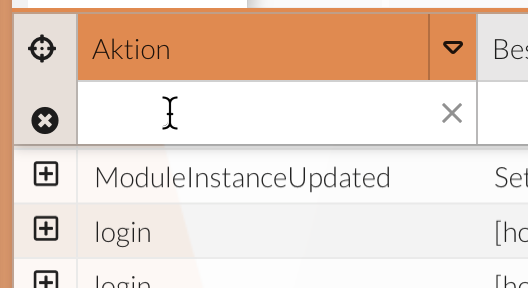
Depending on the column configuration, different filter types are available. Clicking in the corresponding field reveals which filter type is available.
If filtering is not possible, the mouse pointer indicates this:

The following filter options are available:

Filter by free text
This filter type allows you to enter any characters into the filter bar at the top of the table.
-
Click in the filter field.
-
Enter the value or part of the value.
All data containing this value (or part of it) will then be listed in a small window.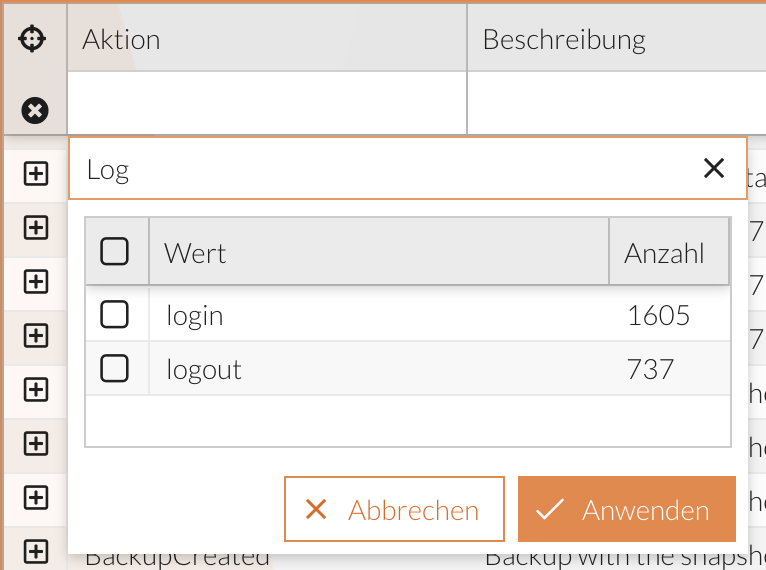
-
Select a value from the list.
or
Press Enter or click the checkbox icon [] to activate the filter.
The dataset is filtered and displays all matching entries.
Filtering Using a Drop-Down List
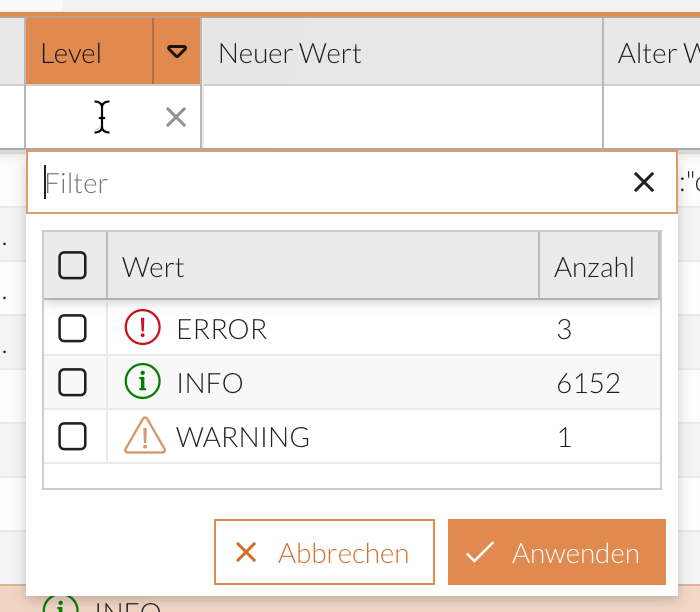
For columns configured with a drop-down list, a preselection of filter entries is available. Here, you can narrow down the drop-down list by entering your own free-text. Alternatively, you can select one or more filter entries from the provided list right from the start.
-
Click in the filter field.
-
Optional: Enter a value (or part of a value); see Filter by free text
The drop-down list will now only display filter options that contain the value (or part of the value). -
Select one or more entries from the drop-down list_._

-
Click the Apply button.
The dataset is filtered and displays all matching entries.
|
If the Monitor_CascadingDynamicFilter setting is enabled, filters that have already been applied are taken into account in the filter suggestion lists. |
Filter by Date/Time Period
For columns configured with date/time filters, you can restrict the data set based on time and date filters.
This filter works exactly like the global date filter; see Global Date Filter.
-
Click in the filter field.
A window with date filters opens.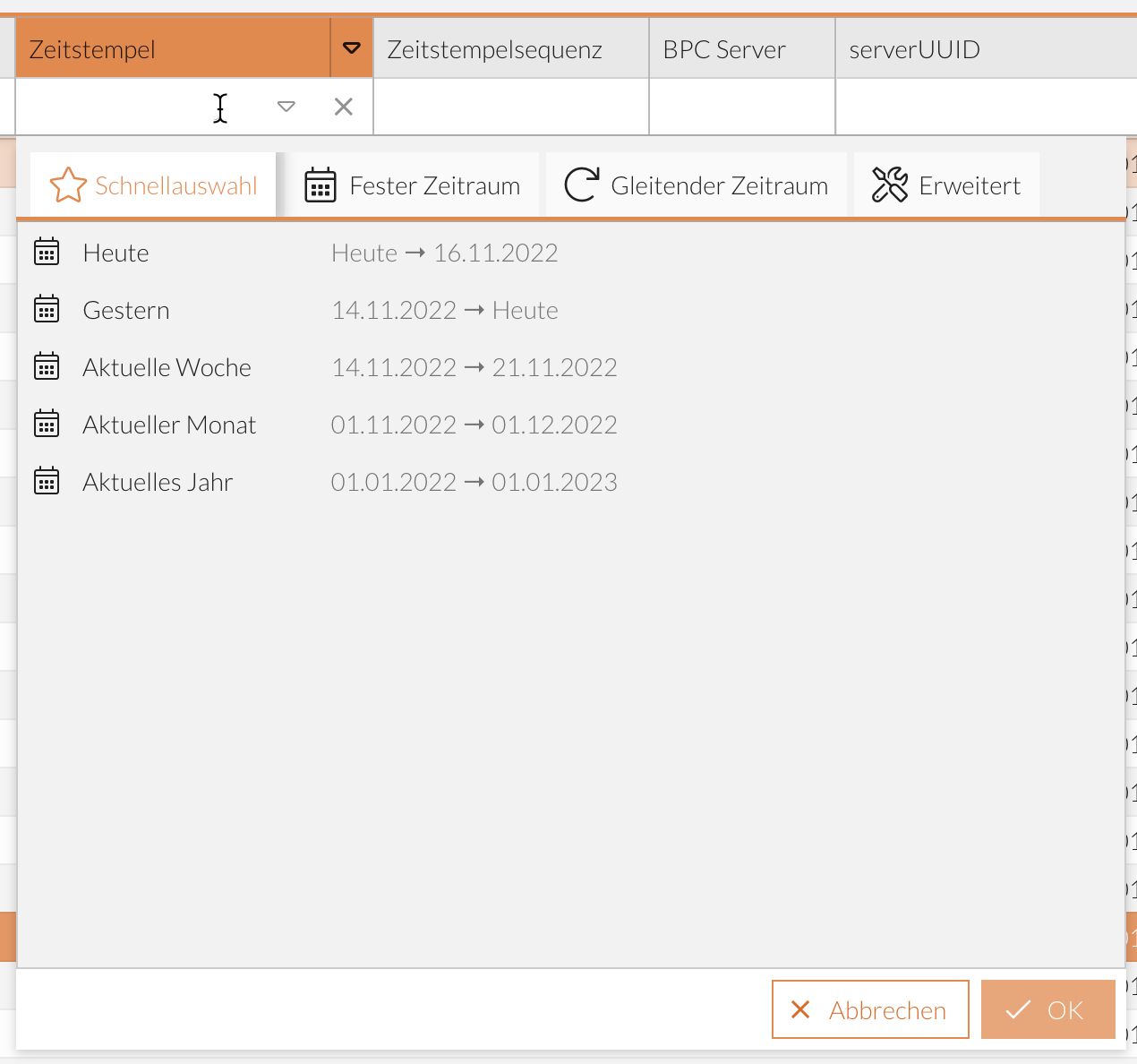
-
Select the appropriate tab for your settings and define the filter; see Selecting the Date Range.
-
Click the OK button.
The dataset is filtered and displays all matching entries.
Filtering Columns with Boolean Values
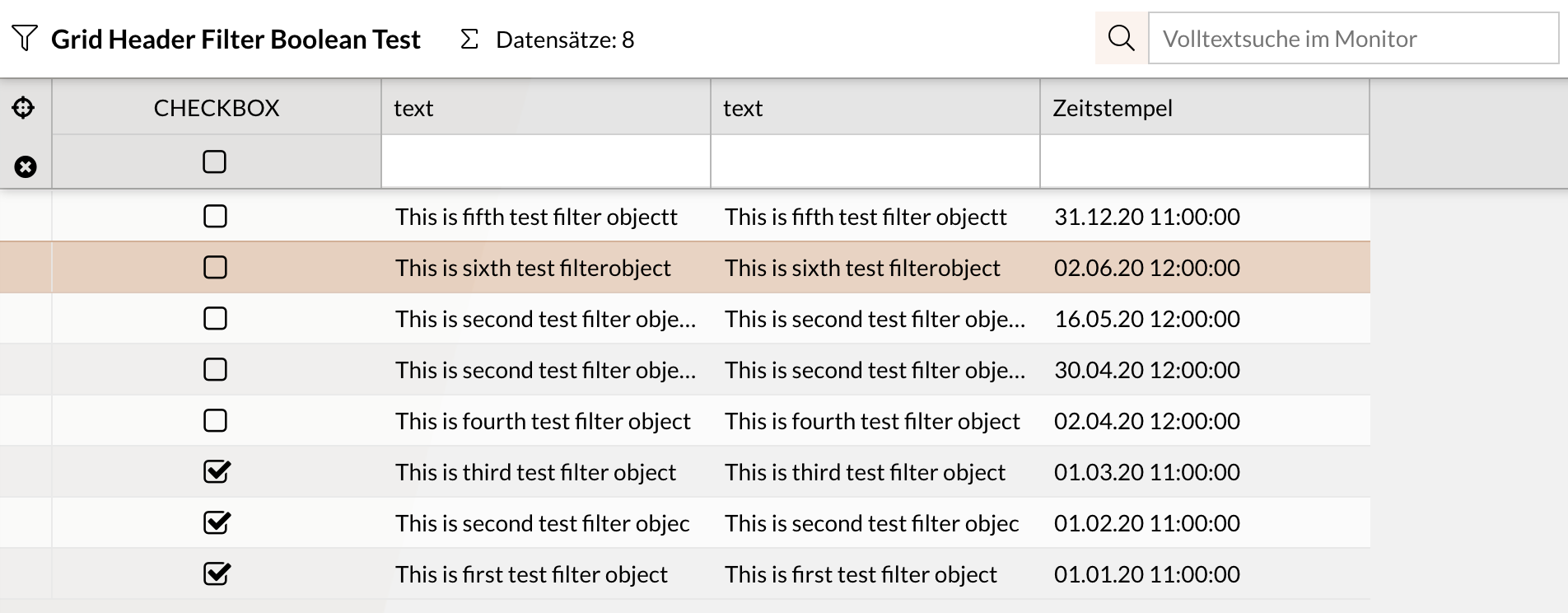
Columns with Boolean values can be filtered to display records based on the values true and false.
There are three possible filter states:
-
Filtered by
true: Displays only records where the value istrue. -
Filtered by
false: Displays only records where the value isfalse. -
No filter: Displays all records, regardless of the value.
The following usage examples illustrate how this works:
-
Task list: The “Completed” column indicates whether a task is completed (
true) or pending (false). -
User activation: The “Active” column indicates whether a user account is active (
true) or deactivated (false).
Filtering in JSON
This filter type is used for columns that contain structured data. It allows you to filter by multiple criteria within the same column simultaneously.
Unlike a simple text filter, the filter field in the column header displays a summary of the active filters.
If multiple filter criteria are active for the column, the first filter is displayed, followed by a counter indicating the number of additional active filters (e.g., system: IGUASU (+2 weitere)).
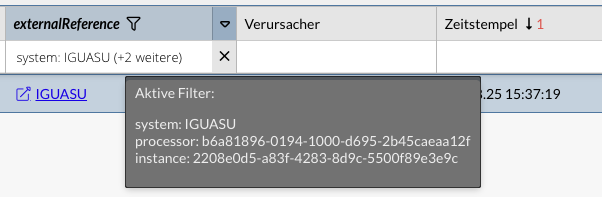
To view a complete list of all active filters for this column, hover your mouse pointer over the filter field. A tooltip with a detailed list will then appear.
Click the filter input field in the column header to open the interactive JSON key picker. This provides an interface for entering and managing filters on nested JSON data:
-
Dynamic list of keys: The picker automatically identifies all unique keys occurring in the column’s JSON data (e.g.,
related_fields.key1,related_fields.key2) and lists them in a table. -
Searching in the picker: You can use the search field at the top of the picker to narrow down the list of available keys and quickly find the field you’re looking for.
-
Enter filter values: In the Value column, you can click to open a text field. Here, you can enter the desired filter term.
-
Apply filter: Click the Apply button (or press Enter) to apply the entered key-value pairs to the table. Clicking the Cancel button closes the picker without saving any changes.
-
Reset filter: To remove all active JSON filters from this column, click the delete icon (Filter Reset) in the column header, or clear the values in the picker and click Apply.
Filter by Entry
In this case, the filter value is taken directly from the table entries.
-
Select an entry within the table.
-
Open the context menu by right-clicking.
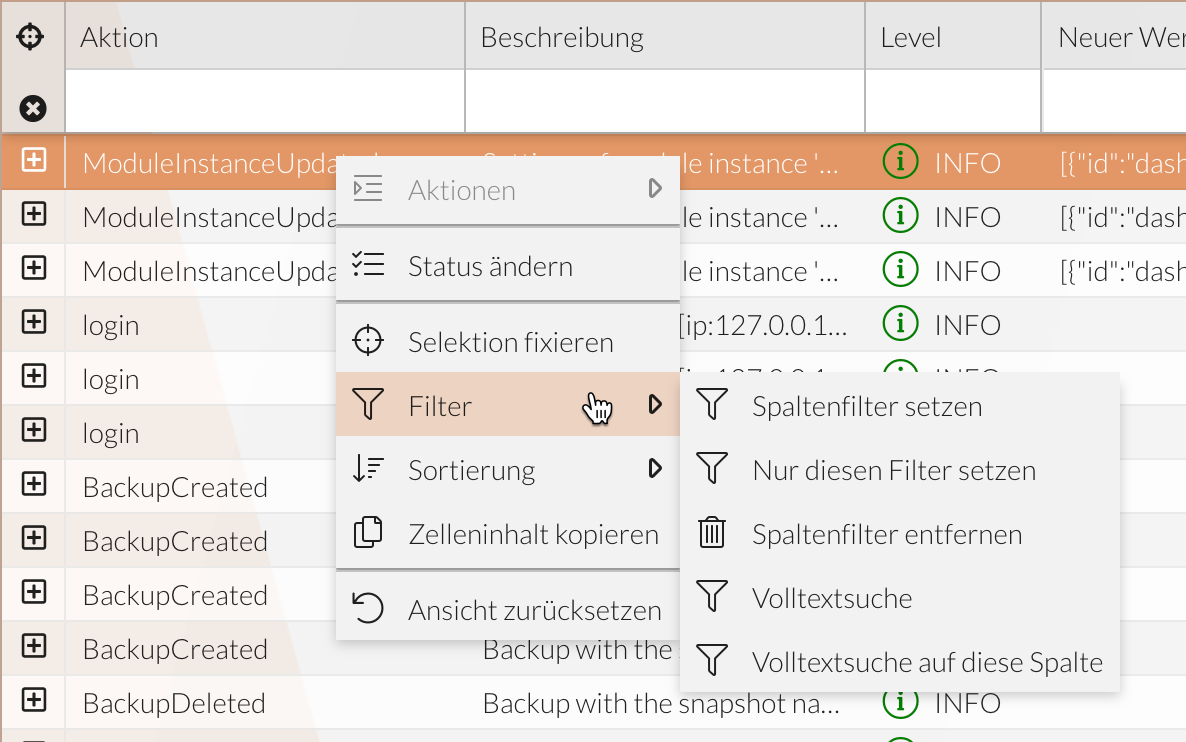
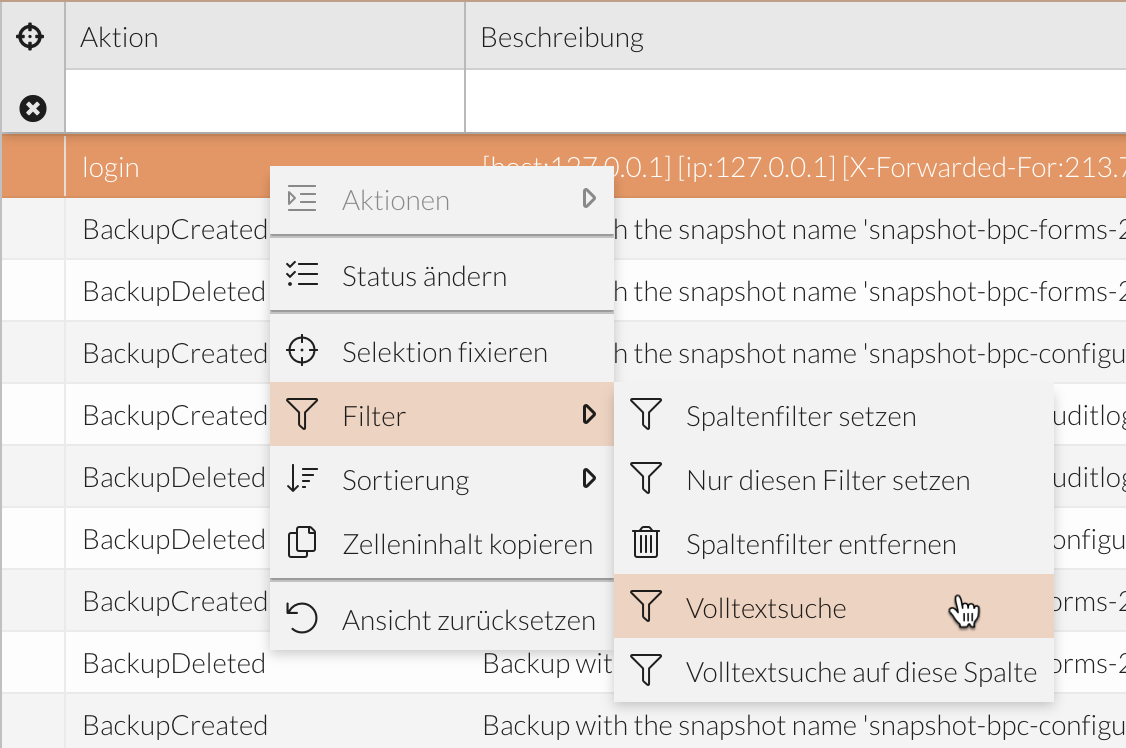
. .., select Filter > Set Column Filter.
The value is transferred to the filter field in the table header. + or , select-
Filter > Set Only This Filter.
The value of the entry is transferred to the filter field in the table header, and all other active filters are removed.
-
The dataset is filtered and displays all matching entries.
Full-text search The full-text search offers two different options: "Full-text search" and "Full-text search on this column". With the
full-text search, the raw value of the selected entry is entered into the search field. The search then looks for this value across all columns. Additionally, further search criteria (see ) can be added. When performing a
full-text search on this column, the reference to the column is copied into the search field along with the value of the selected entry. Afterward, additional search criteria (see ) can be added. Select an entry within the table. Open the context menu by right-clicking.
Advanced Search
. .
-
Select Filter > Full-Text Search.
The value is transferred to the full-text search input field.
or -
Select Filter > Full-Text Search on this column.
The value, including the column reference, is transferred to the full-text search input field and can be combined with additional search criteria.
The dataset is filtered and displays all matching entries.
Both search options support combining multiple entries in the search field by adding them one after another to the “Full-text search” or “Full-text search on this column.”
Remove filters
There are several ways to remove the applied filters. You can remove individual filters or deactivate all applied filters at once.
Remove filters from a single column
If you want to remove filters from a column but keep other active filters, choose one of the following methods:
-
Clear content from the filter field
Click in the corresponding field in the table header and clear the content by clicking the times[] icon.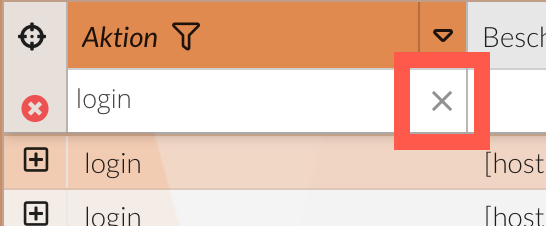
-
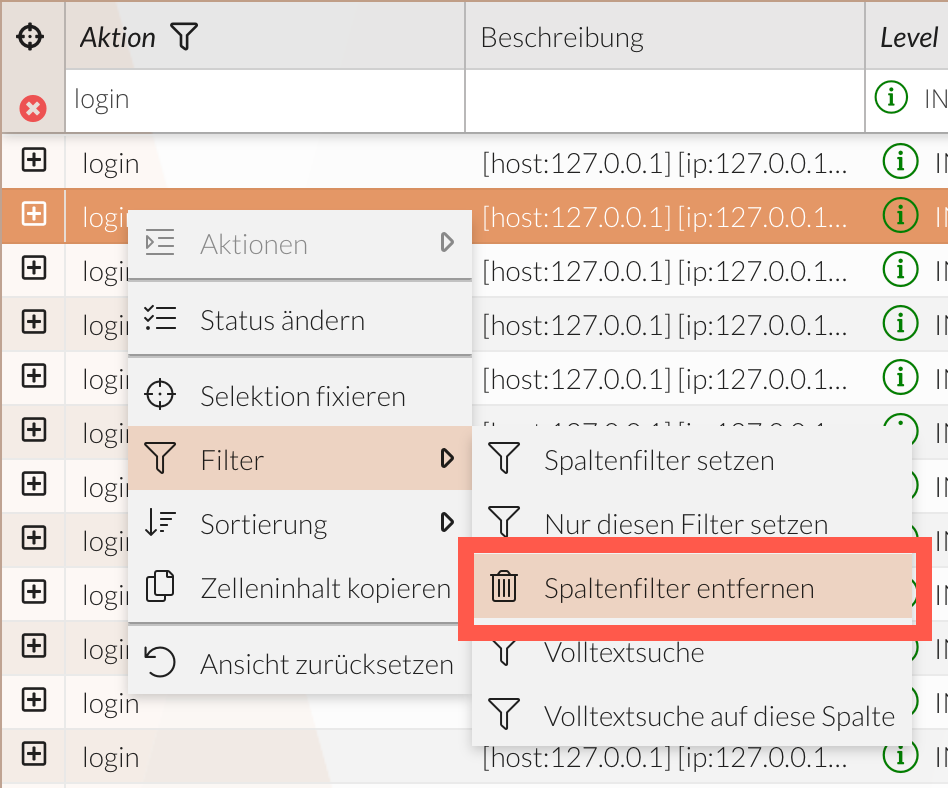
Remove column filter via the context menu
-
Select an entry within the column from which you want to remove the filter.
-
Right-click to open the context menu and select "Remove Column Filter."
-
Remove All Active Filters
If you want to remove all active filters completely, you can do so in two different ways—depending on how your administrator has configured your view:
-
Via the icon in the table header
Click the icon in the table header.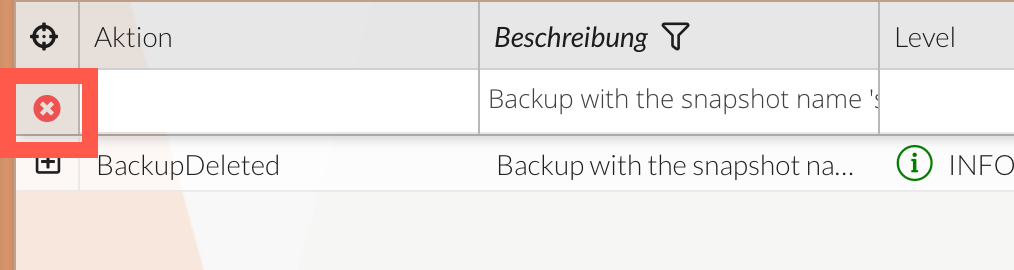
-
Via the icon in the toolbar
If available, click the arrow next to the icon in the toolbar and select "Remove filter."
Save filters
If you want to save the active filters so you can quickly access them again, you must save the view as a favorite.
