Customize the Dashboard View
This section describes all settings and configurations that are made within the module view itself.
For more information on configuring modules and module components in the administration area, see Configuring the Process Dashboard.
To access the module view of the Process Dashboard, you must have created a component in the administration area. From there, you can jump to the module view using the icon, or you can select the module component from the navigation bar if you have added the component to the navigation.
See also Dashboard Quick Actions
Create a New Dashboard
To create another dashboard, a corresponding function icon is available in the toolbar:
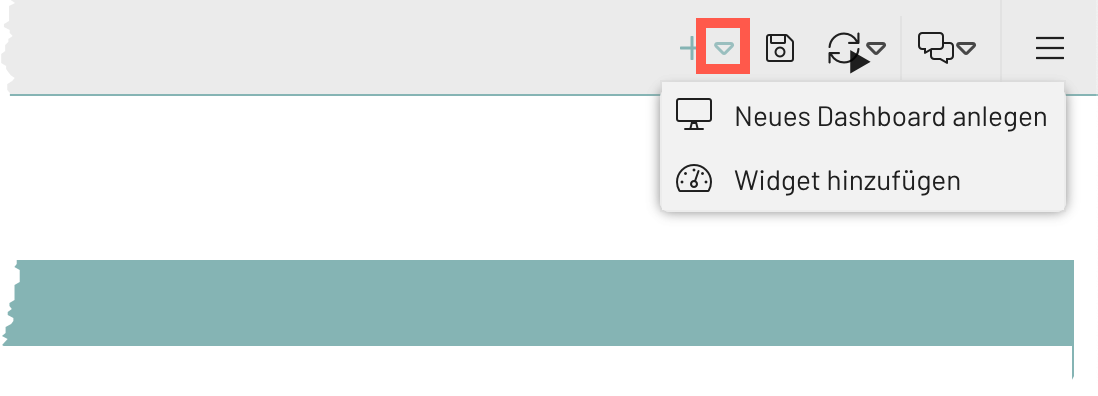
The new dashboard can be configured in the same way as when creating a new dashboard component in the administration area; see Dashboard Component Configuration.
Save Dashboard
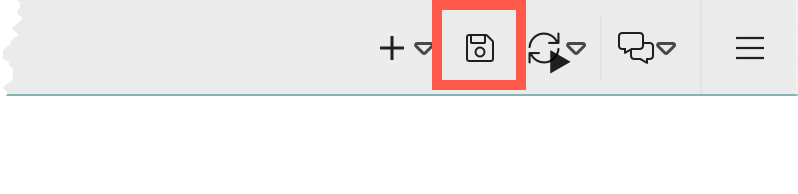
To save a newly created dashboard or to save updated configurations of an existing dashboard, use the save function in the toolbar:
Change Layout
Two layout options are available for the Process Dashboard: "Columns" and "Table" (setting layout).
Column Layout
The column layout (default) allows you to divide the dashboard into vertical columns, with each column able to contain multiple widgets. This arrangement is particularly suitable when content is to be displayed side by side in columns and all content is to be visible at a glance.
Features:
-
Any number of widgets per column.
-
Dynamic adjustment of column width is possible.
-
The height of individual widgets does not affect other columns.
-
Clear and flexible arrangement of widgets.
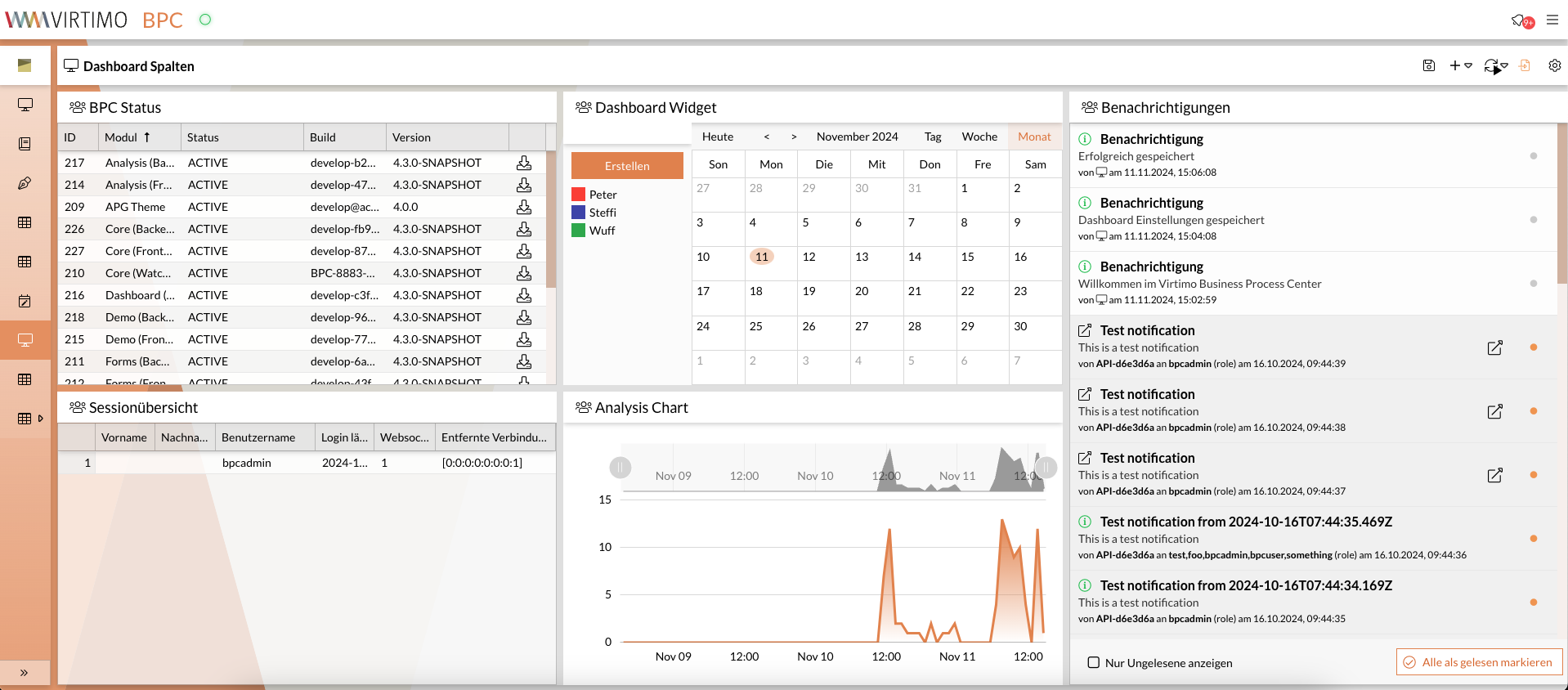
Table Layout
The table layout allows for precise arrangement of widgets in a grid of rows and columns, with each cell containing a single widget. This layout is particularly suitable when a more complex arrangement is required and the number or size of the widgets necessitates scrolling within the dashboard.
Features:
-
Fixed cell structure with one widget per cell.
-
Ability to extend widgets across multiple cells (e.g., across two columns or two rows).
-
Suitable for dashboards that require a structured, table-like display.
-
Scrolling when the size or number of widgets extends beyond the edge of the screen.
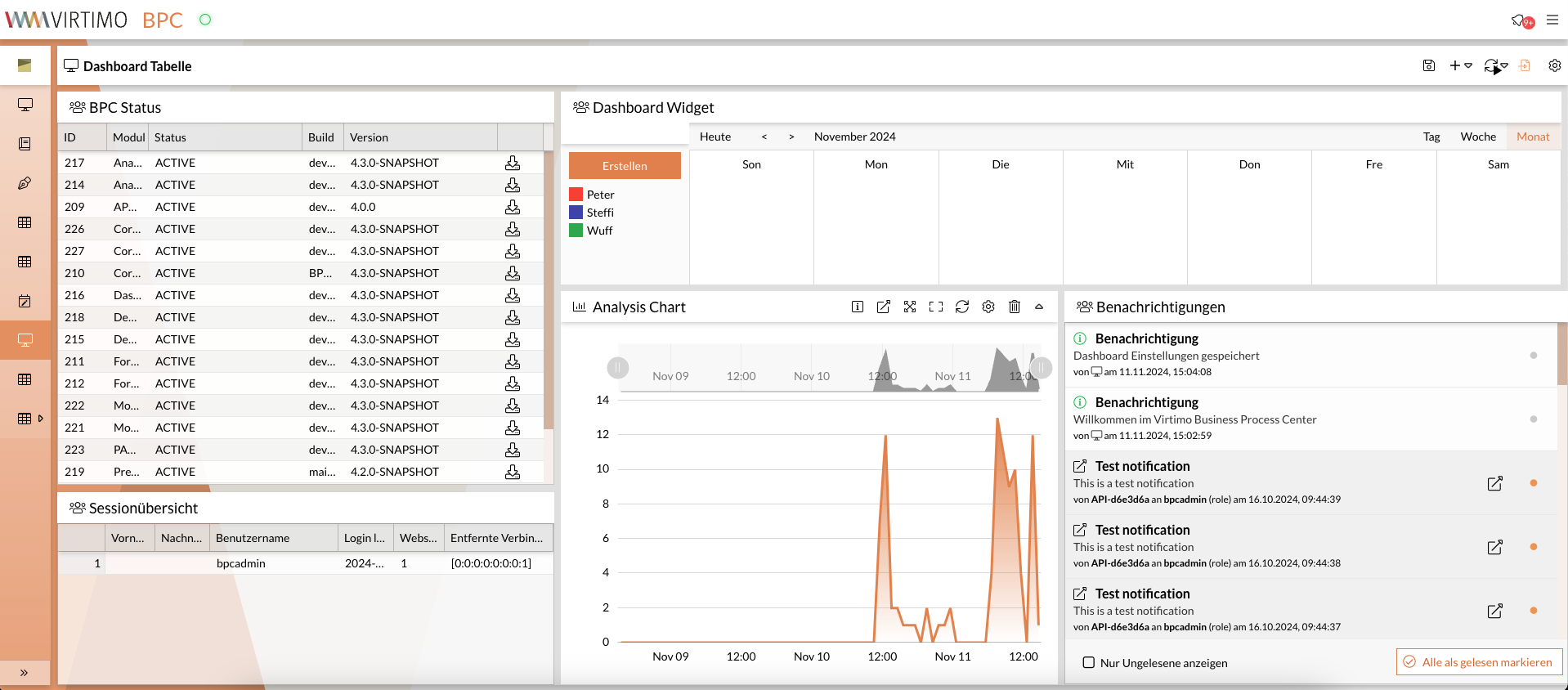
Widgets
Dashboard widgets integrate content from other modules, providing an overview of data and information distributed across different areas on a single page. They also allow you to select specific content and jump directly to the corresponding details within the relevant module.
Specifying the Number of Widgets
The administrator can divide the dashboard into sections (columns, or columns and rows in a table layout), allowing multiple widgets to be displayed on a single dashboard at the same time.
In the column layout, a single column can contain multiple widgets.
In the table layout, each cell contains exactly one widget.
The number of columns (and rows in the table layout) can be set in the administration area via the settings.
In addition, new widgets can always be added by selecting the column using the icon.
Add Widget
To add a new widget to a dashboard view, a corresponding function icon is available in the toolbar.
Follow these steps to add a widget to the dashboard:
-
Open the dashboard module.
-
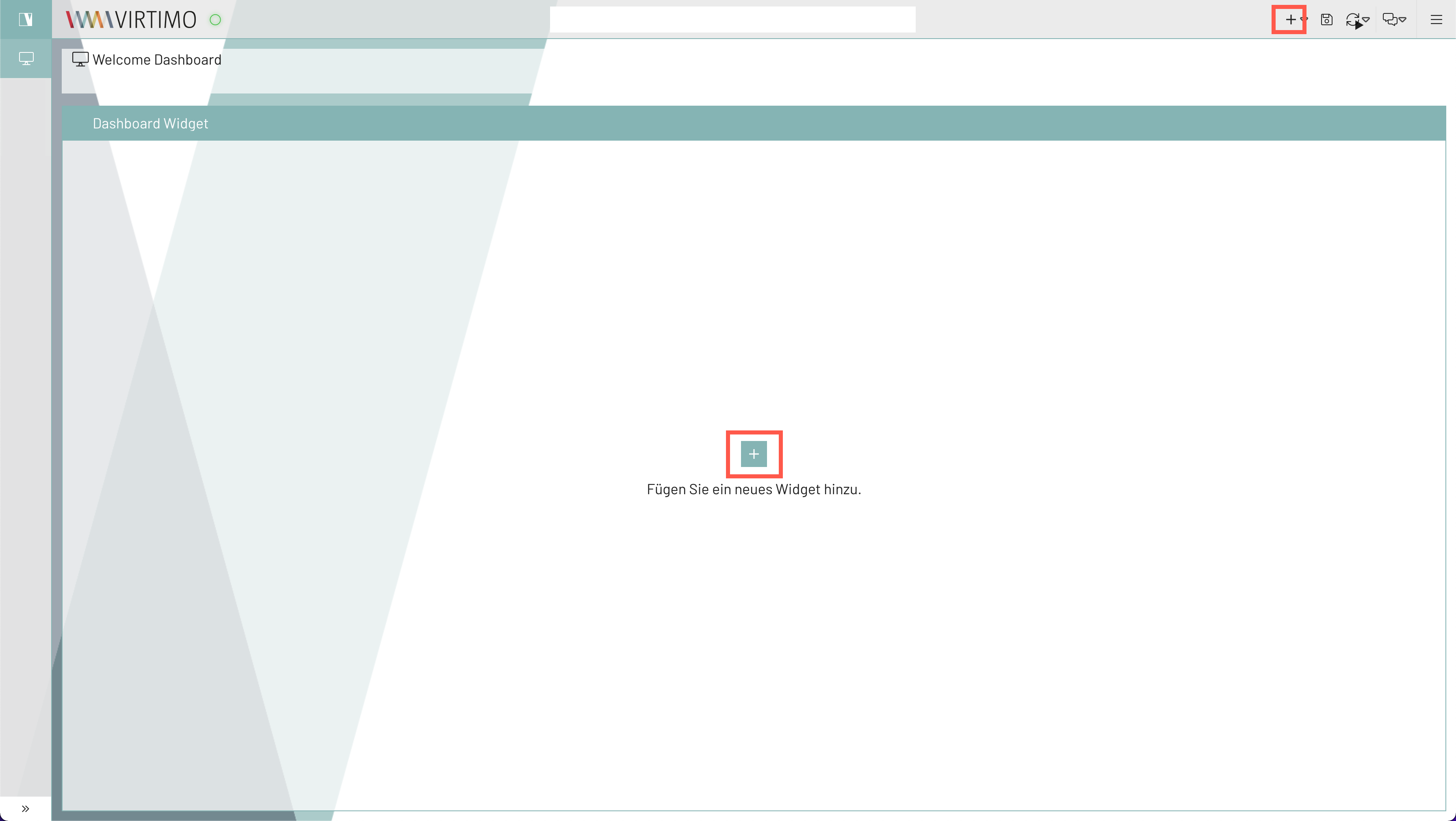
Click the icon in the toolbar or the button on the page display.
-
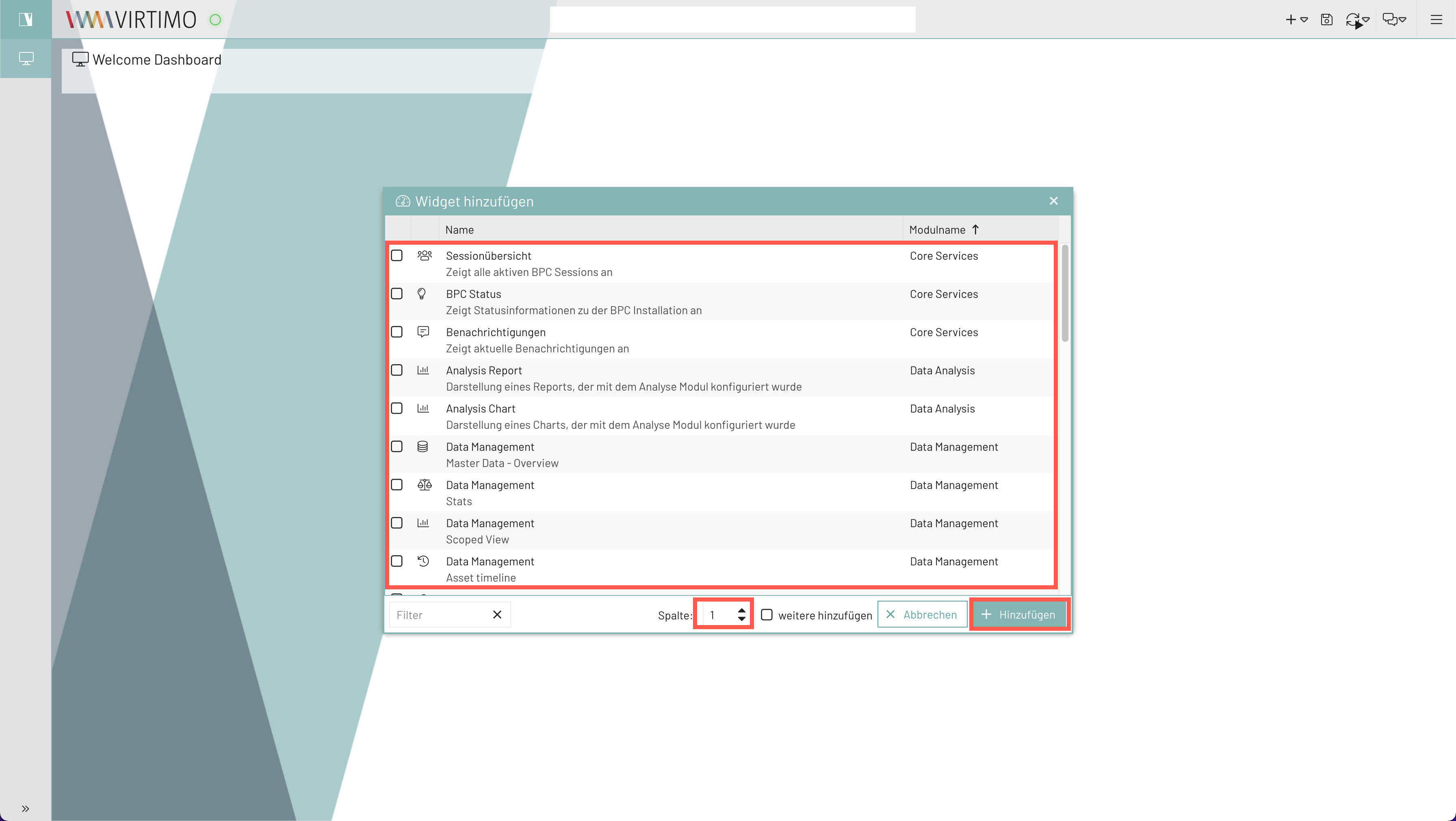
Select the module for which you want to create a widget on the dashboard.
-
Select the column in which the widget should be inserted (here, for example, in the first column).
-
Click the Add button.
-
Save the dashboard (see Save Dashboard).
Widget Functions
When you hover your mouse pointer over a widget, the widget functions are displayed. The functions are independent of the widget’s content.
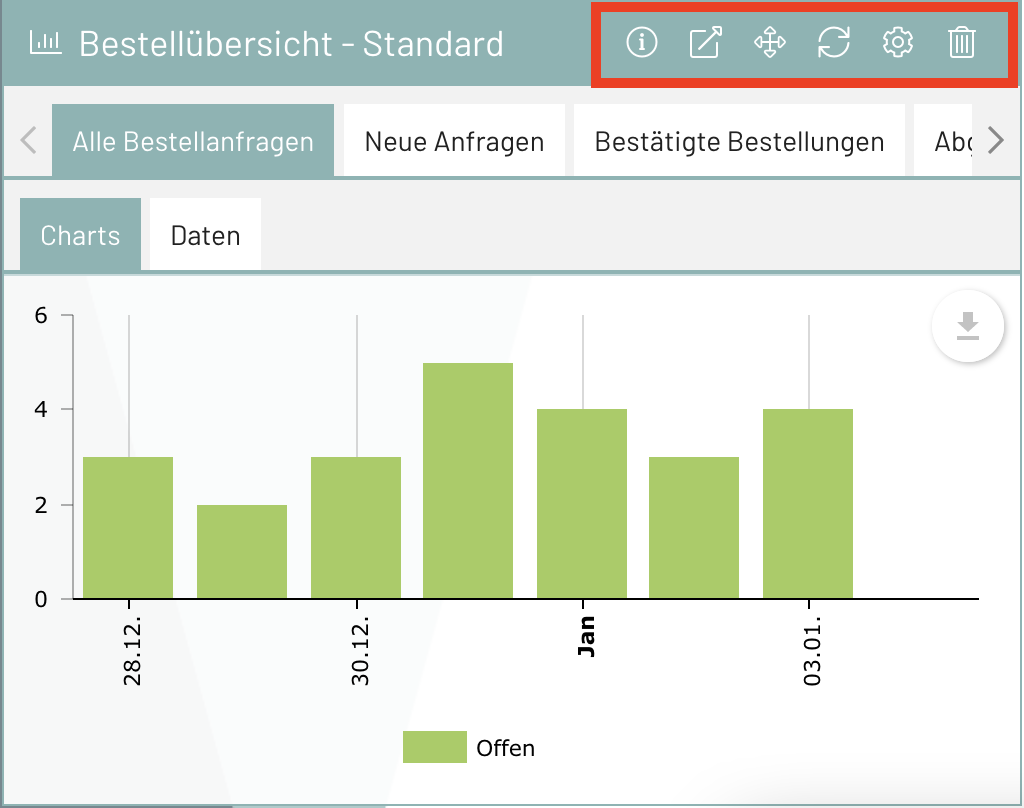
| Icon | Description |
|---|---|
(Only for monitoring widgets) |
|
If available, a more detailed description or explanation of the widget appears as a tooltip. |
|
Opens the corresponding module from which the information displayed in the widget originates. |
|
Opens a menu with options to move the widget up, down, left, or right. |
|
( Table layout only) |
|
Refreshes the widget’s content. |
|
Opens a window for configuring the widget, which determines its content and appearance. |
|
Removes the widget from the dashboard. |
Refresh the view or set up automatic refresh
You can specify whether the dashboard’s widget content should be refreshed automatically or whether the displayed information should be refreshed manually.
-
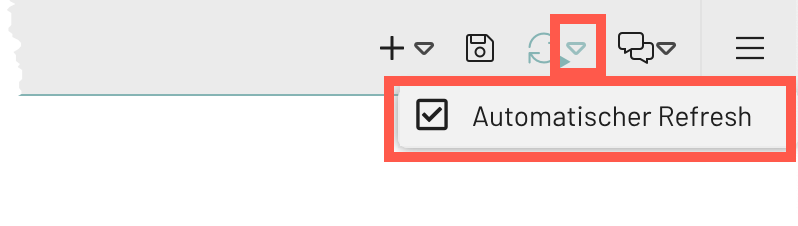
Click the arrow next to the refresh icon in the toolbar.
-
Check the box.
-
Click the arrow next to the Refresh icon in the toolbar.
-
Uncheck the box.
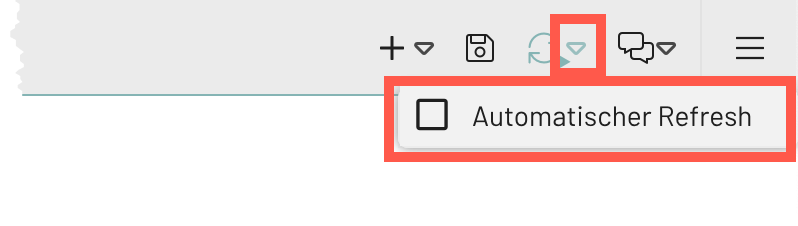
To refresh the view manually, click the Refresh icon.