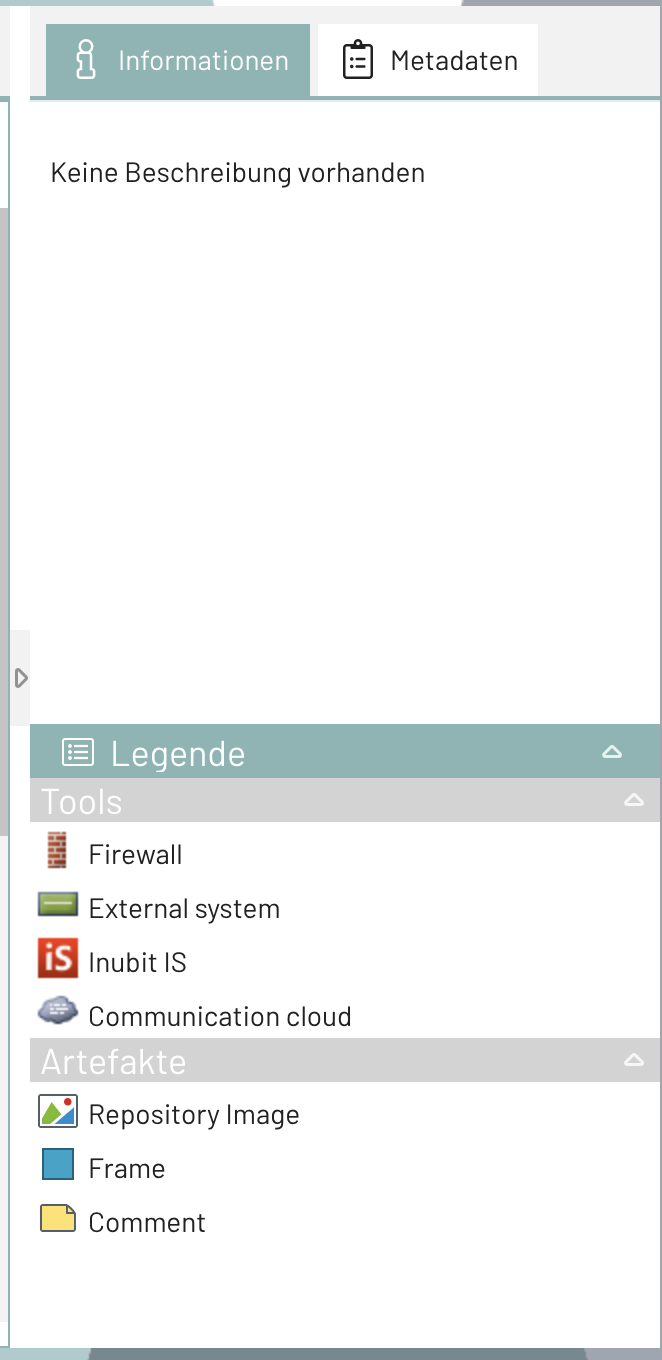
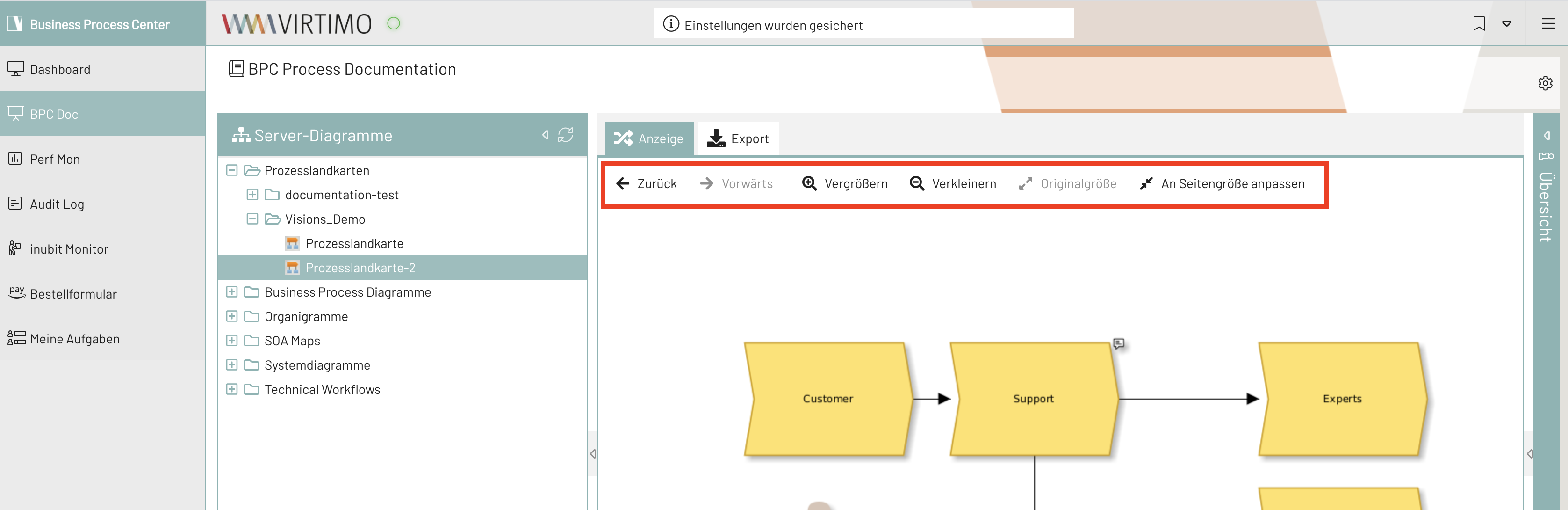
Standard Functions
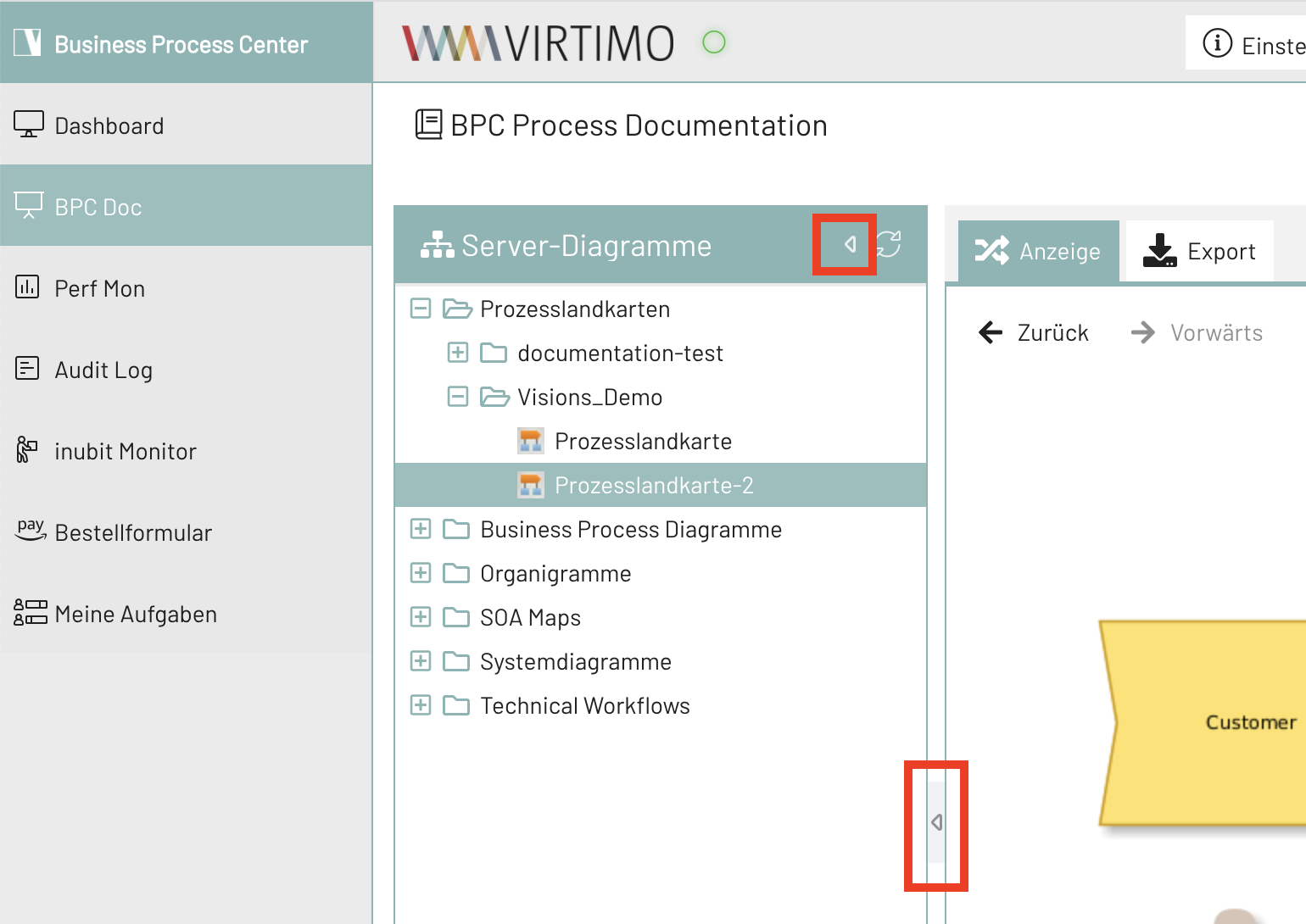
Collapse & Reload Tree View
You can use the arrow buttons to collapse the tree structure, thereby freeing up more space for the Diagram view.
The ring button allows you to reload and refresh the tree structure without having to reload the entire page.
Actions in the View
Export
You can export Diagrams and information/metadata as a PDF.
|
Prerequisites
Administrative configuration is required to use the export functionality. If you encounter problems during export, this may be due to missing or incorrect configuration. |
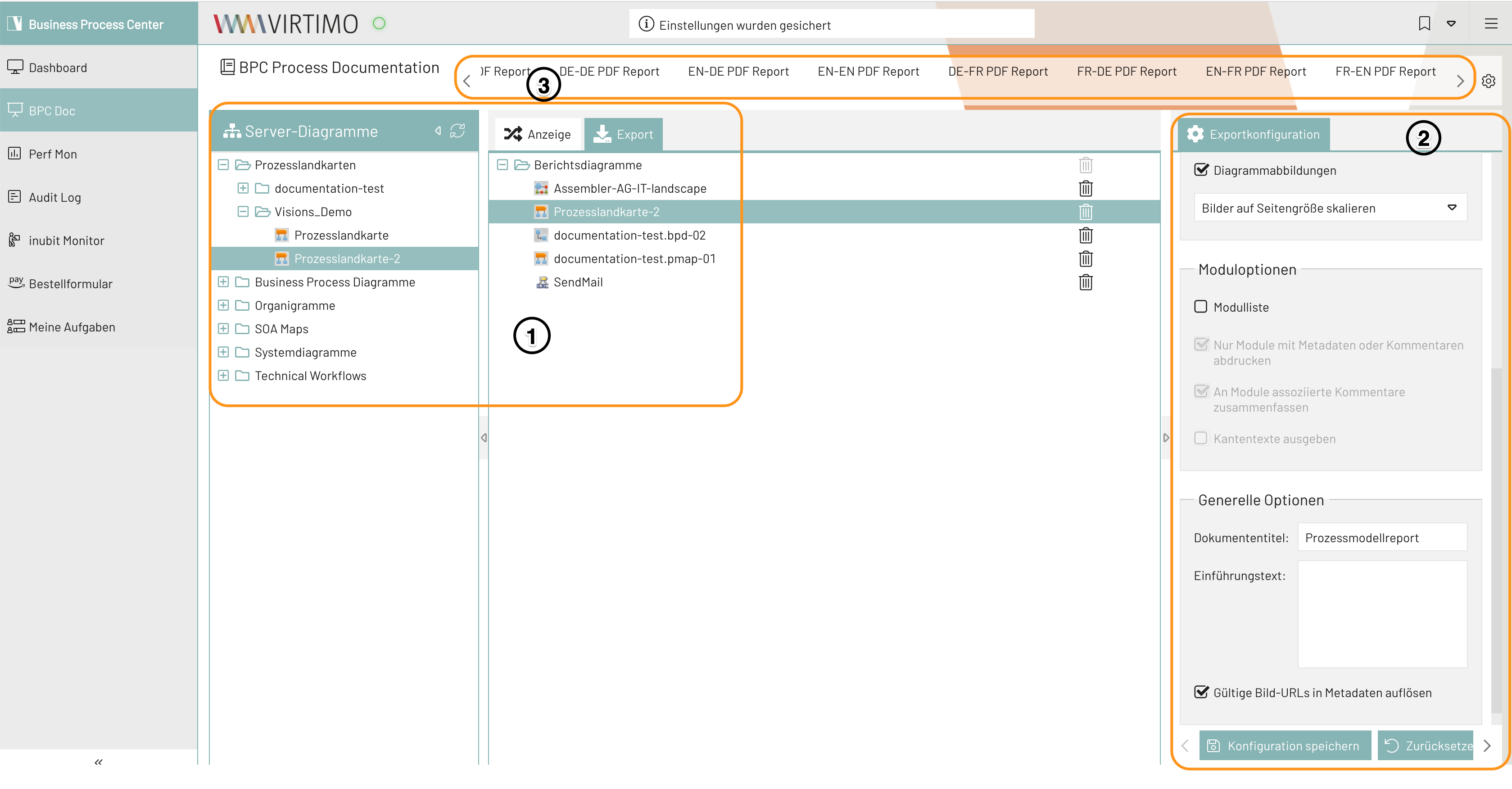
Compiling Content (No. 1)
Use drag-and-drop or the context menu in the tree view to select all diagrams to be exported and move them to the area under the "Export" tab.
Set Export Configuration (No. 2)
All necessary settings are configured in the "Export Configuration" section. The export can be configured using various Parameters.
Then, click the "Generate Document" button to start the export. Once the PDF has been generated, it is downloaded via the browser.
Clicking the "Reset" button resets all settings in this section to their default values.
Manage Export Configurations (No. 3)
The settings of an export configuration can be saved so that they can be reused.
Clicking the "Save Configuration" button saves the entire configuration under a unique name. All saved configurations are available above the diagram view and can be selected immediately with a single click. The saved configuration is then applied immediately.
Search
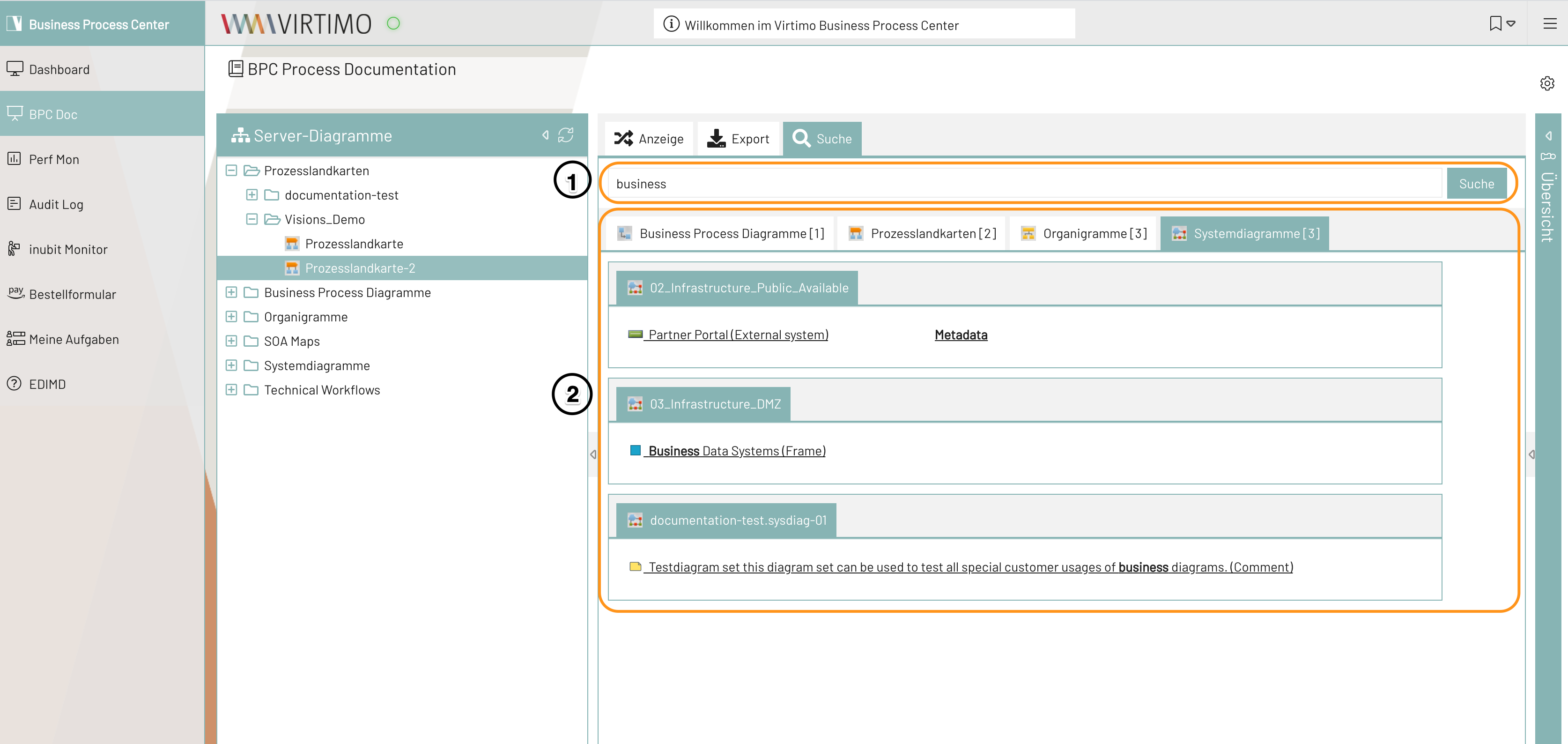
Perform Search (No. 1)
Any search terms can be entered in the input field. The search query is triggered by pressing “Enter” or clicking the “Search” button. All search results appear below the input field. If no search results are found, a corresponding message appears.
Using Search Results (No. 2)
All search results are displayed separately by chart type. The tabs for the individual diagram types take you to the list of diagrams found. The tab contains the diagram name; below it, any diagram elements included in the search term are listed. If the search term was found in the metadata, a corresponding text link appears.
All references in the search results are links. With a single click, you can easily navigate to the Diagram, the diagram element, or the diagram metadata.
Information & Metadata
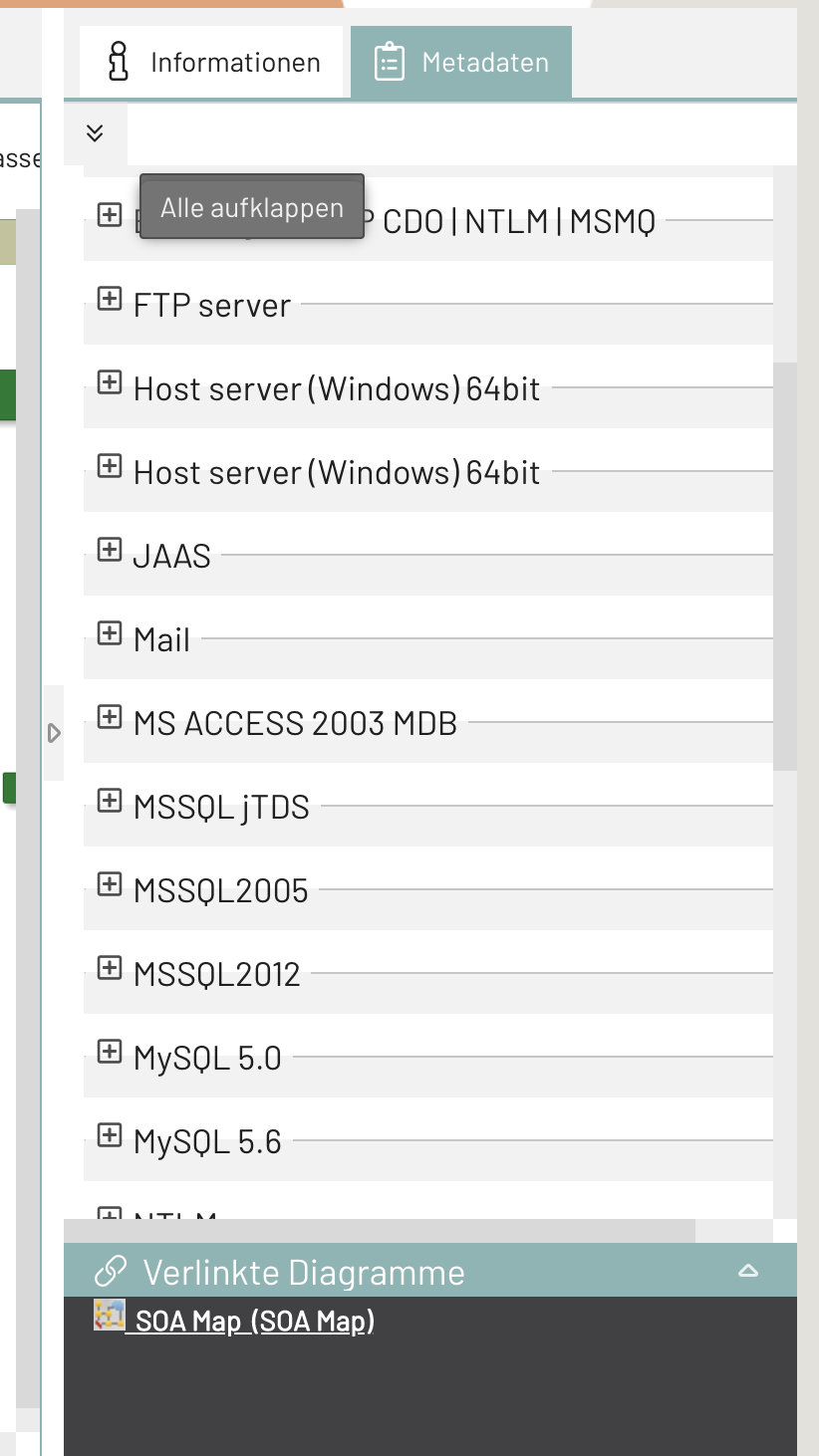
The "Information" section displays the descriptive text associated with a Diagram.
The "Metadata" tab takes you to the metadata view. All available information is listed here one below the other. For a better overview, you can expand and collapse the data.