Leader Data Objects
Leader data consists of information about, for example, products, suppliers, and customers. It is typically stored once and is available to users for use and modification. Leader data objects are managed and maintained using the Data Management module.
The data records are displayed collectively as a table. The columns contain the information from the detail view. (Depending on the template, the content may vary by customer.)
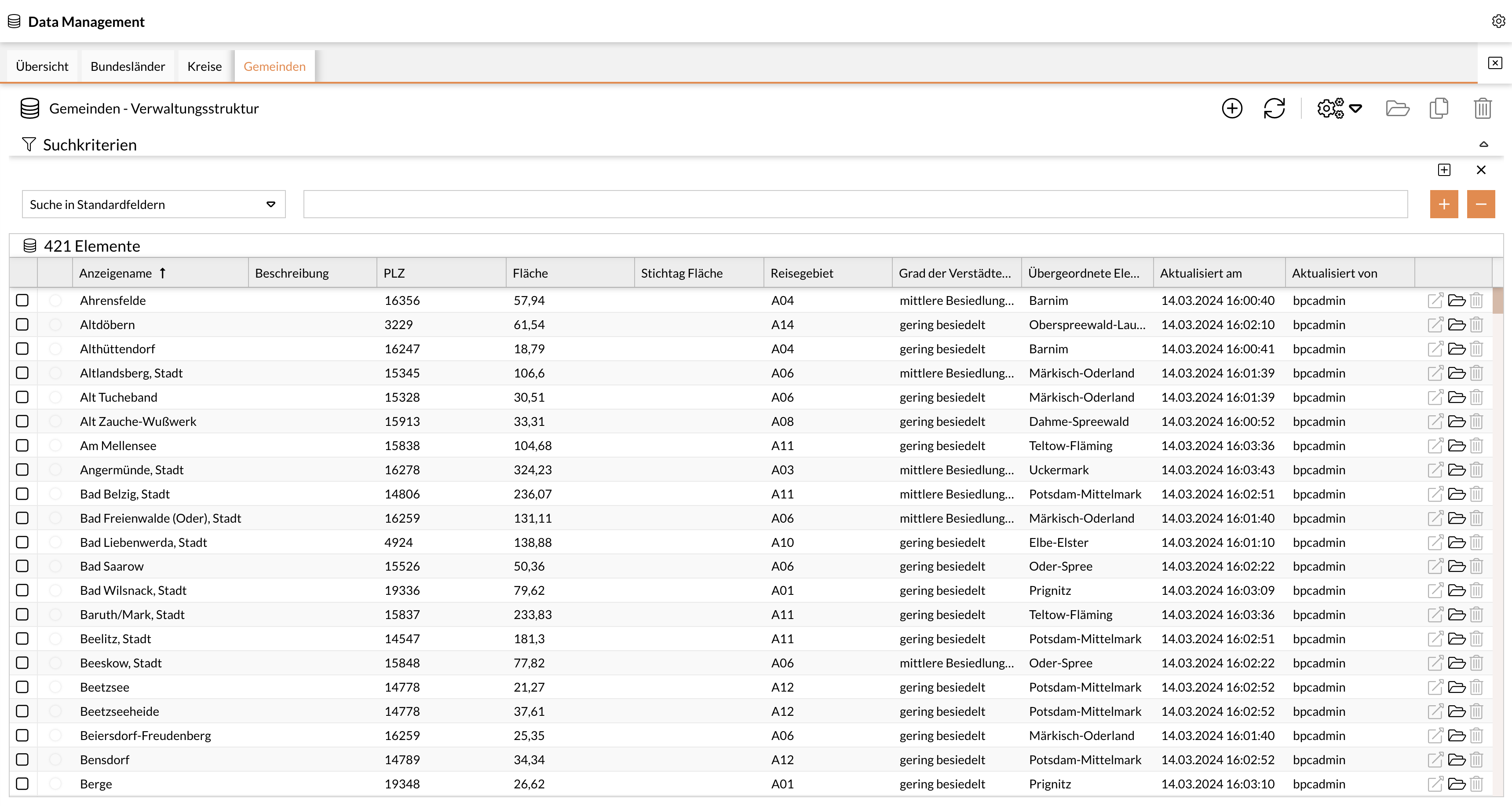
The following functions are available for Leader data:
-
Create New Element
-
Update Element (Reload)
-
Jump to Module
-
Trigger Actions for Element
-
Manage Records
The following functions are available for records:
-
Delete Record
-
Open Record
-
Jump to Module
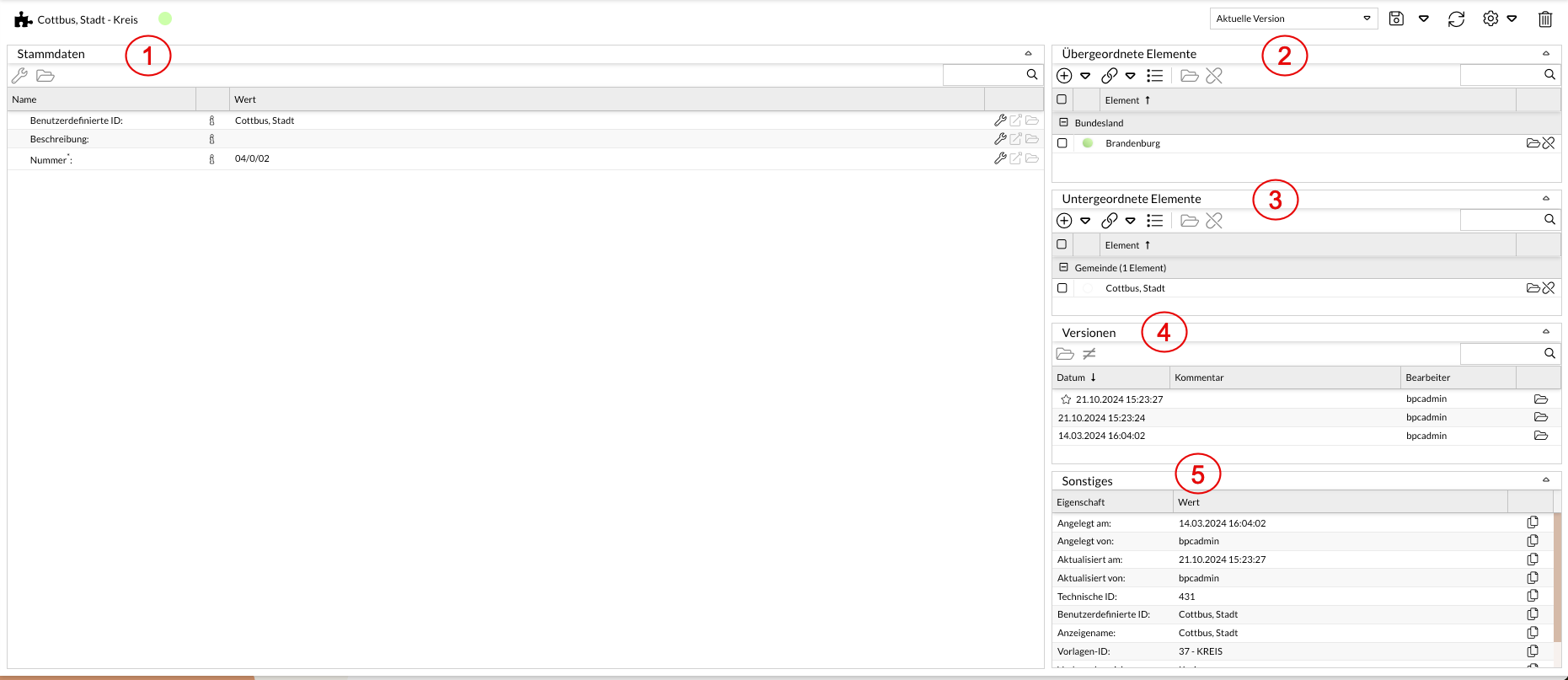
The list contains all created Leader data objects. To view the list or a Leader data object, double-click the corresponding row. The detail view for the respective Leader data object (or attribute) opens.
Leader Data
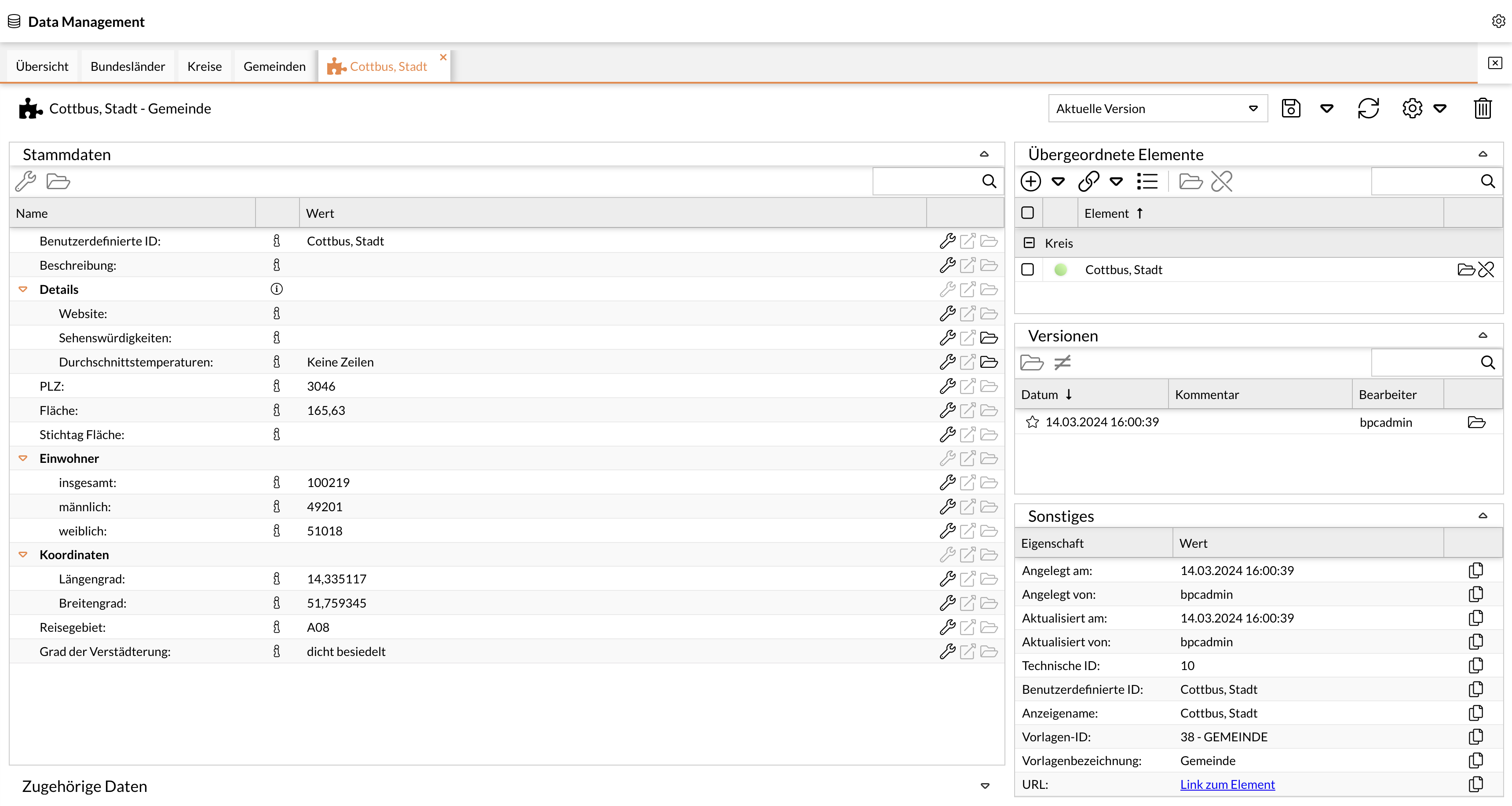
Data Management is used to map all necessary Leader data for an application and offers extensive interfaces for embedding the data and metadata into processes and application workflows. Data object structures can be flexibly created, modified, or extended for this purpose using templates. Various data objects can then be related to one another as parent or child elements and managed in a dependent manner. Leader data creation and modification can be performed manually or automatically, with all changes subject to validation, versioning, and approval.
Templates
Leader data is mapped through configuration (modeling) based on so-called templates. Activating these templates automatically generates the data structure in the database—including the user interfaces for searching and maintaining Leader data. This flexible approach enables the mapping of customer-specific Leader data without programming.
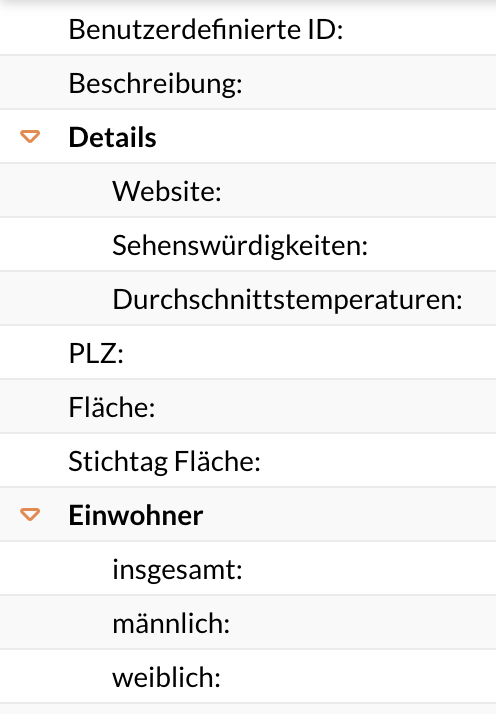
The base installation includes templates that can be individually created or customized. The design layout is also configurable. When creating templates, all common data types (strings, dates, lists, numbers, checkboxes) are supported.
Optionally, Data Management can be extended to include the ability to define template-based views for maintaining the respective data, thereby enabling role-specific data maintenance when multiple roles are assigned to a Leader data object. Role-specific execution of validation processes can be enabled by default through the configuration of technical workflows.
Relationships Between Objects
The ranking of the attributes also places them in a hierarchical relationship with one another. They form a tree, meaning each attribute has exactly one parent and one child attribute. The attributes are related to one another and refer to other entries.
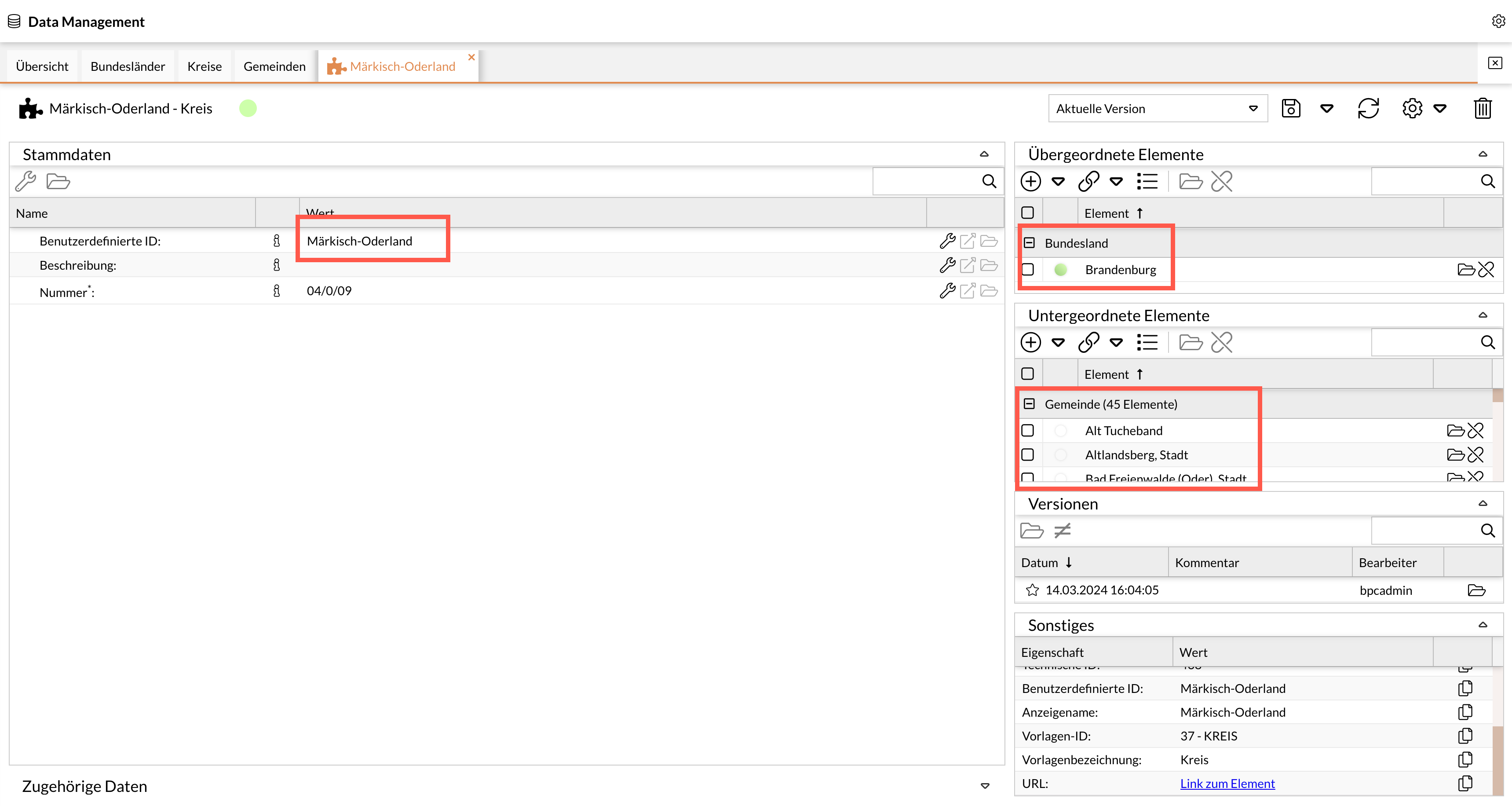
As an example for the “Regional Structure” domain, the relationship might be as follows:
The parent element of the displayed Leader data object “County” is the “State,” and the child elements are the “Municipalities.”
See also Linking Leader Data Objects
This section displays the main Leader data for an attribute, which can be edited using the following functions:
-
Add Attribute
-
Edit
-
Open Attribute
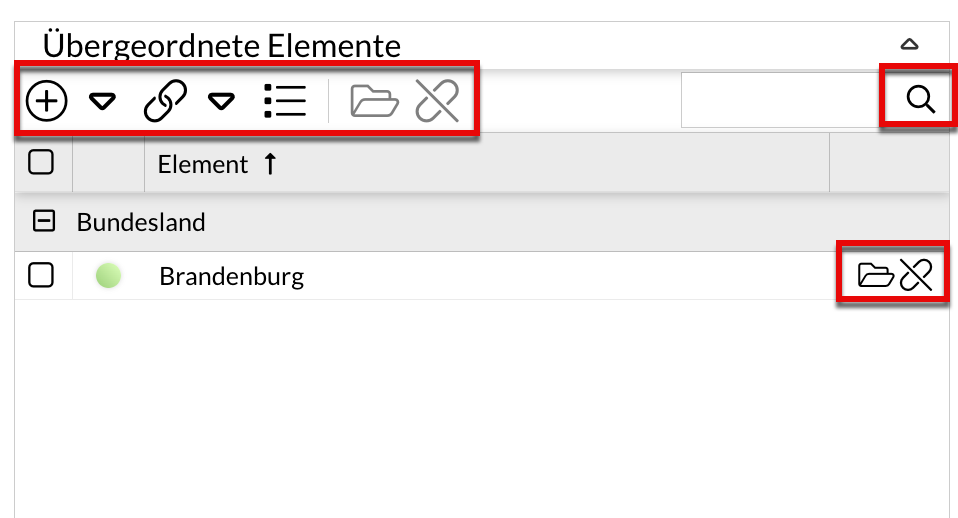
Parent Elements
The attribute has exactly one parent attribute. The attributes are related to one another and refer to other entries. The parent attribute is displayed in this window.
The following functions are available for parent elements:
-
Create New Element
-
Link Element
-
Display Elements
-
Remove Assignment
-
Open Element
-
Search
Child Elements
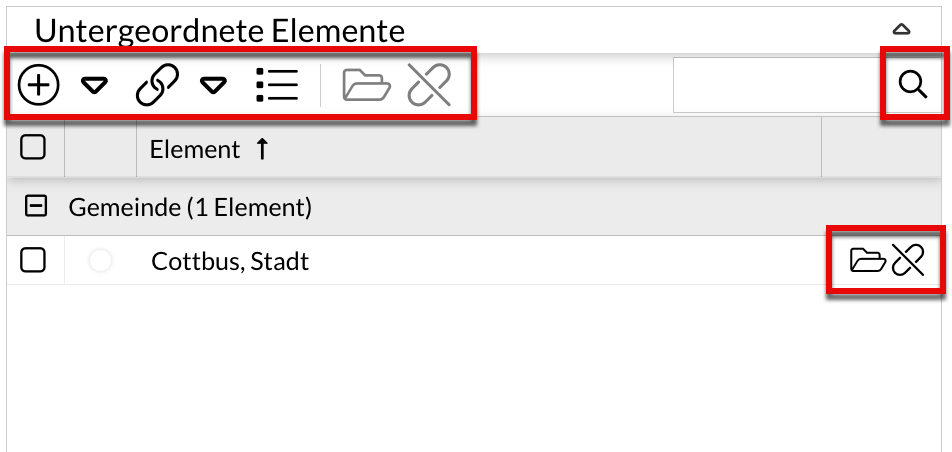
The attribute has exactly one child attribute. The attributes are related to one another and refer to other entries. This window displays the child attribute.
The following functions are available for child elements:
-
Create New Element
-
Link Element
-
Display Elements
-
Remove Association
-
Open Element
-
Search
Versioning
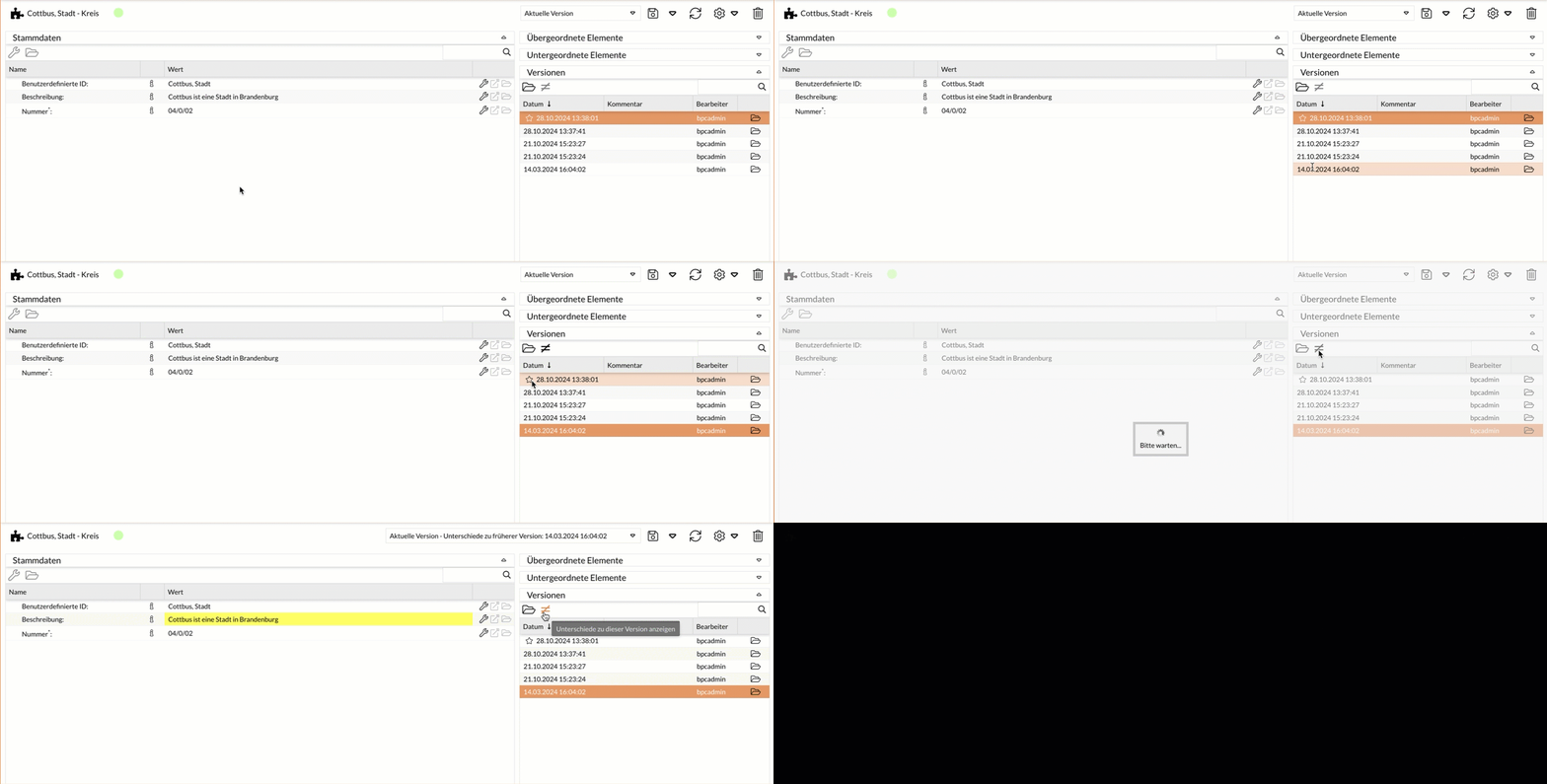
All changes (to both workflows and modules) are versioned. It is easy to track the changes that have been made. You can also switch to older versions and create tags that group multiple workflows into a single package (tag).
The following functions are available for versioning:
-
Open selected version
-
Search
-
“Star” indicates: currently active version
-
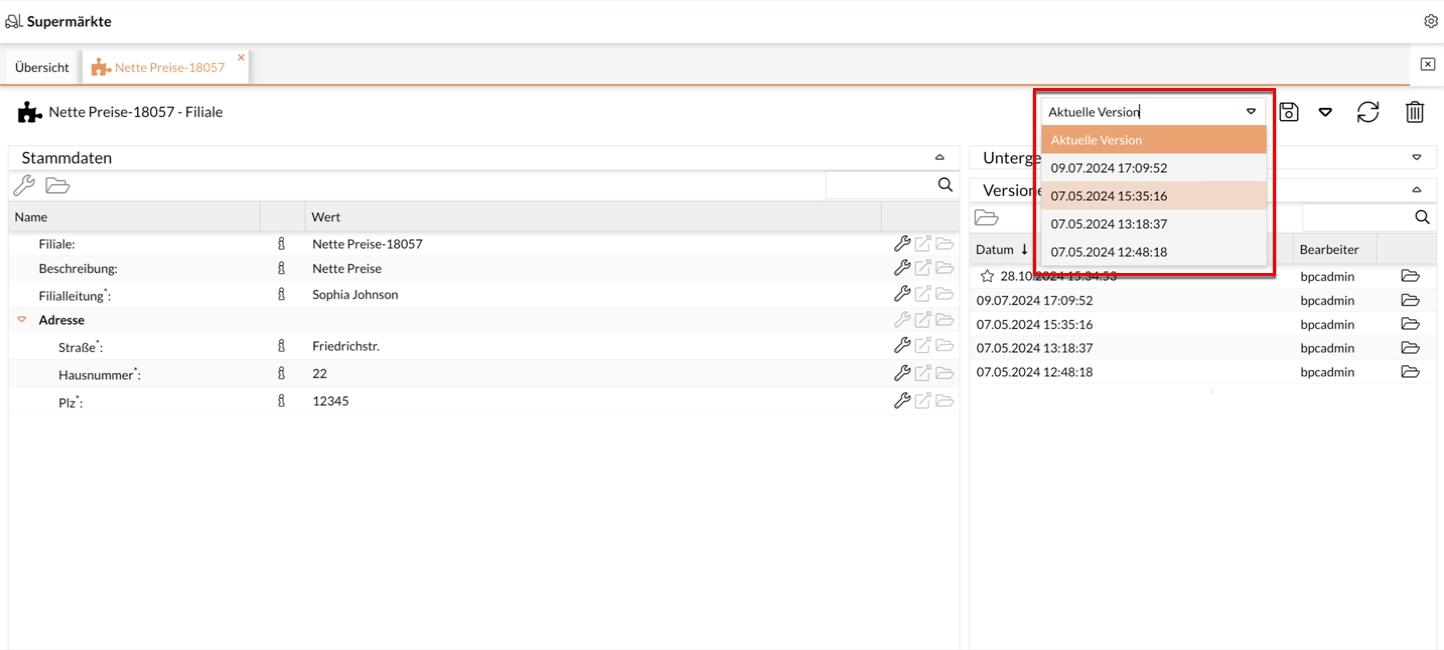
Open any version
-
View version differences (optional)
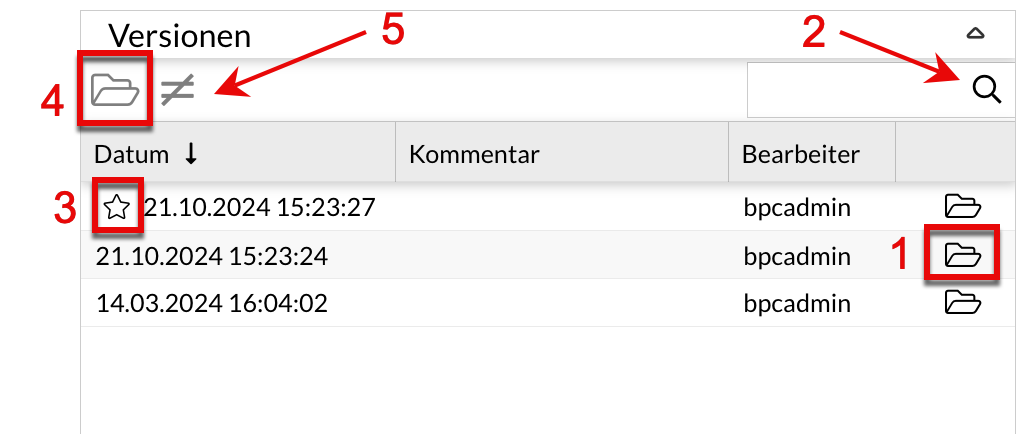
Active Version: The current validity of a version can be activated using the "star." This means that an older (or newer) version can also be assigned validity.