Catalog Editor
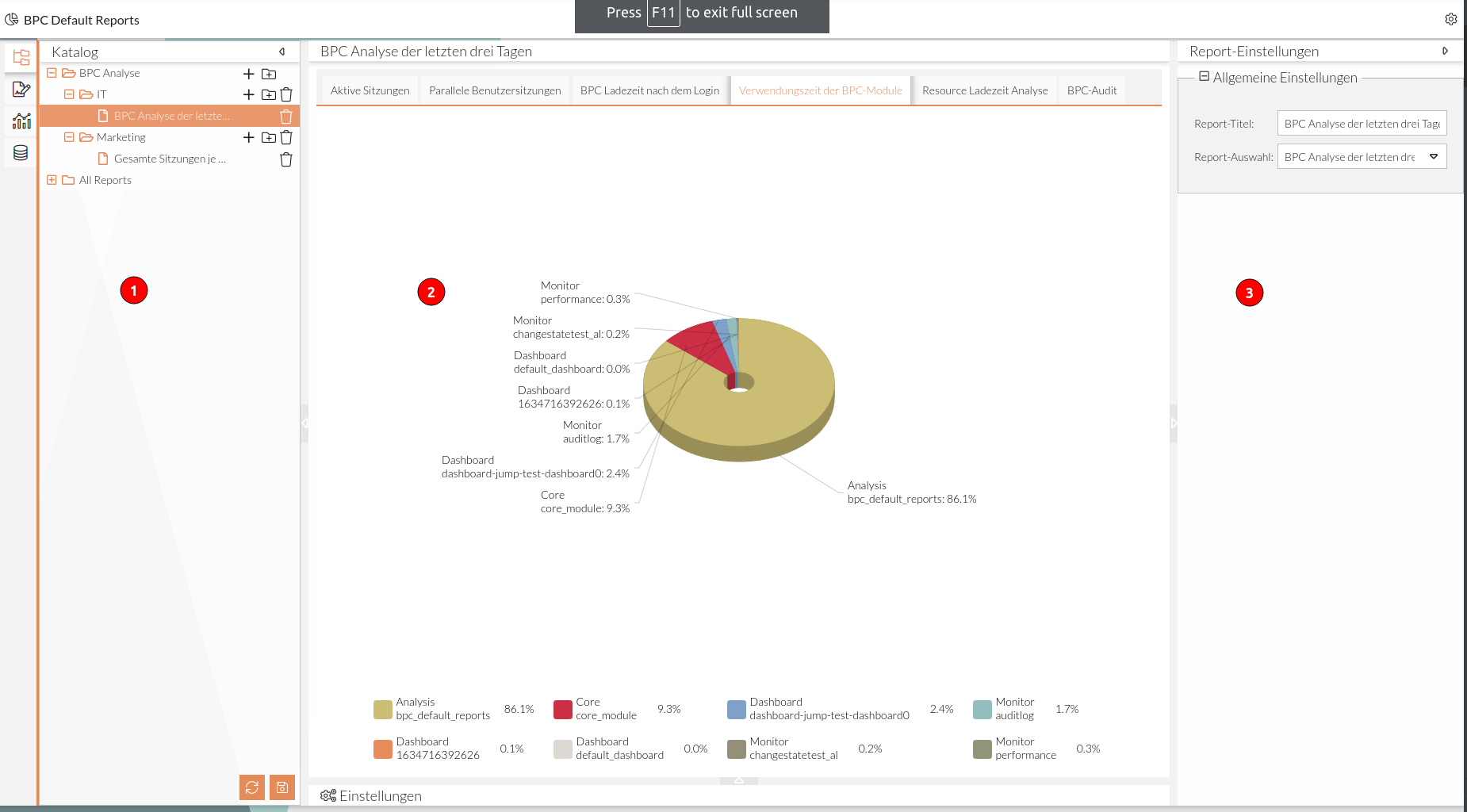
In the Catalog Editor, previously created reports can be clearly displayed and organized in a tree view. Depending on access restrictions, users can open and view individual reports.
Subfolders can be used to group reports that are relevant to the same context. This allows, for example, the creation of subfolders for individual departments.
User Interface
-
Area with tree structure of folders and reports
-
Report view area
-
Settings area for reports or folders in the catalog
-
for report selection (see Add/Remove Report)
-
for folder selection (see Create/Remove Subfolders)
-
-
Configuration area for reports when a report is selected (see Report Configuration Area)
Edit Catalog
By default, the two folders "All Reports" and "admin Reports" are available.
All created reports can be found under "All Reports."
By setting the option Config_ShowAllReportsFolder, the "All Reports" folder can be shown or hidden.
The "User Reports" folder is initially empty and can be populated with additional subfolders and the desired reports as needed.
Create/Remove Subfolders
Create your own subfolders in the "User Reports" folder.
You can create as many subfolders as you like.
-
Click the icon.
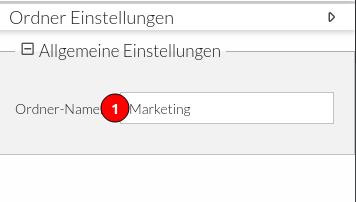
The folder settings panel opens automatically. -
Enter a folder name.
-
Click the Save button.
A new subfolder has been created.
-
Select the folder’s row.
-
Click the Delete icon.
-
Confirm the action in the dialog box.
The folder and all folders and reports it contains have been removed.
Add/Remove Report
Reports created in the Report Editor are added to the "User Reports" folder or its subfolders.
-
Select the row of the folder where the report is to be added.
-
Click the Add icon.
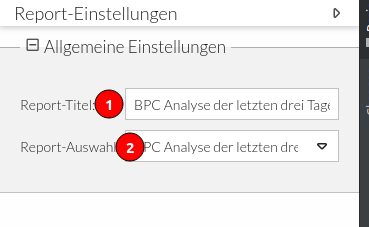
The report settings pane opens automatically.
-
Enter a report title to be displayed in the catalog.
-
Select the report from the drop-down menu.
The report is added.
-
Select the row of the report to be removed.
-
Click the Delete icon.
The report is removed.
Report Configuration Area
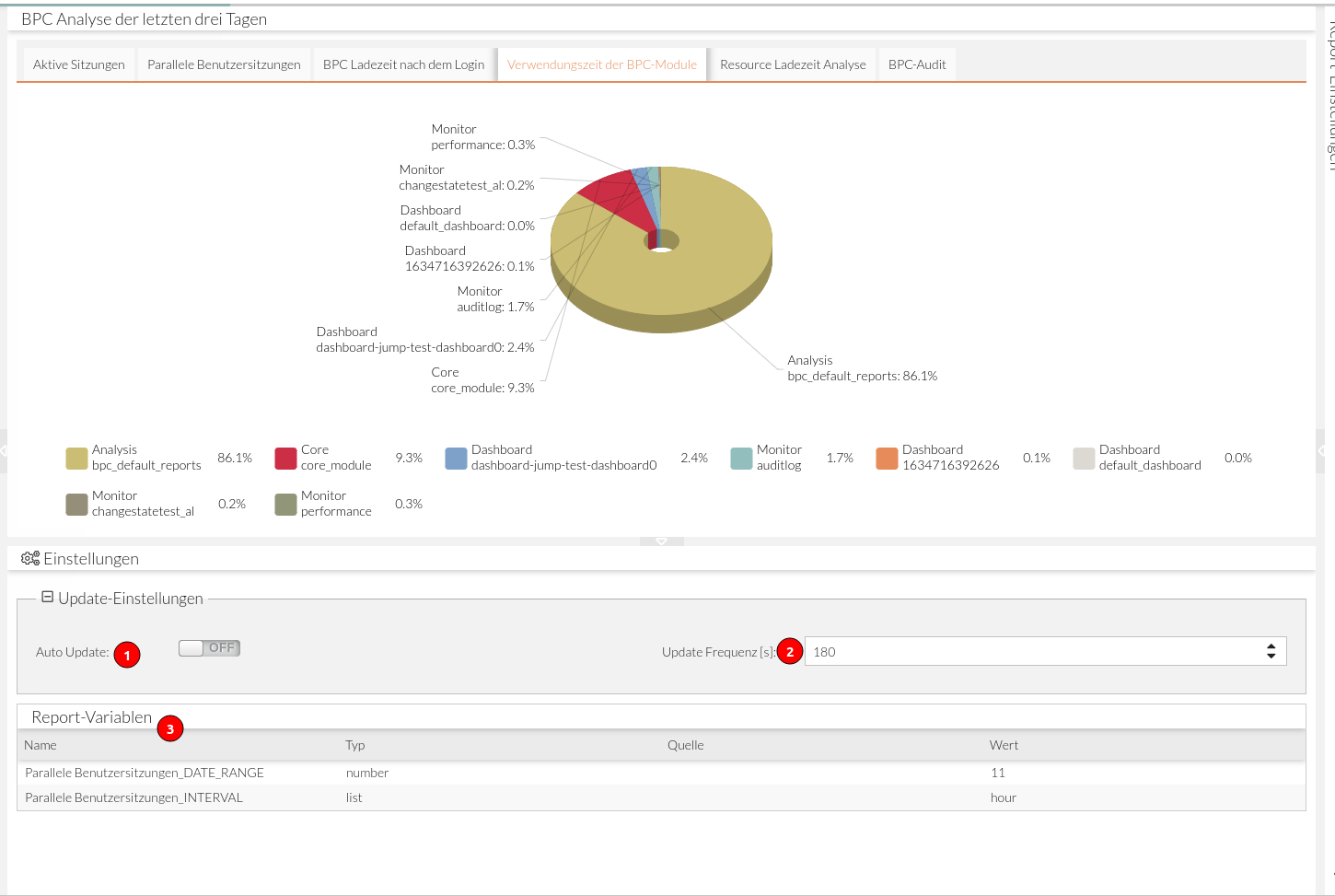
The report configuration area contains settings for automatically reloading the report and access to the report variables. For the automatic reload settings to appear in this area, they must be enabled for the user during report configuration. The settings for automatic reloading are stored locally for each user and are retained even after the page is reloaded.
-
Enabling/disabling automatic report updates
-
is available if the Auto-Update setting (see Access Rights )
-
-
is selected under Access Rights when configuring the report. Setting the frequency of automatic reloading
-
is only displayed if
Verändern der Frequenz des Auto Updatesis selected under Access Rights when configuring the selected report. (see Access Rights for Consumers )
-
-
List of all report variables visible to the user
-
Visibility is configured in the Report Editor (see Variables).
-
