Templates
Templates are always linked to organizations, with each data management component corresponding to one organization.
The Assets are derived from the templates.
There are several ways to create a template for data management.
|
Be sure to use the correct case when sending requests. |
General Structure of Templates
<api>
    <organizationId>organizationID</organizationId>
    <locale>en</locale>
    <requests>
        <request>
            <module>am</module>
            <context>template</context>
            <method>create/update/delete</method>
            <parameters>
                <template>
                    <customId>Selbstgewählte ID</customId>
                    <id>ID</id>
                    <labels>
                        <de>Template-Name auf Deutsch</de>
                    </labels>
                    <versionedAttributes>
                        <attribute>... </attribute>
                        <attribute>... </attribute>
                    </versionedAttributes>
                    <unversionedAttributes>
                        <attribute>... </attribute>
                    </unversionedAttributes>
                    <use> Zugriffsverwaltung </use>
                    <parents> ... </parents>
                    <children> ... </children>
                </template>
            </parameters>
        </request>
    </requests>
</api>
For more information on the organizationId.
Depending on the selected method, the respective elements customId, id, and use are optional.
Structure of
| Element | Description | Example | ||
|---|---|---|---|---|
|
An identifier generated when the template is created.
It is required (as an alternative to
|
|
||
|
An identifier that can be set manually.
It is required (as an alternative to To change a template’s only char values → no numeric values → combination works (Id-33) → Best to name it the same as the template label → Without a Label or display, CustomID is used for both |
|
||
|
The XPATH used to evaluate the final HTML color code for display in the frontend. The defined XPATH can be used to evaluate the versioned attributes or the time series data based on the keywords defined in the XPATH. The allowed "keywords" are: “/asset/versionedAttributes”. |
|
||
|
Contains language-specific Labels for the template. |
|
||
These attributes use versioning, so that when updated, the new values do not replace the current values but are added to the database.
The latest version is simply marked as obsolete, so it remains in the database. |
|
|||
These attributes do not use versioning, so when updated, the new values replace the current values. |
|
|||
|
Fields in Assets/Leader Data. |
|
||
|
List of templates that can be children of the current template. |
|
||
|
List of templates that can be parents of the current template. |
|
||
|
Actions can be defined for a template; for example, a unit can be shut down or a maintenance task can be triggered. |
Examples
Example structure of a "create" template for products in the "Supermarket" organization
<api>
    <organizationId>supermarkt</organizationId>
    <locale>de</locale>
    <requests>
        <request>
            <module>am</module>
            <context>template</context>
            <method>create</method>
            <parameters>
                <template>
                    <customId>Produkt</customId>
                    <versionedAttributes>
                        <attribute>
                            <key>Anfangsproduktnummer</key>
                            <type>number</type>
                            <required>true</required>
                            <unique>true</unique>
                        </attribute>
                        <attribute>
                            <key>Produkt</key>
                            <type>group</type>
                            <attributes>
                                <attribute>
                                    <key>Produktart</key>
                                    <type>string</type>
                                    <required>true</required>
                                    <enums>
                                        <enum>
                                            <key>1</key>
                                            <labels>
                                                <de>Lebensmittel</de>
                                            </labels>
                                        </enum>
                                        <enum>
                                            <key>2</key>
                                            <labels>
                                                <de>Süßwaren</de>
                                            </labels>
                                        </enum>
                                        <enum>
                                            <key>3</key>
                                            <labels>
                                                <de>Drogerieartikel</de>
                                            </labels>
                                        </enum>
                                        <enum>
                                            <key>4</key>
                                            <labels>
                                                <de>Getränke</de>
                                            </labels>
                                        </enum>
                                    </enums>
                                </attribute>
                                <attribute>
                                    <key>Herkunftsland</key>
                                    <type>string</type>
                                    <required>true</required>
                                </attribute>
                            </attributes>
                        </attribute>
                        <attribute>
                            <key>Produktname</key>
                            <type>string</type>
                            <required>true</required>
                            <unique>true</unique>
                        </attribute>

                        <attribute>
                            <key>Lagerort</key>
                            <type>group</type>
                            <attributes>
                                <attribute>
                                    <key>Lager</key>
                                    <required>true</required>
                                    <type>enum</type>
                                    <enums>
                                        <enum>
                                            <key>1</key>
                                            <labels>
                                                <de>Hochregallager</de>
                                            </labels>
                                        </enum>
                                        <enum>
                                            <key>2</key>
                                            <labels>
                                                <de>Kühlhaus</de>
                                            </labels>
                                        </enum>
                                    </enums>
                                </attribute>
                                <attribute>
                                    <key>Lagerort</key>
                                    <type>group</type>
                                    <required>true</required>
                                    <attributes>
                                        <attribute>
                                            <key>regal-nr</key>
                                            <labels>
                                                <de>Regal Nummer</de>
                                            </labels>
                                            <type>number</type>

                                        </attribute>
                                        <attribute>
                                            <key>regalbrett</key>
                                            <labels>
                                                <de>Regalbrett-Platz</de>
                                            </labels>
                                            <type>string</type>

                                        </attribute>
                                    </attributes>
                                </attribute>
                            </attributes>
                        </attribute>
                        <attribute>
                            <key>Herkunftsland</key>
                            <type>string</type>
                            <required>true</required>
                        </attribute>
                        <attribute>
                            <key>Kommentar</key>
                            <type>string</type>
                            <required>false</required>
                            <multiline>true</multiline>

                        </attribute>
                    </versionedAttributes>
                    <unversionedAttributes/>
                </template>
            </parameters>
        </request>
    </requests>
</api>
Example structure of a "create" template for stores in the "Supermarket" organization
<api>
    <organizationId>supermarkt</organizationId>
    <locale>de</locale>
    <requests>
        <request>
            <module>am</module>
            <context>template</context>
            <method>create</method>
            <parameters>
                <template>
                    <customId>Filiale</customId>
                    <descriptionAttribute>
                        <hidden>true</hidden>
                    </descriptionAttribute>
                    <versionedAttributes>
                        <attribute>
                            <key>Filialleitung</key>
                            <type>string</type>
                            <required>true</required>
                            <defaultValue>Max Mustermann</defaultValue>
                        </attribute>
                        <attribute>
                            <key>Adresse</key>
                            <type>group</type>
                            <collapsed>false</collapsed>
                            <attributes>
                                <attribute>
                                    <key>Straße</key>
                                    <type>string</type>
                                    <required>true</required>
                                    <defaultValue>Muster Straße</defaultValue>
                                    <minLength>5</minLength>
                                </attribute>
                                <attribute>
                                    <key>Hausnummer</key>
                                    <type>string</type>
                                    <required>true</required>
                                    <defaultValue>42</defaultValue>
                                </attribute>
                                <attribute>
                                    <key>plz</key>
                                    <type>string</type>
                                    <minLength>5</minLength>
                                    <maxLength>5</maxLength>

                                    <required>true</required>
                                    <defaultValue>12345</defaultValue>
                                </attribute>
                            </attributes>
                        </attribute>
                    </versionedAttributes>
                    <unversionedAttributes/>
                    <children>
                        <template>
                            <id>55</id>
                            <minimumQuantity>0</minimumQuantity>
                            <maximumQuantity>0</maximumQuantity>
                            <customId>Produkt</customId>
                            <displayName>Produkt</displayName>
                        </template>
                    </children>
                </template>
            </parameters>
        </request>
    </requests>
</api>
Attribute Properties
The following attribute properties can be used for both Attributes with History and Attributes without History.
| Property | Description | Example |
|---|---|---|
|
Primary key that identifies an attribute. |
|
|
Title or name of the attribute. |
|
|
Predefined selection of options |
|
|
Display name for the field; otherwise, it is automatically set to the Label. |
|
|
||
|
Description of attributes |
|
|
Data type of the attribute; see Data types of an attribute |
|
|
Allows the entry of multiple lines in a popup window |
|
|
The user cannot manually edit the value. This is only a note for the standard front end and does not restrict access via the API |
|
|
Defines the attribute as a required field. |
|
|
This value is used if no value is provided (e.g., during creation). |
|
|
An attribute can have a color code. |
|
|
Value is not displayed in the default front end. |
|
|
Unique value |
|
|
Determines whether the group is displayed as open or closed by default. |
|
|
Minimum value for numbers |
|
|
Maximum value for numbers |
|
|
Minimum length for strings |
|
|
Maximum length for strings |
|
Fields marked with * must be defined.
Examples
Example of the "enum" attribute
<attribute>
<required>true</required>
<key>Produktart</key>
<type>enum</type>
<displayName>Produktart</displayName>
<enums>
<enum>
<key>lebensmittel</key>
<displayName>Lebensmittel</displayName>
<labels>
<de>Lebensmittel</de>
</labels>
</enum>
<enum>
<key>sueßwaren</key>
<displayName>Süßwaren</displayName>
<labels>
<de>Süßwaren</de>
</labels>
</enum>
<enum>
<key>drogerieartikel</key>
<displayName>Drogerieartikel</displayName>
<labels>
    <de>Drogerieartikel</de>
    <en>Drugstore items</en>
</labels>
</enum>
<enum>
<key>getraenke</key>
<displayName>Getränke</displayName>
<labels>
<de>Getränke</de>
</labels>
</enum>
</enums>
</attribute>Example of the "type" attribute
<attribute>
    <multiline>true</multiline>
    <key>comment</key>
    <type>string</type>
    <displayName>Kommentar</displayName>
</attribute>
Example of the "colorCode" attribute
<colorCode>
    <xpath>if (/asset/unversionedAttributes/attribute[key/text() = 'status']/value/text() = 'STATUS_OK') then '00ff00' else 'ff0000'</xpath>
</colorCode>

<unversionedAttributes>
<attribute>
    <key>status</key>
    <displayName>Status of Asset</displayName>
    <value>STATUS_OK</value>
</attribute>
<attribute>
    <key>meter_reading</key>
    <displayName>Meter Reading</displayName>
    <value>123</value>
</attribute>
</unversionedAttributes>
Example of a group of attributes
<attribute>
    <required>true</required>
    <key>Stellplatz</key>
    <type>group</type>
    <displayName>Stellplatz</displayName>
    <attributes>
        <attribute>
            <labels>
                <de>Regal Nummer</de>
            </labels>
            <key>regal-nr</key>
            <type>number</type>
            <displayName>Regal Nummer</displayName>
        </attribute>
        <attribute>
            <labels>
                <de>Regalbrett-Platz</de>
            </labels>
            <key>regalbrett</key>
            <type>string</type>
            <displayName>Regalbrett-Platz</displayName>
        </attribute>
    </attributes>
</attribute>
Data types of an attribute
You can specify the type of a versioned and non-versioned attribute in the attribute definition.
The default type is "string".
User-defined attributes are always of type "string" with a maximum of 1024 characters.
A "basic" data type can also be used for lists and table columns.
"complex" data types cannot be nested, e.g., for lists or table columns. They also cannot contain groups.
| Class | Type | Description |
|---|---|---|
basic |
boolean |
true/false |
number |
||
string |
||
password |
Simple password (not secret; it is simply not displayed in the frontend). |
|
date |
No time zone allowed. Example: 2014-05-30 |
|
time |
No time zone allowed. Example: 23:59:59 |
|
dateTime |
No time zone allowed. Example: 23:59:59 |
|
enum |
Selection from predefined options. |
|
dynamicEnum |
||
complex |
list |
May contain attributes of the "basic" class type. |
table |
May contain attributes of the "basic" class type. |
|
group |
group |
May contain attributes of any type (Basic, Complex, and Group). |
Relationships Between Templates
When linking templates, a parent-child relationship is established.
If a template is a child of another template, it must be listed under “children” in the parent template, and the parent template must be listed under “parents” in the child template.
Each template must be aware of this relationship.
You can define multiple children and parents.
If no value is specified under “maximumQuantity,” “0” is set and interpreted as “unlimited.”
You can specify either the CustomID or the ID.
<children>
	<template>
	    <id>53</id>
        <minimumQuantity>0</minimumQuantity>
    </template>
</children>- image
<parents>
    <template>
        <customId>Filiale</customId>
        <maximumQuantity>1</maximumQuantity>
        <displayName>Heimat</displayName>
    </template>
</parents>
For the effects in the user interface view, see also Relationships between Objects.
Create a Template
Via API Call
Creating a template via an API call is particularly suitable when multiple or numerous templates need to be created.
Prerequisites
-
HTTP or REST client (e.g., soapUI)
-
HTTP Request:
-
URI:
<schema>://<host>:<port>/ibis/rest/rc/am/protocoladapted to your specific installation -
HTTP Method: POST
-
Authentication: HTTP Basic Authentication
-
Username, Password: Username and password of the user created here
-
Authorization Type: Set to "Preemptive" in soapUI
-
Request Body:
<request>
    <context><!-- e. g. asset, person, template --></context>
    <method><!-- e. g. create, get, query, update --></method>
    <module>am</module>
    <parameters>
        <!-- ... -->
    </parameters>
</request>
-
See also Data Management API.
Create an initial template
To create an initial empty template, use the HTTP/REST client to send the following request to Data Management:
<request>
    <context>template</context>
    <method>create</method>
    <module>am</module>
    <parameters>
        <return>true</return>
    </parameters>
</request>
The parameter return, which is set to "true," instructs Data Management to return the newly created template.
The technical ID of the newly created template is always returned.
Using the Template Editor in BPC
Creating a template using the Template Editor is more suitable for individual templates, since the module components must be created and configured manually one by one.
-
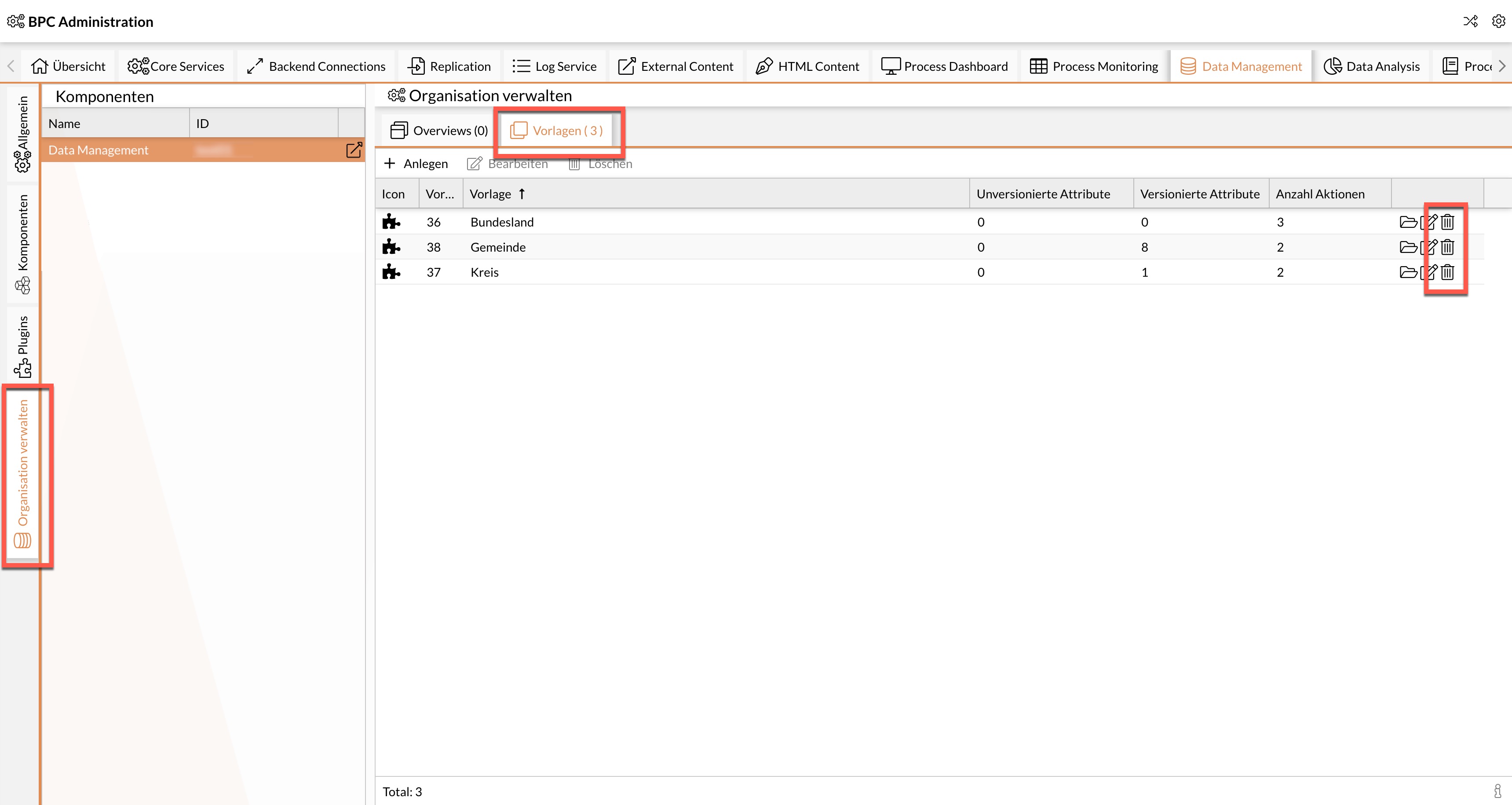
In the BPC administration area, open the "Data Management" tab.
-
Select the module component created during installation.
-
Select the "Manage Organization" tab.
-
Select the "Templates" tab.
-
Create a new template.
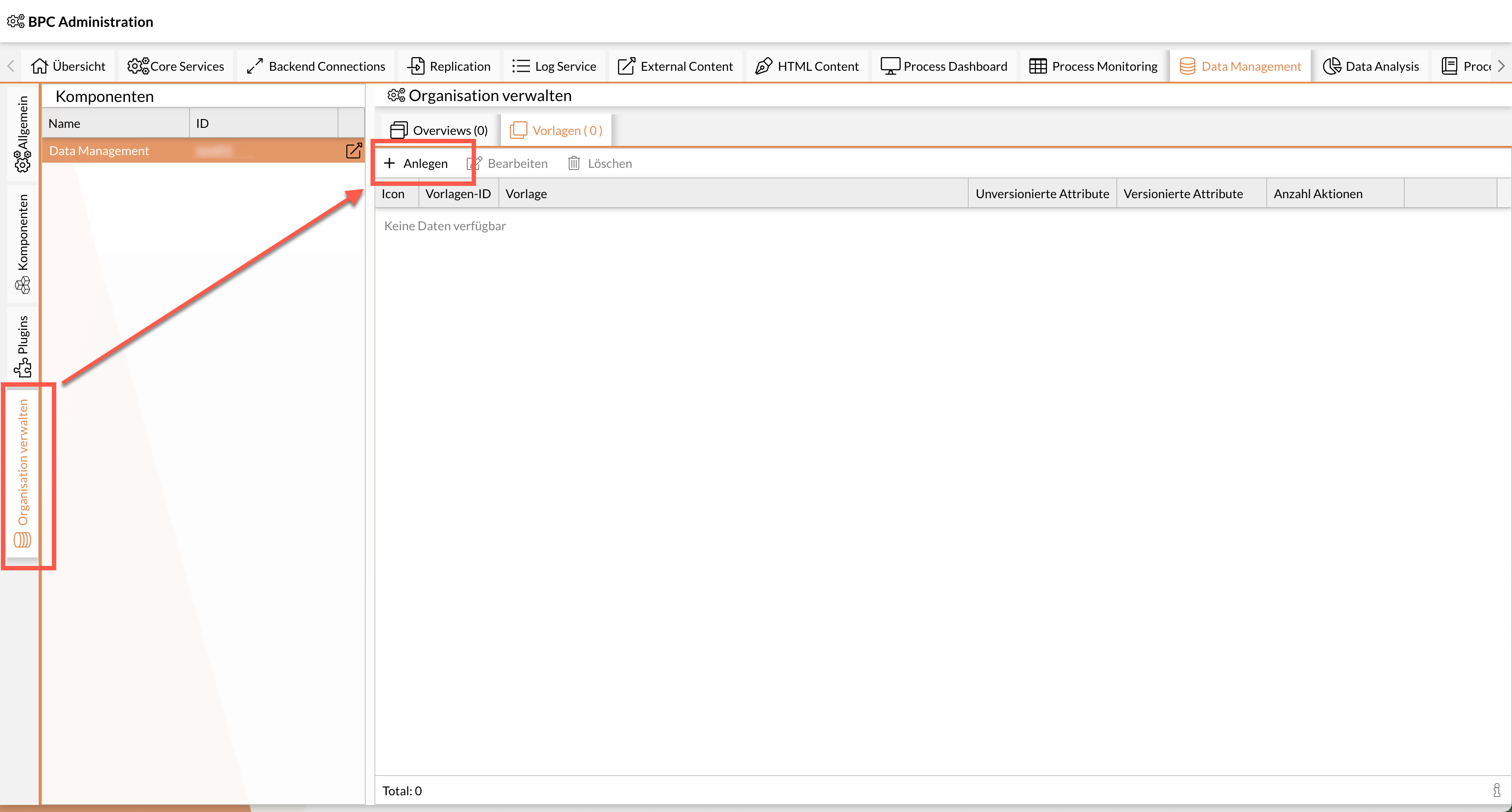
-
Paste or copy the template’s XML structure into the editor.
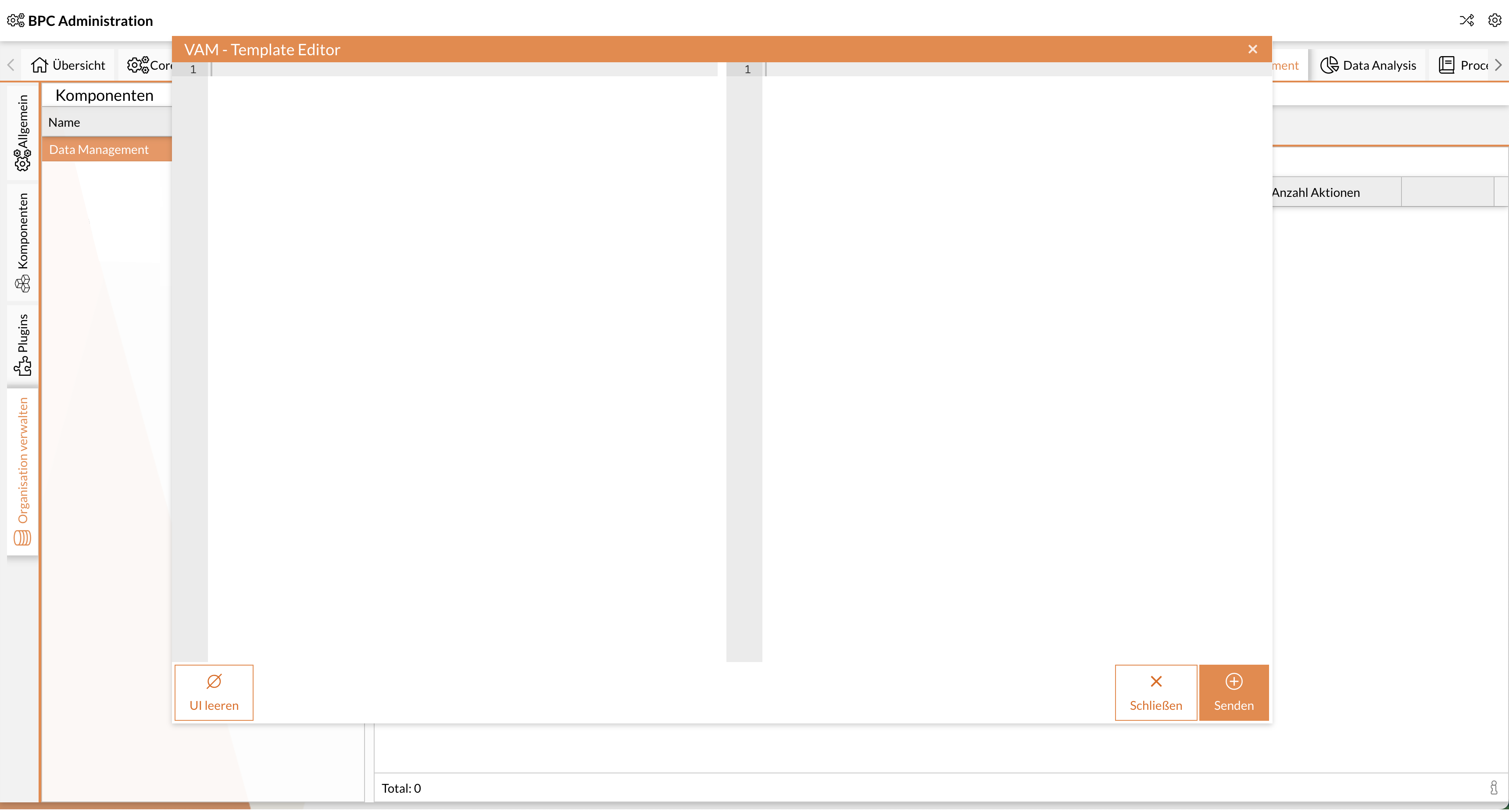
See example at General Structure of Templates.
Update Template
|
Last update applies
If changes are made in the BPC interface of the Data Management module, these changes will be visible in the module. |
Via API call
See xref:data_management:admin/api_calls.adoc
|
It is not possible to edit templates in the same way as assets.
If templates are to be modified via an API call, the entire template must first be retrieved, and then the desired element must be changed. |
Using the Template Editor in BPC
Existing templates can be customized in the BPC interface.
-
In the BPC administration area, open the "Data Management" tab.
-
Select the desired module component.
-
Select the "Manage Organization" tab.
-
Select the “Templates” tab.
-
Open the desired template for editing.
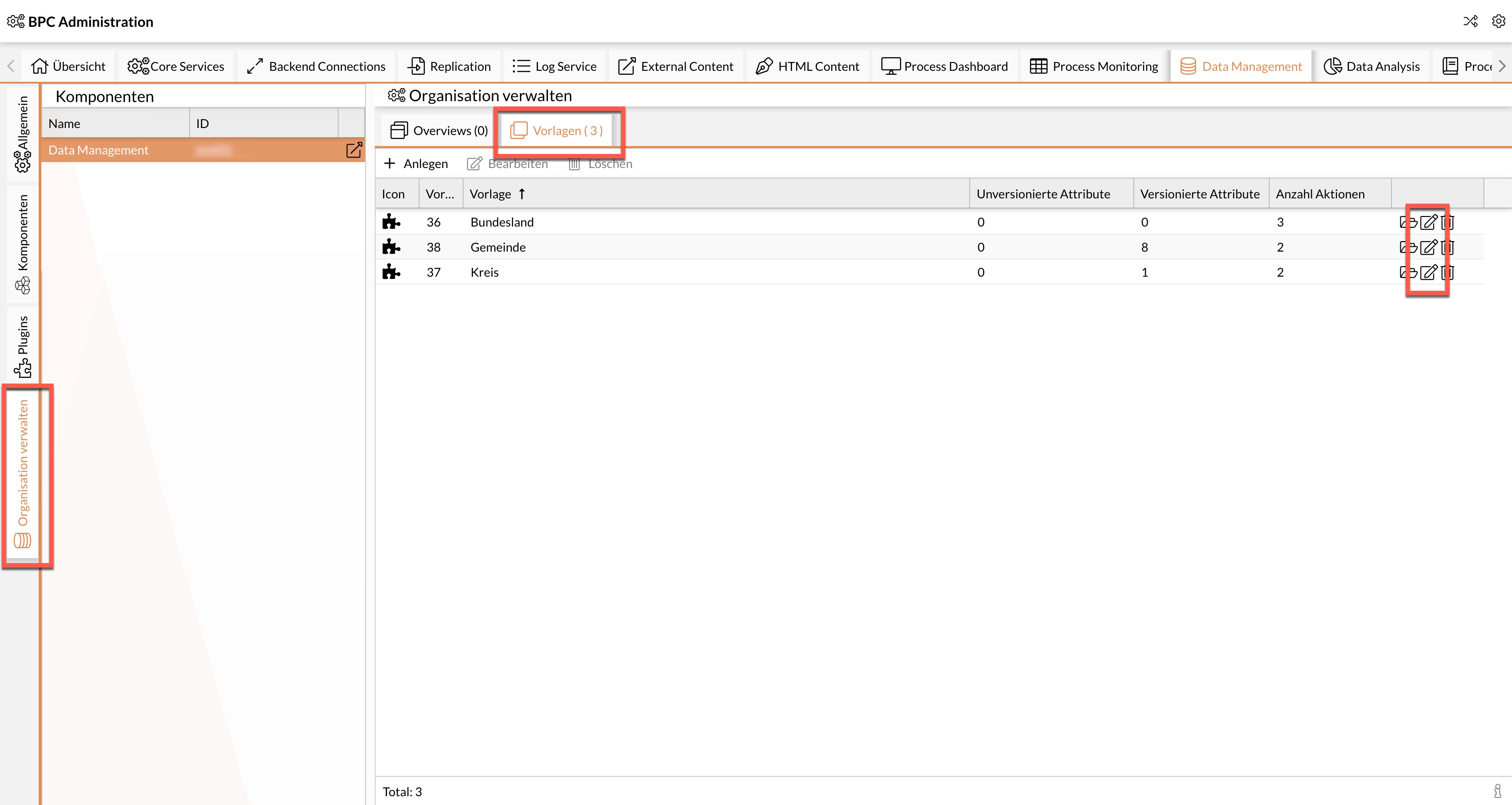
-
Make the desired adjustments in the template editor.
-
Select “Update.”
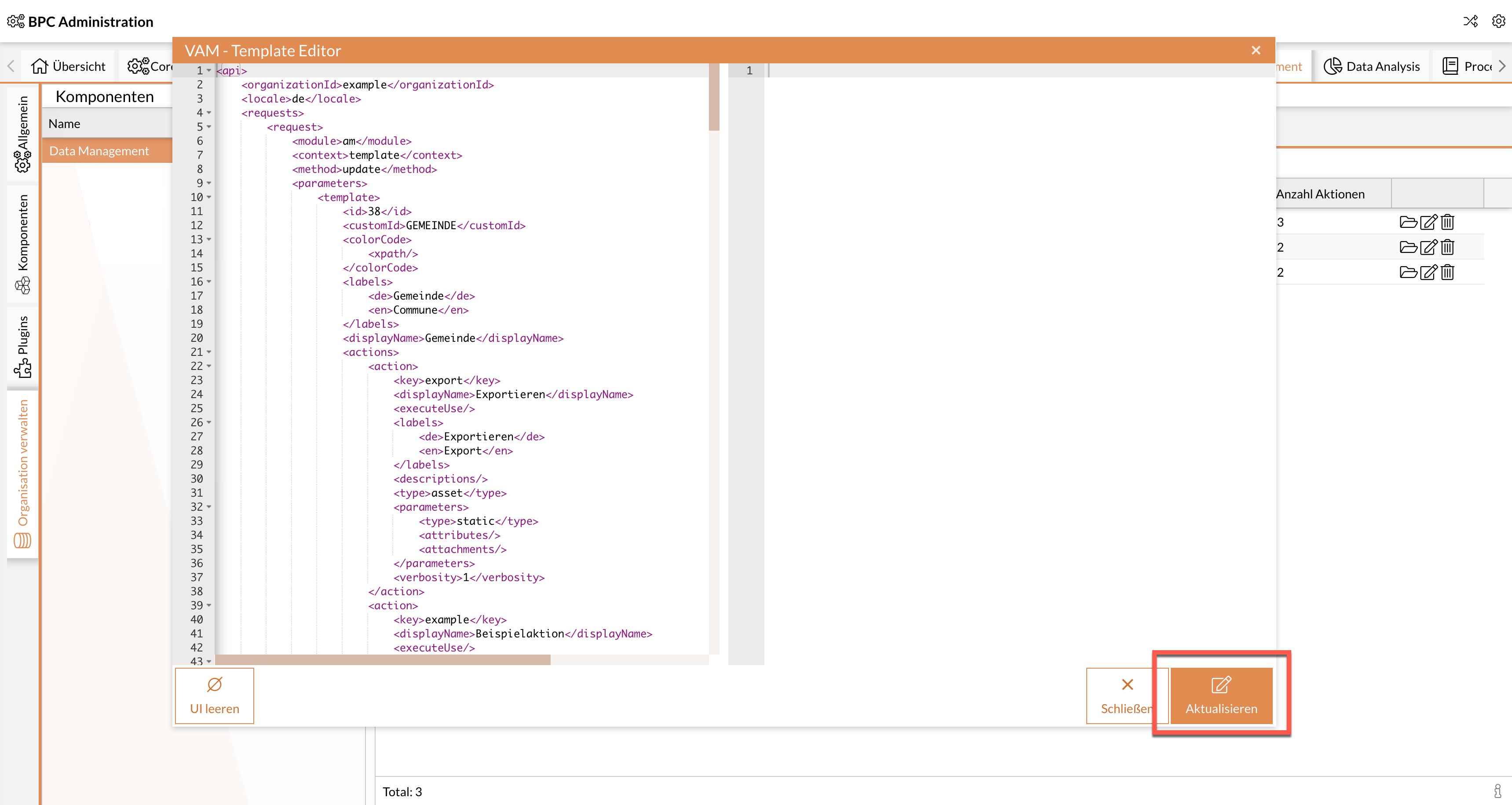
Delete a Template
Before deleting a template, all Leader data objects created using that template must be deleted. This means there must be no remaining dependencies.
If templates are deleted via the BPC interface, they are tagged in the database and, as a result, no longer displayed in the interface. However, they are still stored in the database.
-
In the BPC administration area, open the "Data Management" tab.
-
Select the desired module component.
-
Select the “Manage Organization” tab.
-
Select the “Templates” tab.
-
Delete the desired template.
To permanently delete from the database:
-
Permanently delete all deleted elements of the template
-
DELETE FROM TEM_LABELS WHERE TEMPLATEID = $ID; -
DELETE FROM TEM_CHILDREN WHERE TEMPLATEID = $ID; -
DELETE FROM TEM_PARENTS WHERE TEMPLATEID = $ID;
-
-
DELETE FROM TEMPLATES WHERE ID = $ID;
