Integrating IGUASU with BPC
IGUASU is a platform for managing data flows from any source, to any destination, and in any format.
It allows users to create and execute flows. Within the flows, various modules (processors) with specific functions are linked using a directed graph. This defines the order of execution as well as the conditions that must be met. This means that branches, loops, and dynamic sequences can be implemented.
Through an integration with the BPC, user inputs and process data can be processed in IGUASU and linked to other external services as an application. Furthermore, results determined in IGUASU can be clearly displayed in the BPC to provide a better overview of existing business processes.
To connect IGUASU to the BPC, several configuration steps must first be completed, which are described in detail in the following section Configure Connection. Once the connection has been configured, data can be transferred between BPC and IGUASU in both directions. The data exchange and the options available for this are listed in the section Transferring Data Between IGUASU and the BPC.
Further information on configuring Services and processors in IGUASU can be found in the IGUASU documentation.
Prerequisites
To establish a connection between IGUASU and the BPC, you need a BPC application version 4.0 or higher.
Configure Connection
The configuration for the connection between IGUASU and the BPC is performed in the administration area.
Accordingly, you need the appropriate permissions to perform actions in the administration area.
If you encounter any difficulties during configuration, please contact your administrator.
Instructions for configuring the connection in IGUASU can be found in the IGUASU documentation.
Create an API Key
The API key from the BPC is used in IGUASU within the HybridRESTClientController Service to establish the connection.
-
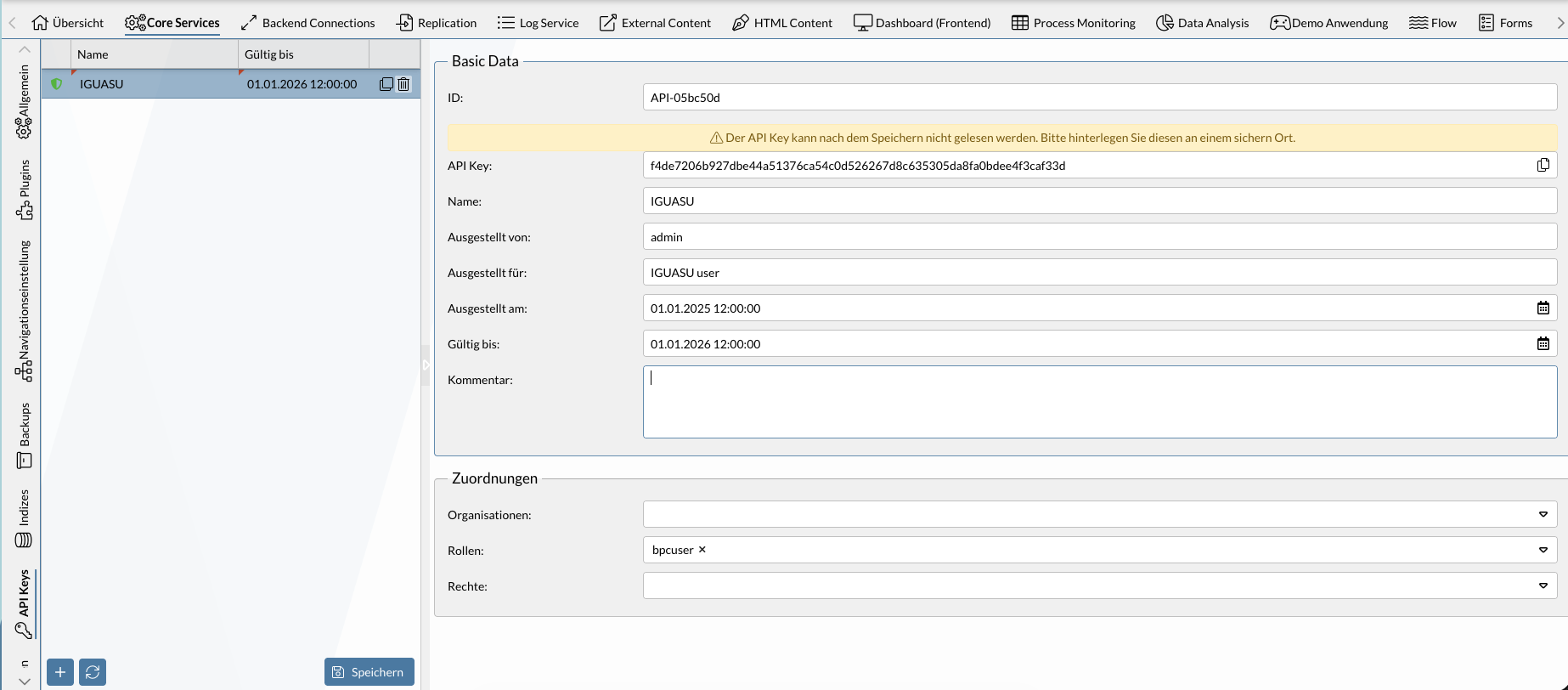
In the administration area, open the Core Services tab and the API Keys sub-tab.
-
Click the button to add a new API key.
-
Under "Name" and "Issued to," enter information that will make it easier to associate the key with IGUASU.
-
Fill in any additional fields as needed.
-
Assign organizations/roles/permissions as needed; see Mapping of Organizations, Roles, and Permissions.
-
Save settings using the [ Save]button.
The API key has now been created and can be used to connect to IGUASU.
Create a new flow component
A new component must be created in the embedded flow module. This allows connections to be established with the IGUASU processors.
-
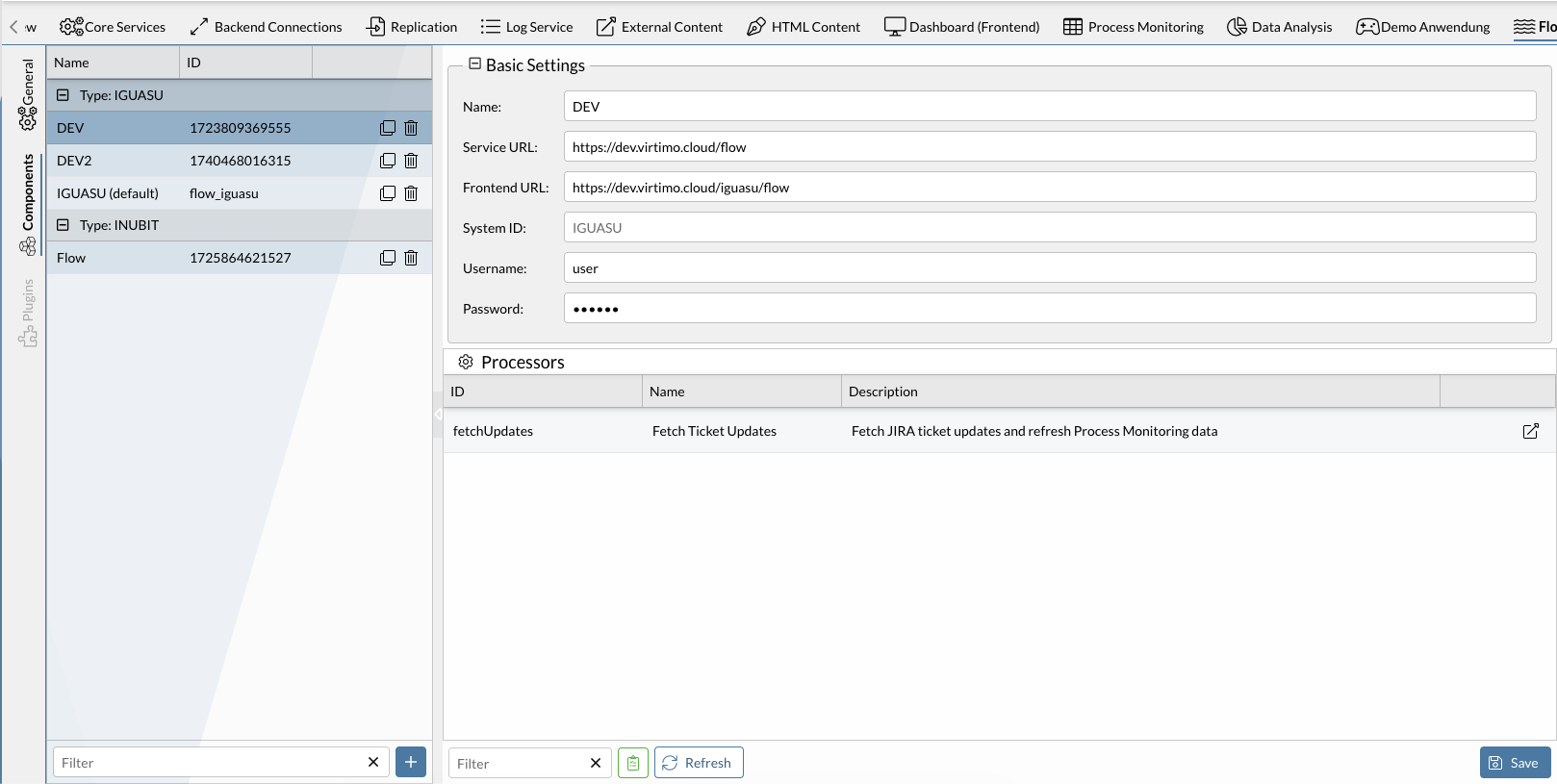
In the administration area, open the Flow tab and the Components sub-tab.
-
Use the button to add a new component.
-
Select the desired type (here: "IGUASU") and confirm with OK.
-
Define "Module_Name" and "Module_Description" for identification purposes.
-
Under "Target_BaseURL," enter the corresponding address for IGUASU.
Depending on the network topology, either an internal or external URL must be configured here.
If BPC and IGUASU are running in the same cloud or on the same server, the internal URL can be used (e.g., “https://iguasu-nifi:PORT”).
The port required for this is defined in the IGUASU HybridRESTServerController.
If the systems are on different servers, an external IGUASU URL must be set.
In this case, you must configure an endpoint in IGUASU that redirects an external path to the internal Port.
For details on configuration, see the Endpoint Management section in the IGUASU documentation. -
Use the [ Create]button.
-
Under “Frontend URL,” “Username,” and “Password,” make any necessary adjustments to the configuration.
The username and password are also defined in the HybridRESTServerController Service in IGUASU. -
Save the settings using the [ Save]button_._
If the configuration is successful, any IGUASU listener processors that have already been created will be displayed in the "Processors" field.
Transferring Data Between IGUASU and the BPC
Once IGUASU has been successfully connected to the BPC, data can be exchanged between the applications in both directions.
This section describes an example for each direction of data transfer.
From BPC Forms to IGUASU
The first direction of data transfer involves sending information from BPC to IGUASU. User input can, for example, be forwarded using the Forms module. The forms created can be designed and customized as needed to adapt the input options to individual requirements.
Comprehensive information on configuration and the module’s elements can be found at Forms.
To communicate with IGUASU, the submitURL must also be adjusted as part of the module’s general configuration.
Under " configurations " in the Forms code, enter the IGUASU component you created, in which the corresponding listeners were defined.
In the submit URL, enter both the ID of the component you created and the ID of the ListenBPCFlowStarter processor in IGUASU.
To ensure the form submission is successful, the “CSRF Token Check” option (checkCsrfToken) in the settings of the referenced flow component must be set to false.
Otherwise, the submission process will fail with an HTTP 401 (Unauthorized) error.
|
The exact structure of the submit URL depends on the configured context path of the BPC deployment. If Flow is used to connect to Process Engines, you can configure this in the Flow Manager under Processors , a relative or absolute URL to the desired processor can be copied and entered as the submit URL. |
If the configuration is successful, the form’s completed content is transmitted along with additional data to the corresponding ListenerBPCFlowStarter processor.
From IGUASU to BPC
In IGUASU, data can be returned both to the AuditLog monitor and to process monitors created in BPC. The procedure for both methods is described in the following two sections.
Creating Audit Logs
Audit logs require no further configuration once the BPCController Service has been set up in IGUASU. The audit level, action, and source are defined in the PutBPCAuditLog processor in IGUASU. The generated audit log is then displayed in the AuditLog Monitor, providing a better overview of the actions.
Creating Process Logs
In addition to audit logs, more specific process logs can also be generated; these are displayed in preconfigured process monitors and provide a better overview of business processes. For this purpose, two components are required, which must be configured in advance.
First, a ProcessLogger is required, which can be used in IGUASU to transmit the relevant data.
Extensive information on this can be found in the Log Services section.
No further adjustments are necessary in BPC for use in IGUASU.
However, care should be taken to ensure that the configured structure matches the data in IGUASU to prevent errors during transmission.
Once the Process Logger has been created, it should be available as a selection option in the PutBPCProcessLog processor in IGUASU.
In addition, you must configure a process monitor on which the generated data will be displayed. Detailed information on customization options and settings can be found in the section Process Monitoring. Similar to the Process Logger, no specific configurations are required for IGUASU, so the module can be used immediately after creation without further adjustment.
Jump from BPC to IGUASU
Errors or irregularities that become visible in BPC Process Monitoring (e.g., a failed process step) often require closer investigation to identify the cause. By navigating to IGUASU, You can view the details of the specific processor responsible for that process step. This might, for example, reveal that the processor received an invalid input.
Navigating to IGUASU is therefore useful for error analysis and for tracing the origin and processing of data.
If AuditLogs or ProcessLogs have been created, a column with the index “ externalReference ” is generated on the corresponding monitor. This column can be configured in the column settings (Monitor_ColumnConfig) so that you can jump from the monitor with a single click to the processor or Service in IGUASU that executed the event that wrote this data. If the event is too old and therefore no longer available, you will still be directed to the processor or Service.
To do this, the flow component must have been created beforehand, because the ID of this component must be specified in the column configuration.
Detailed instructions for configuring the jump to IGUASU in Process Monitoring can be found here.
