File Attachments
You can attach a file to a record in the monitor. This allows users to view or download the file.
File Source
The BPC Monitor supports retrieving files directly from OpenSearch, as a reference to the file storage service, and as a reference via an HTTP proxy backend connection (for example, from INUBIT).
Files in OpenSearch
You can store files in BPC OpenSearch. In this case, a file is attached directly to the monitor record.
The files should be encoded as a Base64 string and stored in the record under a dataIndex.
To ensure the file can be restored with the correct name and format, the dataset must contain the following information:
-
File name
-
MIME type
The names of the columns containing this information must be specified in the settings for the column that holds the file data (see Configuration: File Column).
The record containing the file can be added to OpenSearch via a BPC log service or an index request. The following example shows a data record with a file attachment:
   {
      "PROCESSID": "2",
      "TEXT": "This is second test object",
      "FILEID": "foodmenu.xml",
      "filename": "foodmenu.xml",
      "contentType": "application/xml",
      "DATA": "PGJyZWFrZmFzdF9tZW51Pgo8Zm9vZD4KPG5hbWU+QmVsZ2lhbiBXYWZmbGVzPC9uYW1lPgo8cHJpY2U+JDUuOTU8L3ByaWNlPgo8ZGVzY3JpcHRpb24+VHdvIG9mIG91ciBmYW1vdXMgQmVsZ2lhbiBXYWZmbGVzIHdpdGggcGxlbnR5IG9mIHJlYWwgbWFwbGUgc3lydXA8L2Rlc2NyaXB0aW9uPgo8Y2Fsb3JpZXM+NjUwPC9jYWxvcmllcz4KPC9mb29kPgo8Zm9vZD4KPG5hbWU+U3RyYXdiZXJyeSBCZWxnaWFuIFdhZmZsZXM8L25hbWU+CjxwcmljZT4kNy45NTwvcHJpY2U+CjxkZXNjcmlwdGlvbj5MaWdodCBCZWxnaWFuIHdhZmZsZXMgY292ZXJlZCB3aXRoIHN0cmF3YmVycmllcyBhbmQgd2hpcHBlZCBjcmVhbTwvZGVzY3JpcHRpb24+CjxjYWxvcmllcz45MDA8L2NhbG9yaWVzPgo8L2Zvb2Q+Cjxmb29kPgo8bmFtZT5CZXJyeS1CZXJyeSBCZWxnaWFuIFdhZmZsZXM8L25hbWU+CjxwcmljZT4kOC45NTwvcHJpY2U+CjxkZXNjcmlwdGlvbj5MaWdodCBCZWxnaWFuIHdhZmZsZXMgY292ZXJlZCB3aXRoIGFuIGFzc29ydG1lbnQgb2YgZnJlc2ggYmVycmllcyBhbmQgd2hpcHBlZCBjcmVhbTwvZGVzY3JpcHRpb24+CjxjYWxvcmllcz45MDA8L2NhbG9yaWVzPgo8L2Zvb2Q+Cjxmb29kPgo8bmFtZT5GcmVuY2ggVG9hc3Q8L25hbWU+CjxwcmljZT4kNC41MDwvcHJpY2U+CjxkZXNjcmlwdGlvbj5UaGljayBzbGljZXMgbWFkZSBmcm9tIG91ciBob21lbWFkZSBzb3VyZG91Z2ggYnJlYWQ8L2Rlc2NyaXB0aW9uPgo8Y2Fsb3JpZXM+NjAwPC9jYWxvcmllcz4KPC9mb29kPgo8Zm9vZD4KPG5hbWU+SG9tZXN0eWxlIEJyZWFrZmFzdDwvbmFtZT4KPHByaWNlPiQ2Ljk1PC9wcmljZT4KPGRlc2NyaXB0aW9uPlR3byBlZ2dzLCBiYWNvbiBvciBzYXVzYWdlLCB0b2FzdCwgYW5kIG91ciBldmVyLXBvcHVsYXIgaGFzaCBicm93bnM8L2Rlc2NyaXB0aW9uPgo8Y2Fsb3JpZXM+OTUwPC9jYWxvcmllcz4KPC9mb29kPgo8L2JyZWFrZmFzdF9tZW51Pg=="
   }
File reference from the File Storage Service
Files can be managed by the File Storage Service and referenced in a monitor.
These references have the following format:
bpc://backend-connection/FILE_STORAGE_BACKEND_CONNECTION_ID/FILE_STORAGE_ITEM_ID
File reference with HTTP proxy
Files can be stored in a separate system (for example, INUBIT) and accessed via a configured HTTP proxy connection. How files are stored there depends on the settings in INUBIT.
The files should be made available via a REST endpoint so that they can be downloaded from the BPC (see also Configuring File Downloads in the Monitor).
Configuring File Downloads in the Monitor
After a file or a reference to the file has been saved in the Monitor record, the following settings are required to enable the file to be downloaded.
Configuration: File Column
In the column configuration (column_config or column_historyConfig for parent or child indices), create a configuration object fileConfig in the settings of the column that contains the file contents or references.
This setting must configure the fields columnFileName and columnContentType, which define the name of the file name column and the content type column, respectively.
Optionally, the field dataSource can be used to specify that files always come from a specific source (OpenSearch, (INUBIT) HTTP proxy).
The following options are available: OpenSearch, FileStorage, BackendConnection, and auto.
In the case of auto (default), the system attempts to determine the source based on the contents of the file column.
{
    ...
    "dataIndex": "DATA",
    "xtype": "attachmentcolumn",
    "text": "REFFILE",
    ...
    "fileConfig": {
        "columnFileName": "filename",
        "columnContentType": "contentType",
        "dataSource": "auto"
    }
}
This example configures the system so that file contents or references are located in the OpenSearch field DATA.
The corresponding filename is located in the filename column, and the corresponding content type is in the contentType column.
If the attachmentcolumn column has a value of xtype, a download button is displayed in that column.
However, this is not necessary for downloading file attachments in child indices via the popup or inline view; the ` fileConfig` entry is sufficient here.
|
If the setting is ` |
Configuration: Downloading via HTTP Proxy Connections
The file can be downloaded via an HTTP proxy connection. This can be used, for example, for downloads from an external system such as INUBIT. The following settings are required for this:
-
httpProxy_referenceEndpoint:
This setting configures the HTTP proxy connection and the download endpoint URL. Configuring this via the frontend is recommended. (Format:bpc://backendconnection/{proxyid}/{endpoint_path})The endpoint supports specifying custom query parameters. For example, if a workflow still requires the old database table prefix (previously controlled via
inubit_dbTablePrefix), this can simply be appended directly to the URL path of the setting using?prefix=. (Example:bpc://backendconnection/{proxyid}/{endpoint_path}?prefix=FOO) -
column_id:
The query contains information about the process ID as a URL parameter, so the corresponding column must be set. -
column_historyId:
If the download refers to the child process, the ID of the child process must be included in the query as a URL parameter. The corresponding column must therefore be set.
Once everything is configured, the URL has the following structure.
The protocol and domain are configured on the HTTP proxy connection. Custom query parameters from the httpProxy_referenceEndpoint (e.g., prefix) are seamlessly integrated into the query’s parameter string:
{Protokoll}://{Domain}/{endpoint_path}?prefix=FOO&directory={Inhalt der Datei-Spalte}&processid={processId}&childid={childId}
Specific Use Case
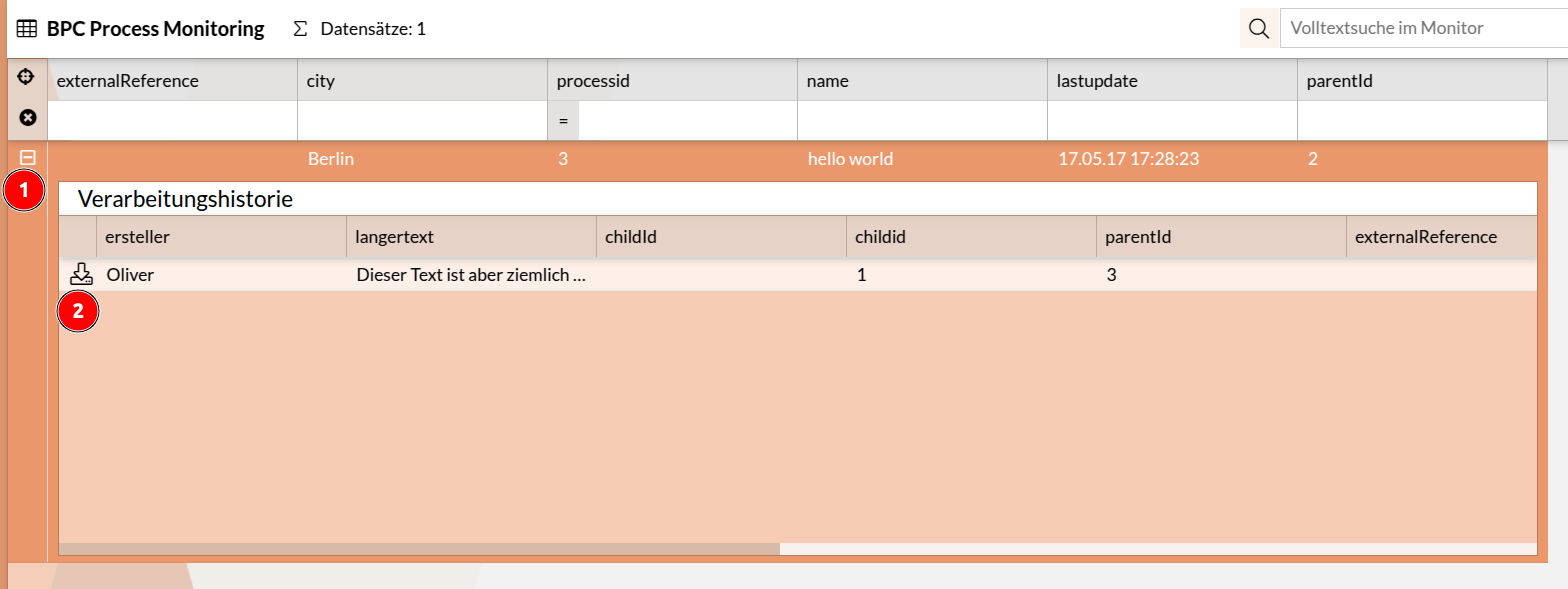
This example shows how a Base64-encoded file can be written to OpenSearch via the Logservice and then downloaded from the Monitor Child Grid.
Creating a Logservice Instance
The Logservice instance is configured with the following parameters:
-
Instance ID:
myTestLogger -
OpenSearch index:
myTestIndex -
OpenSearch history index:
myTestChildIndex
Writing data to OpenSearch via the Logservice API
The data to be stored contains a Base64-encoded file. This should be stored in a separate file.
In this example, a file named logservice.json with the following content is created:
{
    "entries": [
        {
            "parent": {
                "processid": 3,
                "name": "hello world",
                "lastupdate": "2017-05-17T15:28:23.181Z"
            },
            "children": [
                {
                    "parentid": 3,
                    "childid": 1,
                    "langertext": "Dieser Text",
                    "lastupdate": "2017-05-17T15:28:23.181Z",
                    "datei": "iVBORw0KGgoAAAANSUhEUgAAAAIAAAACAQMAAABIeJ9nAAAABlBMVEUAAAD///+l2Z/dAAAADElEQVQIHWNwYGgAAAFEAMGoX3f9AAAAAElFTkSuQmCC",
                    "filename": "food.png",
                    "contentType": "application/png"
                }
            ]
        }
    ]
}
Important attributes:
-
datei– contains the Base64-encoded file. -
contentType– Specifies the MIME type of the file. -
filename– The name under which the file should be saved.
Send data to the Logservice API via cURL
In the next step, the data is sent to the Logservice API using the ` cURL` command.
Prerequisites:
curl -H "X-ApiKey: 1f697af5-c147-3d94-c529-e06f3f15bb87" \
     -H "Content-Type: application/json" \
     -XPOST 'http://localhost:8181/cxf/bpc-logservice/log/myTestLogger' \
     -d @logservice.json
Creating a monitor instance
The monitor instance requires the following configuration:
-
OpenSearch index (
data_index):myTestIndex -
OpenSearch history index (
data_history_index):myTestChildIndex -
Column ID (
column_id):processid -
History ID (
column_historyId):parentid -
Additional history ID (
column_historySubId):childid -
Backend Connection (
httpProxy_proxyId): Select the created Backend Connection -
Inline detail view (
detailView_inline):true
Additionally, the column containing files or file references must be configured accordingly (see Configuration: File Column):
{
    ...
    "dataIndex": "datei",
    "text": "Datei",
    ...
    "fileConfig": {
        "columnFileName": "filename",
        "columnContentType": "contentType",
        "dataSource": "auto"
    }
}
Configuration for File Preview in File Storage (CORS & CSP)
Files managed by the File Storage service are stored with configured cloud storage providers. In the backend connection, you can configure whether a download should take place directly from this cloud provider or be routed through the BPC.
When viewing files directly in the monitor, the Content Security Policy (CSP) and Cross-Origin Resource Sharing (CORS) settings for the bucket/container must also be configured if a download takes place directly from the cloud provider.
Setting the CSP Header
In this case, the Content Security Policy in the file <BPC-INSTALL-DIR>/karaf/etc/jetty.xml should be adjusted so that the corresponding bucket/container is allowed:
<Item>
    <New id="header-csp" class="org.eclipse.jetty.rewrite.handler.HeaderPatternRule">
        <Set name="pattern">/*</Set>
        <Set name="name">Content-Security-Policy</Set>
        <Set name="value">script-src 'self' 'unsafe-eval'; connect-src 'self' https://test-bucket.s3.eu-central-1.amazonaws.com; img-src 'self' https://test-bucket.s3.eu-central-1.amazonaws.com data: blob:; style-src 'self' 'unsafe-inline'; font-src 'self'; frame-ancestors 'self'; form-action 'self'; worker-src 'self' blob: ;</Set>
    </New>
</Item>
In this example, access and image display are allowed for the S3 bucket test-bucket in the region eu-central-1.
Setting the CORS Header
To ensure that resources loaded from the cloud provider can also be used in the BPC, the CORS header in the bucket/container must be configured so that the BPC’s URL is allowed for GET and HEAD requests.
The following example shows how to configure access for a BPC accessible at https://bpc.example.com:
[
    {
        "AllowedHeaders": [
            "*"
        ],
        "AllowedMethods": [
            "GET",
            "HEAD"
        ],
        "AllowedOrigins": [
            "https://bpc.example.com"
        ],
        "ExposeHeaders": [],
        "MaxAgeSeconds": 3000
    }
]