Exporting Processes
You can export process data in its entirety or after filtering it, for example, for data backup purposes.
A process data export function is available to the user as an icon in the BPC toolbar, allowing them to, for example, edit a portion of the process data or make it available to another department.
It is up to the user to decide which data to export. For the XLSX file format, a maximum number of data records must be specified for the export because XLSX exports are resource-intensive. A limit ensures stable and quickly usable Excel files. The default value is 10,000 data rows. No limit is necessary for other file formats.
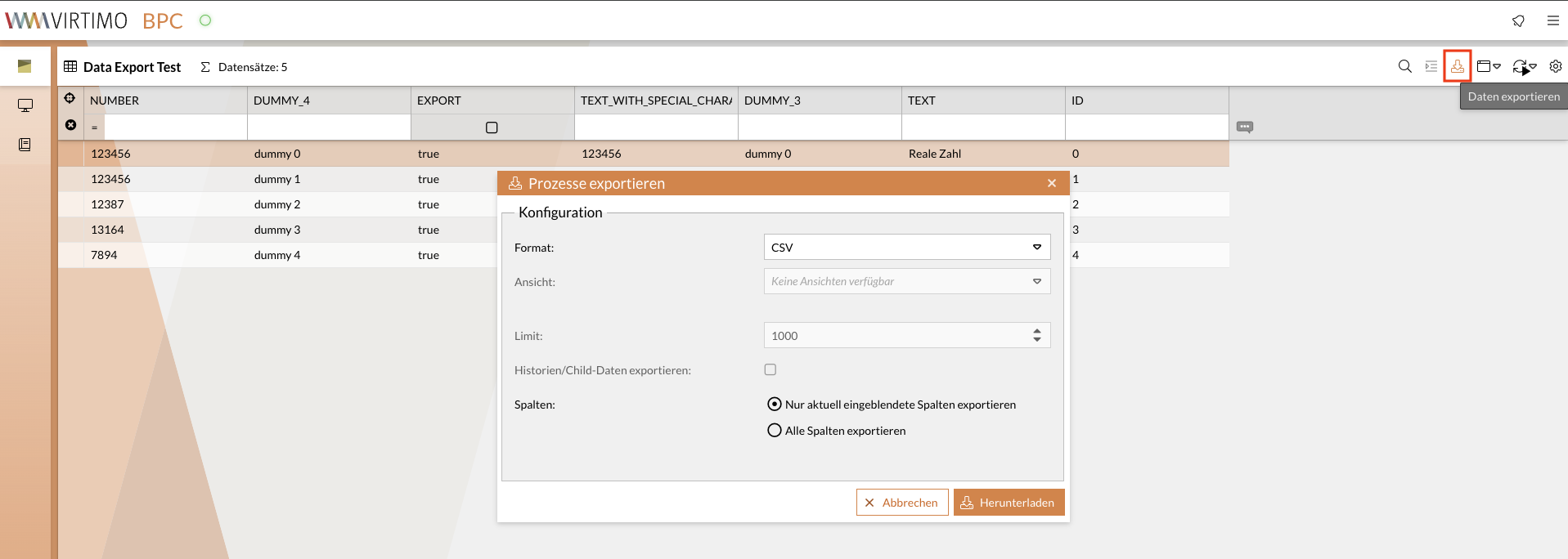
In the first step, the user makes no selections and starts the export function using the icon on the BPC toolbar. In the window that opens, the user selects the file format to which the process data should be exported. Additionally, You can set the limit on the number of data rows, beyond which rows in the export file will be truncated.
^However, it is recommended to narrow down the data set before the actual export, for example, using the filter functions. This allows defined data sets to be exported in advance for further use.

Clicking the export icon opens a window where You can
-
specify the file format to which the data should be exported
-
and set a row limit to restrict the export of data sets that are still too large
Export only specific columns (Include current view)
The user has the option to export only the columns currently visible on the screen. To do this, as shown in the image above, the option "Include current view" must be enabled, as shown in the image above.
Export child data
In addition to exporting records, you can also include the processing history (the child data) for each record in the export. To do this, the option Export History/Child Data must be enabled in the export window.
Opening the CSV Export File in Excel
Once the monitor data has been exported, you can open the file on your local computer. However, an encoding error may occur when opening the CSV file in Excel if it contains German umlauts.
The error can be reproduced as follows:
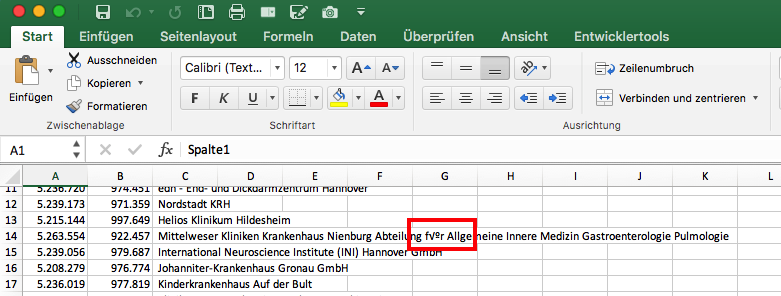
Open the CSV file. The file opens automatically with the default software (in this case, Excel). As a result, the opened file is corrupted (see below); for example, umlauts and special characters are decoded and displayed incorrectly. This error has already been reported (see also http://blog.wenzlaff.de/?p=12084). The cause is that Excel does not correctly recognize the encoding when automatically opening a file.
You can also export an Excel file from the monitor. There will then be no problem when opening it. If you still want to export the CSV file and then open it in Excel, you can correct the error described above as follows:
-
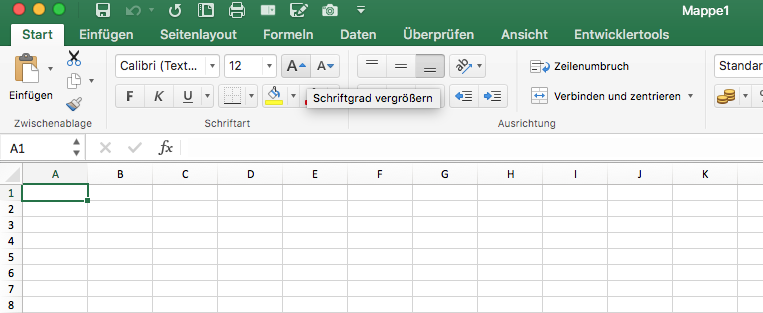
Open a new tab in Excel.
-
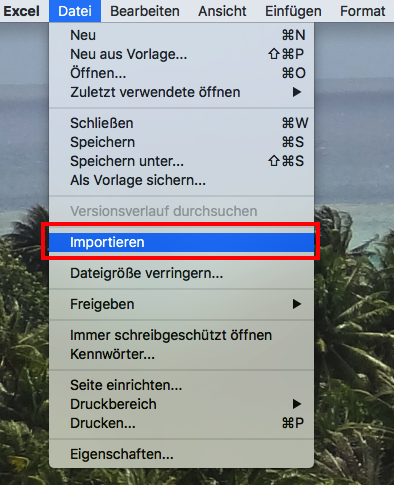
On the ribbon, select File > Import.
-
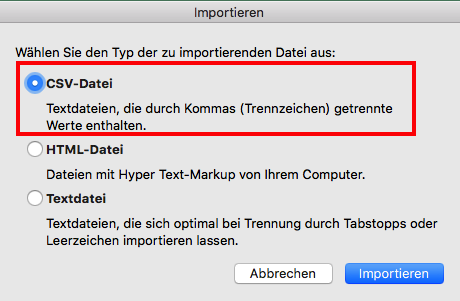
In the newly opened window, select CSV.
-
Select the Unicode (UTF-8) option.
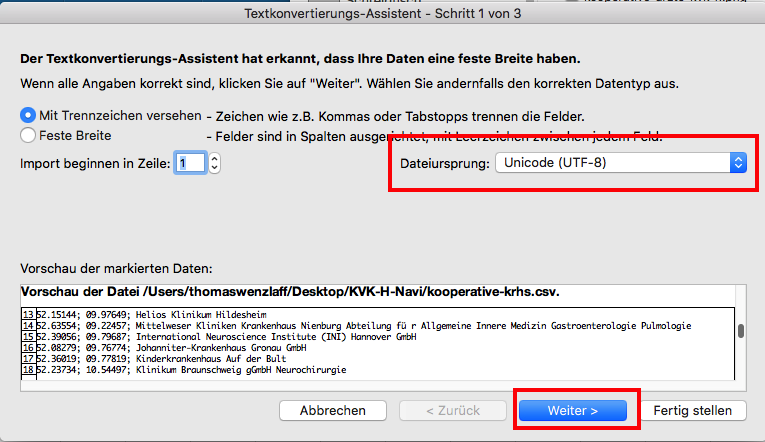
The file is now displayed correctly.

