Customize the process table display
In table views, you can arrange the columns as you wish
Showing and Hiding Columns
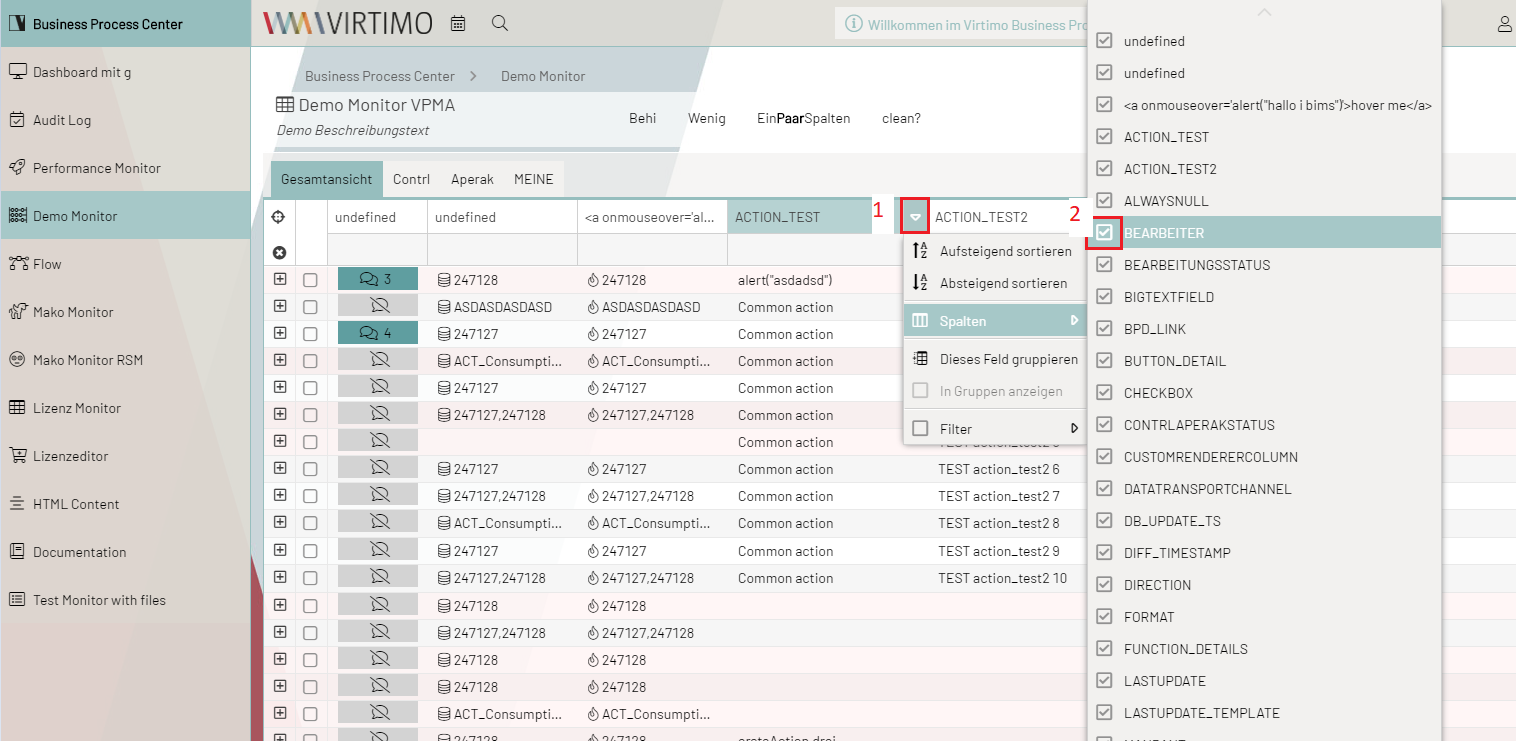
Above each column header, You can access a small function menu by clicking the pull-down icon and selecting the column category.
-
Checking a box selects this column for display in the view.
-
Unchecking a box removes this column from the view.
Restore the default view of the columns
The "default view" refers to a preconfigured view that displays all columns currently available in the view.
You can access a preconfigured, current default view by:
-
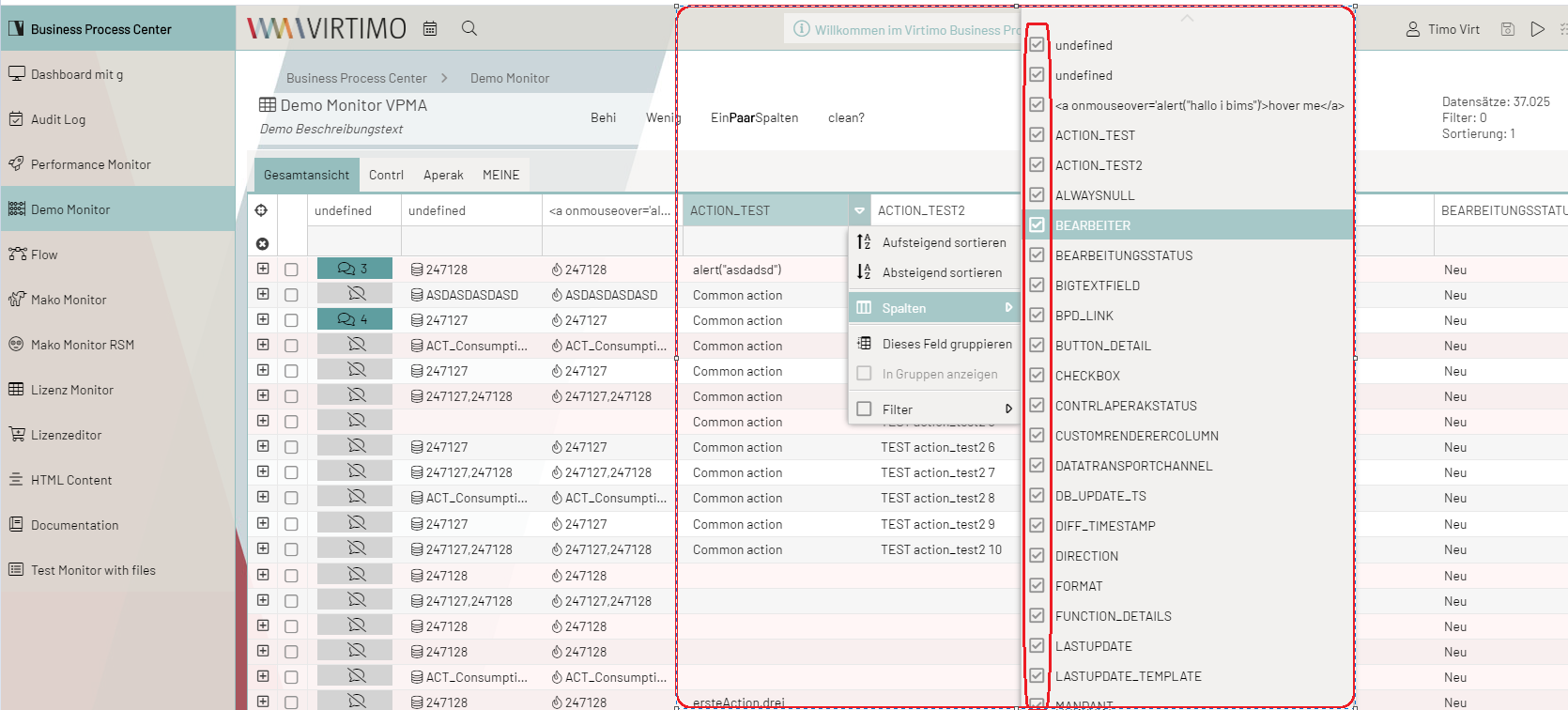
clicking on any column header to display all columns and checking the box next to any column to include it in the view
-
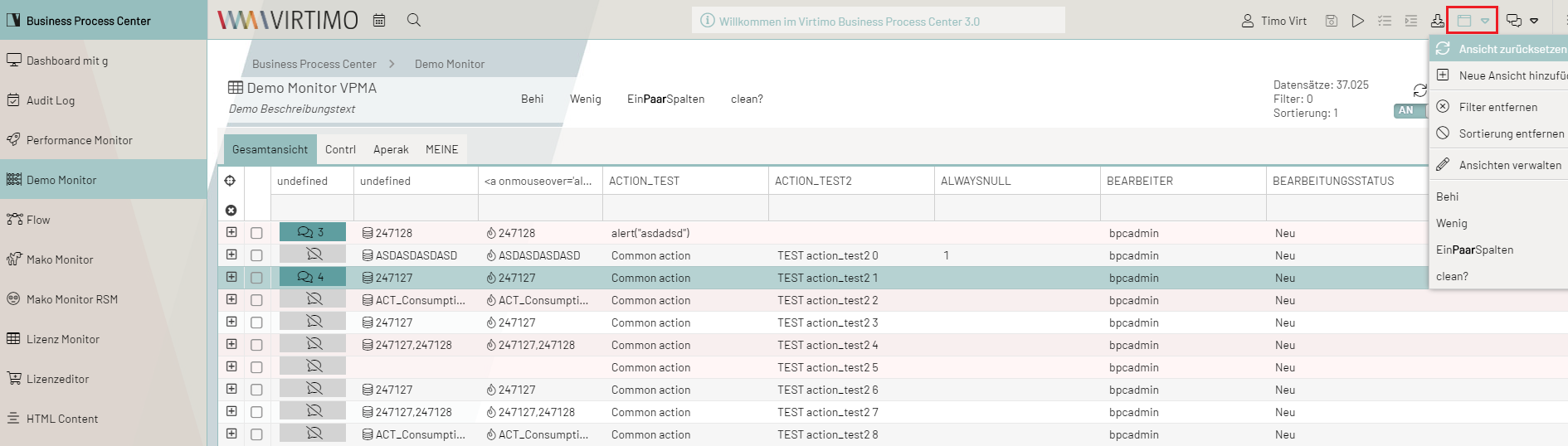
selecting the "Reset View" function to return to the originally configured display and arrangement of the columns
Adjusting Column Width
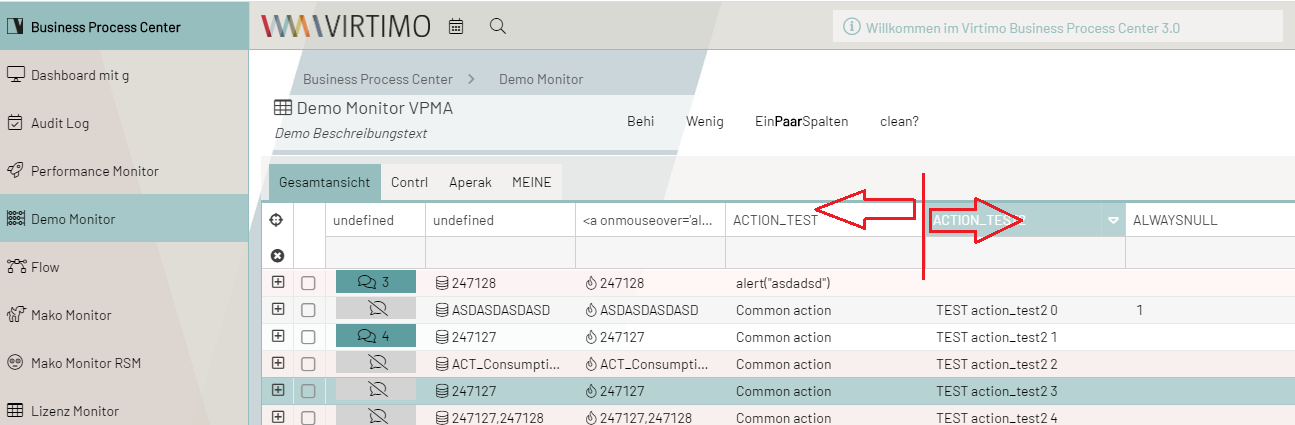
To widen or narrow the column width in the view, place the mouse cursor on the edge of a column header and drag it left or right to adjust the width.
Changing the Order of Columns
-
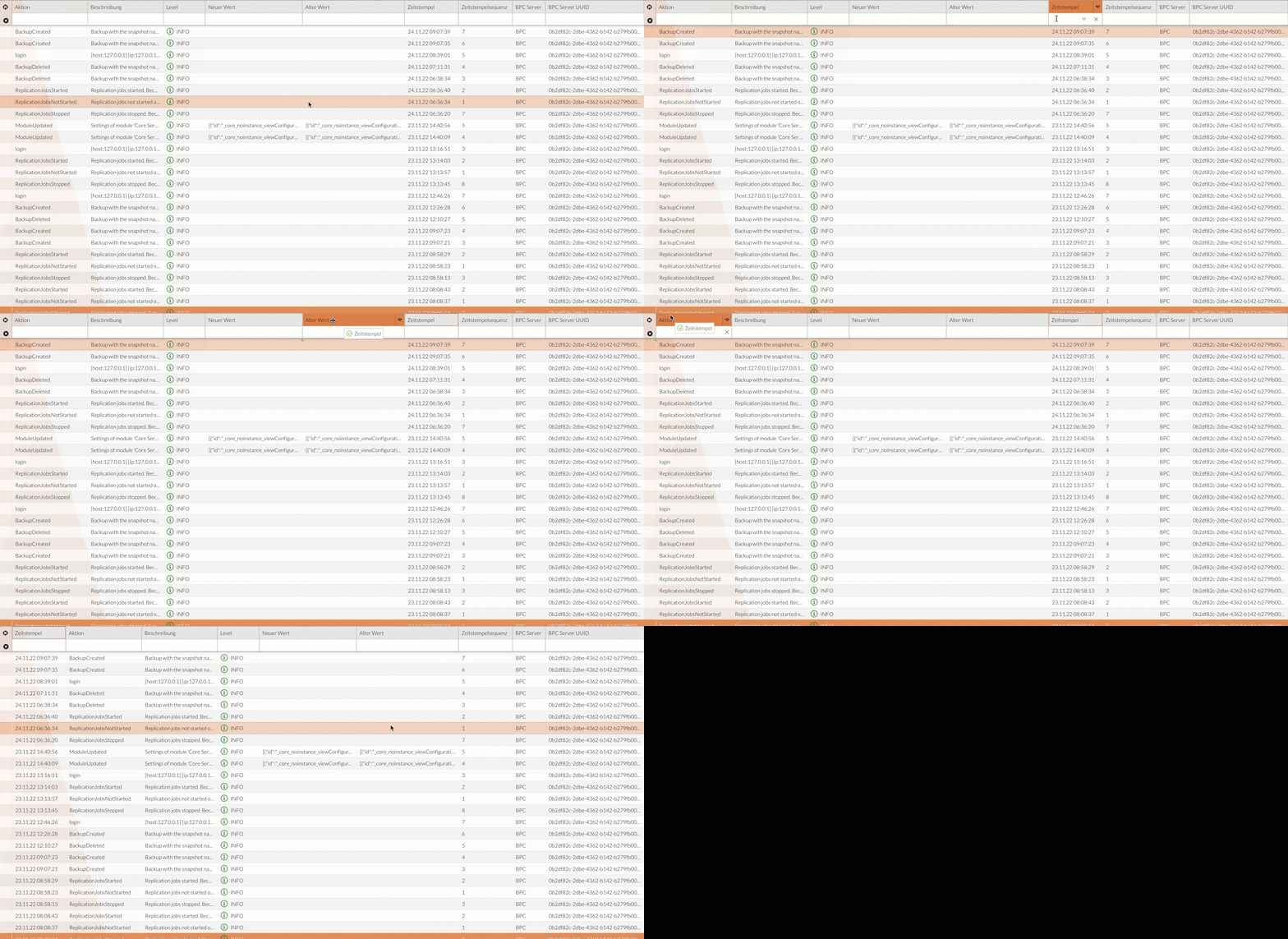
Click on the desired column button and hold down the left mouse button.
-
Drag the column to the desired position within the table.
The green markers in the table header indicate the position. -
Release the left mouse button.
Sorting Column Contents
There are several ways to sort the data in a column in ascending or descending order:
-
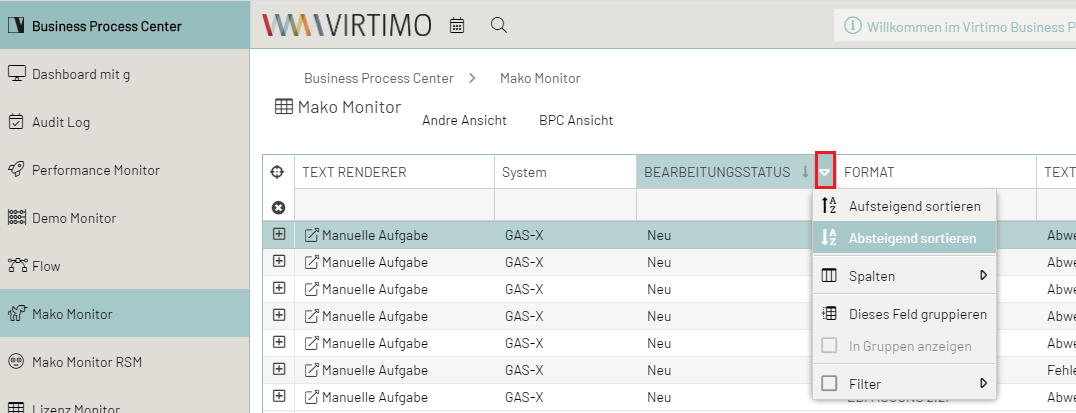
Click the pull-down icon next to each column header to open a small function menu.
Select the desired sort order, and the data in the view will be sorted accordingly.
-
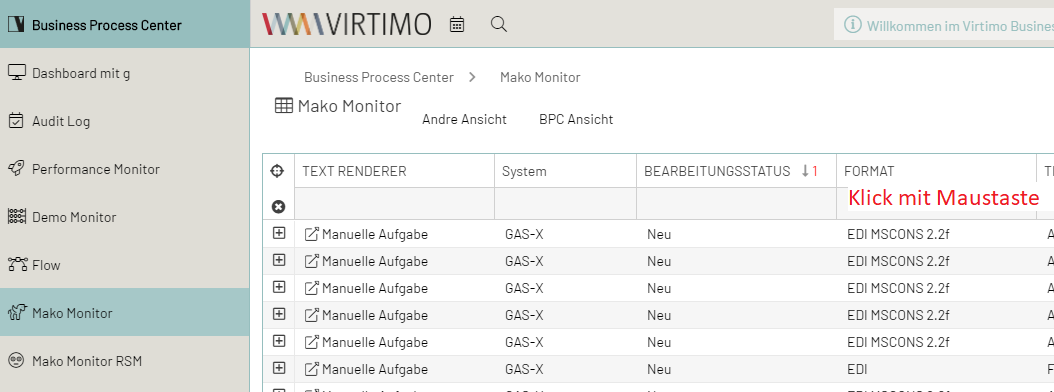
You can sort the column contents by clicking on the name of the column header you want to sort.
Clicking on the column header sorts the contents of that column in ascending order; clicking again sorts them in descending order.
Remove Sort Order from Column Contents
Here, too, the user has several options for resetting the sort order of the column contents.
-
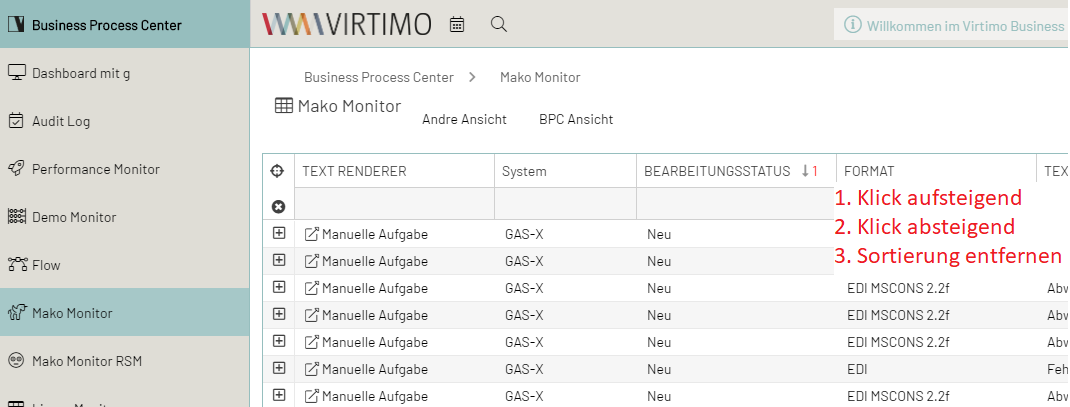
Triple-clicking the sorted column header removes the sort order from that column.
This means that the first click on the column header applies ascending sort order, the second click applies descending sort order, and the third click removes the sort order.
-
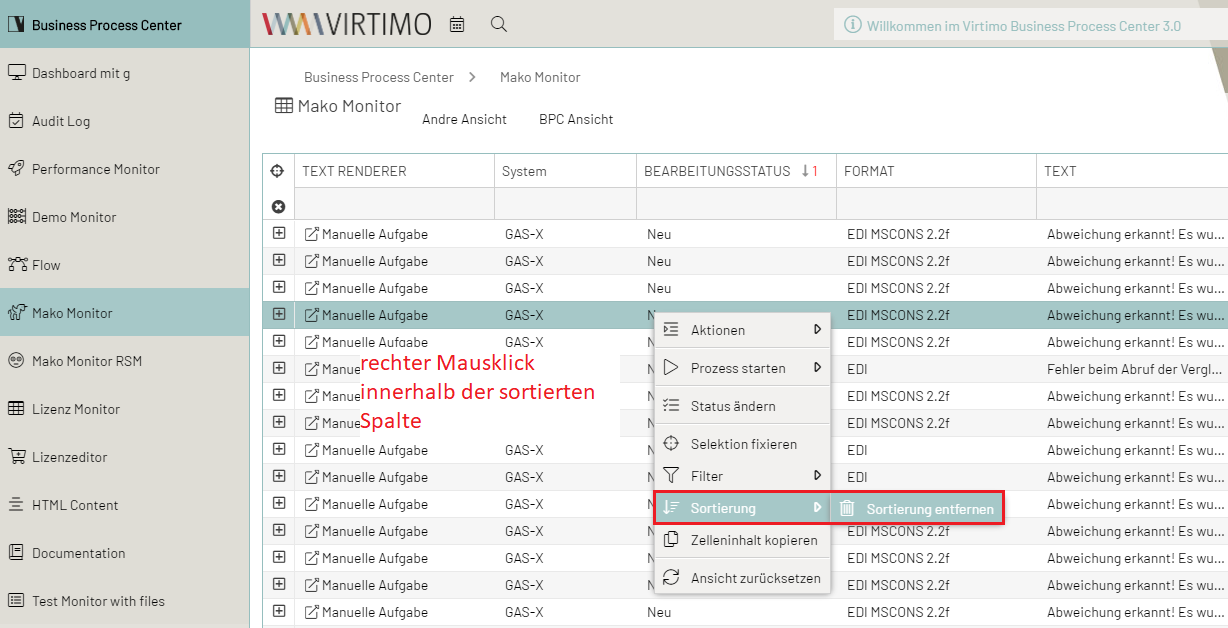
The user hovers the mouse over any row below the sorted column and opens a small menu by right-clicking.
From the "Sort" option, they can then reset the sort order using "Remove Sort Order."
-
The user selects the "Remove Sorting" function from the Process Monitor ribbon to clear an existing column sort.

