HTML Content Module
The HTML Content Module allows users to view published content. If they have the appropriate permissions, users can create, edit, and publish content. In addition, an HTML Content page can be integrated as a widget in the Process Dashboard. Contact your administrator for widget integration.
User Interface
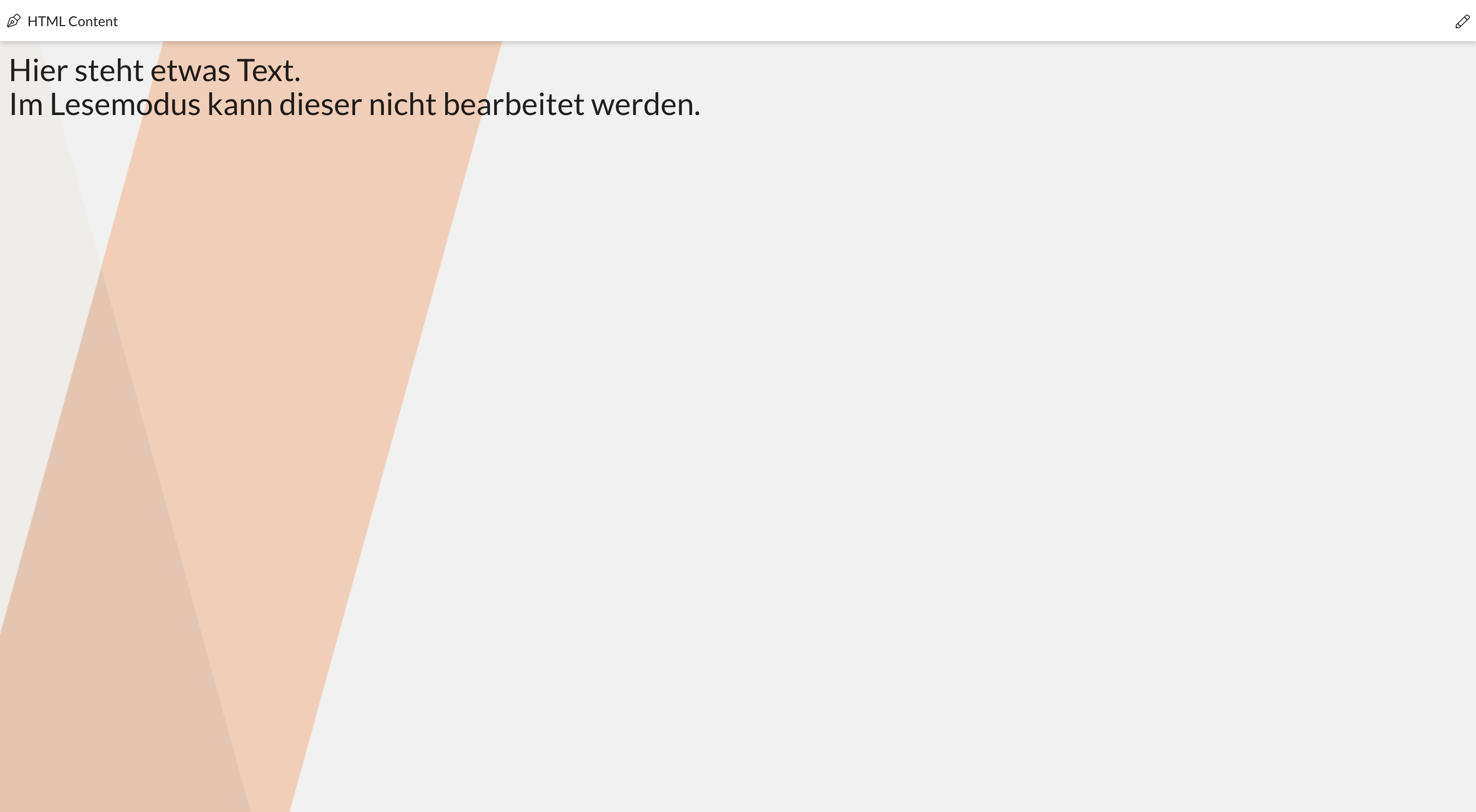
When the module is opened, read mode is displayed by default. This mode is intended solely for viewing content without editing functions.
Prerequisites
To use and manage the HTML Content module, the following prerequisites must be met:
-
You have the necessary permissions to access the module.
-
The appropriate editor role must be assigned to edit content.
The following permissions are managed in the administration area:
|
Users with this permission can access the module. |
|
Users with this role can edit content using the icon in the BPC toolbar. |
|
Users with this role can only edit content for the specific module ID.
Example: The role |
Configure Module
The basic parameters for the HTML Content module are set in the administration area. These include general module settings as well as formatting options such as link colors and text styles.
The following configuration parameters apply to the entire module.
Module
General module settings
Name (ID) |
Description |
|---|---|
Icon |
Individually selectable icon that is displayed before the title. |
Configuration
Name (ID) |
Description |
|---|---|
HTML Content Fallback Language |
HTML content is returned in this language if it is not available in the requested language. If, for example, the active language of the BPC is Spanish and no HTML content has been stored for Spanish, the content of the fallback language is returned. |
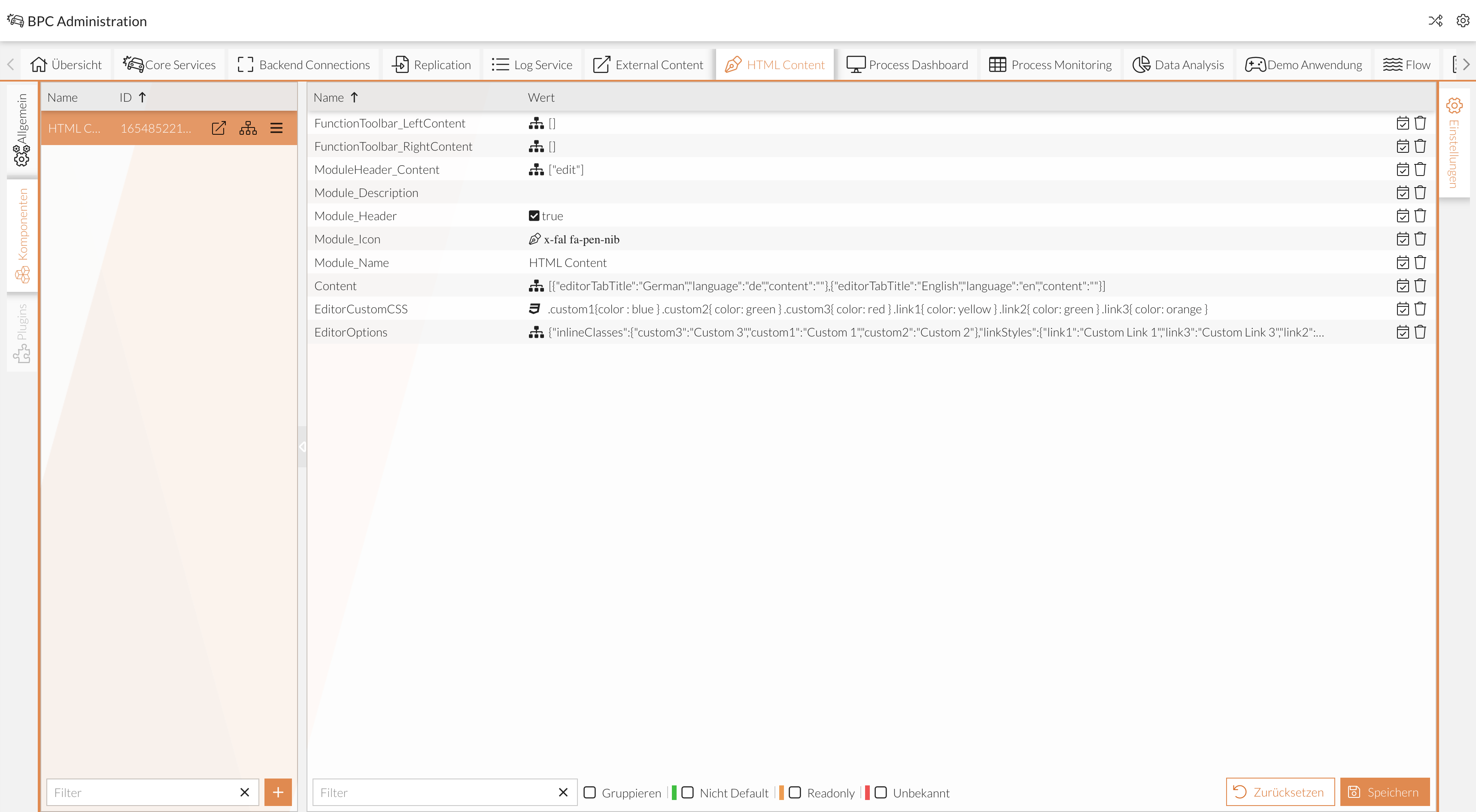
Additionally, settings can be configured on a per-component basis:
Module
General module settings
Name (ID) |
Description |
|---|---|
Name |
Name or title of the module/component. |
Icon |
Individually selectable icon that is displayed before the title. |
Description |
Can be used as an additional description that is displayed in the module header. |
Left Toolbar |
Contents on the left in the global header. |
Right Toolbar |
Contents on the right in the global header. |
Modulheader |
Modulheader content. |
Configuration
Module-specific settings
Name (ID) |
Description |
|---|---|
HTML Content |
HTML content that is displayed in the HTML content module. The content updates automatically when users (with editing authorization) make changes directly in the module. |
Custom Stylesheet |
CSS stylesheet where custom CSS classes are defined. These can be incorporated into the HTML text editor. |
Additional HTML Editor Options |
Additional configuration parameters for the HTML editor. Possible options can be found in the Froala editor documentation (https://froala.com/). |
Editing Content
This section describes how to create or customize content in the HTML Content module.
-
Navigate to the HTML Content module.
-
Click the icon to edit.
Depending on the configuration, the icon is located in the BPC toolbar (left or right) or in the module header.

-
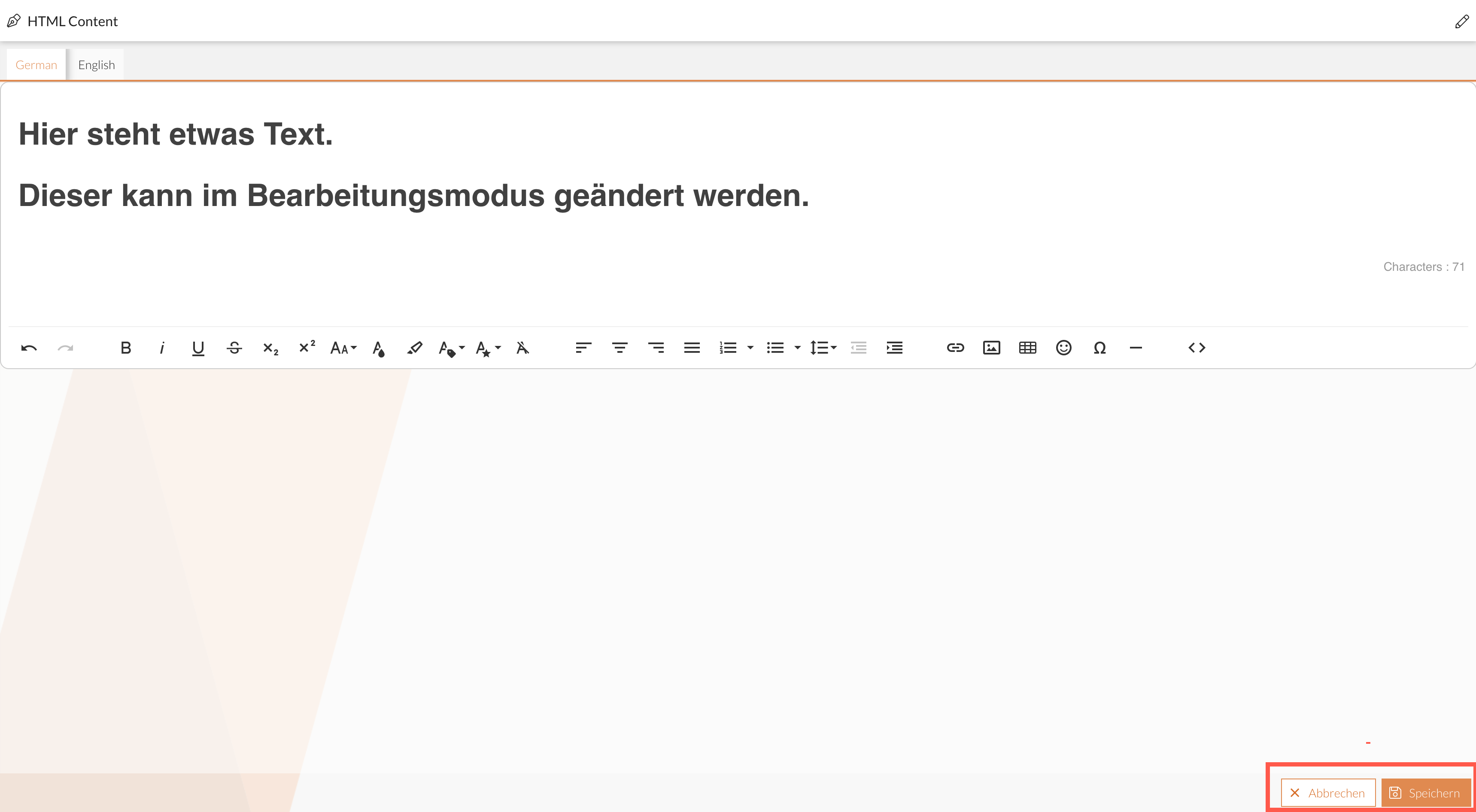
Create or edit the content in the editor window.
Each available language is displayed in its own tab.

-
Use the toolbar functions to format text or insert media.
-
Click Save () to apply the changes.
Editing is completed, and you exit edit mode.
The updated content is now displayed in read mode.
Editor Features
The editor offers various tools for formatting text and inserting elements. These features are accessible via the editor toolbar:
| Button | Description |
|---|---|
|
Undoes the last action. |
|
Restores a previously undone action. |
|
Opens a window with useful keyboard shortcuts for the editor. |
|
Formats the selected text in bold. |
|
Formats the selected text in italics. |
|
Formats the selected text as underlined. |
|
Formats the selected text as strikethrough. |
|
Formats the selected text as subscript. |
|
Formats the selected text as superscript. |
|
Allows you to select the font size. |
|
Allows you to select the text color or enter a HEX value (e.g., "#FFFF00"). |
|
Allows you to select the background color for the selected text. |
|
Applies predefined CSS classes to the text. |
|
Applies predefined styles to the text. |
|
Removes all formatting from the selected text. |
|
Aligns the text to the left. |
|
Centers the text. |
|
Aligns the text to the right. |
|
Justifies the text using justified alignment. |
|
Creates a numbered list or changes the numbering style. |
|
Creates a bulleted list or changes the list style. |
|
Allows you to select heading and text styles. |
|
Offers additional text styles such as "Gray," "Bordered," "Spaced," or "Uppercase." |
|
Allows you to adjust line spacing. |
|
Reduces the indentation of the current paragraph. |
|
Increases the indent of the current paragraph. |
|
Marks text as a quote and allows you to adjust the quote level. |
|
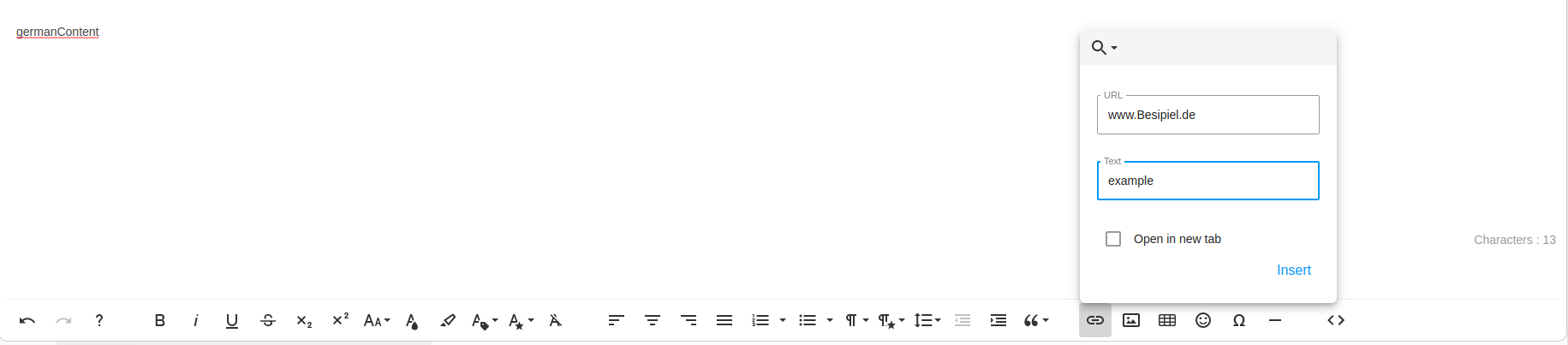
Opens a dialog for inserting and configuring hyperlinks. |
|
Allows you to insert images via a URL. |
|
Opens a dialog for creating tables with a defined number of columns and rows. |
|
Allows you to insert emoticons. |
|
Allows you to insert special characters. |
|
Inserts a horizontal separator line. |
|
Switches between the visual view and the HTML code view. |


Using CSS Classes
For advanced text styling, custom CSS classes can be defined and applied.
These are first defined in the settings at EditorCustomCSS and then referenced in EditorOptions.
Applying Inline CSS Classes
If a CSS class is defined under the inlineClasses attribute, it can be applied to any element in the editor.

Formatting Links with CSS Classes
Special classes for links are defined under the linkStyles attribute.
These classes can be assigned when editing a link.
-
Select the link in the editor.
-
Open the tooltip menu by clicking the link.
-
Select the desired class from the list of link styles.
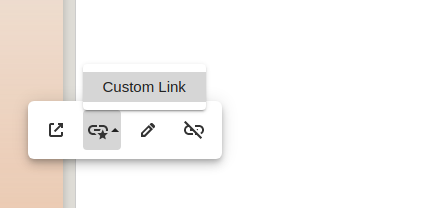
The selected formatting is applied to the link.
