Impersonating Users with Keycloak
This feature allows an authorized user to pose as another user. This is referred to as impersonation.
Usage
In the integrated user management system, impersonation can be triggered by clicking the button next to the respective user. This immediately logs you in as that user.
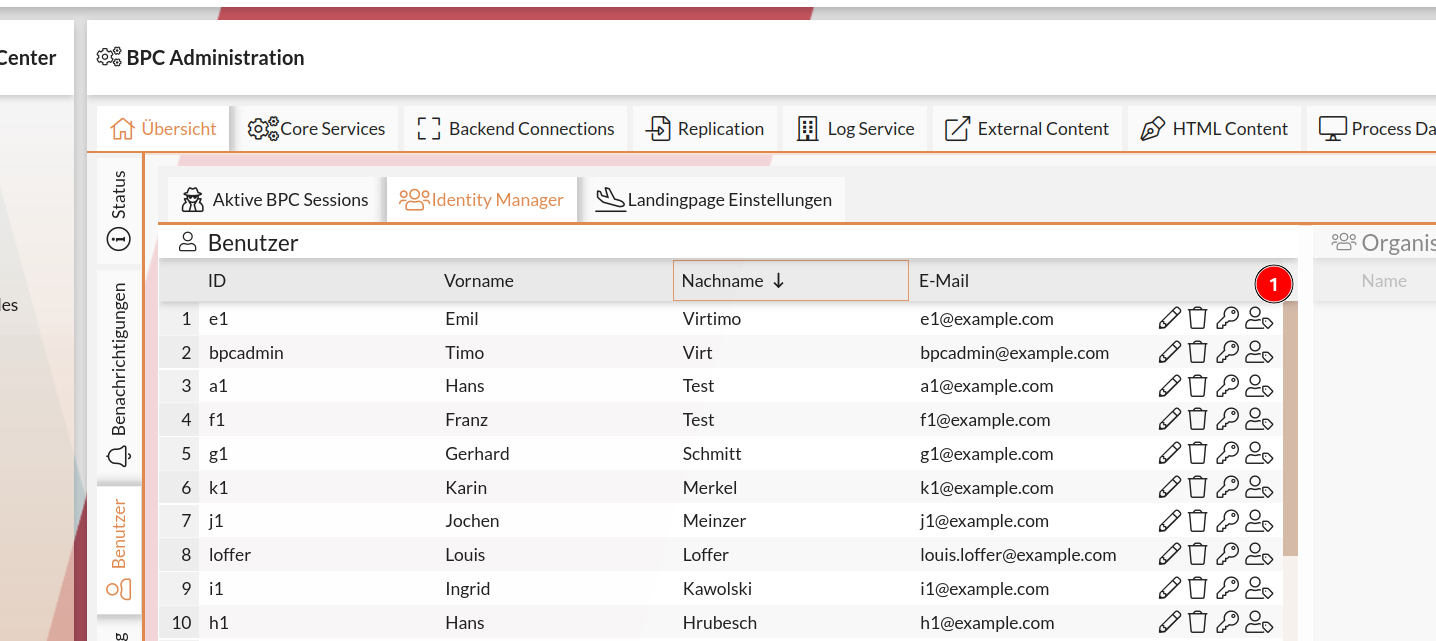
Alternatively, this can also be enabled from the user management section in Keycloak.
Keycloak Configuration
To enable impersonation, adjustments must be made in both Keycloak and BPC.
Enabling the Required Feature
The so-called Token Exchange Service feature (ID: token-exchange) must be enabled.
Otherwise, the error “ Feature not enabled ” will occur.
If you want to prevent the impersonation of specific users (see Restricting Impersonation), you must also enable the Fine-Grained Admin Permissions feature (ID: admin-fine-grained-authz).
You can find instructions on how to enable features in the Keycloak documentation.
Permissions
The permissions required for this feature can be found under Keycloak Permissions.
Enable Impersonation Detection
In order for the BPC to detect when one user is impersonating another, the transmission of this information must be configured.
To do this, add appropriate mappers to one of the client scopes in use (e.g., profile).
At Mappers, these can be added via Add mapper → From predefined mappers.
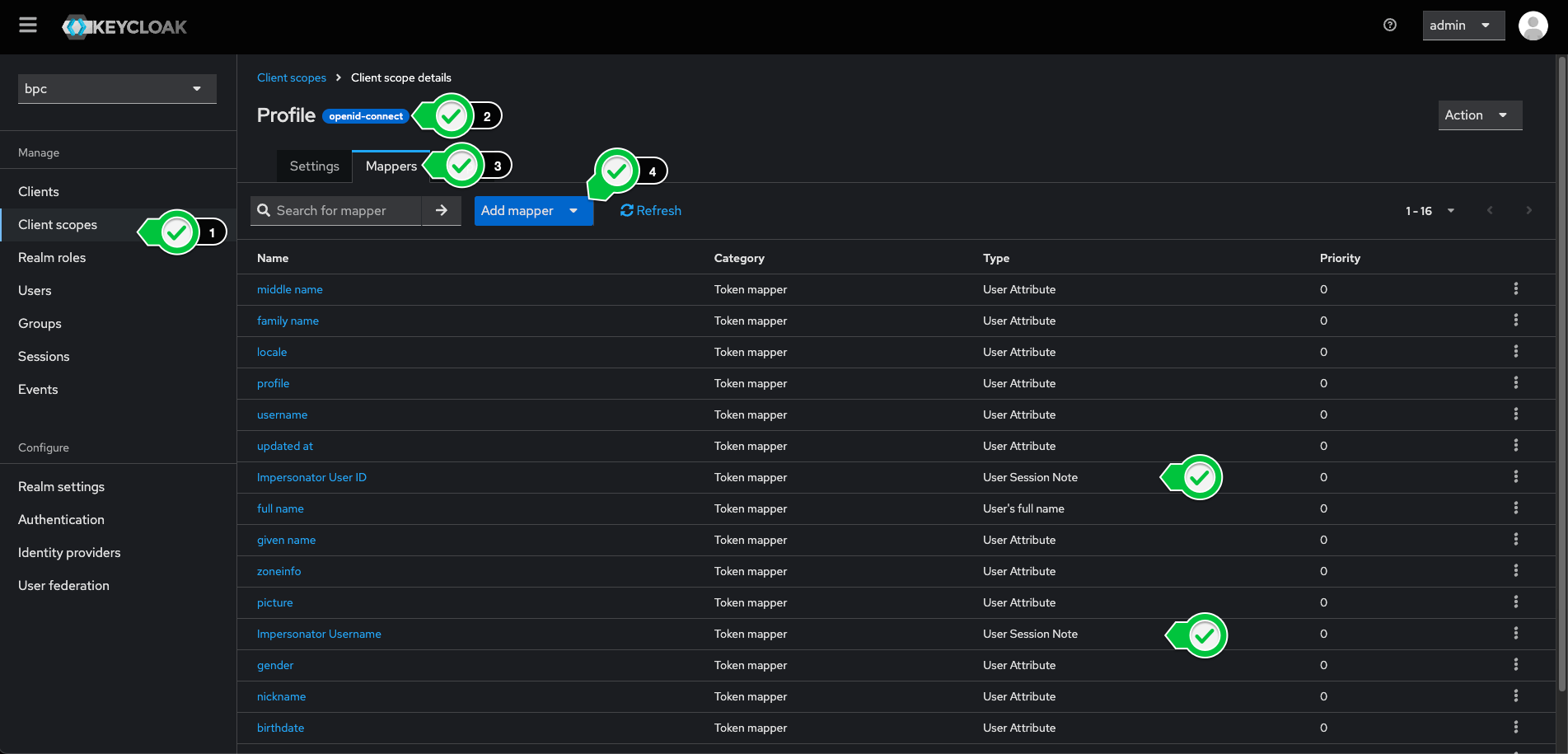
The following mappers must be added:
-
Impersonator Username
-
Impersonator User ID
Once these mappers are set, information about who is impersonating the current user is stored in the user session.
|
If this is not configured, the BPC cannot detect that a user is being impersonated. This would mean that the BPC’s audit log would not show that a user was impersonated. |
Restricting Impersonation
Please note that when users impersonate other users, they also inherit those users’ permissions. This may result in an unintended expansion of permissions.
To prevent this, you can configure Keycloak to control who is allowed to impersonate whom. To do this, the corresponding feature (see Enabling the Required Feature) must be enabled. Then proceed as follows in Keycloak:
-
Create a role.
-
On the client,
realm-management, create a client policy of typeRole-
Add the role you just created to the policy and check the box
Required field -
The setting at
Logicis crucial.-
Positive- Members of this role can be impersonated; users without this role cannot -
Negative- Members of this role cannot be impersonated; users without this role can
-
-
In the user list, select
Permissions -
Select
user-impersonatedfrom the list -
In the Permission section, select the previously created policy and save the changes
-
See also the Keycloak documentation.
BPC Permissions
The required permissions are described on the page User Management.
