Information on the documentation
This page contains general information on the structure, layout, and symbols used in the documentation for Virtimo products.
Header bar

The header bar contains the Virtimo logo, which takes you to the Virtimo documentation homepage when you click on it.
Next to the logo is the path of the current page, which automatically adapts and expands when you change pages.
You can use the version selection to call up the documentation for a specific product version.
If the current page is not available in the selected version, the version option in the selection menu will be grayed out, and you will be redirected to the homepage of the product documentation.
You can use Search to search for specific terms within the Virtimo documentation. The result list shows the higher-level component and version as well as the page title on the left-hand side and an excerpt of the text passages in which the search term(s) occur on the right-hand side.
You can also restrict the result list to one or more components.
You can use the help icon to access supporting information on this documentation at any time.
If you notice an error or have problems accessing the page, you can click on the corresponding feedback icon . This opens a window with an automatically created link to the current page. You can describe and submit your request in the Description field.
Search
The search is carried out across all components of the documentation.
|
Due to stemming and stop words, there may be deviations in the search results. |
Open explanation of stemming and stop words
Stemming and stop words are used for search optimization.
Stemming does not take into account the endings of a word, e.g. plurals and conjugations.
Stop words are words that are usually considered irrelevant during processing and are therefore ignored, e.g. the articles "der", "die", "das".
You can enter one or more search terms in the search field. If you use several terms, the search engine acts according to the following criteria:
| Input | Result list |
|---|---|
|
Displays all pages that contain the search term. |
|
Displays all pages that contain at least search term 1 or search term 2. |
|
Shows all pages that contain search term1 and search term2. |
|
Shows all pages that contain search term1 and do not contain search term2. |
|
Shows all pages that contain words beginning with "search". |
|
Displays all pages that contain words ending with "term". |
|
Displays all pages that contain words beginning with "search" and ending with "handle". |
|
Displays all pages containing words similar to the entered search term. The number following the Example using the search term "Search":
For larger deviations, the number can be increased—e.g., |
Special characters in the search term
If the search term contains special characters that are normally an operator for the search, these must be hidden with a "\".
| Example | Explanation |
|---|---|
|
Uses the entire phrase as a search term and hides ":" as an operator. |
Additional search fields
Additional search fields are available for very specific or detailed search queries.
The fields can be combined.
The entry in the search field is made as follows, for example:
+title:Dashboard +text:Monitoring
| Field | Description |
|---|---|
|
Returns result pages that contain the search term in one of the page headings. |
|
Returns result pages that only contain the search term in text sections - headings, for example, are ignored. |
|
Returns result pages only for the entered version. |
Restrict search to components
If you want to restrict the search to a component, you can select this in the Filter area.
To do this, click on the corresponding box so that a tick appears.
|
The filters only appear after you have made an entry in the search field. |
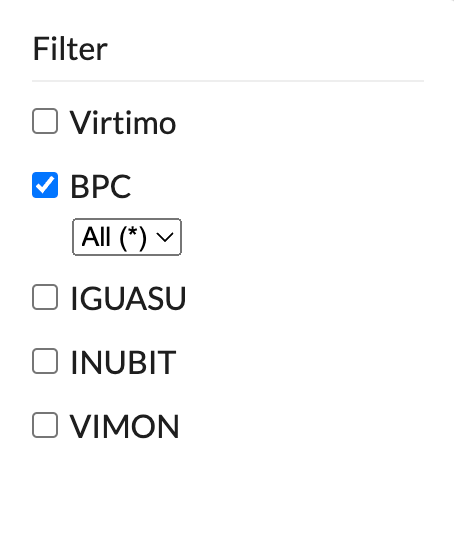
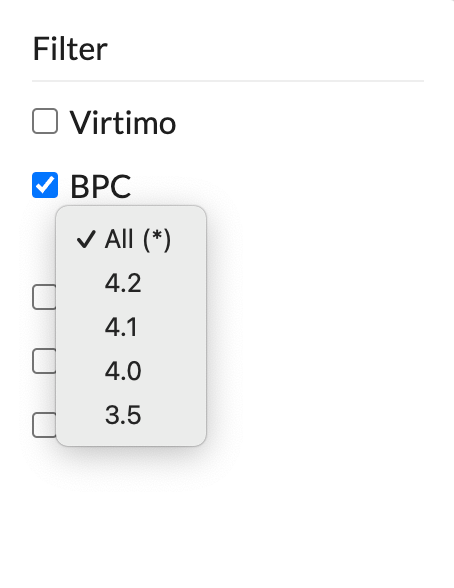
You can also select multiple components or deselect components by unchecking the box.
Navigation
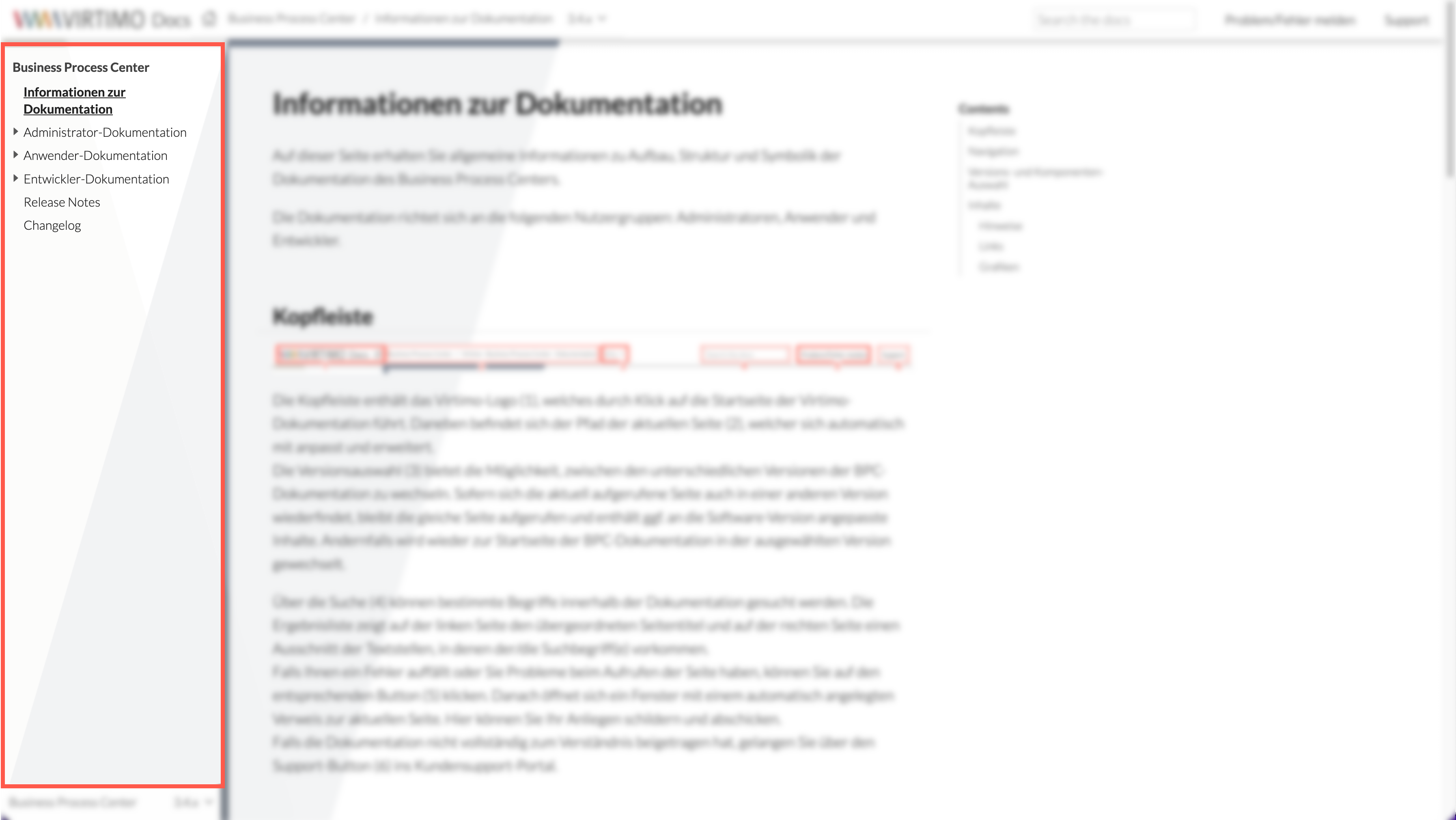
The navigation for the Virtimo documentation is divided into general pages and the individual documentation for the respective user groups.
The page currently called up is highlighted in bold and underlined highlighted.
If a page has one or more subpages, this is indicated by the icon.
To expand the subpages, both the icon and the text can be clicked.
Version and component selection
You can use the arrow to expand the selection window.
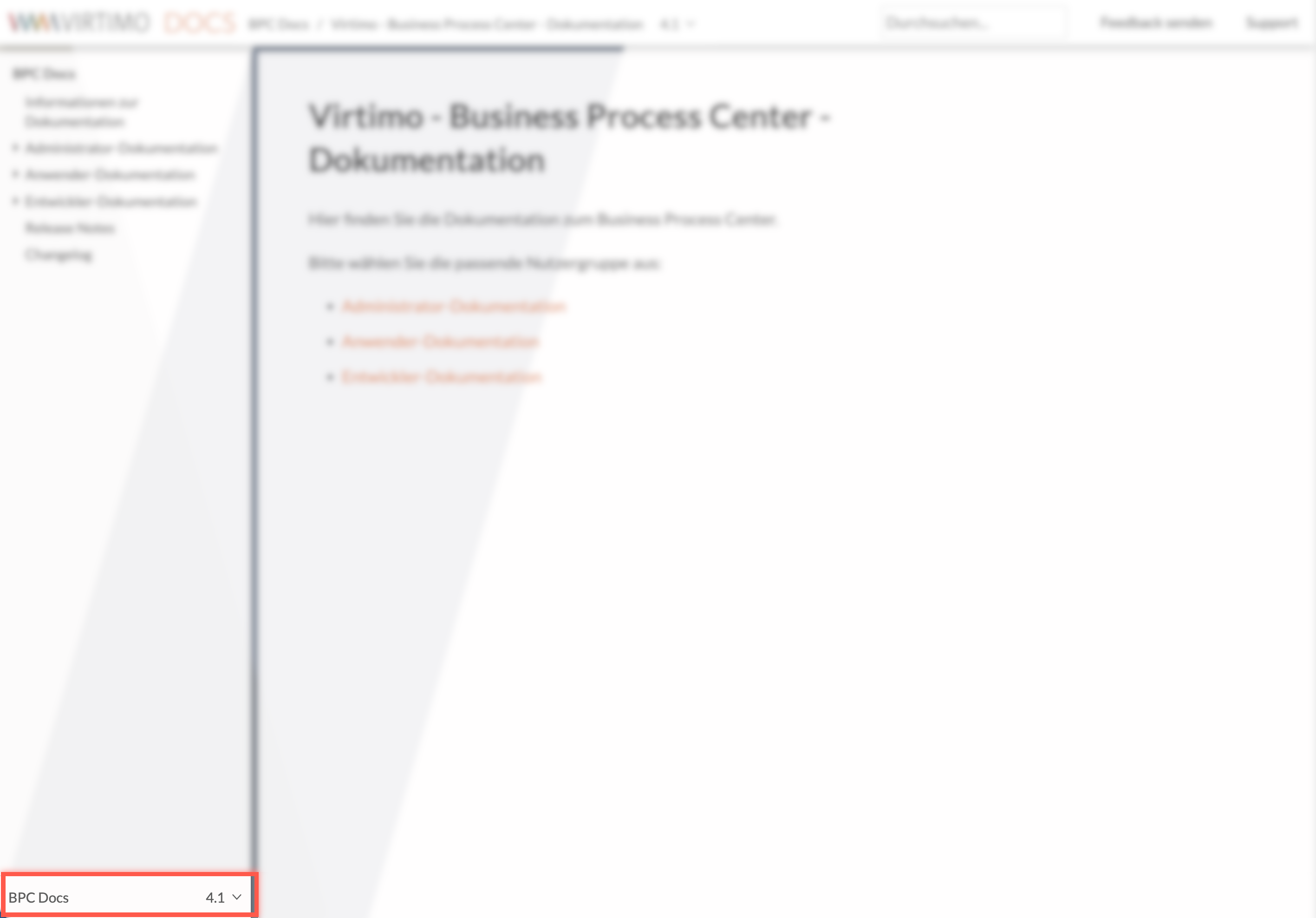
In this area there is again a quick selection for different documentation versions
-
of the BPC documentation,
-
of the IGUASU documentation,
-
of the INUBIT documentation,
-
of the VIMON documentation.
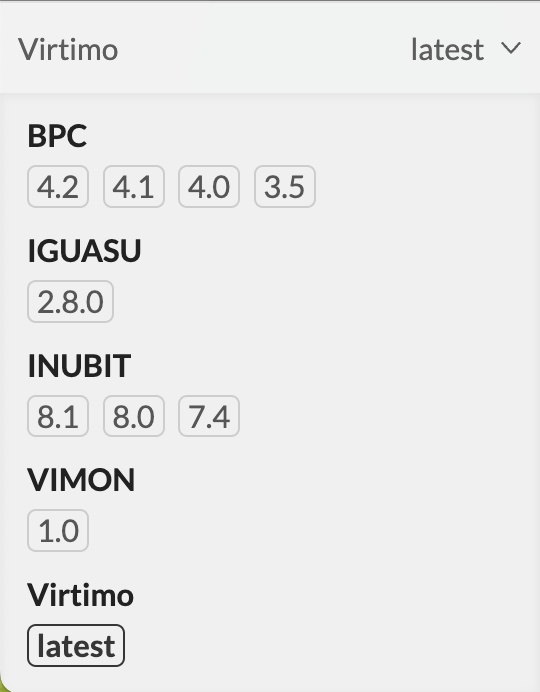
The desired version of the respective component can be selected.
The version currently called up is highlighted in bold.
Contents
This section contains the actual contents of the pages. The title of the page corresponds to the name in the navigation. The content mainly consists of texts, tables and images as well as markups and highlights, which are explained below.
For a better overview and to find the subordinate sections more quickly, each page contains its own small table of contents "Contents". This lists the titles of the other page sections.
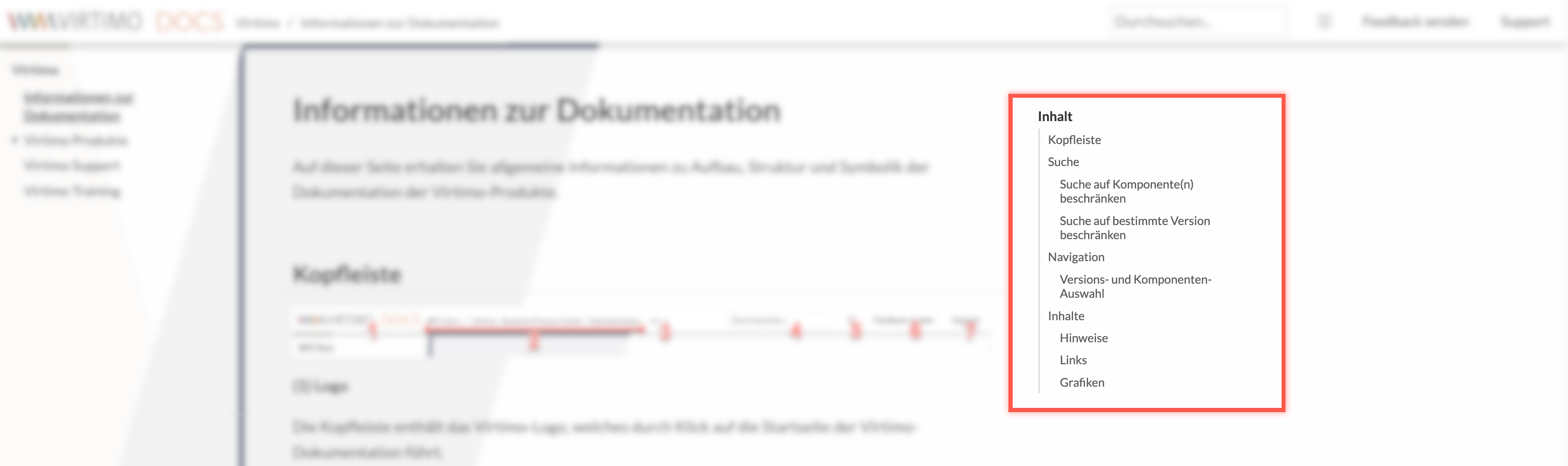
The current section is highlighted in color in the table of contents.
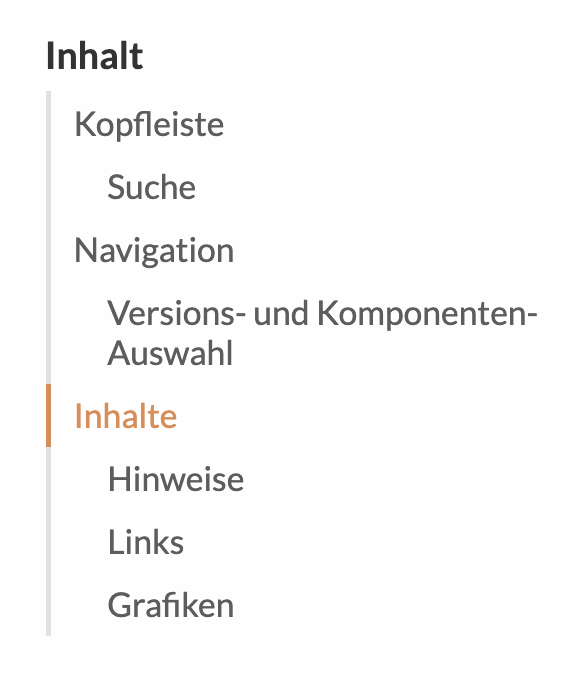
Clicking on a content title takes you directly to the corresponding place on the page.
Notes
|
Here you are warned about something that affects the appearance and/or performance of the software. If necessary, externally connected systems are affected. |
| Useful notes are given here that make it easier to use the software. |
Links
Links to external websites or text passages within the documentation are highlighted.
Graphics
Screenshots and animated images are used in the documentation to clarify text passages and make them easier to understand.
As large areas of the screen are sometimes shown, the images can be clicked on and called up in an enlarged preview.