Data Analysis for Consumers
The Analysis module for consumers is limited to the catalog (editor). The catalog contains all predefined reports, which may include one or more Diagrams.
User Interface
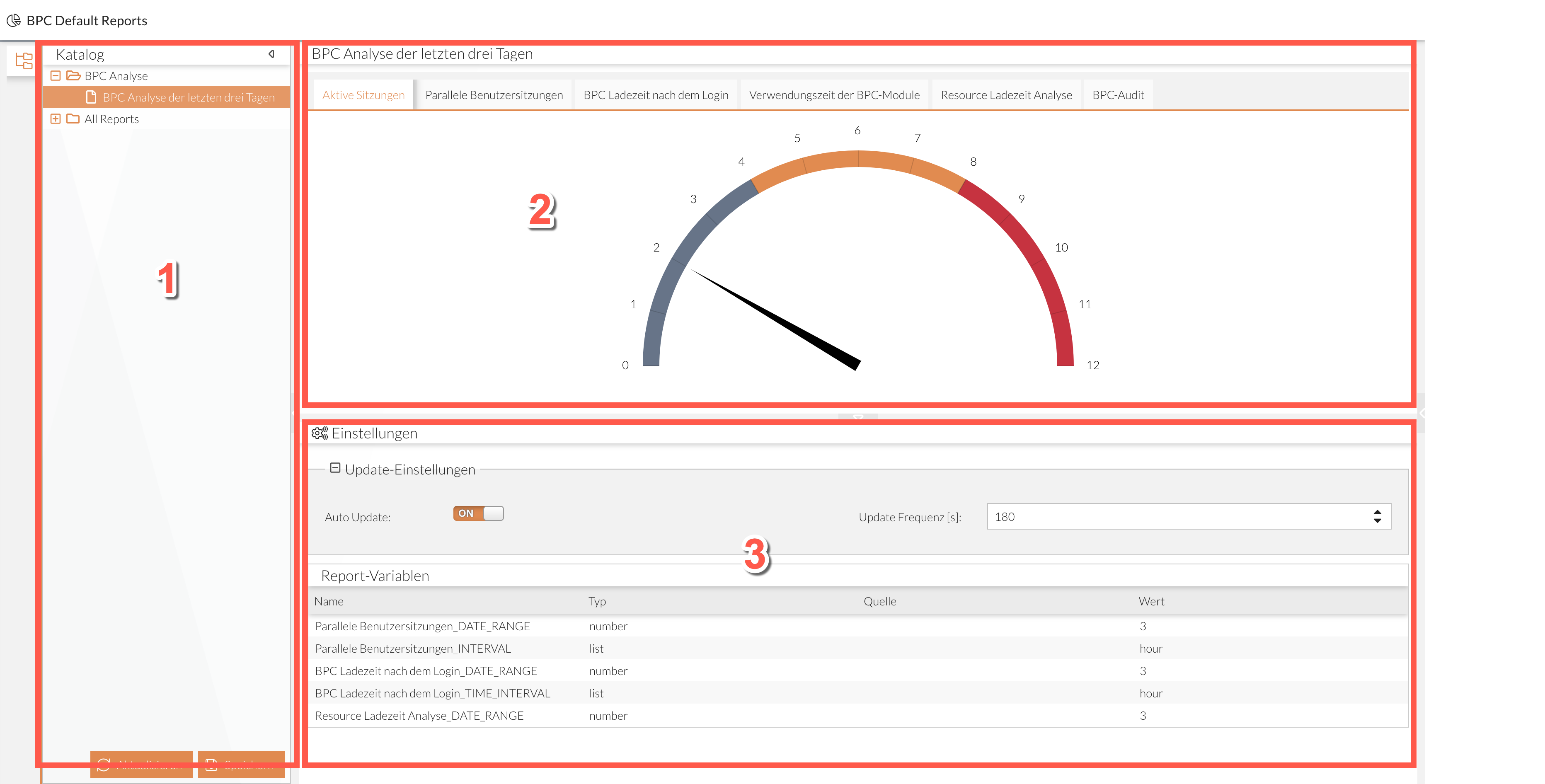
-
Section: List of reports
-
Section: Display of the selected report
-
Section: If enabled, configuration options for the current report (see Settings)
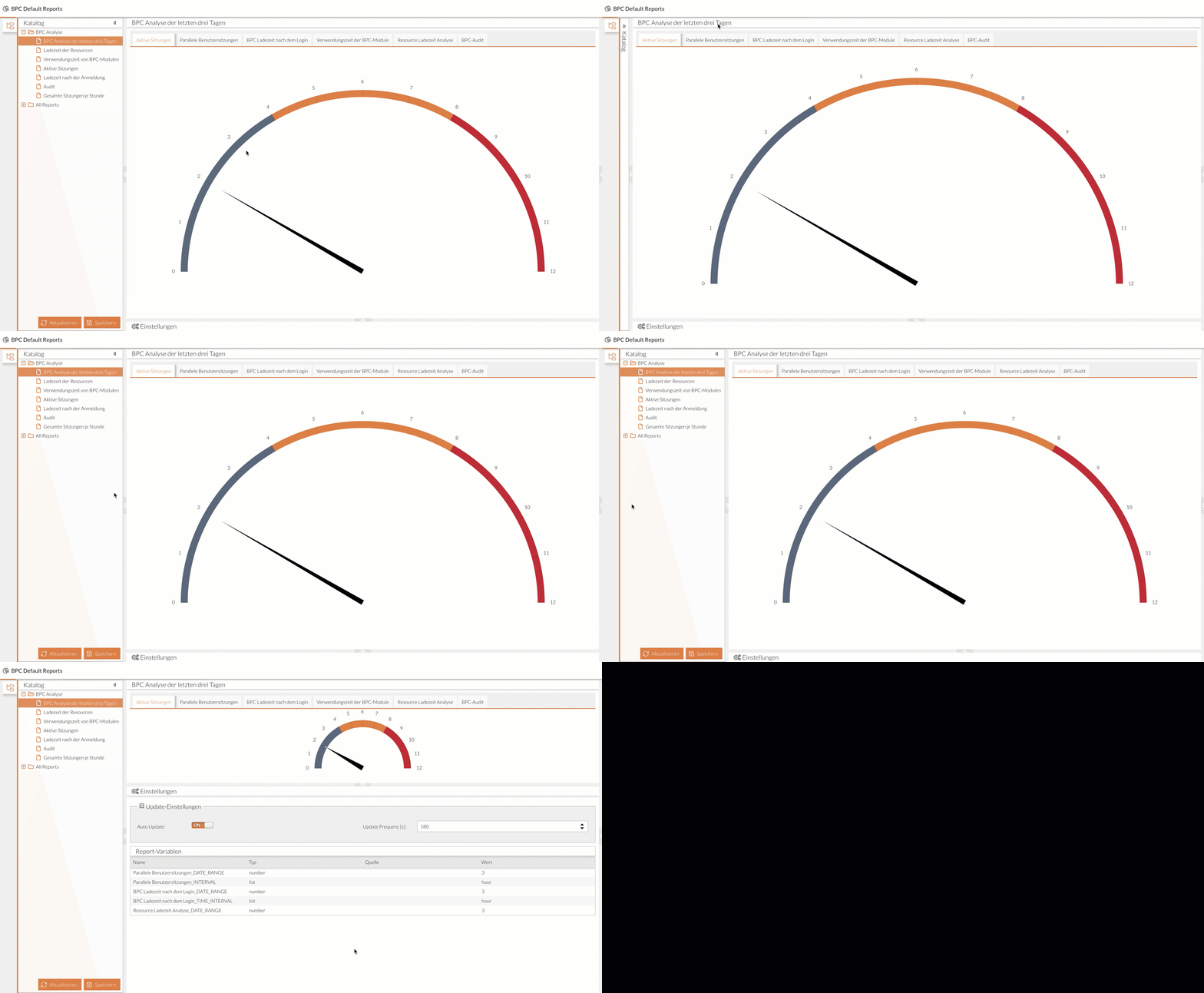
Viewing Reports in the Catalog
The catalog lists all reports that have been made available to you.
Folders and subfolders may have been created that contain one or more reports.
Folders and subfolders are indicated by an symbol.
A report is marked with the symbol
You can use the to open folders, revealing the subfolders or reports they contain.
To view a report, click on the corresponding row in the catalog. The selected report is then displayed in the view area.
You can use the icon to close the (sub)folders again.
Settings
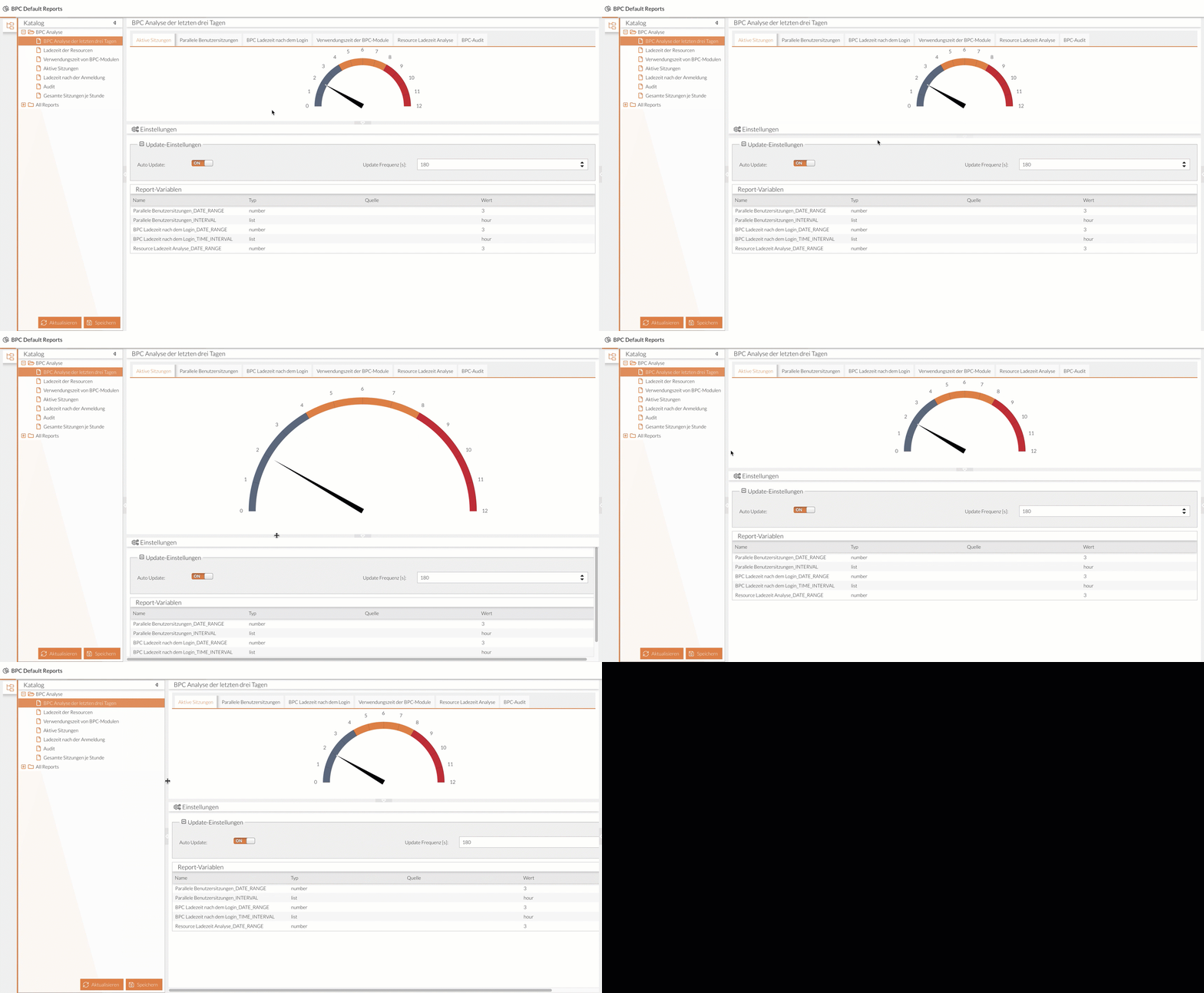
The Settings area is hidden by default and must therefore be displayed before use; see Expanding and Collapsing Areas.
If you have been granted access to the settings, you can make your own changes to the displayed report here. This applies to both the update settings and the report variables.
Update Settings
If you have the necessary permissions to customize the update settings, you will see the following options:

If Auto-Update is set to "ON," the view of the current report updates automatically. This occurs at the interval specified in seconds under " Update Frequency " or set using the two arrows.
If Auto-Update is set to "OFF," the view of the current report will not refresh.
If you want to refresh the view, you must click the corresponding button.
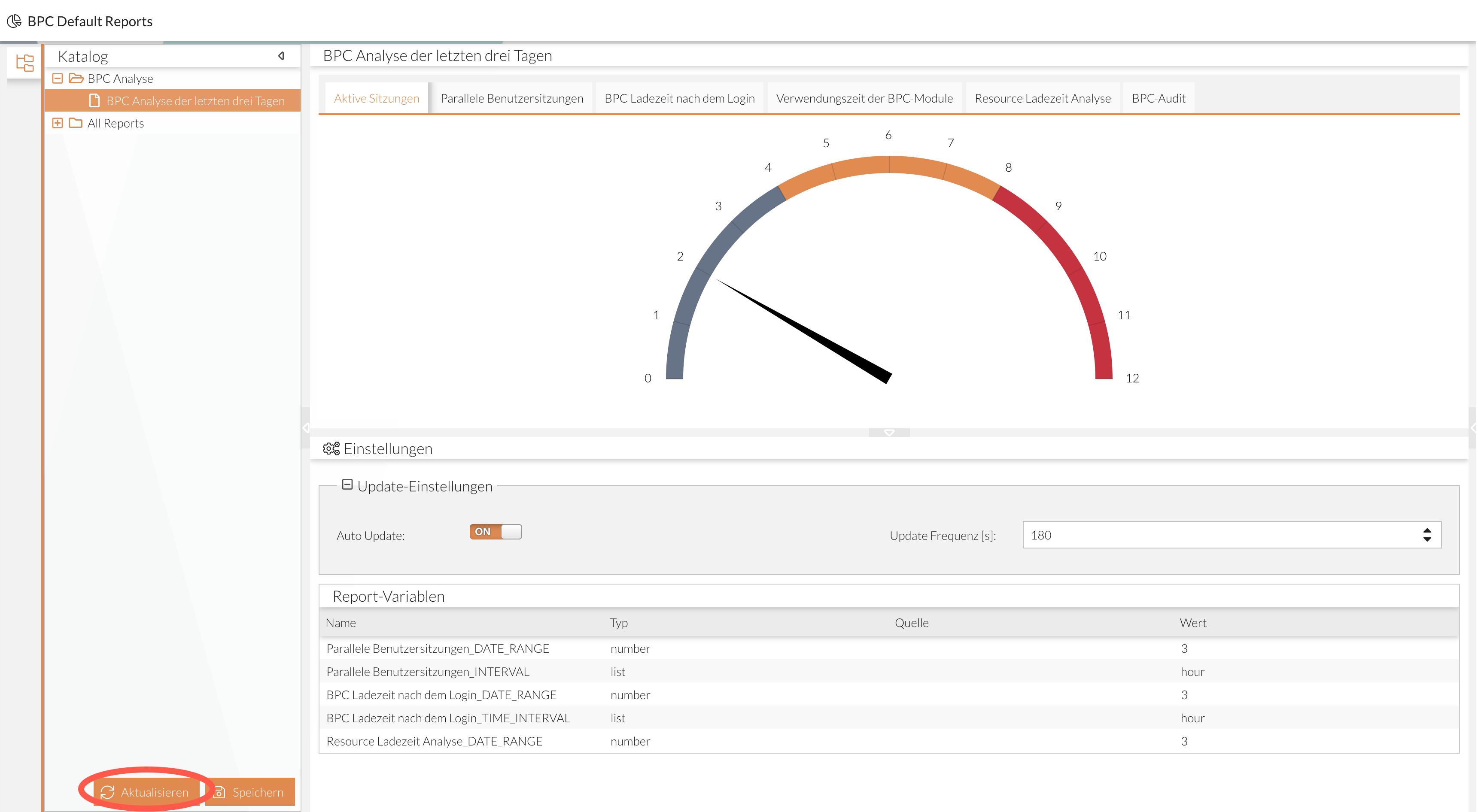
|
The settings you configure here are saved for the browser you are currently using.
They are only reset if you switch browsers. |
Report Variables
If you have the necessary permissions to customize the report variables, you will see a similar selection:
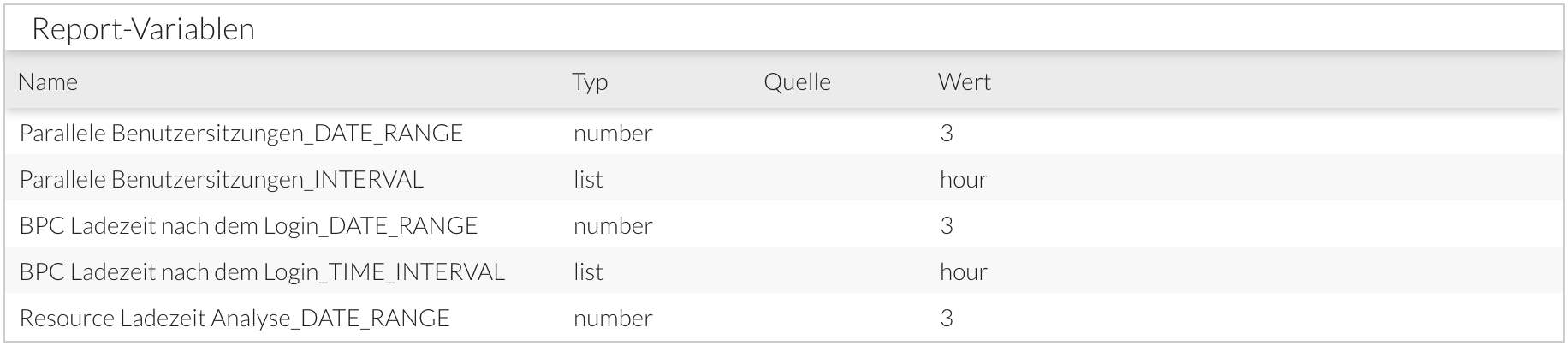
Here you can change the value of the listed variables, for example, to adjust time periods or time units.
|
A possible range of values has been preset for the values. Therefore, not all entries may be applicable to the report. |
