User Management
User management can be accessed in the administration area () under the Overview > Users > Users tab.
It lists all users of the identity provider and allows you to create new users directly from the BPC or delete existing users. In addition, a user’s organizations, roles, and permissions can be listed and modified.
User management is available for the identity providers Karaf, Keycloak and Database as an IdP are available. In a pure OIDCidentity provider, this feature is not available.
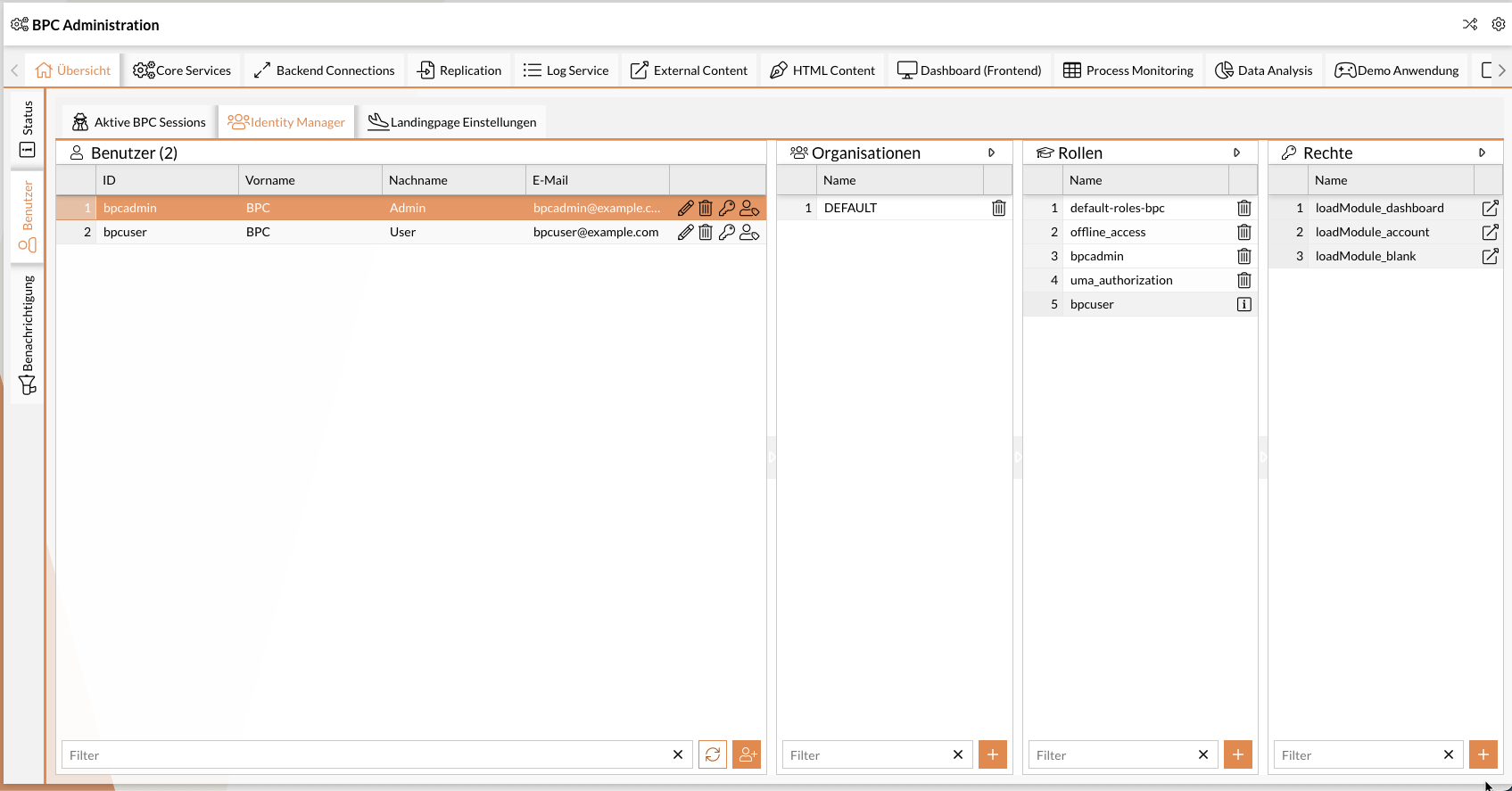
The screenshot shown displays five BPC users.
The selected user, Bob, is part of the Quality Assurance organization, has the role `default_roles_bpc`, and holds the permission ` produktion_pausieren`.
The numbers in the screenshot correspond to the following functions:
| 1 | |
| 2 | |
| 3 | |
| 4 | |
| 5 | |
| 6–9 | |
| 10–11 |
The system also displays organizations, roles, and permissions for the respective users that are not directly assigned to them.
These can be added, for example, through a role assignment from an organization or another role, or via the setting identityProvider_Mappings in the IdP backend Connection.
These indirect permissions are marked as such and cannot be removed.
Functions
The following sections describe the individual functions and the required permissions (in the BPC) needed to use them in more detail. If multiple required permissions are listed, only at least one of them is required—not all of them together.
You may need to configure additional permissions in your identity provider. This is particularly necessary for Keycloak. See Keycloak permissions.
The functions described are also available via API; see Identity Management API.
Listing users of the identity provider
Lists all users stored in the identity provider. The name and email address are displayed, if available.
Required BPC Permissions
-
Role
bpcadmin, -
Role
IDENTITY_MANAGER_ADMIN, -
Right
IDENTITY_MANAGER_USERS_READ
Displaying a User’s Permissions
Displays all of a user’s organizations, roles, and rights when the user is selected from the list of users.
Required BPC permissions
-
Role
bpcadmin, -
Role
IDENTITY_MANAGER_ADMIN, -
Permission
IDENTITY_MANAGER_USER_ORGANISATIONS_READ(for organizations), -
Permission
IDENTITY_MANAGER_USER_ROLES_READ(for roles), -
Permission
IDENTITY_MANAGER_USER_RIGHTS_READ(for permissions)
Editing user data
The icon can be used to edit a user’s Leader data, such as first name, last name, and email address.
Required BPC permissions
-
Role
bpcadmin, -
Role
IDENTITY_MANAGER_ADMIN, -
Permission
IDENTITY_MANAGER_USERS_UPDATE
Delete a user
A user can be deleted from the identity provider using the icon.
Required BPC permissions
-
Role
bpcadmin, -
Role
IDENTITY_MANAGER_ADMIN, -
Permission
IDENTITY_MANAGER_USERS_UPDATE
Set Password
A user’s password can be changed using the icon.
Required BPC permissions
-
Role
bpcadmin, -
Role
IDENTITY_MANAGER_ADMIN, -
Permission
IDENTITY_MANAGER_USERS_UPDATE
Impersonate a user
You can impersonate a user in the system using the icon. You are then logged into the BPC with the permissions and identity of the other user.
This feature is only available for the Keycloakidentity provider; see also Impersonating Users with Keycloak.
Required BPC permissions:
-
role:
bpcadmin, -
role:
IDENTITY_MANAGER_ADMIN, -
permission:
IDENTITY_MANAGER_USER_IMPERSONATE
Creating New Users
New users can be created in the identity provider using the Add button.
Required BPC Permissions
-
Role
bpcadmin, -
Role
IDENTITY_MANAGER_ADMIN, -
Permission
IDENTITY_MANAGER_USERS_ADD
Add/Delete User Permissions
This feature allows you to assign or remove organizations, roles, and permissions from users.
If you assign an organization, role, or permission that does not yet exist, it will be created in the Identity Provider.
If this results in a new Keycloak role being added, it is created as either a realm role or a client role, depending on the Keycloak setting identityProvider_keycloak_addRolesToRealm.
Required BPC permissions
-
Role
bpcadmin, -
Role
IDENTITY_MANAGER_ADMIN, -
Permission
IDENTITY_MANAGER_USERS_UPDATE
