Configuring Monitor Detail Views
The display of the various detail windows that can be activated in the monitor can be configured on a per-monitor basis. This page describes the configuration options.
There are 3 detail views that can be configured:
-
View for the popup ("detailView_popupConfig")
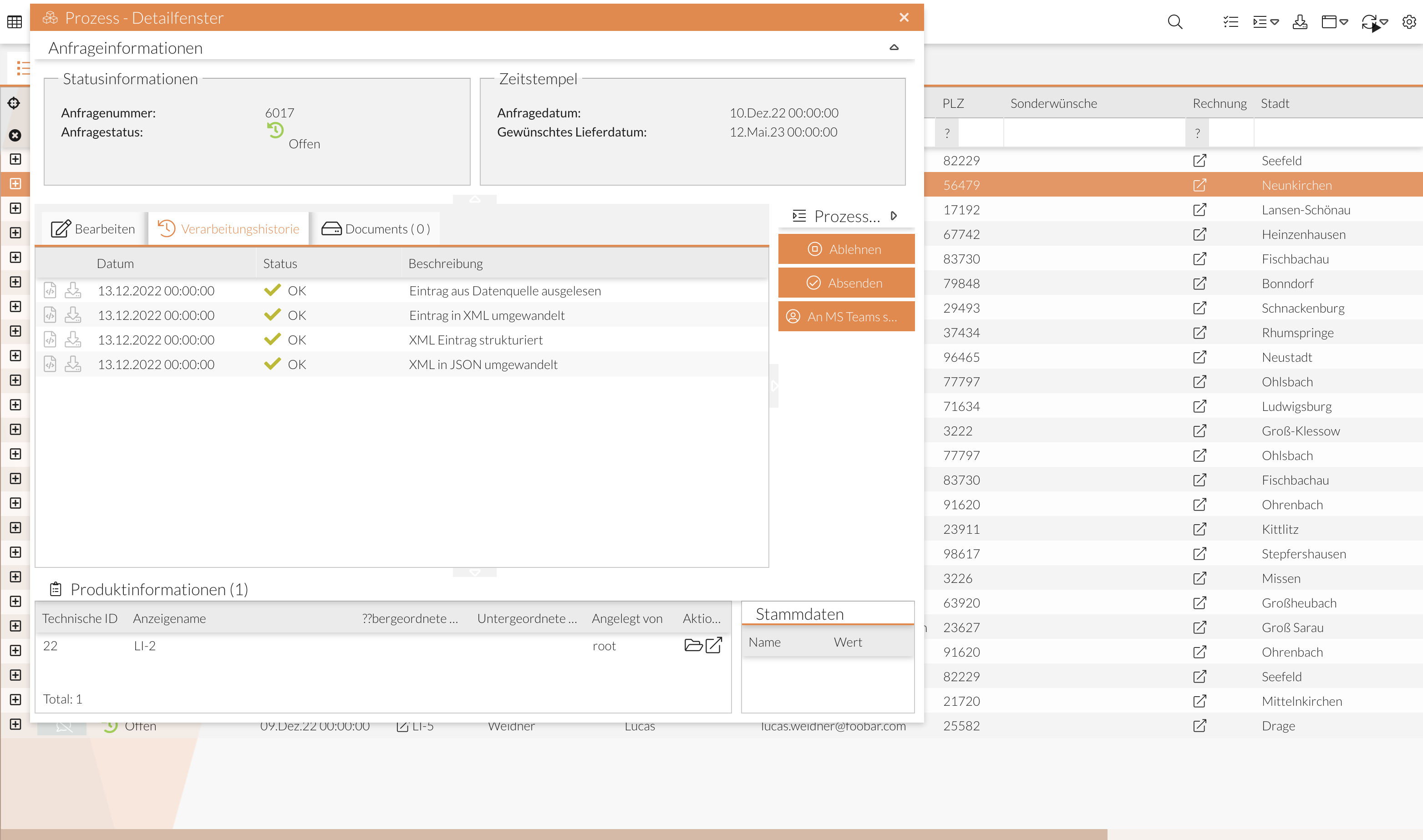
-
View when the process is expanded ("detailView_inlineConfig")
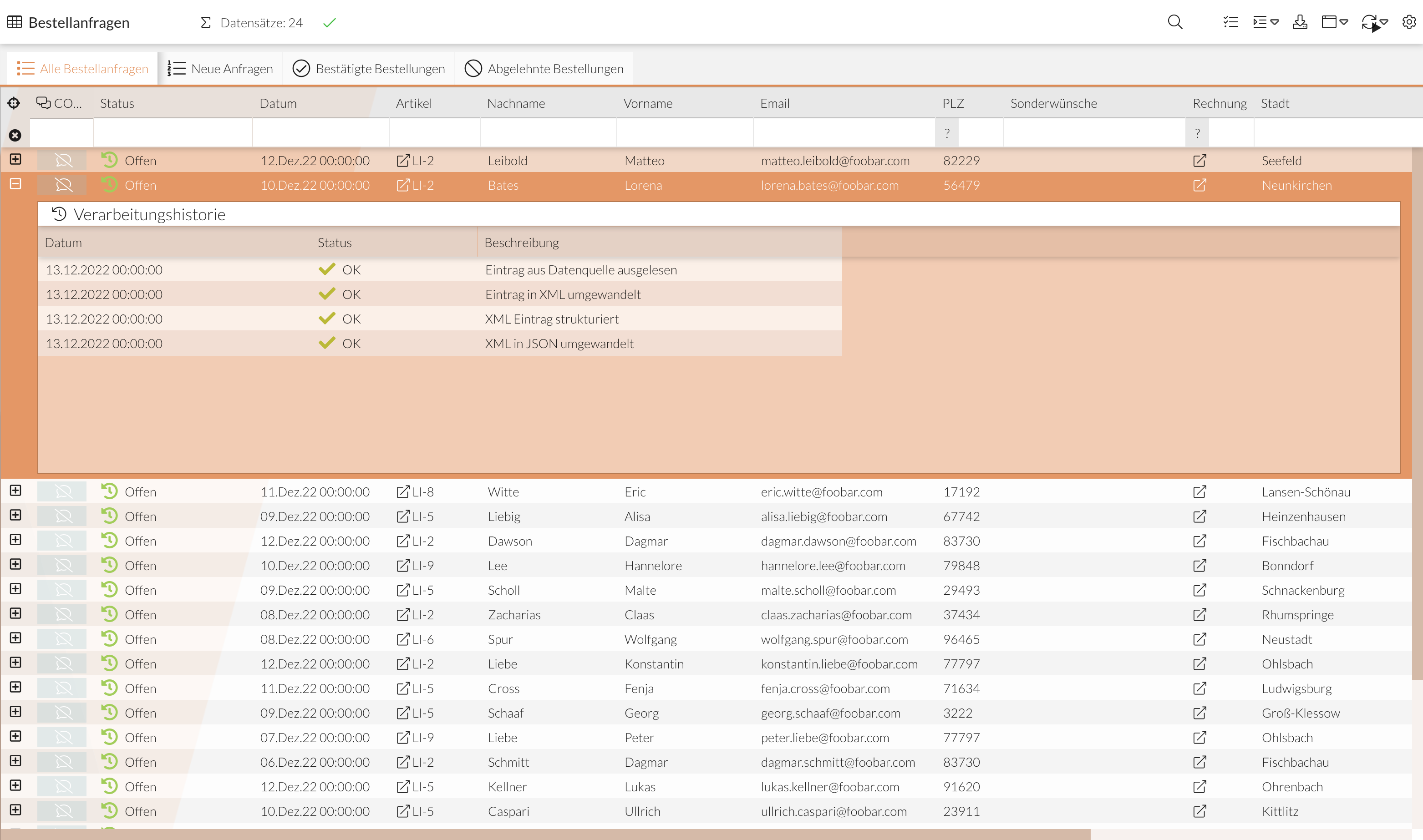
-
Split view ("detailView_eastConfig").
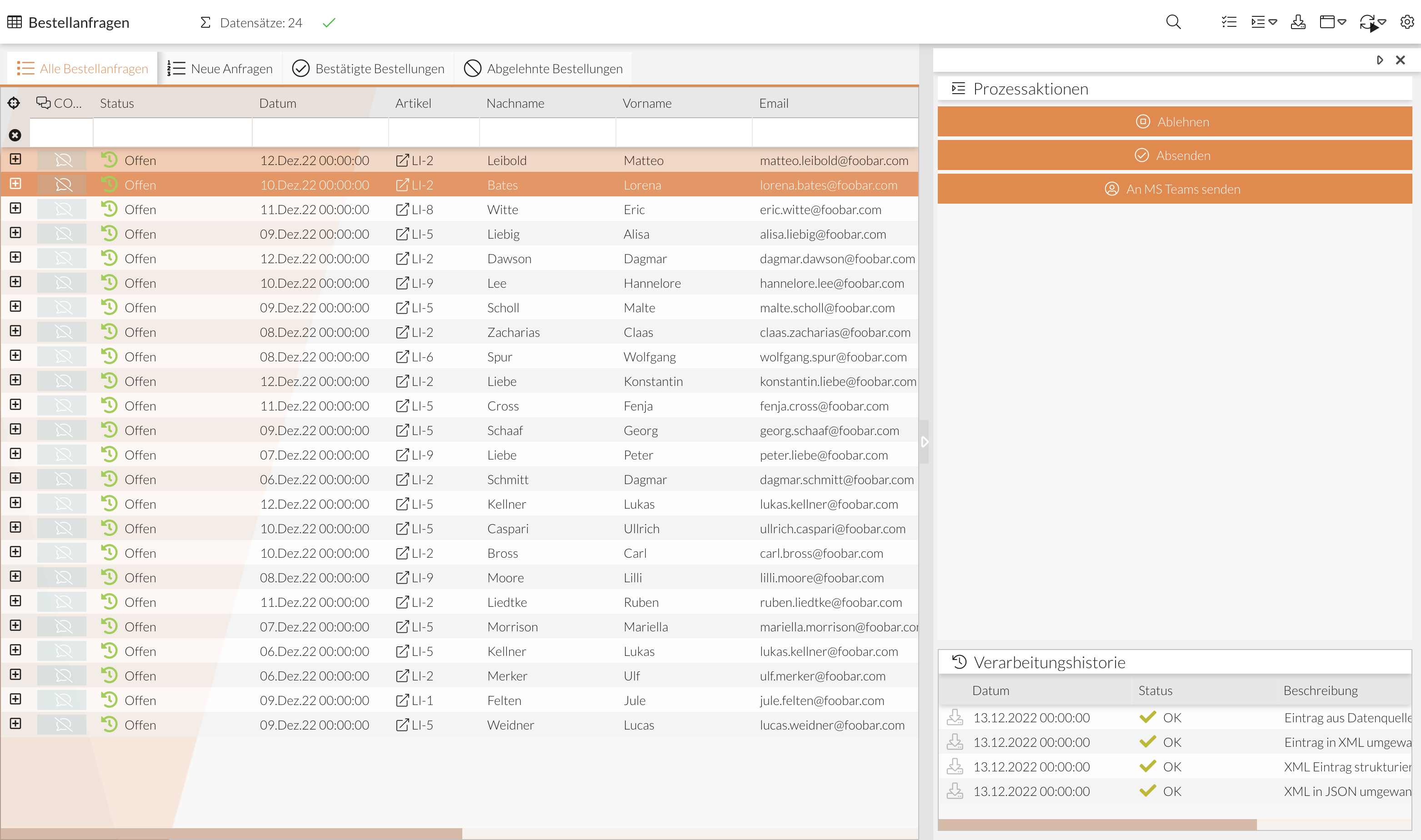
All 3 views can be configured in the same way.
Sample Configuration (Complete)
Example configuration
"bottom": {
"type": "childGrid",
"config": {
"columns": [
{
"dataIndex": "DOKUMENTID",
"header": "Dokument-ID",
"width": 200
},
{
"dataIndex": "text",
"flex": 1,
"header": "Nachricht",
"width": 200
},
{
"dataIndex": "reference",
"header": "Datei",
"width": 200
}
],
"localized": {
"title": "Ein Titel"
},
"collapsible": false,
"height": 150
}
},
"center": {
"type": "tabPanel",
"config": {
"subItems": [
{
"type": "childGrid",
"config": {
"columns": [
{
"dataIndex": "status",
"header": "Status",
"width": 150
},
{
"dataIndex": "childid",
"header": "Nr."
},
{
"dataIndex": "timestamp",
"header": "Datum",
"renderer": "Ext.util.Format.dateRenderer('d.m.Y H:i:s')"
},
{
"dataIndex": "text",
"flex": 1,
"header": "Nachricht",
"minWidth": 200
},
{
"dataIndex": "DOKUMENTID",
"header": "Datei",
"width": 200
},
{
"dataIndex": "",
"header": "Empf\u00e4nger",
"width": 150
},
{
"dataIndex": "",
"header": "Absender",
"width": 150
}
],
"sorters": [
{
"dataIndex": "Status",
"direction": "ASC"
}
],
"localized": {
"title": "Ein Titel"
}
}
},
{
"type": "fileViewer",
"config": {
"tabTitle": "Verarbeitungsschritt {serialNumber}"
}
},
{
"type": "processPanel",
"config": {
"group": [
{
"fieldWidth": 100,
"flex": 1,
"item": [
{
"name": "PROCESSID",
"title": "Prozess"
},
{
"name": "TEXT",
"title": "Beschreibung"
},
{
"name": "timestamp",
"title": "Lieferbeginn"
}
],
"labelWidth": 70,
"title": "Aktueller Vorgang"
},
{
"flex": 1,
"item": [
{
"name": "PARTNER",
"title": "Parnter"
},
{
"name": "LFEZ_NAME",
"title": "Lieferant"
},
{
"name": "VNB_NAME",
"title": "Netzbetreiber"
},
{
"name": "BGV_NAME",
"title": "BGV"
},
{
"name": "ZAEHLPUNKT",
"title": "Messpunkt"
}
],
"labelWidth": 100,
"title": "Versorgungsszenario"
}
],
"layout": {
"align": "stretch",
"type": "hbox"
},
"title": "Prozessinformationen"
}
}
]
}
},
"right": {
"type": "actionPanel",
"config": {
"localized": {
"title": "Ein Titel"
},
"collapsible": false,
"width": 190
}
},
"top": {
"type": "processPanel",
"config": {
"group": [
{
"fieldWidth": 100,
"flex": 1,
"item": [
{
"name": "Status",
"title": "Status"
},
{
"name": "FRIST",
"title": "Frist"
},
{
"name": "ID",
"title": "ProzessID"
},
{
"name": "timestamp",
"renderer": "Ext.util.Format.dateRenderer('d.m.Y H:i:s')",
"title": "Datum"
}
],
"labelWidth": 100,
"title": "Prozessstatus"
},
{
"fieldWidth": 100,
"flex": 1,
"item": [
{
"name": "PARTNER",
"title": "Parnter"
},
{
"name": "Lieferant",
"title": "MANDANTID"
},
{
"name": "LASTUPDATE",
"title": "Letzte Akualisierung"
},
{
"name": "ZAEHLPUNKT",
"title": "Messpunkt"
}
],
"labelWidth": 100,
"title": "Prozessinfos"
}
],
"layout": "hbox",
"layoutConfig": {
"align": "stretch",
"pack": "start",
"padding": 5
},
"title": "Statusinformationen",
"collapsible": false,
"height": 220
}
}The individual sections that can be defined are based on the border layout in ExtJS (see example for border layout in ExtJS and see documentation on the border layout).
It looks like this:
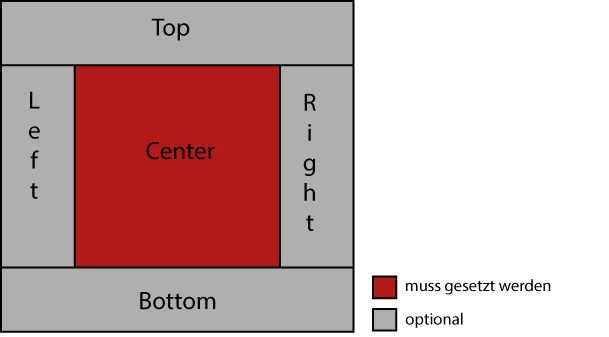
-
center
(object)
Center area of the detail section -
top
(object, optional)
Area above the center area -
bottom
(object, optional)
Area below the center area -
left
(object, optional)
Area to the left of the center area -
right
(object, optional)
Area to the right of the center area
|
Use of the center area is mandatory. All other areas can be used, but are not required. |
There are general configurations in the details section that can be set, since an ExtJS container is created (see the Container documentation). These are based on standard ExtJS configurations.
Among other things, the following can be set:
-
paddingOfElements
(number, optional)
Padding is set uniformly for all elements (all elements in center, top, bottom, left, and right) -
title
(string as template, optional)
Title that can only be set in the popup. This title can be structured like a template (see the Template documentation) so that data from the current process is displayed (e.g., the process ID). A dataIndex can be defined within curly braces to specify which data should be displayed, e.g., "Details about process {PROCESSID}," where "PROCESSID" is a process ID and is displayed based on the row clicked. -
hideEmptyValues
Hides all fields that do not contain values. -
May contain other configurations that can also be set in ExtJS (e.g., width, height, etc.), see the Container documentation
Below the " center," " top," " bottom," " left," and " right " sections, the elements are defined as follows:
-
type
(string)
ID of the element to be added (see table: “Element Types”) -
config
(object)
Configuration of the object (optional for some elements), depends on the element below it (see section “Element Configuration”)
Element Types (type)
The following elements can be defined in each section of the detail view. The type defines the kind of element to be created.
Each element is composed of the following parts in the configuration:
-
type
(string)
Element type ID -
config
(object)
Element configuration
"type": "childGrid",
"config": {}| Type ID | Description |
|---|---|
|
Attached as a subelement to a tab panel. This is where the files are opened when the "Show Message" button is clicked. |
|
Task view. Any panel can be placed here, defined via the "type" |
|
Panel in which any widgets can be embedded. Specifying the widget via "widgetId" |
|
Creates a table with defined columns. |
|
Creates a tab panel. |
|
Integration of user interfaces. Specifying the xtype/alias via "formId" |
|
Listing of process data in boxes; see the ProcessPanel configuration. |
|
All actions that can be performed on the process are displayed as buttons. |
|
All jump columns are displayed as buttons. |
|
Allows plugins to be assigned to this location. If no "plugin" type is set, plugins are stored in the tab panel. |
|
Integration of forms from Forms. |
|
Additional elements listed in this table can be attached to a "tabPanel". Each is displayed as a tab. |
Configuration of the Elements (config)
An element is defined by its type ("type") and its configuration ("config"). The "config" of the elements is described here.
All elements (except "fileViewer") can contain additional configurations that are equivalent to the configurations in ExtJS (corresponding to the element in ExtJS).
Each element is structured as follows in the configuration:
-
type
(string)
Element type ID -
config
(object)
Element configuration
"type": "childGrid",
"config": {}
The elements listed here are all under "config".
Table (childGrid)
A table with defined columns is created. An ExtJS Grid is created; seehttps://docs.sencha.com/extjs/7.1.0/classic/Ext.grid.Panel.html[the ExtJS Grid documentation].
The columns are automatically generated from the monitor setting Monitor_ColumnHistoryConfig.
However, these can be overridden here; see the following example.
{
  "type": "childGrid",
  "config": {
    "columns": [
      {
        "dataIndex": "status",
        "header": "Status"
      },
      {
        "dataIndex": "timestamp",
        "header": "Datum",
        "formatter": "date('d.m.Y H:i:s')"
      },
      {
        "dataIndex": "text",
        "flex": 1,
        "header": "Remark"
      },
      {
        "dataIndex": "mimetype",
        "header": "Mime type"
      }
    ],
    "sorters": [
      {
        "dataIndex": "Status",
        "direction": "ASC"
      },
      {
        "dataIndex": "timestamp",
        "direction": "DESC"
      }
    ],
    "setActionColumn": true,
    "localized": {
      "title": "Ein Titel"
    },
    "collapsible": false,
    "height": 200
  }
}-
columns
(array, 1..n)
Table columns-
dataIndex
(string)
ID of the record for which the column should display data -
header
(string)
Display name of the column -
cellWrap
(boolean, fixed value, optional)
true: can be set if the text in the column should wrap when it is too long (default is false) -
formatter
(string, optional)
Ext.util.Format function. "htmlDecode" is used by default to ignore HTML content. You can use "trim" to enable HTML, for example. -
xtype
(string, optional)
Ext.grid.column.Column component. The default value is an empty string (""). Setting this to "gridActionColumn" allows buttons to be generated for initiating process actions (see Process Action Buttons) -
may contain other configurations that can also be set in ExtJS (e.g., width, flex)
-
Similar to the table in the main view of the Monitor module, custom renderers can also be used in the ChildGrid (see Custom Renderers).
The functions for the renderers are defined in the Monitor setting Monitor_CustomRenderer.
|
Renderer methods defined by the `renderer` attribute on the column are not interpreted. |
-
`localized `
(object)
Indicates a language-dependent configuration.-
title
(string, optional)
Title of the view. A "Language Key" can be specified; it will then be translated into the current language.
-
-
setActionColumn
(boolean, optional)
Defines whether the action columns "View File" and "Download File" should be displayed (see image below).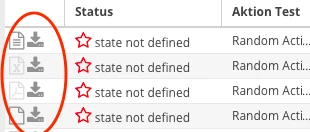
Set to true by default.
The icons for "View File" vary depending on the MIME type (see File Panel). -
textSelectable
(boolean, optional)
Can be set to make the text in a table selectable.
The default value is false. -
sorters
(array, optional)
Column sorting—one or more columns can be sorted.-
dataIndex
(string)
ID of the column to be sorted. -
direction (string)
Sorting-
ASC
Sorted in ascending order -
DESC
Sorted in descending order
-
-
-
filter
(string, optional)
Filters the results list. Example:"filter": "record.get('REFERENCE') !== null", -
May contain other configurations that can also be set in ExtJS (e.g., width, title).
Plugins (plugin)
Any plugins can be added to the detail view. If there is no element of type "plugin" in the configuration, these are added to the first tabPanel in the detail view. It is recommended to explicitly control the position of the plugins by placing a plugin element. This is then provided as a plugin hook (hooks).
hookSubId - multiple plugin elements
The hook in the detail view supports the use of the hookSubId to utilize multiple plugin elements and make them distinguishable for plugin configuration.
To do this, a context with a hookSubId must be specified in the config section of the element.
{
  "type": "plugin",
  "config": {
    "context": {
      "hookSubId": "meineHookSubId"
    }
  }
}
For a plugin to be displayed in this hook, a hookSubId must also be specified in the “Plugin Configuration” field of the plugin’s settings.
{
  "hookSubId": "meineHookSubId"
}
Display within the tab panel
If the plugin element is integrated into the tab panel via subItems, you can control whether each plugin should be displayed as its own tab or whether all plugins should be displayed in a single tab.
To do this, set the pluginTarget attribute in the config.
Display in a single tab - pluginTarget self (default)
If no pluginTarget is defined, "self" is the default. In this case, a tab is created in the tag panel where all plugins are displayed one below the other.
{
    "type": "plugin",
    "config": {
        "pluginTarget": "self",
        "title": "Plugins in einem Tab"
    }
}
Display as individual tabs - pluginTarget ^
To ensure that each plugin is displayed as an individual tab, set pluginTarget to "^". Each plugin should have a title so that it is displayed correctly in the tab. If this is not the case, it should be set via the plugin configuration.
{
"type": "plugin",
    "config": {
      "pluginTarget": "^"
    }
}
Tab Panel (tabPanel)
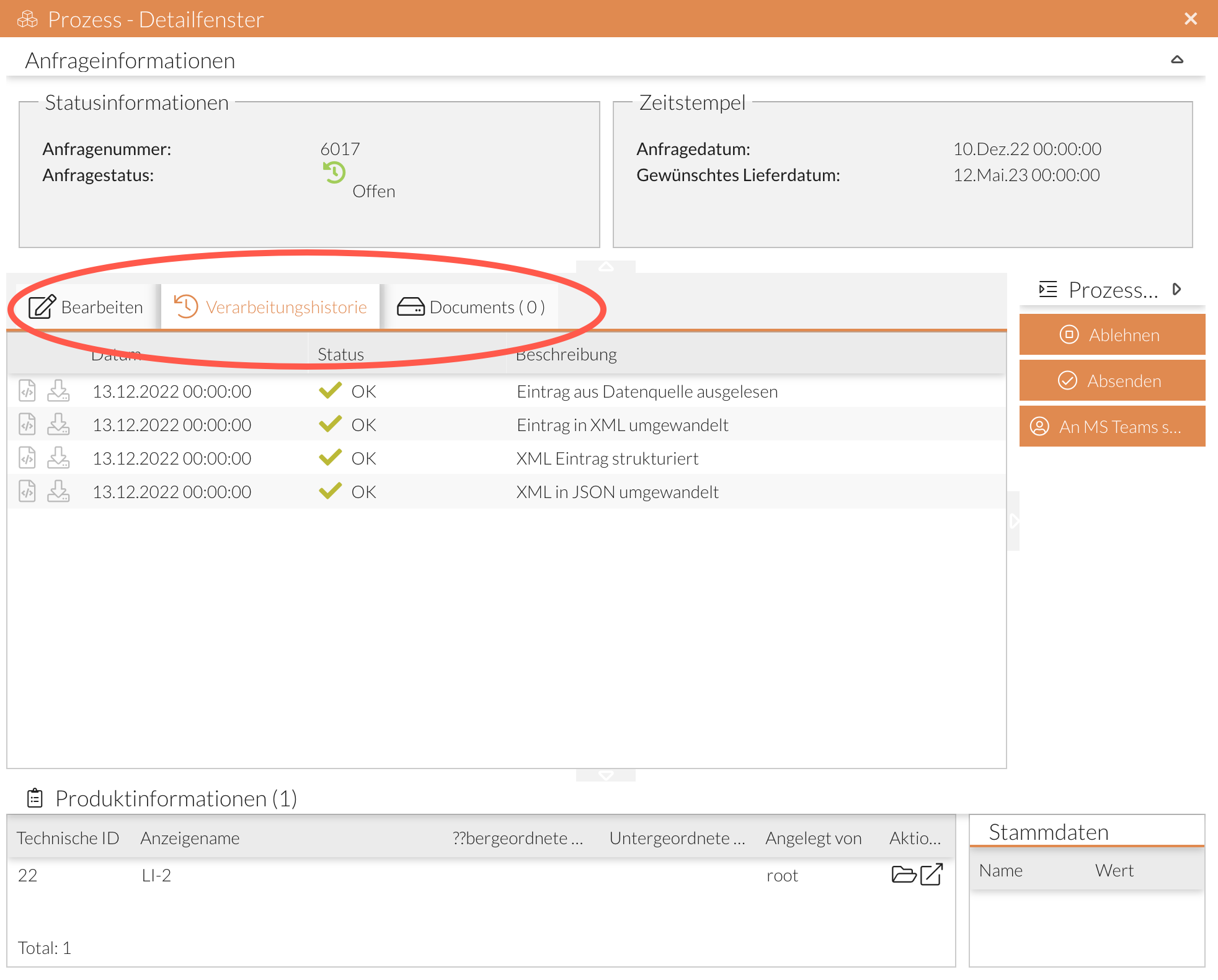
A tab panel is created with one or more child elements, each of which is displayed in a tab. An ExtJS TabPanel is created (see documentation).
{
  "center": {
    "type": "tabPanel",
    "config": {
      "subItems": [
        {
          "type": "processPanel",
          "config": {
            "widgetType": "wpFormularErfassungPanel"
          }
        },
        {
          "type": "childGrid",
          "config": {
            "columns": [
              {
                "dataIndex": "reference",
                "flex": 1,
                "header": "Dateireferenz",
                "renderer": "(function(value, meta, record){meta.tdAttr = 'data-qtip=\"' + value + '\"'; return value;})"
              }
            ],
            "filter": "record.get('REFERENCE') !== null",
            "setActionColumn": true,
            "localized": {
              "title": "Ein Titel"
            }
          }
        },
        {
          "type": "fileViewer",
          "config": {
            "tabTitle": "Verarbeitungsschritt {CHILDID}"
          }
        },
        {
          "type": "processPanel",
          "config": {}
        }
      ]
    }
  }
}-
subItems
(array, 1..n)
Elements within the tab panel. These elements are the defined elements (see table Element Types (type)). -
May contain other configurations that can also be set in an ExtJS panel (e.g., width, title, layout).
Container with Action Buttons (actionPanel)
An ExtJS panel (see documentation) is created with buttons for the Process Actions that can be executed on the process. No buttons are displayed if the fields for the actions are empty (null or an empty string).
Buttons are also displayed for ProcessStarter processes that have enabled the “ startWithContext ” option.
The configuration parameter closeOnAction allows you to control whether the current window (only in popup view) should be closed when the action is executed.
{
  "type": "actionPanel",
  "config": {
    "localized": {
      "title": "Ein Titel"
    },
    "width": 150,
    "closeOnAction": true
  }
}
May contain configurations that can also be set in ExtJS (e.g., width, title); see the documentation.
File Panel (fileViewer)
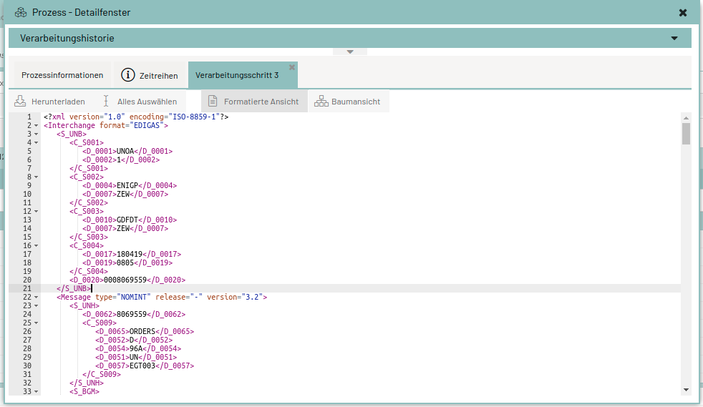
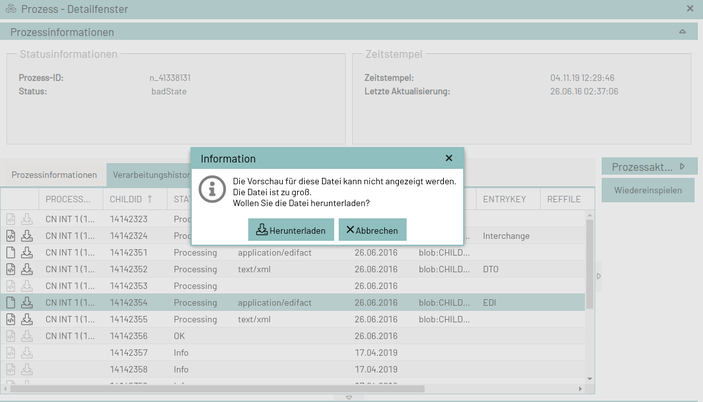
This is where the files are opened when "Show Message" is clicked (in a ChildGrid, the "actionColumns"). Can only be placed within a TabPanel.
{
    "type": "fileViewer",
    "config": {
      "tabTitle": "Verarbeitungsschritt {CHILDID}"
    }
}
-
tabTitle
(string, as a template)
Title of the tab that opens when "Show Message" is clicked (where the file’s content is displayed). A dataIndex can be defined within curly braces to be displayed, e.g., "Processing step {CHILDID}," where "CHILDID" is a field from the process details and is displayed corresponding to the clicked row (see Template Documentation)
The panel displays the files based on the "MIMETYPE" column.
Supported MIME types:
application/edifact = Line breaks in the message based on ' text/xml = Display XML in a tree structure New as of 2.0.5: "image/png", "image/jpeg", "image/bmp", "image/gif", "image/jpg", "application/pdf"
If no MIME type is specified or the MIME type is unknown, the file is displayed as plain text. If the message can be converted to XML, the tree structure is automatically selected.
Displaying Process Data (processPanel)
The ProcessPanel displays process data. It is used to present data from a process. This data can be grouped or simply displayed one below the other.
Option 1: Grouping Elements (“group”)
Process data can be grouped. Multiple groups can be displayed one below the other or side by side. A ProcessPanel group is then displayed in a box (see screenshot).
A title can be assigned to the group for a better overview.
Customizing the ProcessPanel:
-
Example of grouping values from a process.
Here, 3 groups were created:
-
Difference between `
labelWidth` and `fieldWidth`: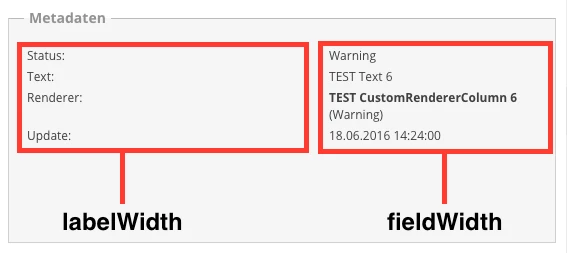
-
Change to
minWidth: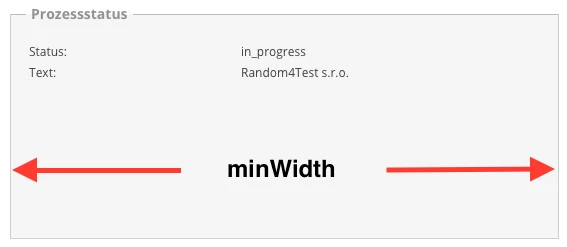
-
Example of processPanel with items:
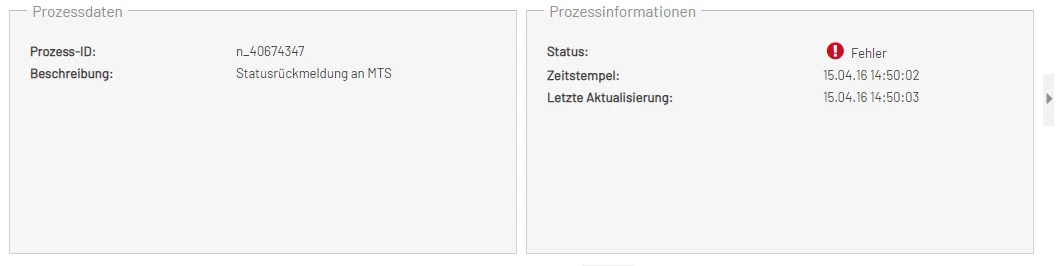
-
Distinction between
labelWidthandfieldWidth: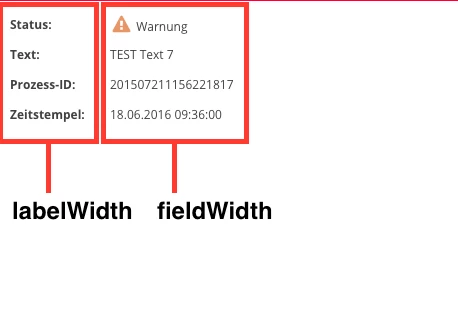
-
Split the groups 50/50:
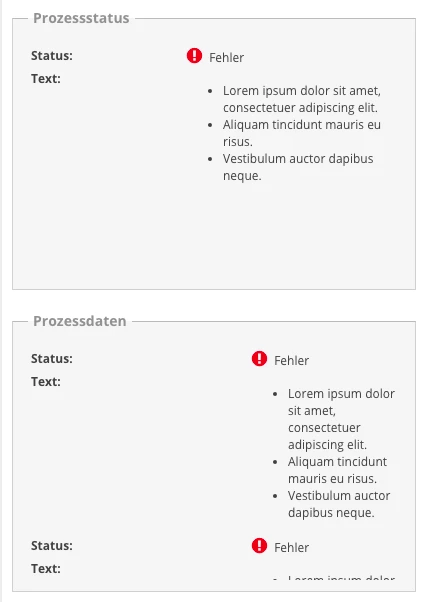
-
Group content is truncated:
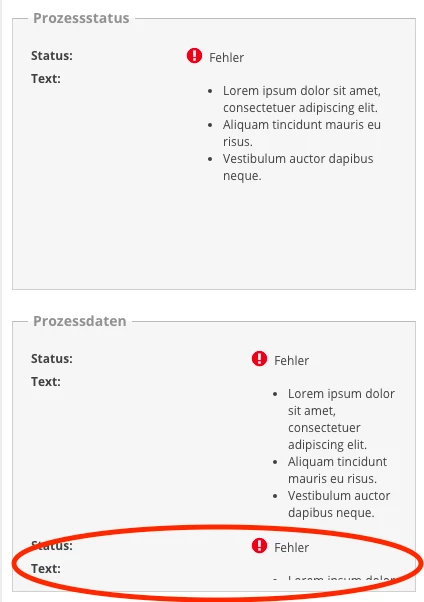
-
ProcessPanel with scroll bar:
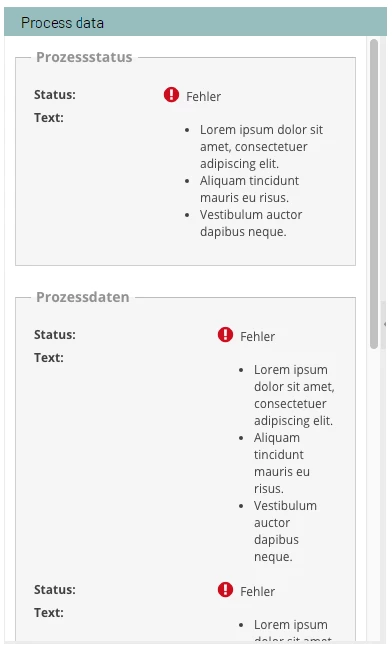
{
  "type": "processPanel",
  "config": {
    "group": [
      {
        "fieldWidth": 100,
        "flex": 1,
        "item": [
          {
            "name": "Status",
            "title": "Status"
          },
          {
            "name": "Text"
          }
        ],
        "labelWidth": 70,
        "title": "Prozessstatus"
      },
      {
        "flex": 1,
        "item": [
          {
            "name": "Status",
            "title": "Status"
          },
          {
            "name": "Text"
          }
        ],
        "labelWidth": 100,
        "title": "Prozessdaten"
      },
      {
        "flex": 1,
        "item": [
          {
            "name": "Status",
            "title": "Status"
          },
          {
            "name": "Text"
          },
          {
            "name": "CUSTOMRENDERERCOLUMN",
            "title": "Renderer"
          },
          {
            "name": "LASTUPDATE",
            "title": "Update"
          }
        ],
        "labelWidth": 100,
        "title": "Metadaten"
      }
    ],
    "layout": {
  "align": "stretch",
      "type": "hbox"
    },

    "localized": {
      "title": "Ein Titel"
    }
  }
}
Description:
An ExtJS Panel (see documentation) is created. For each group, an ExtJS FieldSet (see documentation) is created, which contains the configured process data.
-
group
(array, 1..n)
Grouping of process data. The data is listed one below the other.-
item
(array, 1..n)
List of the data to be displayed.-
name
(string)
Column name of the element to be displayed. -
title (string, optional)
Title/Label of the element to be displayed. The default is the value specified in "name".
-
-
fieldWidth
(number, optional)
Width of the field for the value (specified in pixels). If the value is smaller than the width the value actually requires, this value is ignored. -
labelWith
(number, optional)
Width of the Label (specified in pixels). If the value is smaller than the width the Label actually requires, this value is ignored. -
minWidth (number, optional)
Minimum width for the group. The default is the sum offieldWidthandlabelWidth(this value is necessary so that values in the FieldSet are displayed in full; otherwise, the values will not be displayed completely) -
title
(string, optional)
Title of the group.
-
-
layout
(object, optional)
Layout of the groups, which is based on the ExtJS layout (e.g., "hbox" for side-by-side arrangement); see Panel Layout Configuration for more details. Default is:
{
    "type": "hbox",
    "align": "stretch"
}
-
localized
-
title
(string)
Title of the panel
-
Option 2: Simple list of values ("item")
The process data can be listed one below the other.
 {
  "type": "processPanel",
  "config": {
    "flex": 1,
    "item": [
      {
        "name": "Status",
        "title": "Status"
      },
      {
        "name": "Text"
      },
      {
        "name": "PROCESSID",
        "title": "Prozess-ID"
      },
      {
        "name": "TIMESTAMP",
        "title": "Zeitstempel"
      }
    ],
    "labelWidth": 100,
    "fieldWidth": 150,
    "localized": {
        "title": "Ein Titel"
     }
    }
  }
Description
Here, an Ext Component is created (see documentation) that contains the data.
-
item
(array, 1..n)
List of the data to be displayed.-
name
(string)
Column name of the element to be displayed. -
title
(string, optional)
Title/Label of the element to be displayed. The default is the value specified in "name".
-
-
fieldWidth
(number, optional)
Width of the field for the value (specified in pixels). -
labelWith
(number, optional)
Width of the Label (specified in pixels).
Display Jump Columns (jumpPanel)
An ExtJS panel (see documentation) is created in which the buttons for the jump columns configured in the monitor are displayed (see Configuring Jump Columns for Data Management).
{
    "type": "jumpPanel",
    "config": {
        "tabTitle": "Jump Columns",
        "bodyPadding": 10
    }
}-
"config"
Retrieves all configuration attributes of the ExtJS panel (such as "bodyPadding" in this example).-
"tabTitle"
Sets a title for the component, which appears, for example, in the tab panel.
-
Integration of Forms (forms)
Using the type forms, it is possible to embed individual components of the Forms module.
The record on which the detail view is opened is available in Forms at /data/records/0/ and can thus be bound to the individual form fields.
General Configuration Parameters
The following configuration parameters are available for all variants:
title-
Tab title when displayed below the
tabPanelcomponent. iconCls-
Tab icon when displayed below the
tabPanelcomponent. ignoreUpdates-
If
true, changes to the displayed monitor data record (process data) are not transferred to the form.
This is useful if the data changes very frequently and the changes are not relevant to the display of the form content.
Default:false debug-
If
true, the form’s debug view is enabled.
Default:false
Embedding via moduleId
To embed a form via moduleId, you must first create a Forms component in the admin area.
The ID of this component is then referenced in the configuration of the detail view under moudleId.
moduleId{
"type": "forms",
"config": {
"moduleId": "ID_IHRER_FORMS_KOMPONENTE",
"title": "Titel z.B. für die Anzeige im TabPanel",
"iconCls": "x-fa fa-bug",
"ignoreUpdates": false
}
}|
This method is recommended because it keeps the Forms configuration centralized in the Forms administration. |
Integration via formUrl
Loads the Form Configuration from an external URL.
This corresponds to the setting formUrl in the Forms module.
Embedding via formConfig
A valid Form Configuration can be entered directly here.
Embedding via formId and formVersion
Loads a form directly from the Forms repository.
This corresponds to the settings formId and formVersion in the Forms module.
