Display Process Information
Tabular Display of Process Entry
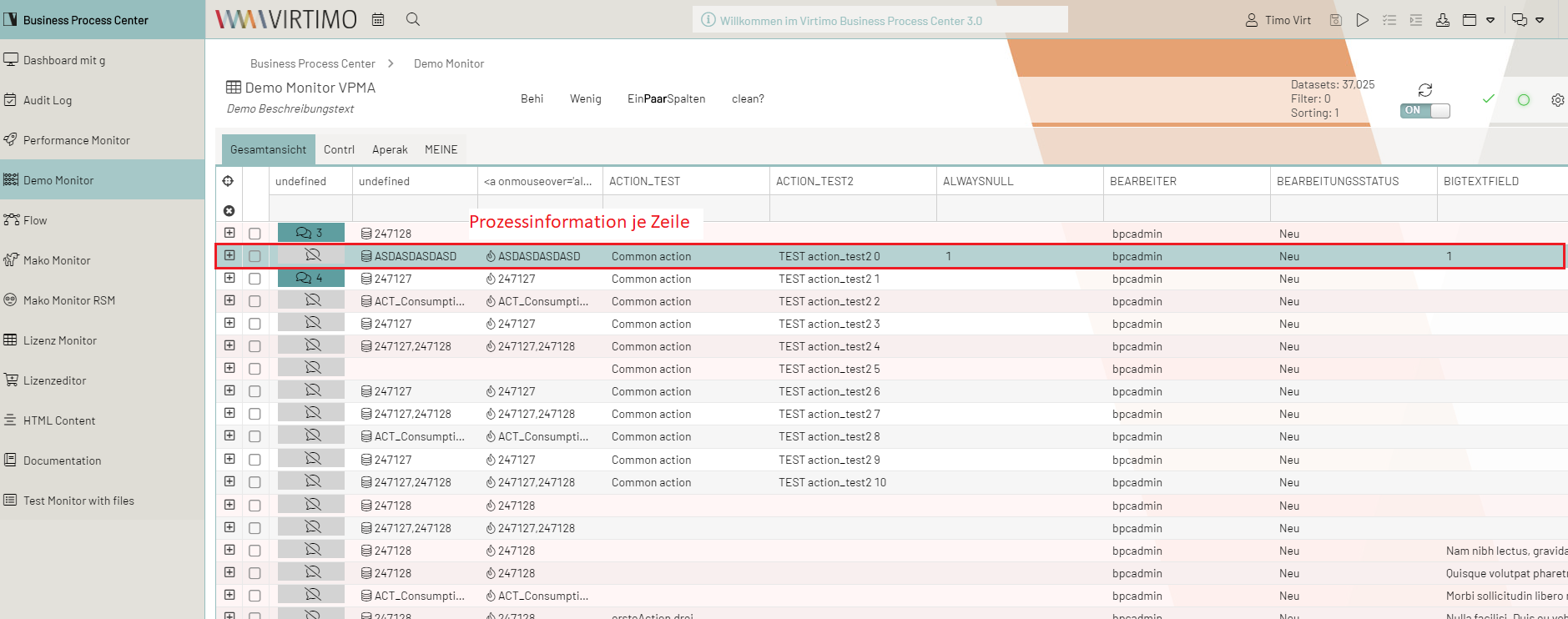
Information about a process is initially displayed in tabular form in the Monitor view.
Depending on how the content view is configured, You can view information about the process line by line.
Display Processing History
In the first column of each process, You can click the + icon to expand the processing history for that process into an overview and display it below the process row.
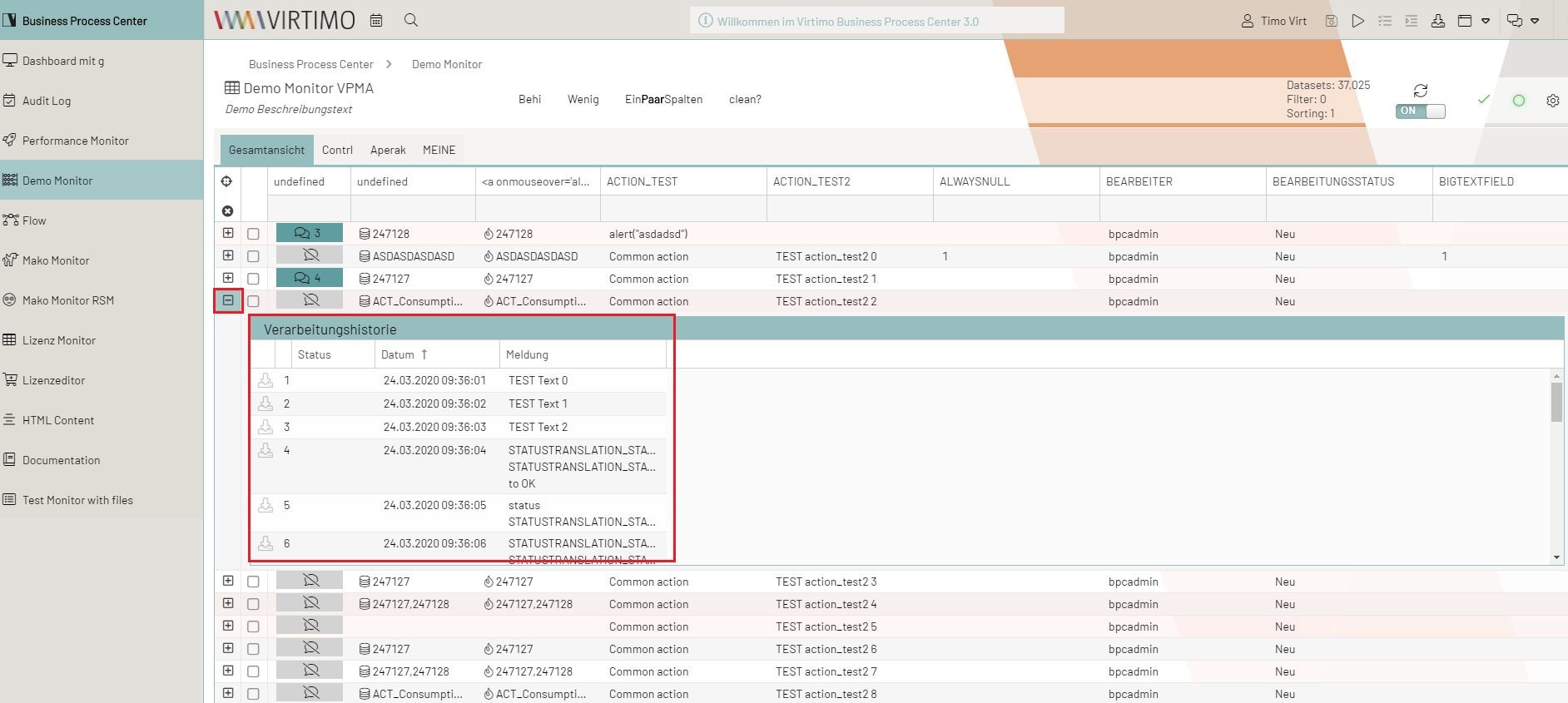
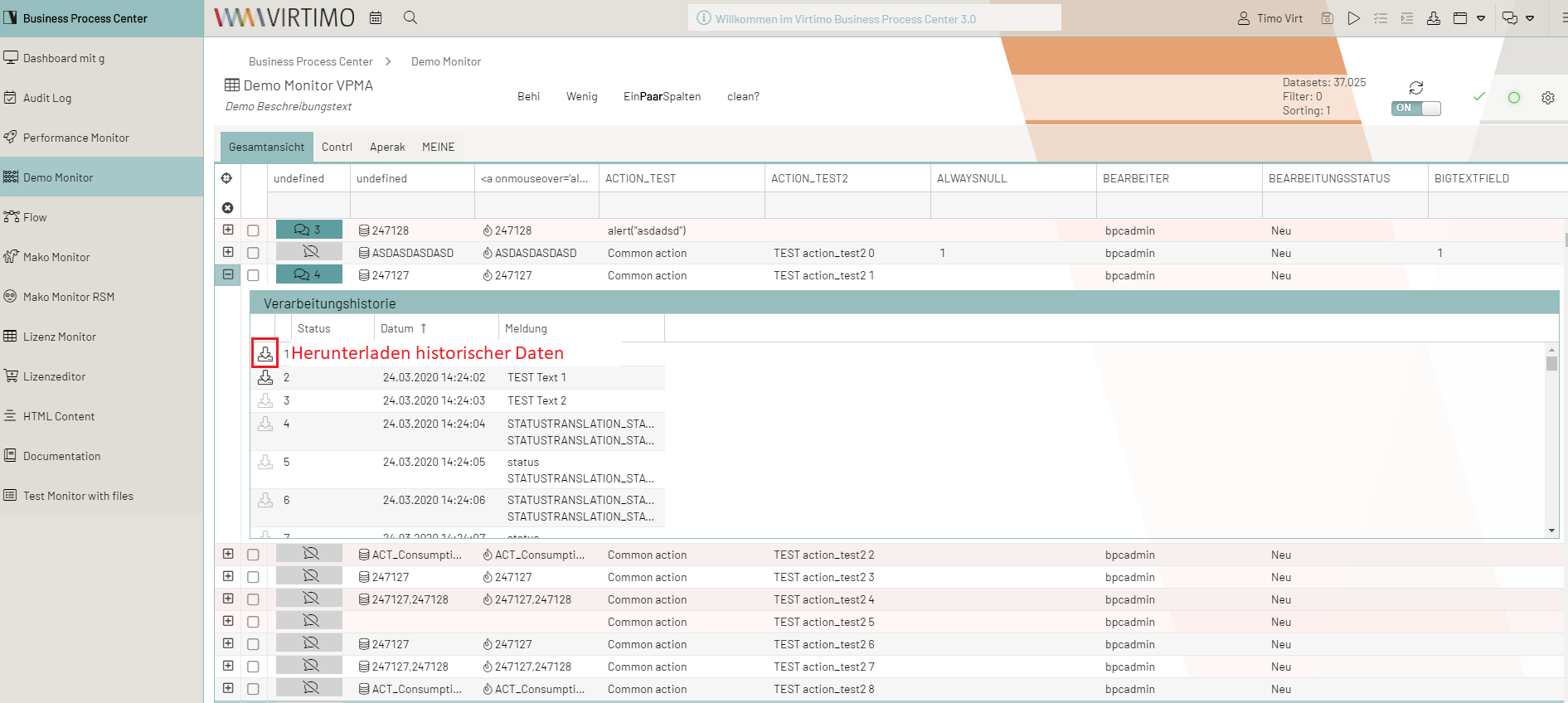
In addition to information such as the processing number, the time the process was executed, and error messages, users can also view the status of a process in the processing history.
Furthermore, the sequences of individual processes can be downloaded, for example, for traceability purposes in specific cases.
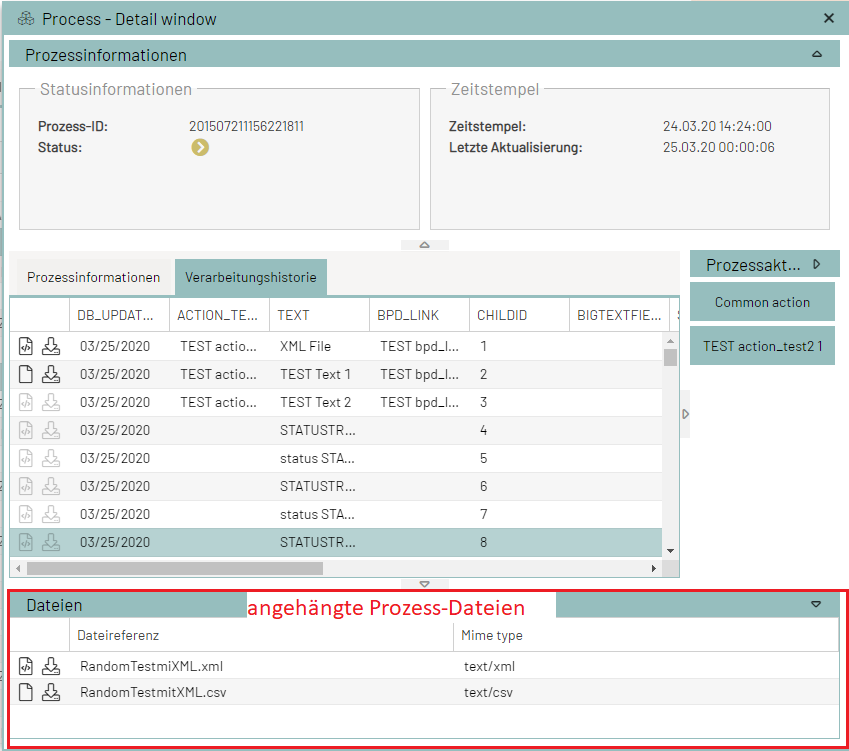
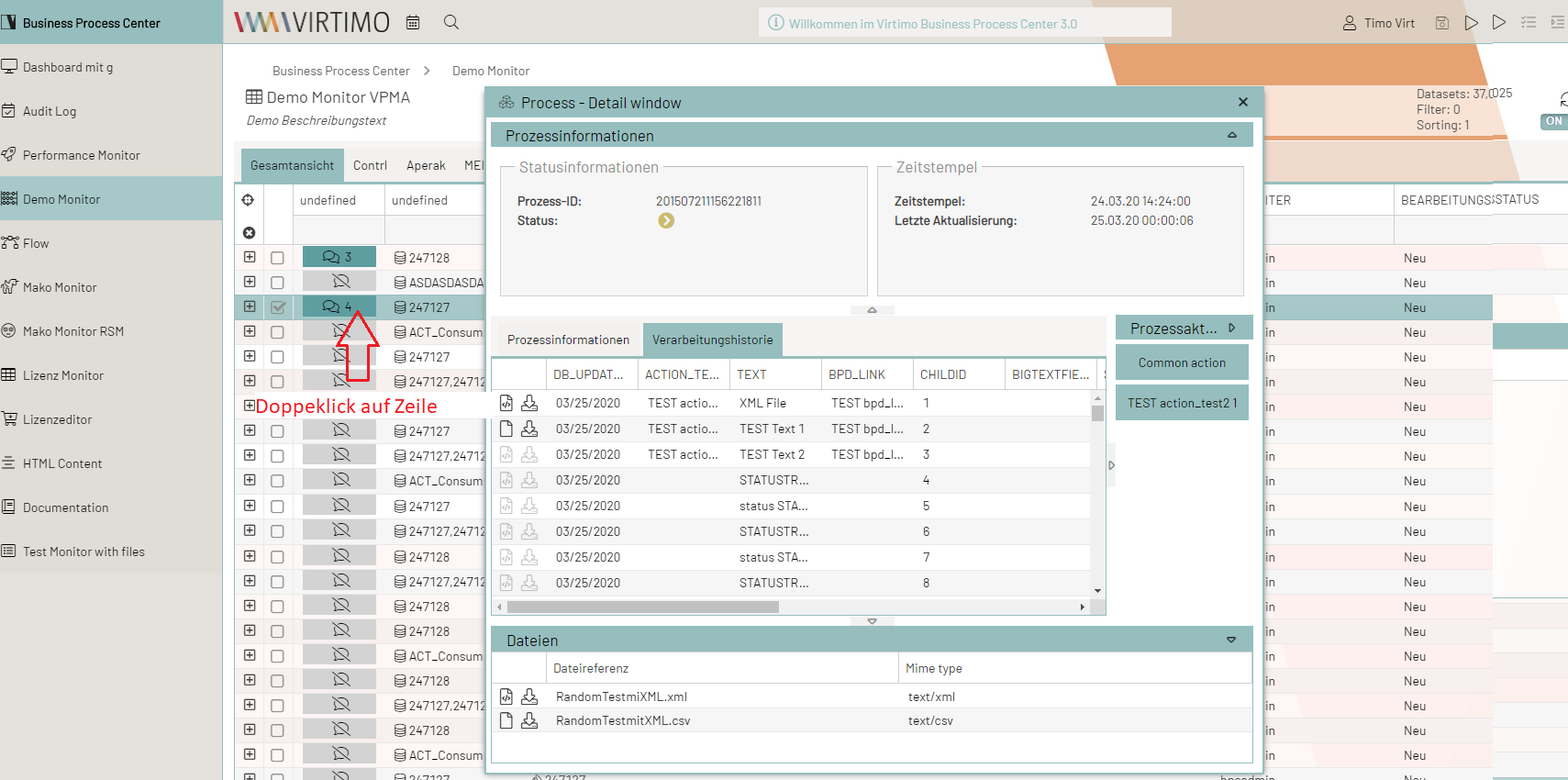
Open the processing history in a new window by double-clicking a process row
By double-clicking a process row, You can also view a history of the steps that have already been processed.
To do this, the user double-clicks a process row to open a new window and, in addition to the most important history details for individual steps, has the option to display the messages directly from the history on the screen.
In addition, all important details about a process are displayed again in the process information section (see the Process Information tab).
Further Detailed Information on a Process Entry
To view all information at a glance or to examine associated processing steps, the detailed view is available for each process.
In general, the user should find all the information here that a process accumulates during its processing or lifecycle.
Full-Screen Detail View
Double-clicking on a data row for the process opens a window with the detail view.
Split Detail View
To display the detailed information in a split view, right-click on the data row. The split window can then be resized to fit the screen as desired.
|
If the split view is not available in the context menu (right-click), it must be enabled separately in the settings. |
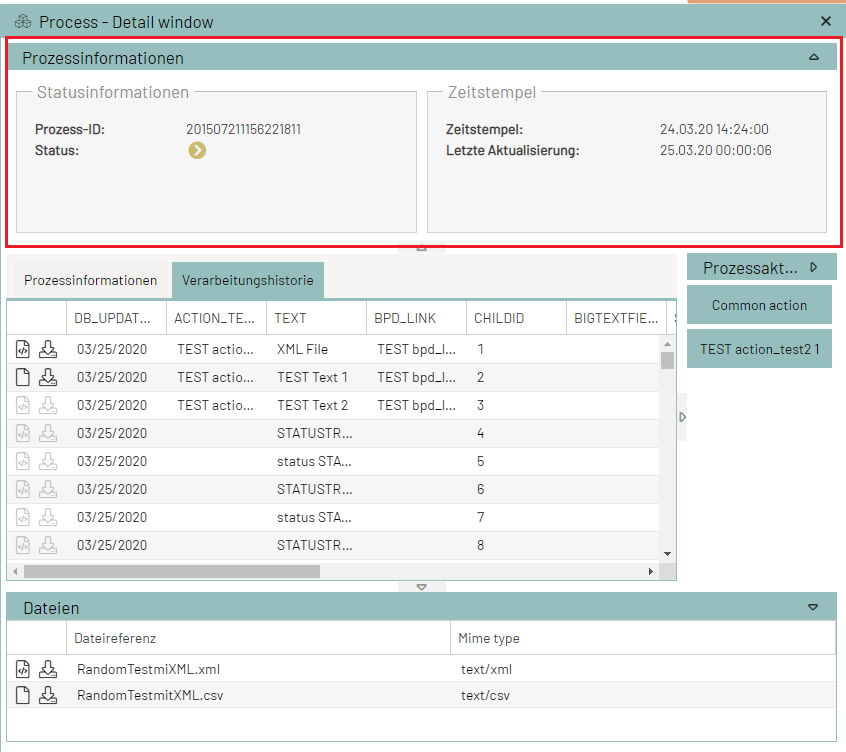
The detailed view of a process displays all information defined for display.
In the header area, for example, you can find the most important details about the process.
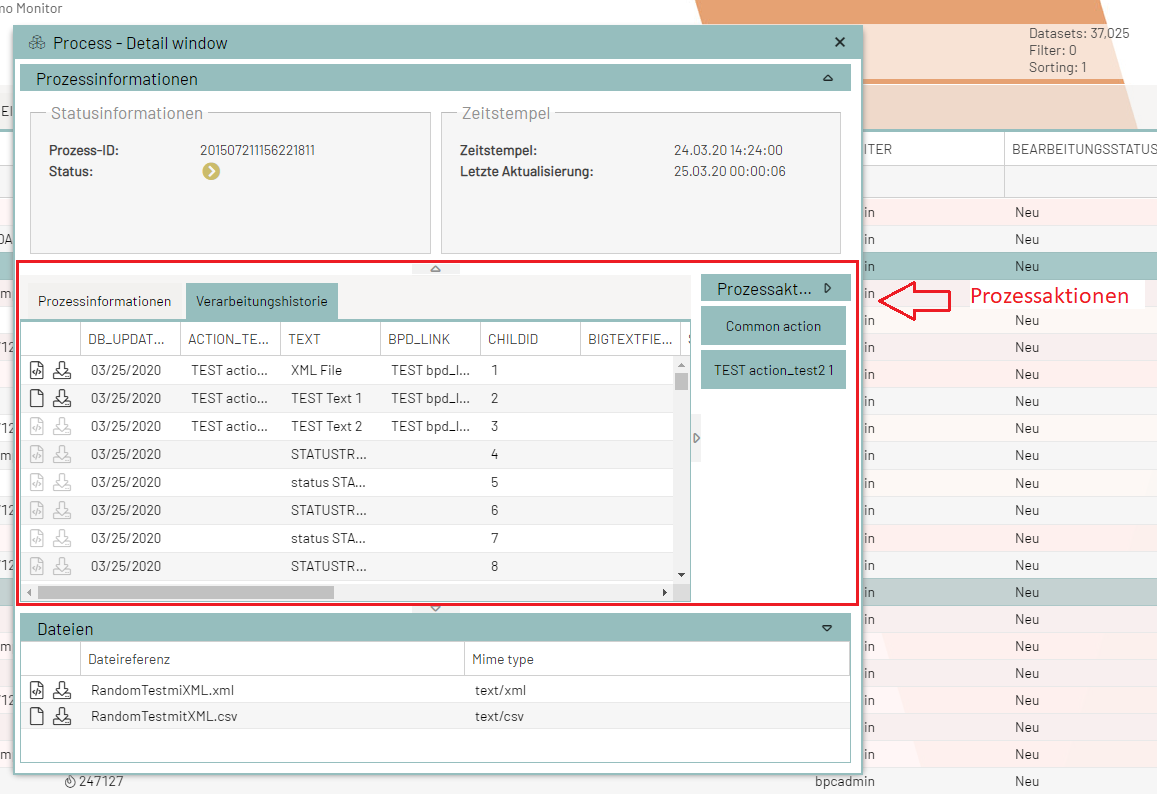
You can find further information about the process and its processing parameters in the middle section.
If any actions have been performed on the process, they are also listed here.
All files that are important to the process or that become associated with it during processing are displayed to the user in a list.