Process Actions
Process Actions allow you to perform actions on existing processes or initiate new processes.
How do I manually start Process Actions?
To start an action, it must be configured in the view, and an entry in the table that contains actions must be selected.
Depending on the configuration, process actions can be started in three different areas of the interface:
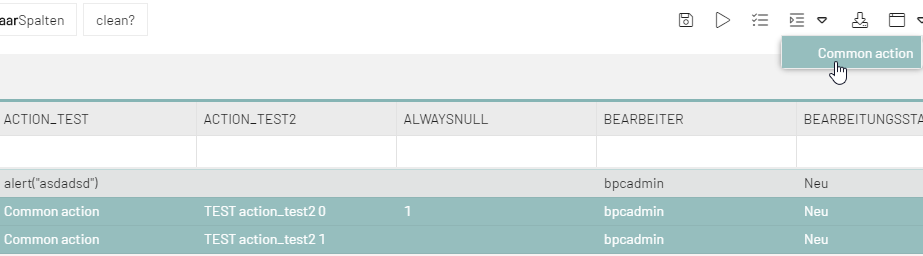
Start a process action via the toolbar
The function icon is located in the module toolbar.

If multiple entries are selected, only the process action that all entries have in common can be initiated.
Start a process action via the context menu
To do this, right-click on an entry that contains process actions. Then the desired action can be performed on the selected entry. Actions in the history grid cannot be accessed via the context menu.

If multiple entries are selected, only the process action that all entries have in common can be started.

Start a process action using the button in a process action column
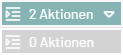
If such a column is configured for a view in the column configuration, a button or a dropdown menu appears for each row, listing all available process actions.

If no action is available, the button is grayed out and cannot be clicked:
Common process actions for multiple selected rows CANNOT be executed using this button. It always applies to only one row.
|
In the history grid, these process action buttons can also be generated in the same way as on the main monitor. |
