Logging
For troubleshooting, code execution information, warnings, and errors are written to log files. The following describes where these can be found, how they can be configured, and how the log level can be set.
Configuration file
Karaf uses Apache Log4j 2 for logging.
Its properties-based configuration file is located at <BPC-INSTALL-DIR>/karaf/etc/org.ops4j.pax.logging.cfg.
Log Files
The log files are written to the directory <BPC-INSTALL-DIR>/karaf/data/log.
This directory is specified in the aforementioned configuration file via the Java system property ${karaf.log}.
By default, multiple log files are created. The following two are BPC-specific.
| Logger | Level | File |
|---|---|---|
authentication |
WARN |
authentication.log |
de.Virtimo.BPC |
WARN |
BPC.log |
Setting the Log Level
The level of detail for the data to be logged can be specified for each logger via the log level.
The available log levels are TRACE, DEBUG, INFO, WARN, ERROR, FATAL, and OFF. From left to right, less and less data is logged, down to none at all.
Via Karaf Shell Command
Using the Karaf Shell command log:list, you can display the configured loggers and their log levels.
virtimo@bpc()> log:list
Logger                       │ Level
─────────────────────────────┼──────
ROOT                         │ INFO
audit                        │ TRACE
authentication               │ WARN
de.virtimo.bpc               │ WARN
org.apache.aries.spifly      │ WARN
org.apache.felix.fileinstall │ INFO
org.apache.sshd              │ INFO
A logger’s level can be set at runtime using the command log:set <LEVEL> <Logger>.
In the following example, the logger de.virtimo.bpc is changed from log level WARN to INFO.
virtimo@bpc()> log:set INFO de.virtimo.bpc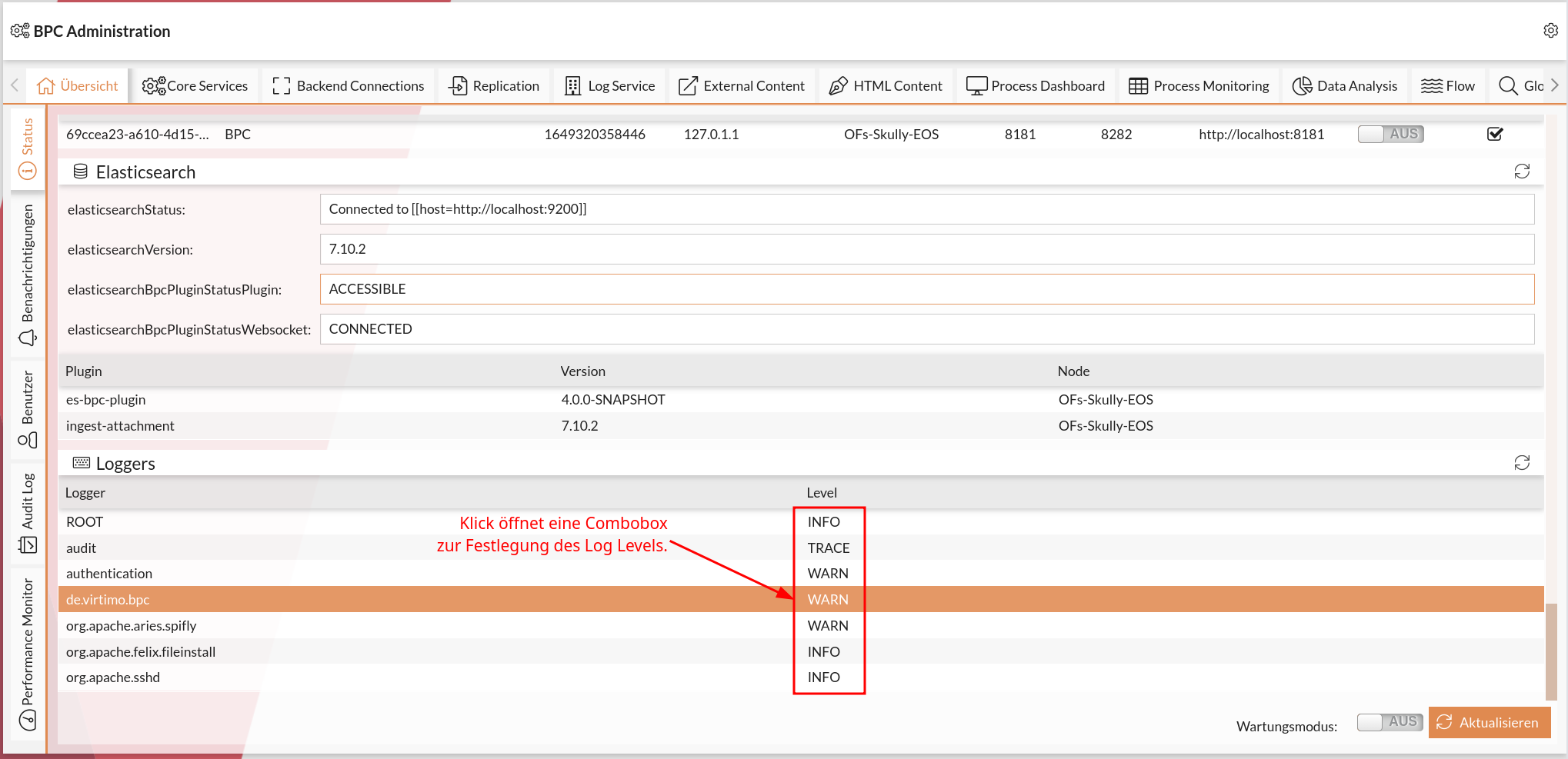
Create New Loggers
For targeted troubleshooting or specific development purposes, it may be useful to define your own loggers. These can use custom log levels and log files to store relevant information separately from other log data.
Creating Loggers via a Configuration File
-
Open the file `
org.ops4j.pax.logging.cfg` in the directory `<BPC-INSTALL-DIR>/karaf/etc`. -
Add a new section in which you specify the name of the logger, as well as its log level and appender. The following example logger records all messages from the H2 database package
h2database:
# H2-Datenbank-Logger
log4j2.logger.h2database.name = h2database (1)
log4j2.logger.h2database.level = DEBUG (2)
log4j2.logger.h2database.additivity = false (3)
log4j2.logger.h2database.appenderRef.H2dbRollingFile.ref = H2dbRollingFile (4)| 1 | The name of the logger—in this case, h2database —used for H2 database logs. |
| 2 | The desired log level (e.g., TRACE, DEBUG, INFO, etc.). |
| 3 | Set ` additivity ` to ` false ` to prevent log messages from being forwarded to other loggers. |
| 4 | This specifies which appender should write the logs for the new logger. In this example, ` H2dbRollingFile ` is used as the appender, which must also be defined in the configuration file. |
|
Be sure to consult the documentation for the Java package for which you are creating the logger. |
-
Add a new section in which you configure the appender. The following example appender saves all H2 database logs to the file
h2.logand rotates the log files once they reach 20 MB.
# H2 Appender
log4j2.appender.H2database.type = RollingRandomAccessFile (1)
log4j2.appender.H2database.name = H2dbRollingFile (2)
log4j2.appender.H2database.fileName = ${karaf.log}/h2.log (3)
log4j2.appender.H2database.filePattern = ${karaf.log}/h2.log.%i (4)
log4j2.appender.H2database.append = true (5)
log4j2.appender.H2database.layout.type = PatternLayout (6)
log4j2.appender.H2database.layout.pattern = ${log4j2.maskpasswords.pattern} (7)
log4j2.appender.H2database.policies.type = Policies (8)
log4j2.appender.H2database.policies.size.type = SizeBasedTriggeringPolicy (9)
log4j2.appender.H2database.policies.size.size = 20MB (10)
log4j2.appender.H2database.strategy.type = DefaultRolloverStrategy (11)
log4j2.appender.H2database.strategy.max = 5 (12)| 1 | The type is set to RollingRandomAccessFile to create a log file that rotates when it reaches a certain size. |
| 2 | The name of the appender, in this case H2dbRollingFile, must be referenced in the logger as appenderRef. |
| 3 | The fileName specifies the path and name of the main log file, in this case h2.log. |
| 4 | filePattern defines the rotation pattern. When a new log file is created, the pattern jdbc.log.%i is used, where %i represents the file number. |
| 5 | append = true ensures that new logs are appended to the existing file instead of overwriting it. |
| 6 | The layout.type is set to PatternLayout to allow for a customizable pattern for log output. |
| 7 | layout.pattern uses a predefined pattern for output formatting that masks passwords (using ${log4j2.maskpasswords.pattern}). |
| 8 | policies.type = Policies defines a set of rules that determine when log rotation is triggered. |
| 9 | policies.size.type = SizeBasedTriggeringPolicy means that rotation is triggered based on file size. |
| 10 | policies.size.size = 20MB specifies that rotation occurs as soon as the file reaches 20 MB. |
| 11 | strategy.type = DefaultRolloverStrategy specifies the default strategy for rotation behavior. |
| 12 | strategy.max = 5 limits the number of stored, rotated files to 5, with the oldest file being deleted when the limit is reached. |
-
Logger changes are applied at runtime. No Karaf restart is required after you save the changes in
org.ops4j.pax.logging.cfg.
Creating a Logger via Shell Command
It is possible to create and configure a new logger at runtime using the Karaf shell. This is particularly helpful if you want to quickly enable additional logs for a specific package or class without manually editing the configuration file.
To create a logger via the shell, follow these steps:
-
Open the shell: Log in to the Karaf shell; see also Karaf Access
-
Add a logger: Use the command
log:setto create a new logger with the desired log level. Here is an example of adding a logger for the packageh2databasewith the DEBUG log level:log:set DEBUG h2database -
Display active loggers: To ensure that the logger was added successfully, you can list all configured loggers using the following command:
log:list
|
If you created the logger using a shell command, the logs are written to the rootLogger (here, |
