Notifications to Users
If you want to inform BPC users about specific events, you can use the notification feature. These events could include, for example, scheduled maintenance or other matters. You can also specify which individuals or groups receive the notification and whether it requires confirmation or is for informational purposes only.
Access
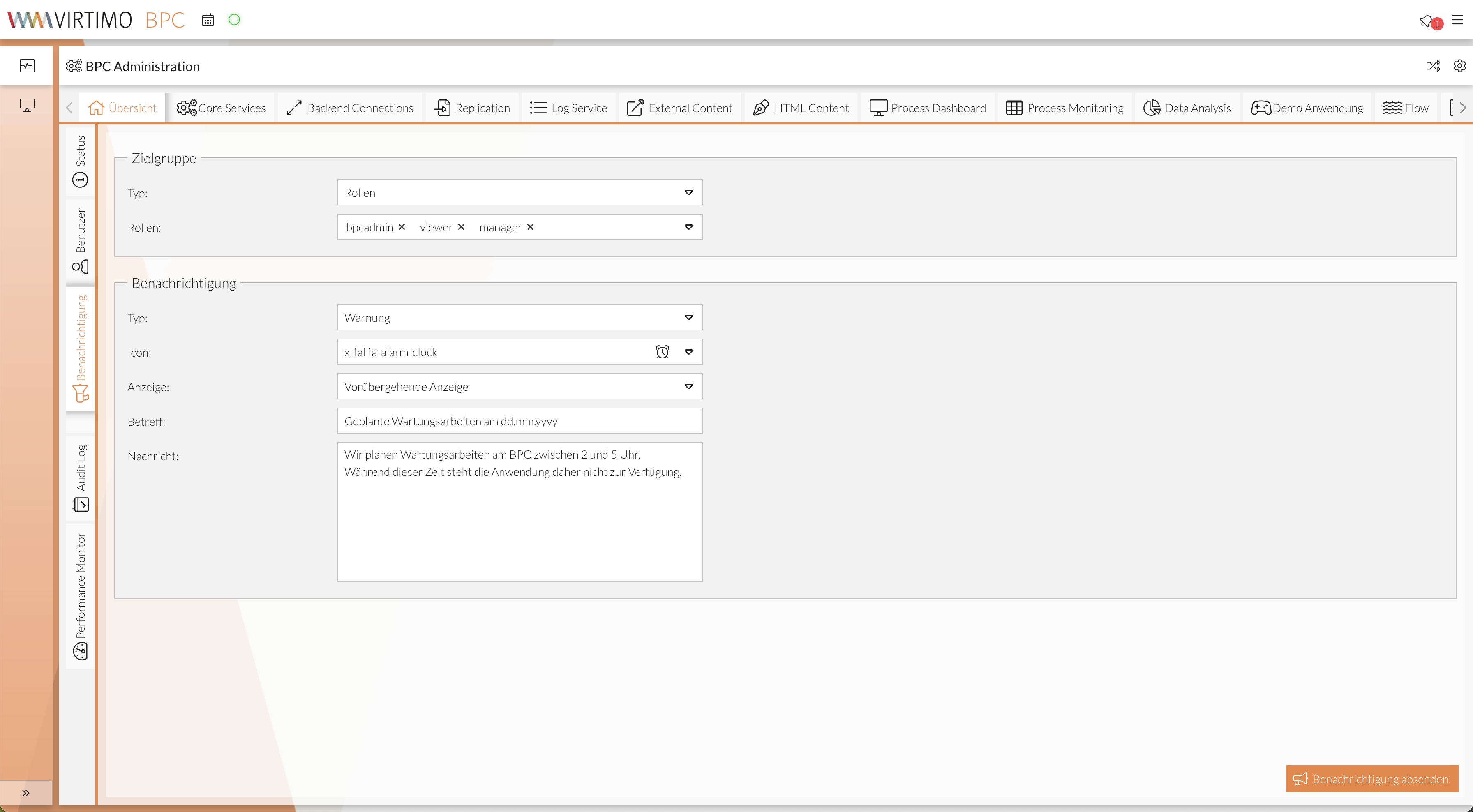
The notification feature is located in the administration area () under the Overview > Notification tab.
Define Target Group
The target group is used to define the recipients (or recipient groups) of the notification in accordance with the BPC’s rights management. A distinction is made between two target groups:
-
Recipients who hold a role.
-
Recipients who are assigned to an organization
Depending on the type of recipient group, a list of either organizations or roles available in the BPC is provided.
Accordingly, you can specify one or more recipient groups based on their affiliation with an organization, or you can address individual roles.
If you want to specify multiple organizations or roles, click the corresponding fields in the drop-down list one after another.
Set the notification priority
Depending on the type of notification, messages appear in different locations on the user interface. There are three different display options:
-
Notification requiring confirmation
A pop-up window opens on the target group’s user interface. This window is only closed once the user confirms it.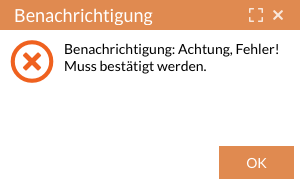
-
Temporary display
A message appears on the target user’s interface that disappears on its own after a short time.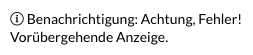
-
No display
The notification appears only in the notification history.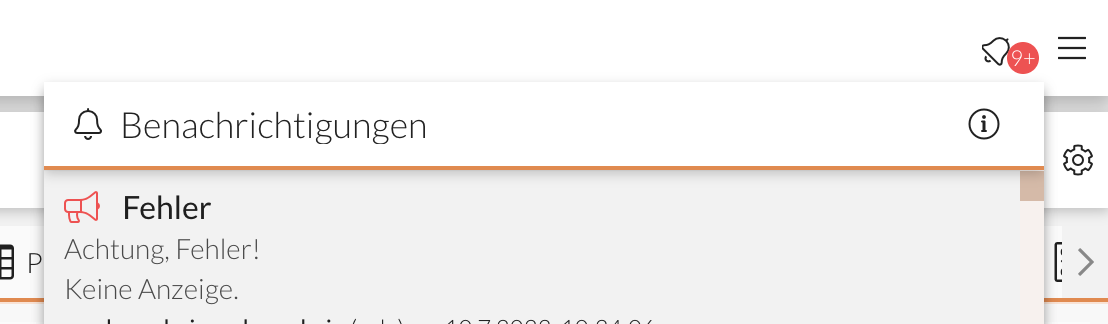
There are also different notification types that make the urgency more apparent to the recipient:
-
Error
-
Warning
-
Information
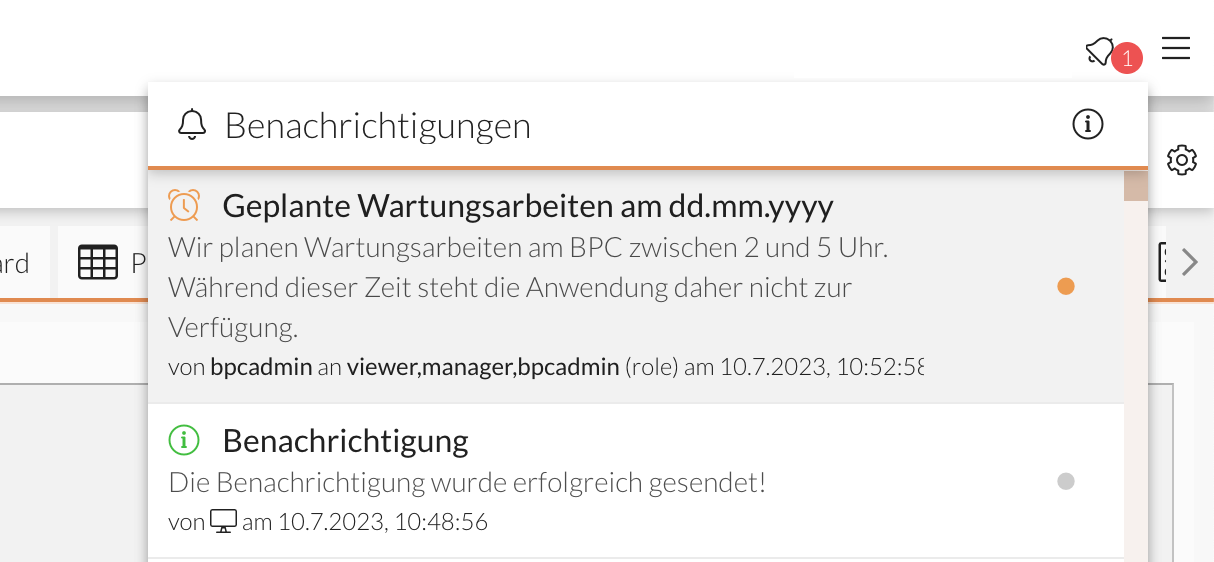
All messages, regardless of type or display, are saved in the notifications menu and can be reviewed there.
Send Notification
After you have selected or filled in all fields, click the button Send Notification.