Getting Started
The Virtimo BPC is a web-based platform for digital business applications that enables the visualization of technical business processes and automated business workflows.
At the same time, as a business department or business user, you can monitor the processes in a web browser and intervene to control them if necessary, without having to work directly in the business applications.
As a shared digital interface, the BPC enables all process participants to communicate and exchange information with one another.
In summary, this allows you, for example, to:
-
provide information across the enterprise,
-
assign specific tasks,
-
monitor overall workflows and individual process steps,
-
restart processes,
-
manage and maintain Leader and product data,
-
automatically generate and distribute tasks from automated processes,
-
manage and analyze time data/time series.
The BPC has a modular structure and can be customized and expanded as needed.
Each module offers its own specific view with corresponding functionalities; see Application Modules for more information.
The individual modules work together and are partially integrated with one another.
This means that individual module-specific actions (e.g., sending messages) can also be performed from within other modules.
The BPC offers the ability to integrate applications such as mail servers, databases, portals, or BPM platforms.
Login
After entering the BPC’s URL in your browser, the Business Process Center’s login page appears. Here, you can log in, select various login parameters, or view publicly available information, depending on your settings.
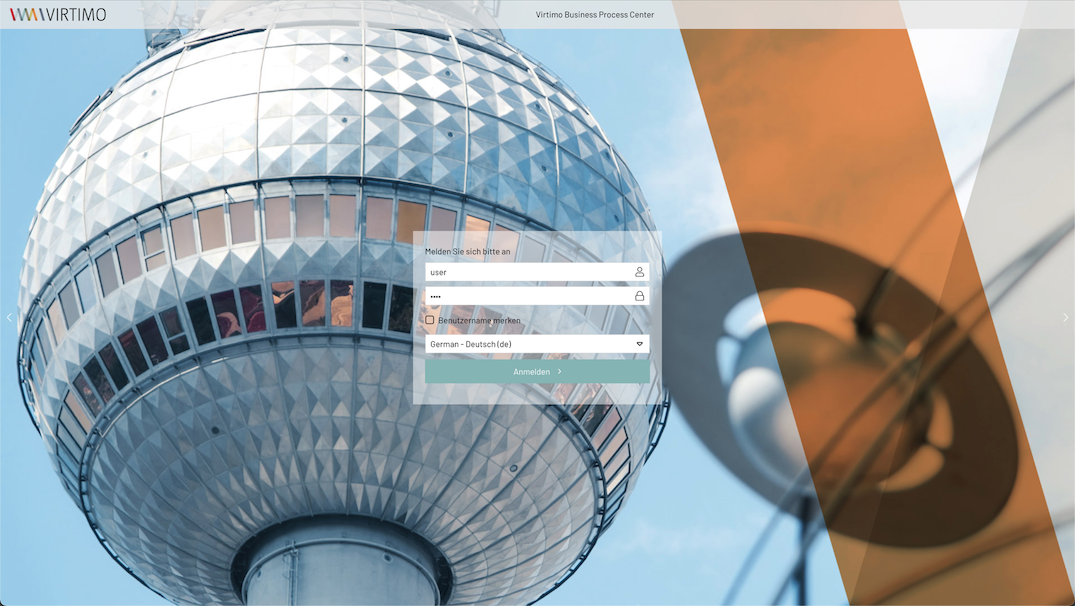
User Interface in the BPC
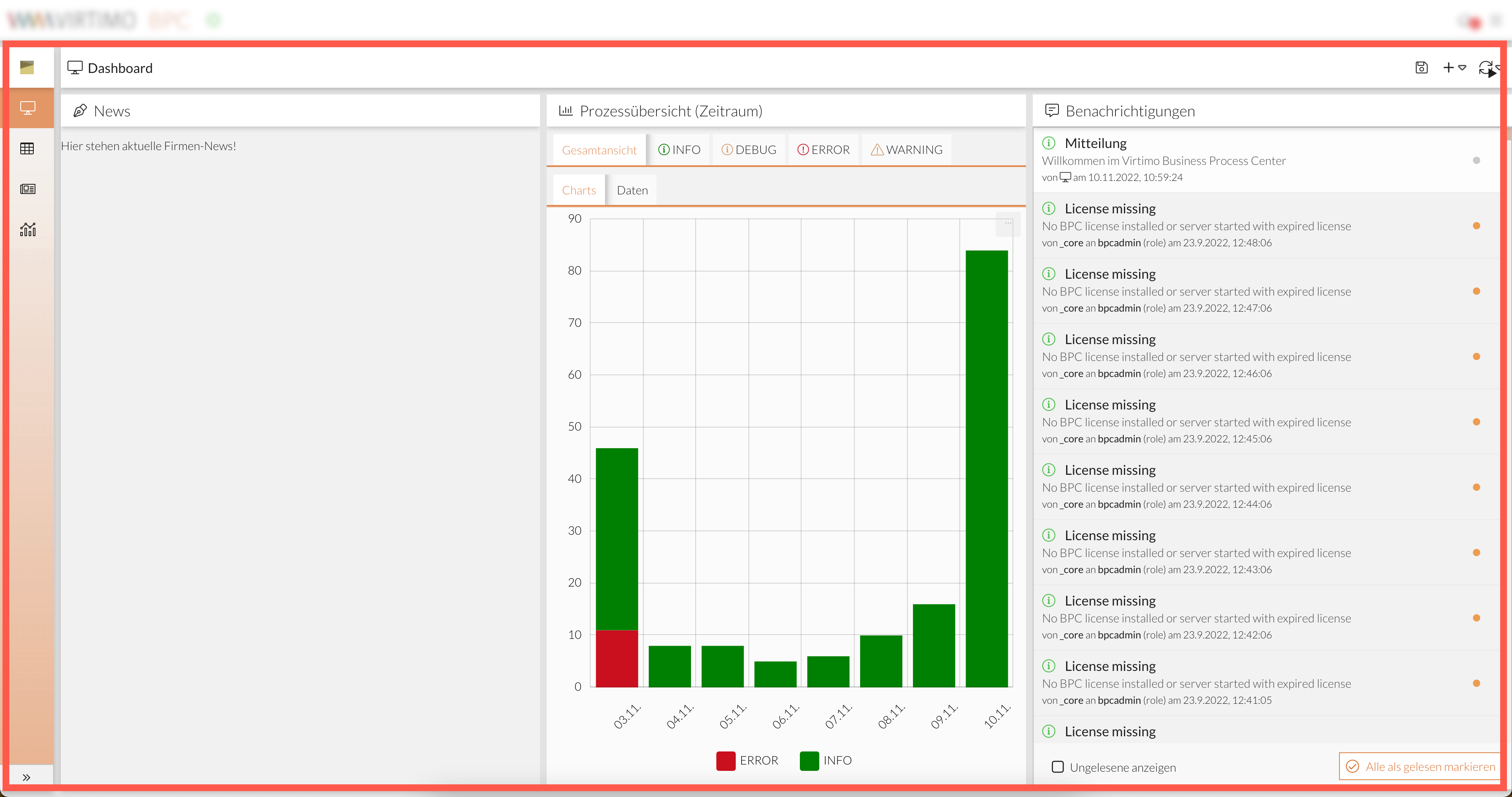
Your home page will vary depending on how the BPC was set up by your administrator. However, the following areas are present on every interface:
Application Area
The application area displays the specific view of an application module. It extends across the entire window and includes all visible elements, such as the navigation bar and the changing views. Depending on the configuration, the home page may look different, as it can be individually selected and customized.
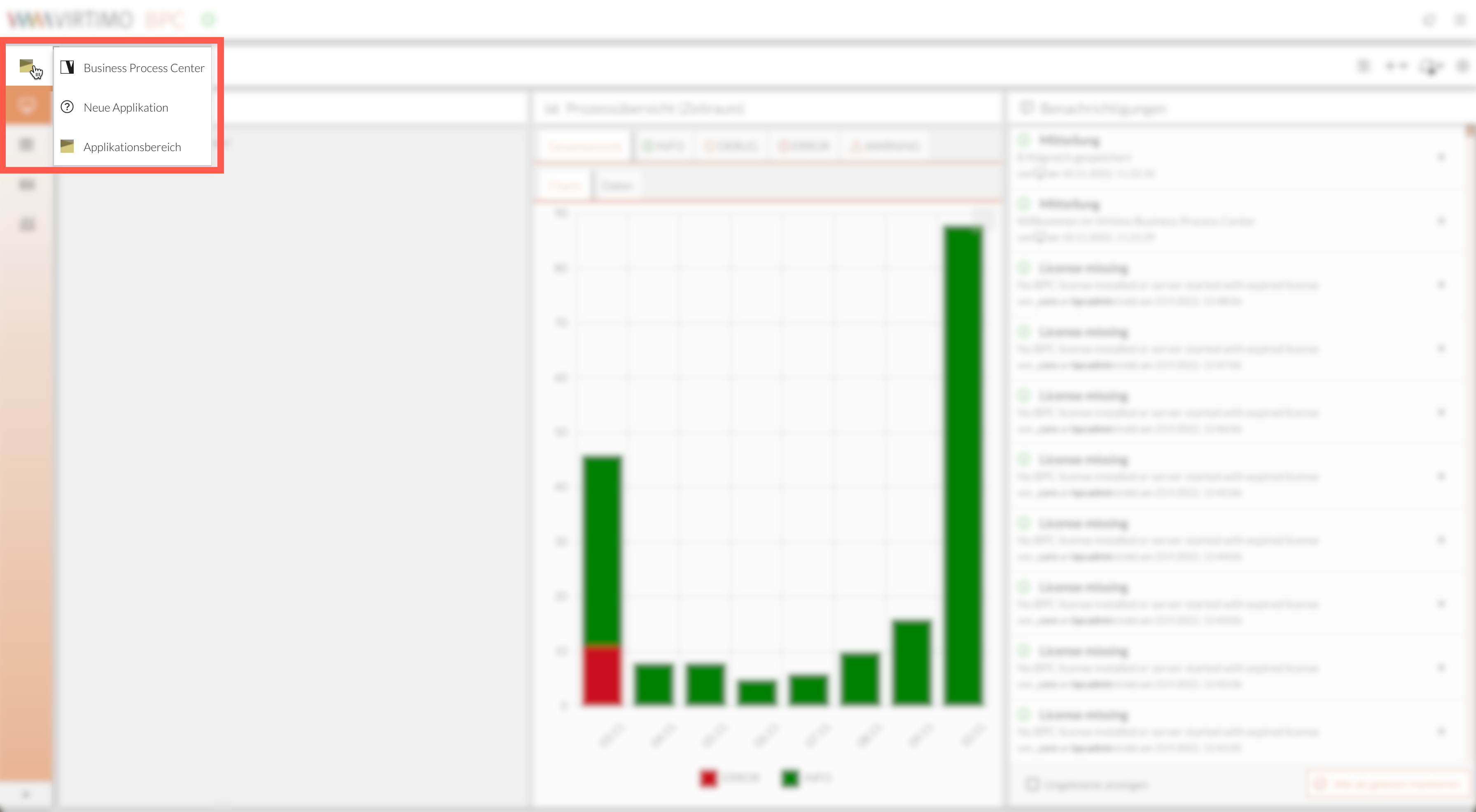
Application Area Menu
Depending on the configuration, one or more application areas may be created. You can switch between application areas using the corresponding menu. A different application area allows, for example, a quick switch to a modified layout of the navigation bar and corresponding different module settings and views.
Navigation Bar
The navigation bar provides access to the specific application modules of the BPC.
The bar displays all modules that have been preconfigured for you.
Clicking on a module opens a module-specific view.
Depending on the configuration, the navigation bar may be arranged and divided differently:
- Menu
-
The navigation bar is located on the left side of the page and runs vertically.
If a module has further subdivisions, these subordinate elements appear as an additional menu when you hover over them with the mouse.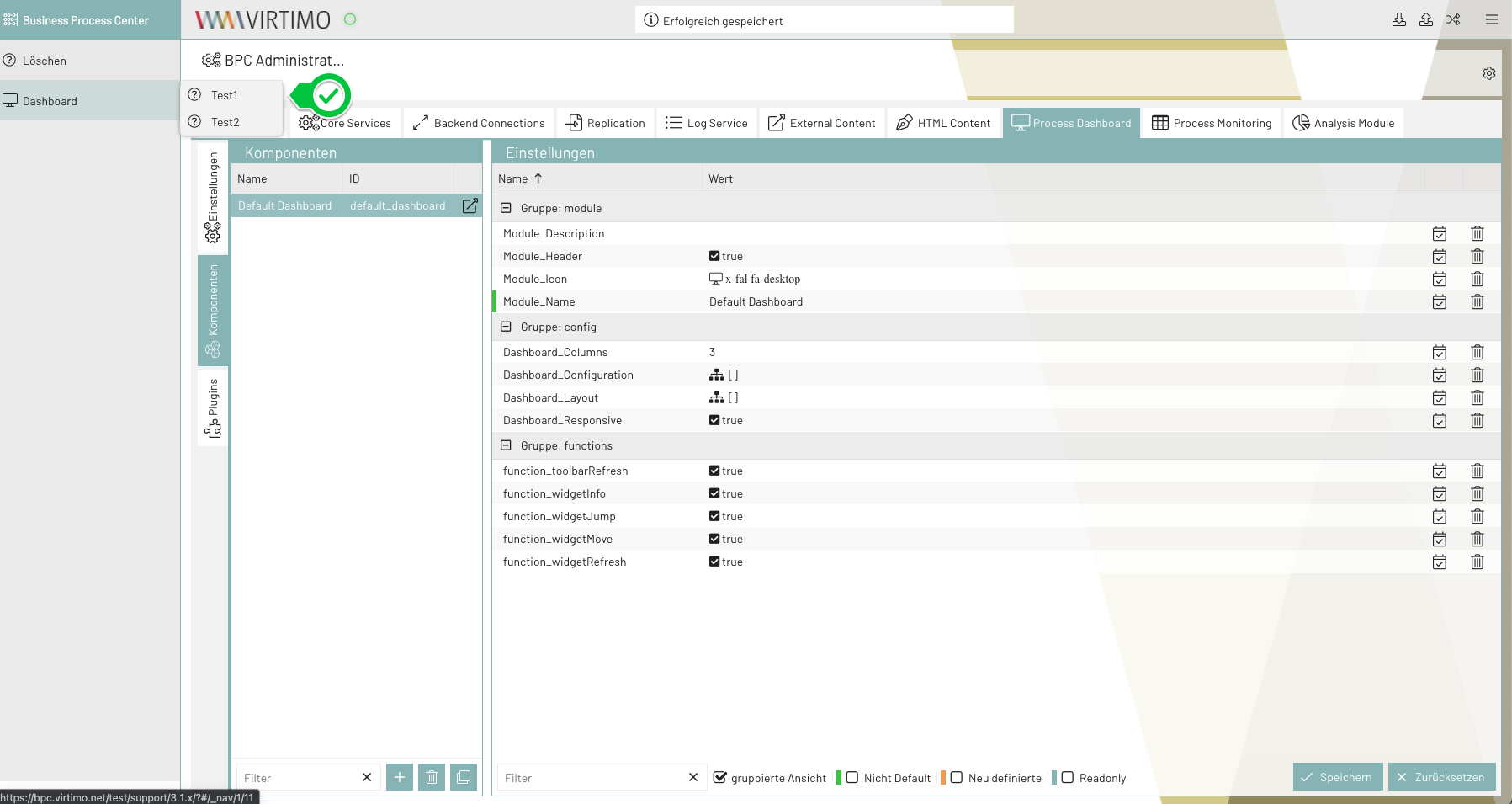
- Vertical
-
The navigation bar is located on the left edge of the page and runs vertically.
If a module has further subdivisions, these subordinate elements appear after clicking on the corresponding module. The entire navigation bar expands automatically.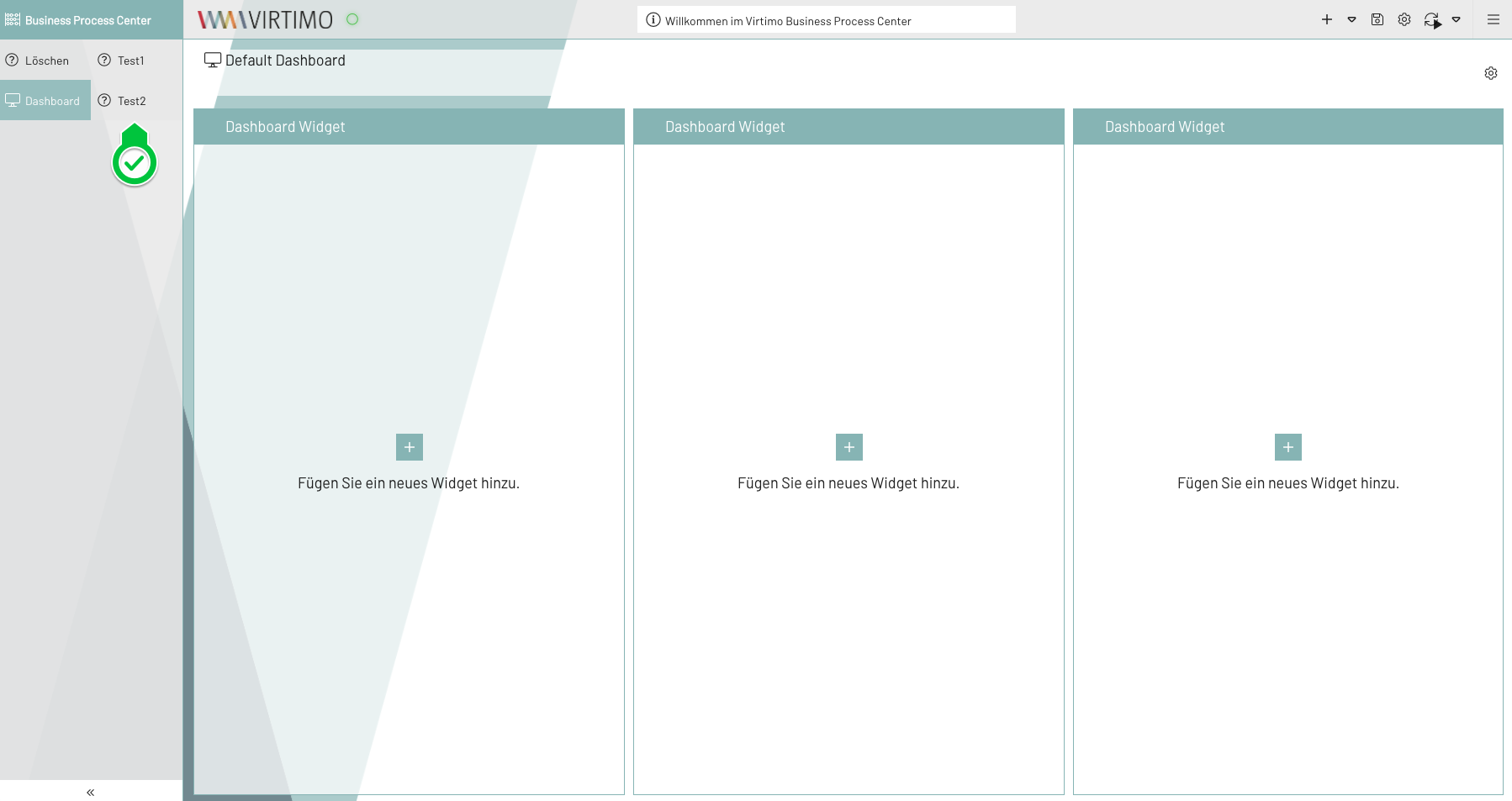
- Tabs
-
The navigation bar is located below the BPC toolbar and runs horizontally.
If a module has further subdivisions, these subordinate elements appear after clicking on the corresponding module. The entire navigation bar expands automatically.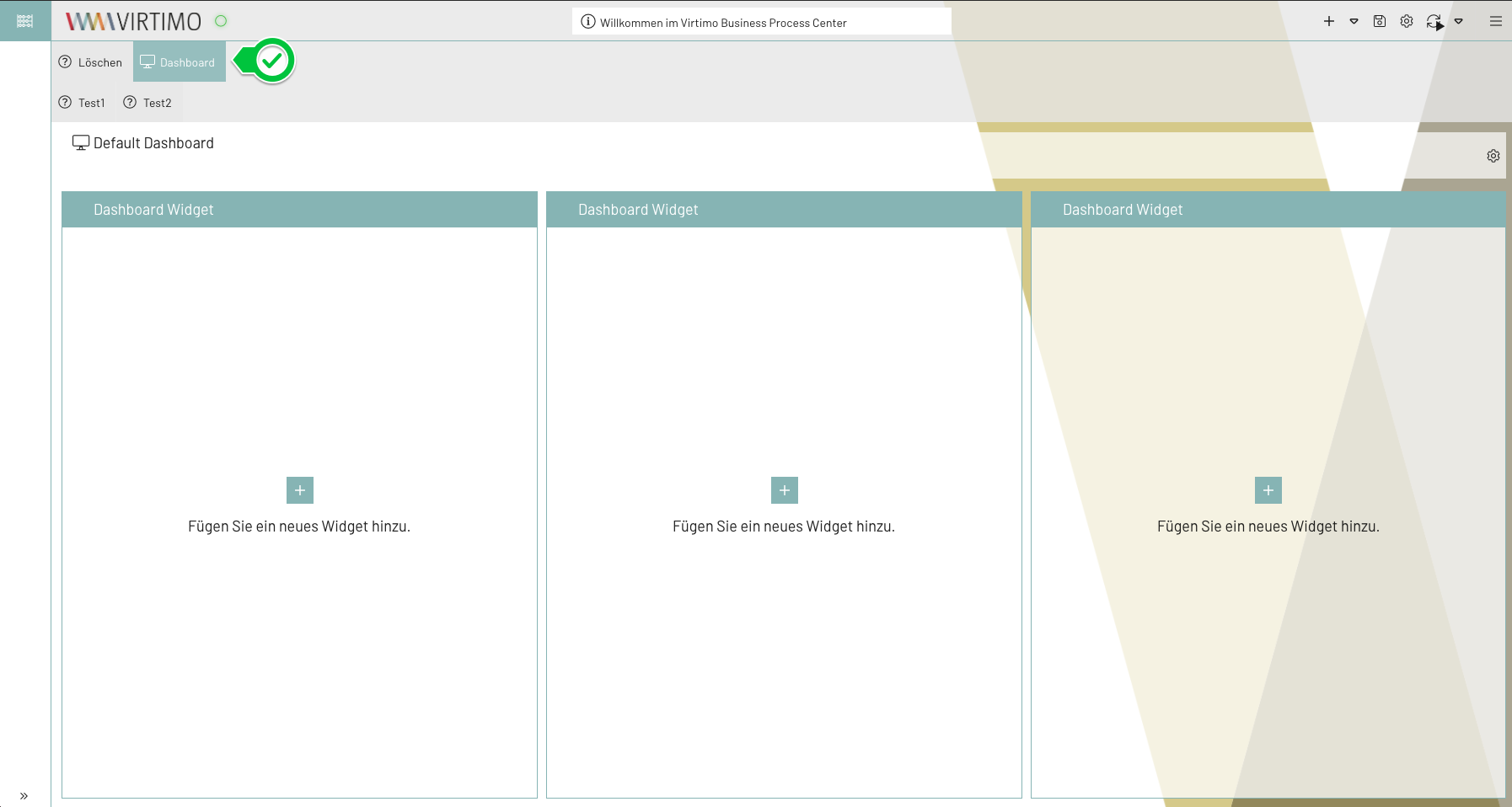
If the navigation bar is located on the left side, it can also be expanded and collapsed.
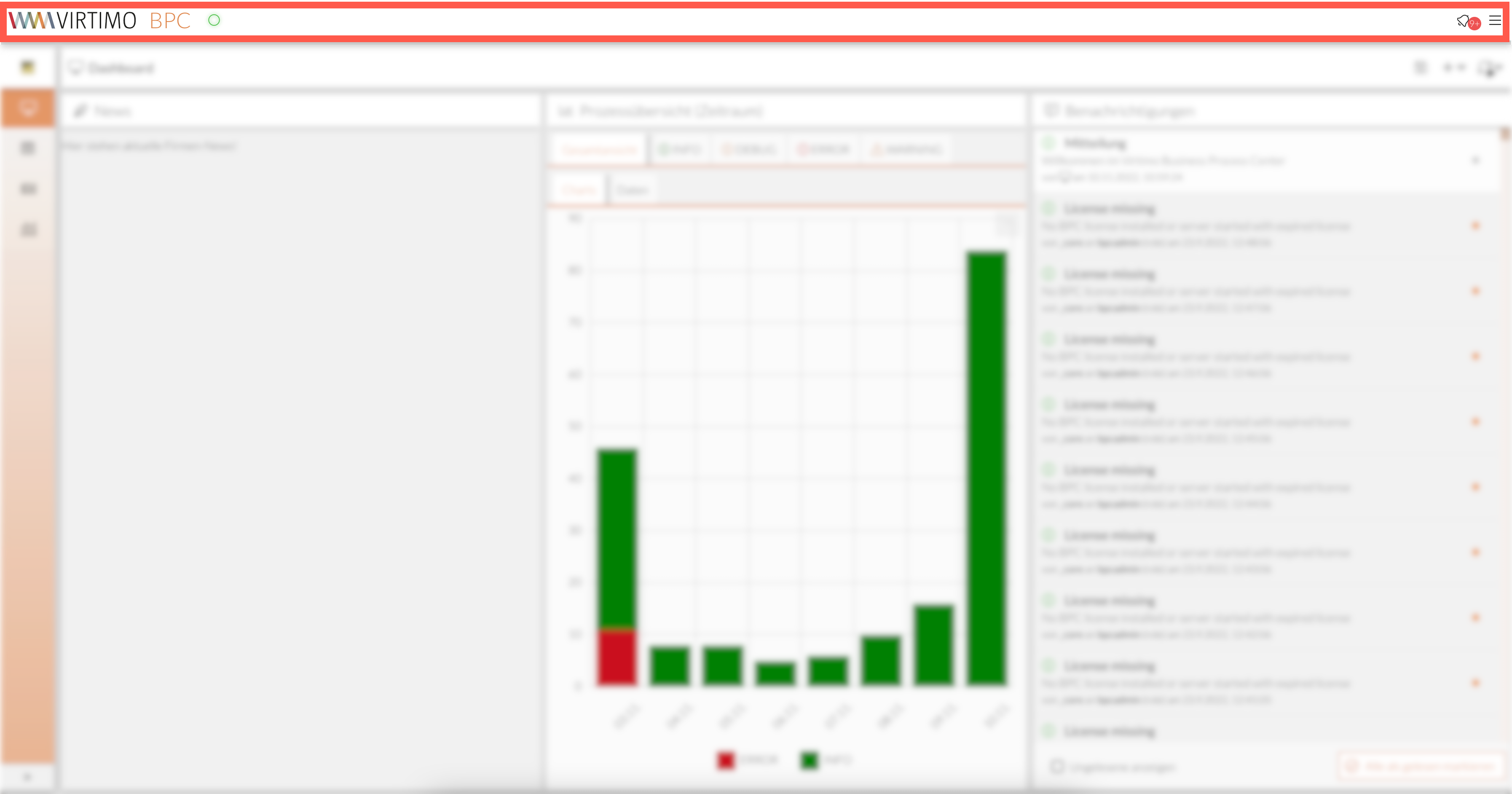
BPC Toolbar
The BPC Toolbar is the header bar of every page and therefore remains the same in the window regardless of any action. Depending on the configuration set by your administrator, it contains various elements.
Global Menu
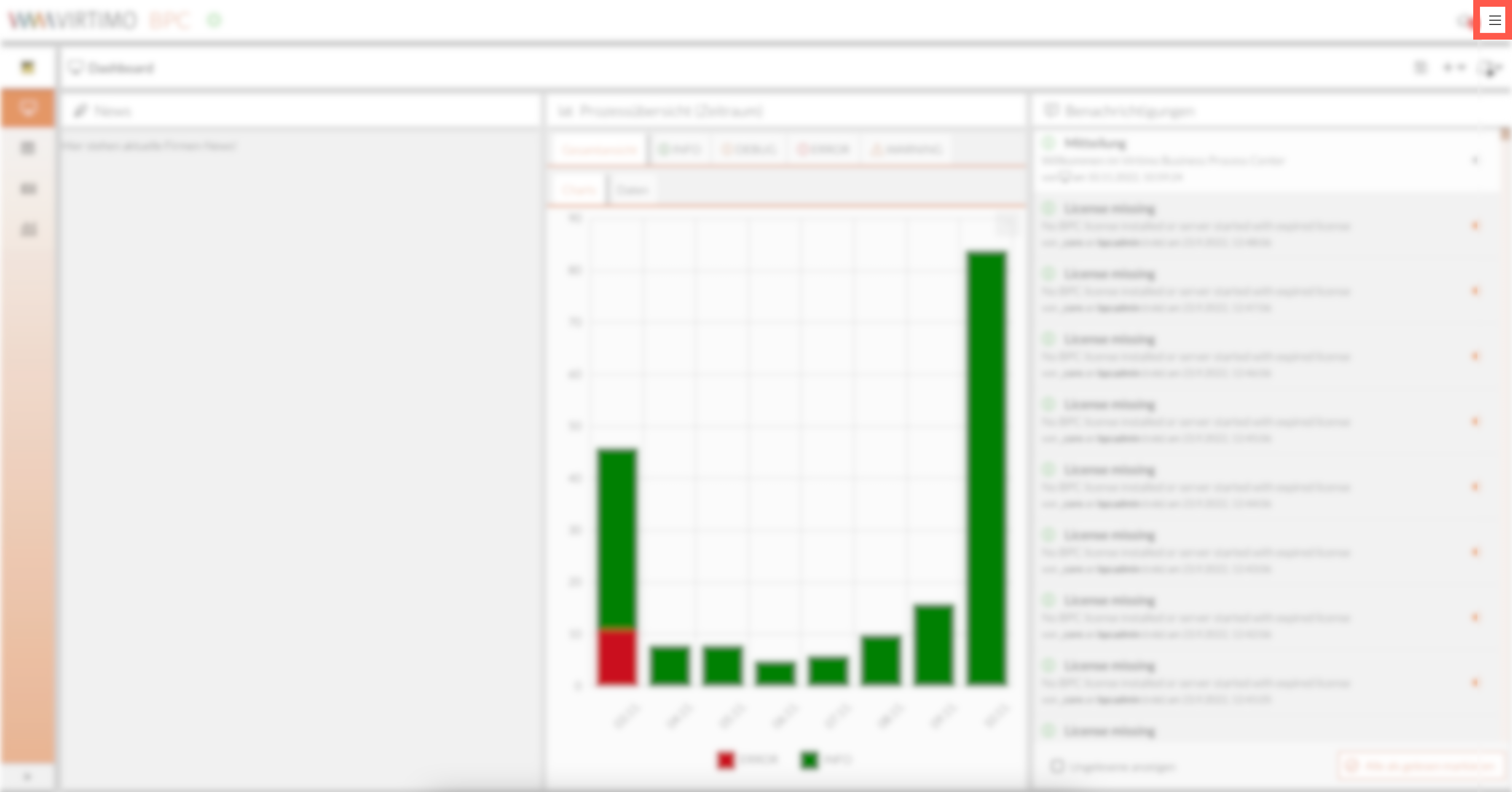
The global menu provides access to the following menu items:
-
Online Documentation
-
Settings for the current user
-
Information about BPC
-
Log out of BPC
The user menu may also appear as a standalone menu on your interface.
- Online Documentation
-
Clicking this menu item opens this online help, provided your PC has an Internet connection.
- Settings for the current user
-
Your individual username is displayed here; hovering over it with the mouse opens additional menu items.
-
User Information: If you have the necessary permissions, you can view information about your user account here and adjust settings as needed.
-
Change Password: If you have the necessary permissions, you can set a new password here.
-
Change Language: If the BPC has been set up in multiple languages and you have the necessary permissions, you can change the language here and choose between at least German and English.
-
Delete Local BPC Data:
-
Log Out: Here you can end your session; after logging out, you will be redirected to the login page.
-
Module Header
If the module header display has been enabled for you, you will see an extra bar above the corresponding module. This bar usually contains a label and, if applicable, a further description of the module. It is also possible that module functions are located in this bar.
