Structural Layout
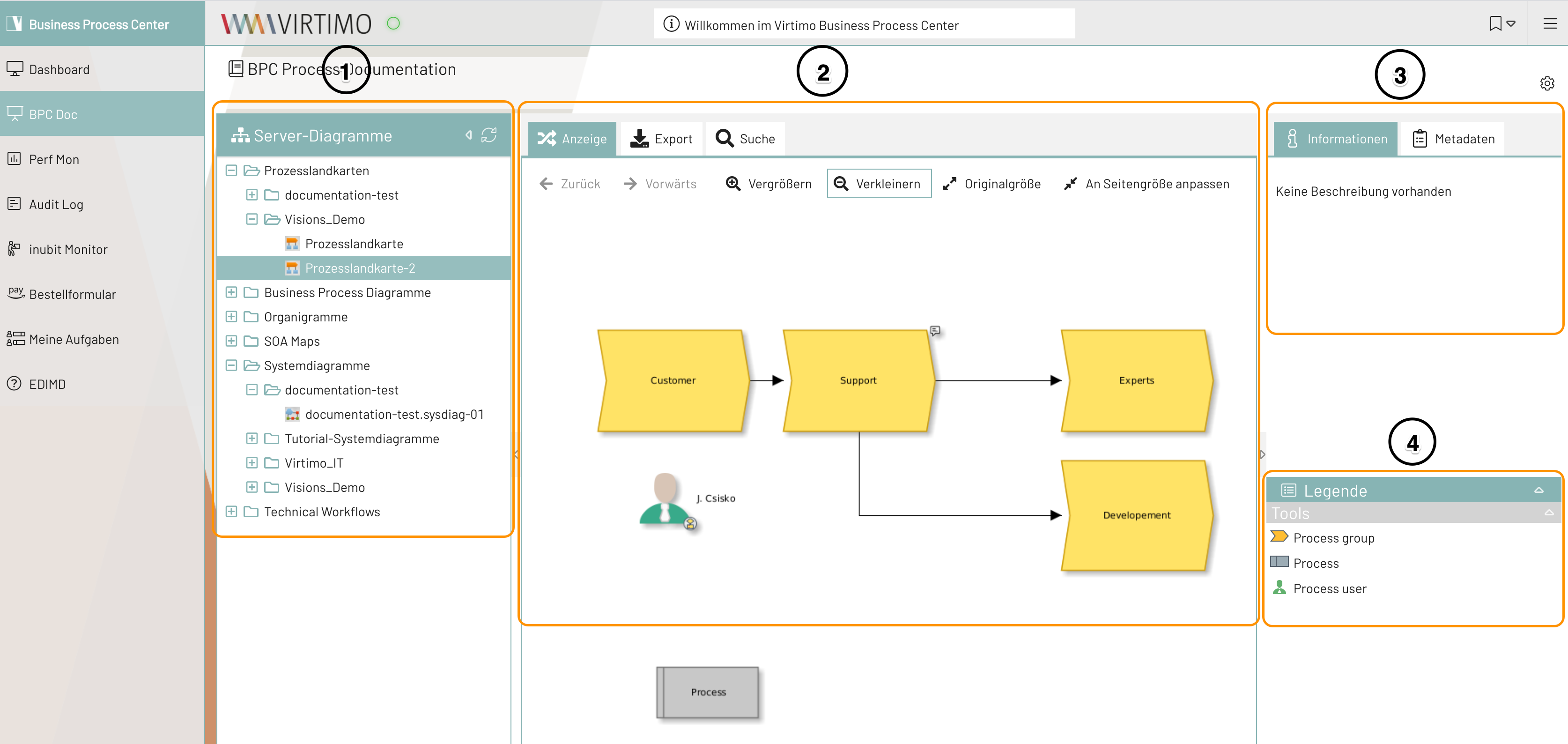
Tree View (No. 1)
This view allows you to show or hide the tree structure of the diagram directories. You can navigate to the diagrams by using the tree. The tree structure can be hidden to provide more space for displaying the diagrams.
The top level of the tree displays the diagram types, followed by the diagram folders that ultimately contain the diagrams. You can specify which diagram types should be visible in the module configuration.
Diagram View | Export | Search (No. 2)
This view displays the contents of the diagram selected in the tree view on the left. Clicking on a diagram element displays additional element information, such as the element name, stored metadata (sorted alphabetically or via the "Metadata Manager"), comments, and links. By default, the additional information is displayed in a pop-up window. Use the "Export" tab to export selected diagrams as PDFs. Use the "Search" function to find diagrams and their content based on search terms.
Information | Metadata (No. 3)
This section displays additional information about a diagram. In addition to the description, this detailed information can also be accessed via the “Metadata” tab. By default, this section is always displayed, but it can be hidden along with the legend using the arrow button. You can also use the configuration page to set the description and legend to be hidden by default.
Legend | Links (No. 4)
The legend displays all elements used in the Diagram and explains them with a short text. If the "Metadata" tab is selected, all links contained in the Diagram are listed here. You can show or hide this section using the push-down button or the arrow button. You can also use the configuration page to specify that the legend and description should be hidden by default.
