Data Management Installation and Update
Prerequisites
-
You have one of the following databases installed, including the driver:
See also Database-specific restrictions.
-
You have created an HTTP proxy connection to INUBIT in Backend Connections
-
You have downloaded the required workflow packages and repositories
-
You have downloaded the required BPC modules (
.war,.jar)
Procedure
INUBIT:
-
Create the "VAM" user group in INUBIT
-
Assign the desired users to the group
-
-
Import the workflow and repository ZIP files into this user group
-
If necessary, install the database driver in INUBIT
-
Adjust the database parameters
-
INUBIT system diagram: Enter the database connection
-
INUBIT System Diagram: Check/change connection pooling settings in the DB connectors
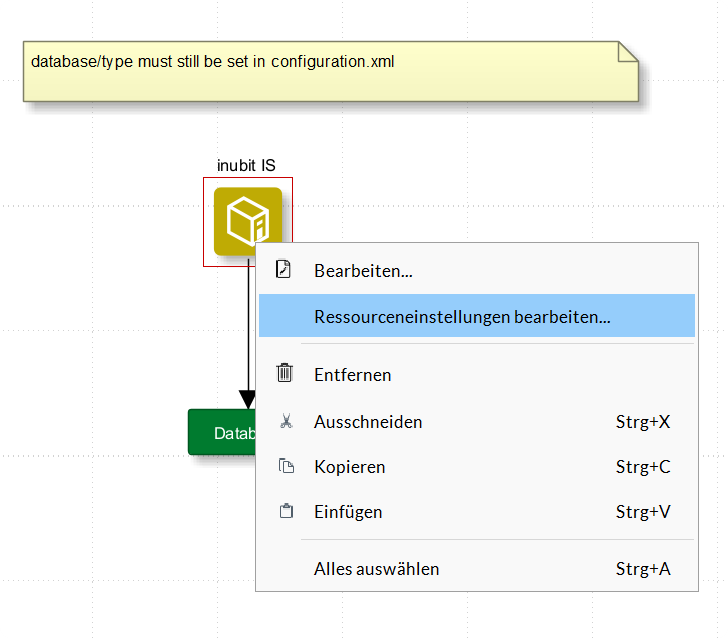
The default settings apply to an Oracle database. Adjust these accordingly if a different DBMS is used.
-
Enter the DB type ("oracle," "mssql," or "postgresql") in the VAM_api_configuration module
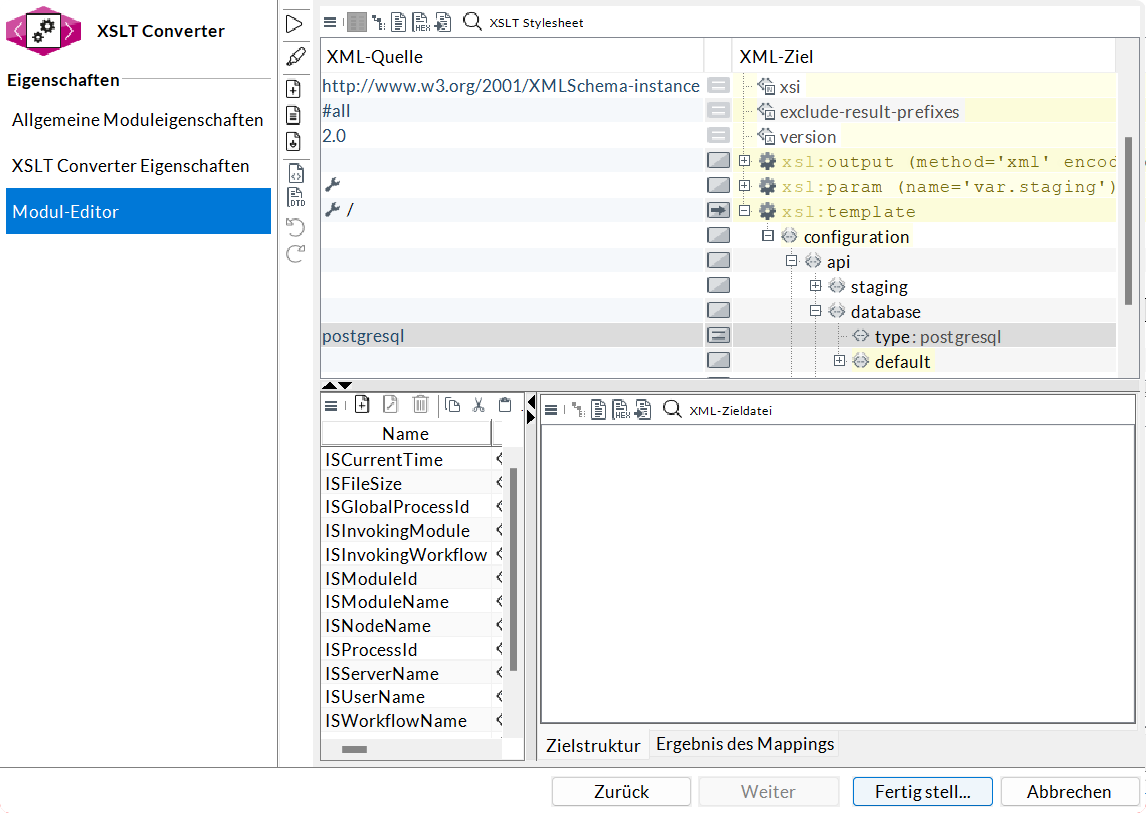
You can find the module in the VAM_api_main_newSession and VAM_api_attachUser workflows.
-
-
Connect to the database manually
For MSSQL, the name
T_INUBIT_ASSETMANAGEMENTmust be replaced with the actual schema name in the SQL files. -
Manually run the following scripts:
The scripts are located in the previously imported INUBIT repository, e.g.,
/Root/admin/VAM/backend/single-create-2.0.8-Oracle.sql.-
the most recent single-create script that matches the database
-
all single-upgrade scripts that match the database and have a higher version number
-
-
If errors occur, check the database permissions—this is often missing in Oracle
Grant execute on ctxsys.ctx_ddl. -
Activate workflows
BPC:
-
Deploy the BPC modules BPC-fe-vam.war and BPC-be-vam.jar to the BPC
-
If the BPC URL differs from the default, enter the custom BPC URL in the VAM_api_configuration module
-
Set up permissions in the BPC or BPC Identity Backend
Simplest setup for Data Management users:
-
for general read and write access: VAM-administrator role
-
for access to artifacts of the corresponding data pool (“Organization”): VAM_organization_NAME role—one per organization!
-
If necessary, create a user to whom these roles are assigned
-
-
-
Log out of and back into BPC using the user you just created,
Open the Data Management module once, if necessary -
If not already set up, configure an HTTP proxy to INUBIT, see Backend Connections
-
Create the Data Management module component
-
Enter the HTTP proxy
-
Enter the organization ID (freely selectable)
-
Save changes
The Data Management module is now accessible.
However, without templates, you can only create and delete test queries, for example, at this stage. -
INUBIT:
-
Generate a real password and enter it in the VAM_api_http_listener_protocol module
|
Use this password for automated access as well. |
Update
To update the entire Data Management application, both BPC and INUBIT must be updated.
BPC
-
Download the latest versions of Data Management (.war, .jar)
-
Go to the BPC interface and open the Overview > Status tab in the administration area
-
Select the icon
-
In the pop-up window, upload the
.warand.jarfiles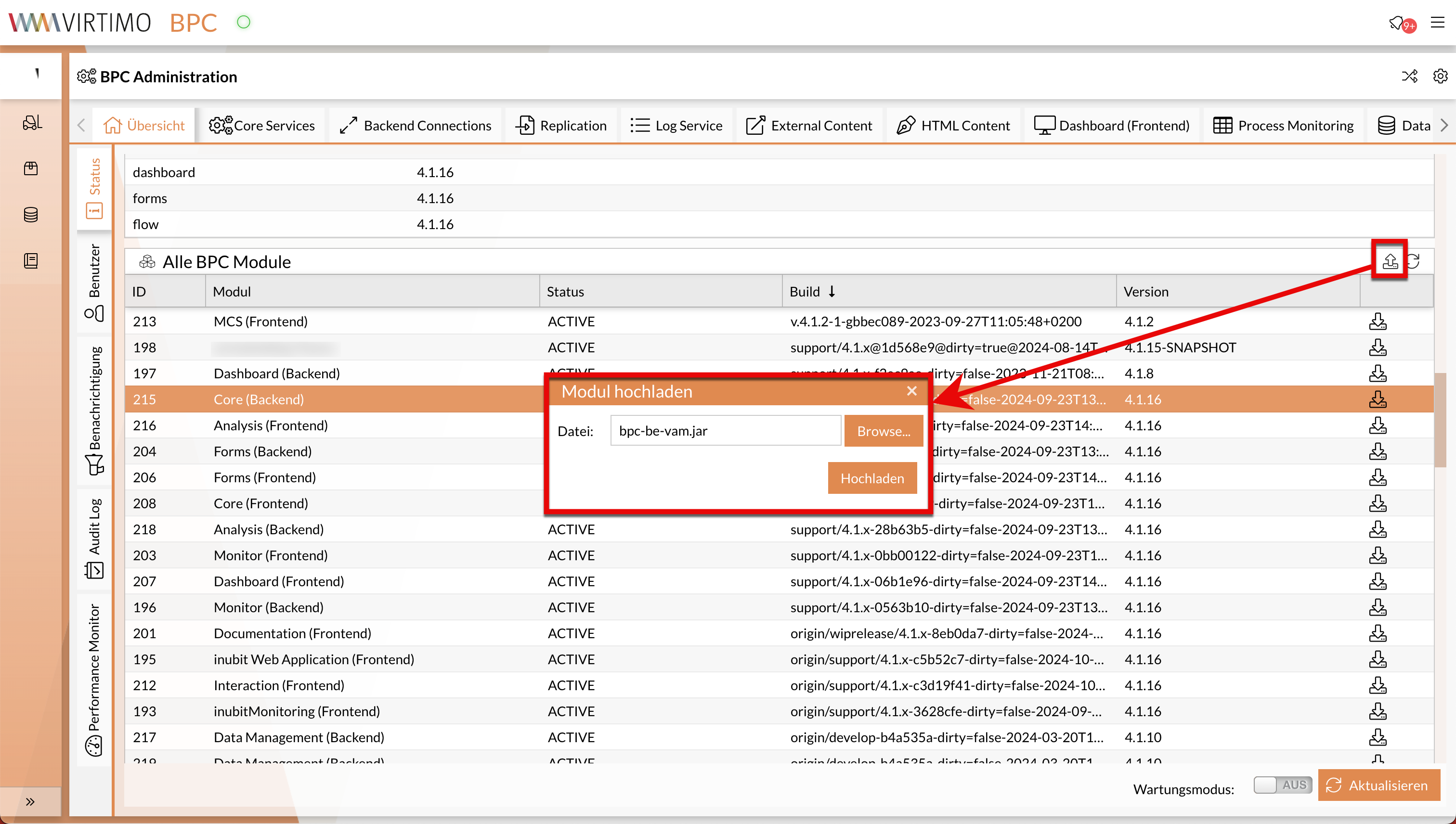
INUBIT
-
Download the latest versions of the zip files
VAM.diagrams_ohne_SystemdiagrammandVAM.repository(Use the version without the system diagram, as updating the system diagram causes errors in some INUBIT installations) -
In INUBIT, switch to the VAM user group
-
Switch to the Designer
-
VAM.diagrams_ohne_Systemdiagramm.XXXX.zipImport to update the workflows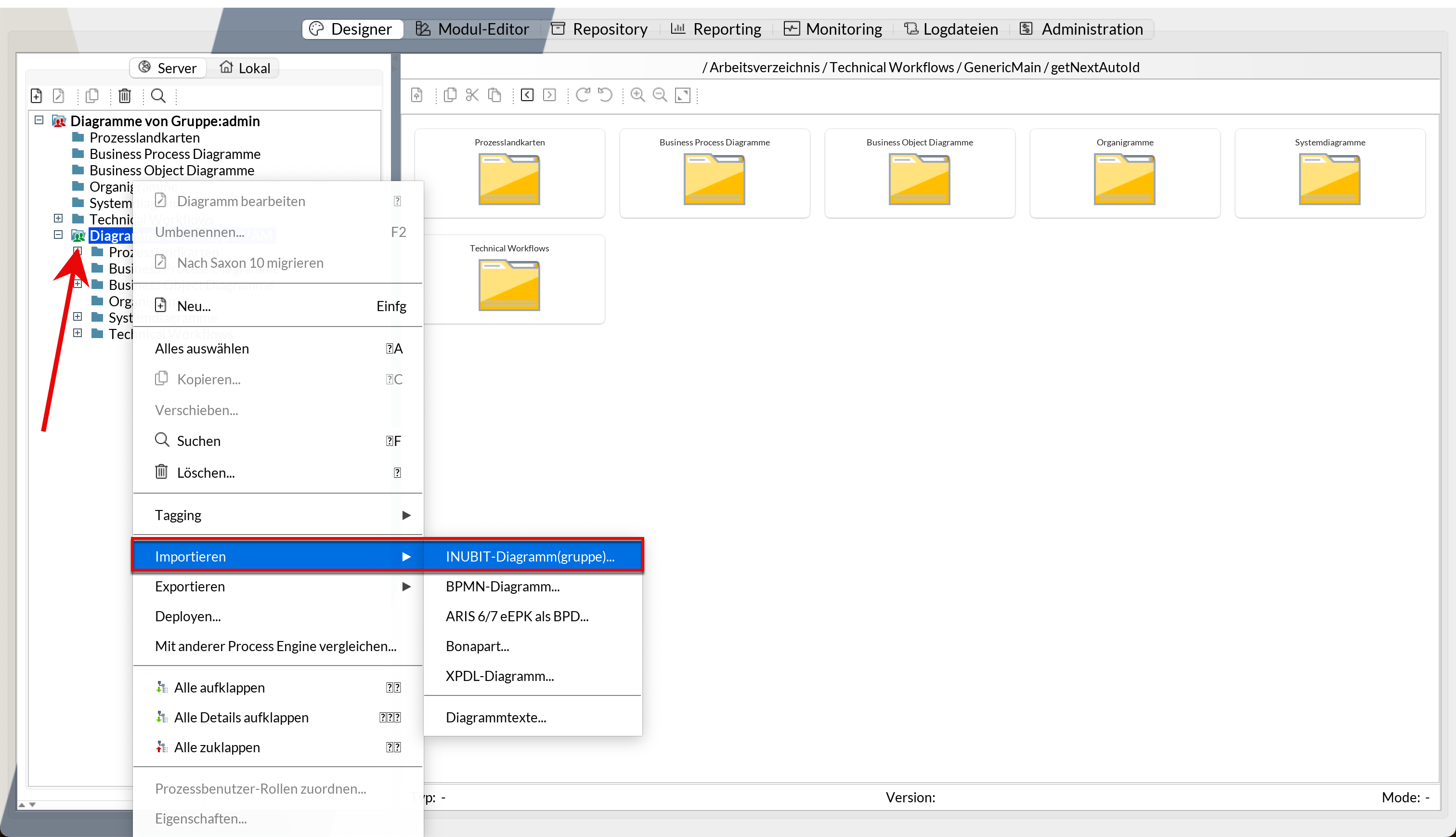
-
Reset the
VAM_api_configurationmodule -
Reset the
VAM_am_063_hookingworkflow (if customized) -
If necessary, reset any other customized workflows and modules
-
Switch from the Designer tab to the Repository tab
-
Click on the VAM user group and import the latest
VAM.repository.XXXX.zipfile -
If necessary, restore any customizations here as well (normally not necessary, as no customization is intended)
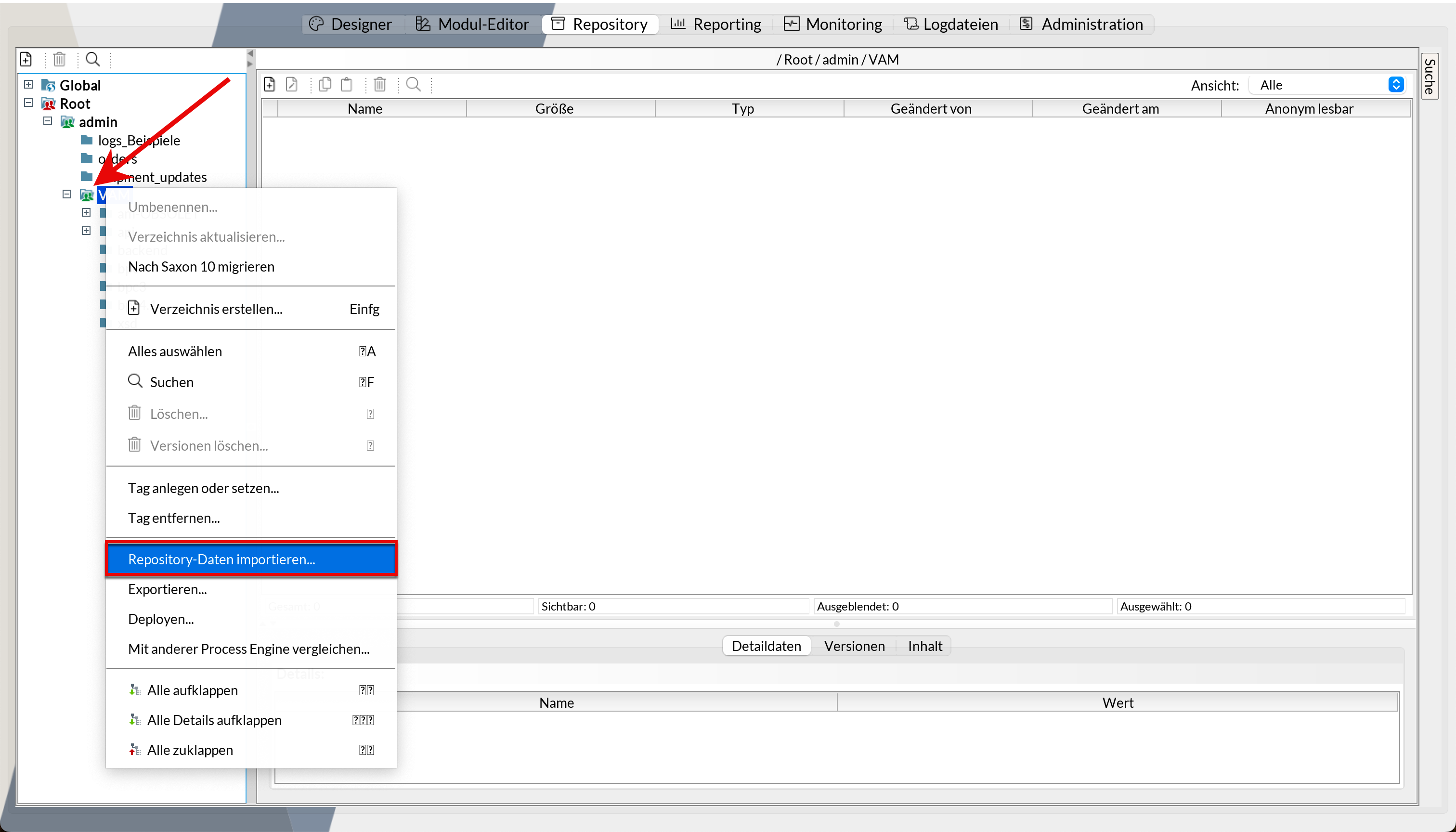
-
If there is an upgrade script for the database you are using in the repository, run this script manually in your DBMS. (If versions are skipped during the upgrade, there may be multiple upgrade scripts.)
-
In the Designer tab, enable any newly imported workflows if necessary
-
Manually execute the workflow VAM_api_zzz_reset_caches
-
If applicable, note any specific release notes
Database-specific restrictions
Oracle
-
Standard field "Description":
Description can be a maximum of 4,000 characters long -
Context search by username (“created by” and “modified by” / “contains”):
Search does not work in some Oracle versions due to an optimizer bug
MSSQL
-
Contextual search in standard fields:
Only searches for word prefixes are possible -
Character set encoding:
Use of non-Latin-1 characters in indexed fields (e.g., custom ID, user ID) is problematic;
the same applies if database defaults are poor; keys are case-sensitive or contain accents -
Key length:
Keys for indices may be up to 931 characters long
(currently no known use case where this length is exceeded)
