Core Plugins/Hooks
Plugins
Network Indicator
This plugin includes a colored icon that displays the current connection status to the server, as well as network activity and maintenance mode.
See also Network Indicator
Theme Switcher
Menu or toolbar (depending on where the plugin is assigned) for selecting a BPC theme. After selection, the BPC is reloaded with the selected theme.
See also Theme Switcher
Breadcrumb
This plugin includes a breadcrumb that shows the user where they are within an application.
See also Breadcrumb
ModuleNavigator
This plugin includes a widget that allows users to navigate to the next or previous module.
See also Module Navigator
Share Current View
This plugin provides a button to retrieve the URL for the current view in BPC. This URL can be shared with other users.
See also Share Current View
Deployment
This plugin provides a button that allows you to transfer individual modules and BPC configurations from one BPC installation to another within the BPC.
See also Deployment
Replication Status
This plugin displays an icon that indicates the status of a replication job using color. Additional information about the replication is displayed when you hover over the icon with the mouse.
By default, the icon color indicates green (OK), orange (WARNING), or red (ERROR). The tooltip contains information about when the replication was last updated, as well as any potential errors or warnings.
See also Replication Status
External Link
This plugin displays a button that redirects to external web URLs.
See also External Link
Internal Link
This plugin displays a button that redirects to internal BPC modules.
See also Internal Link
Hooks
Module Header
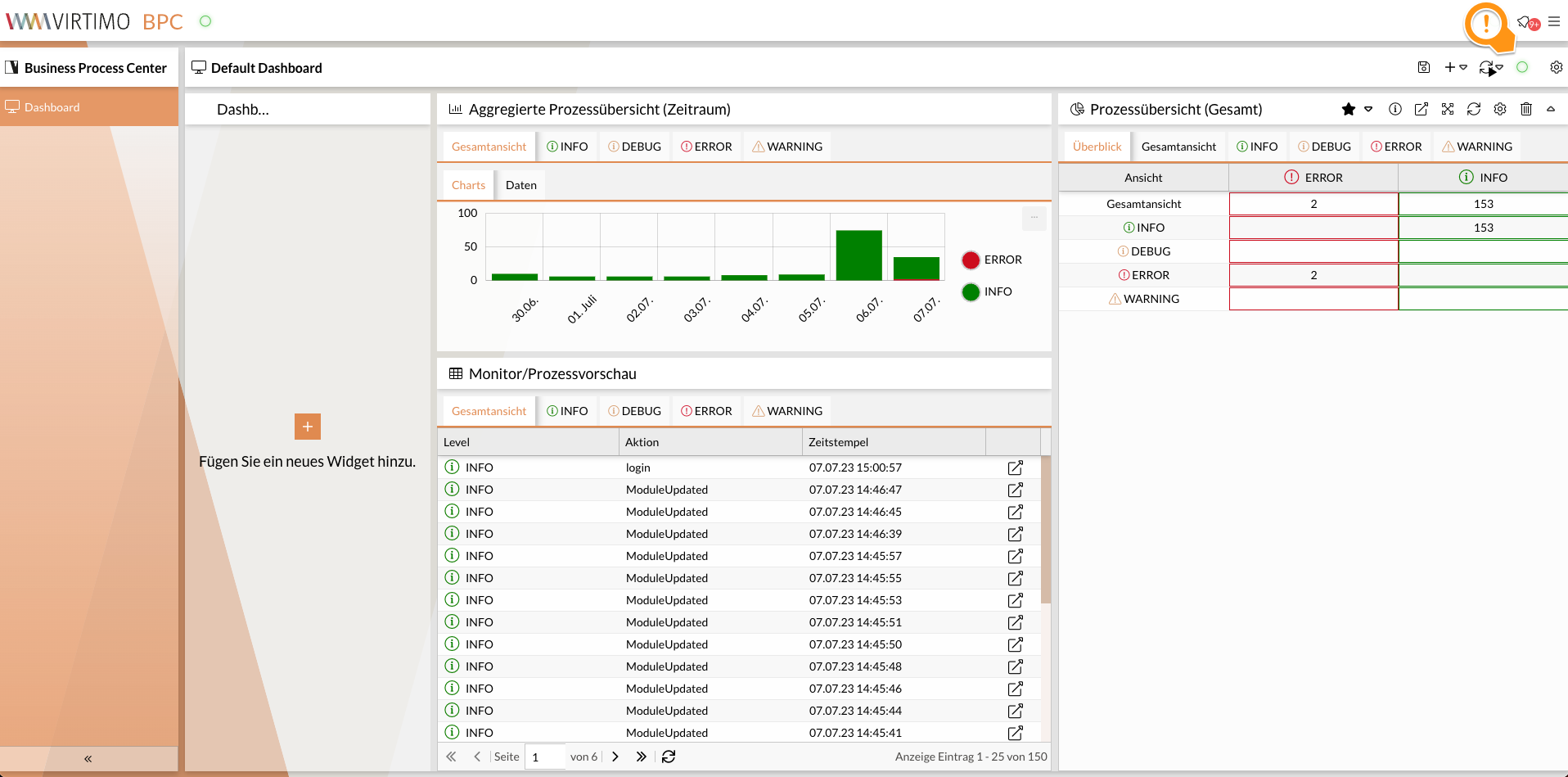
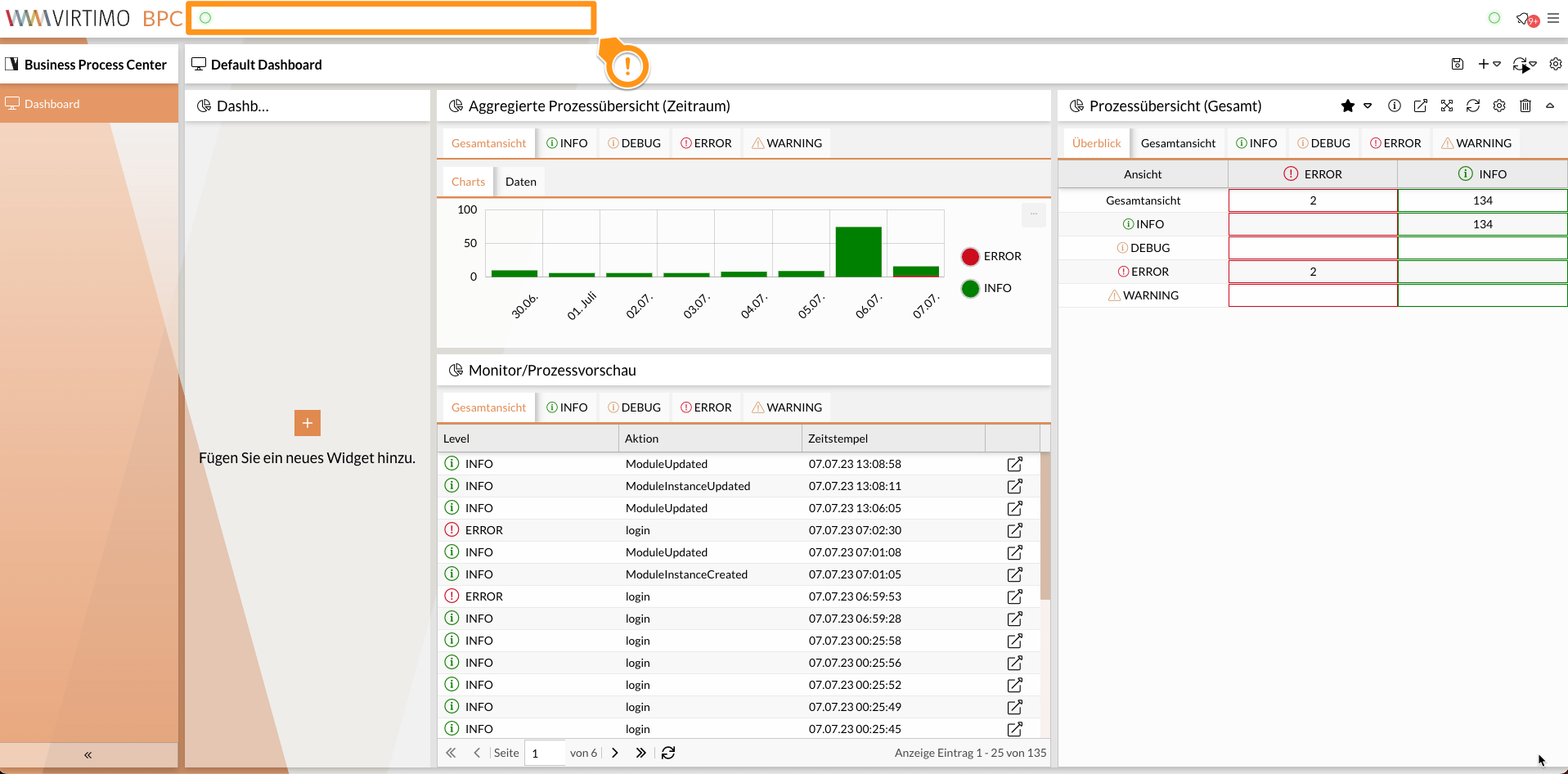
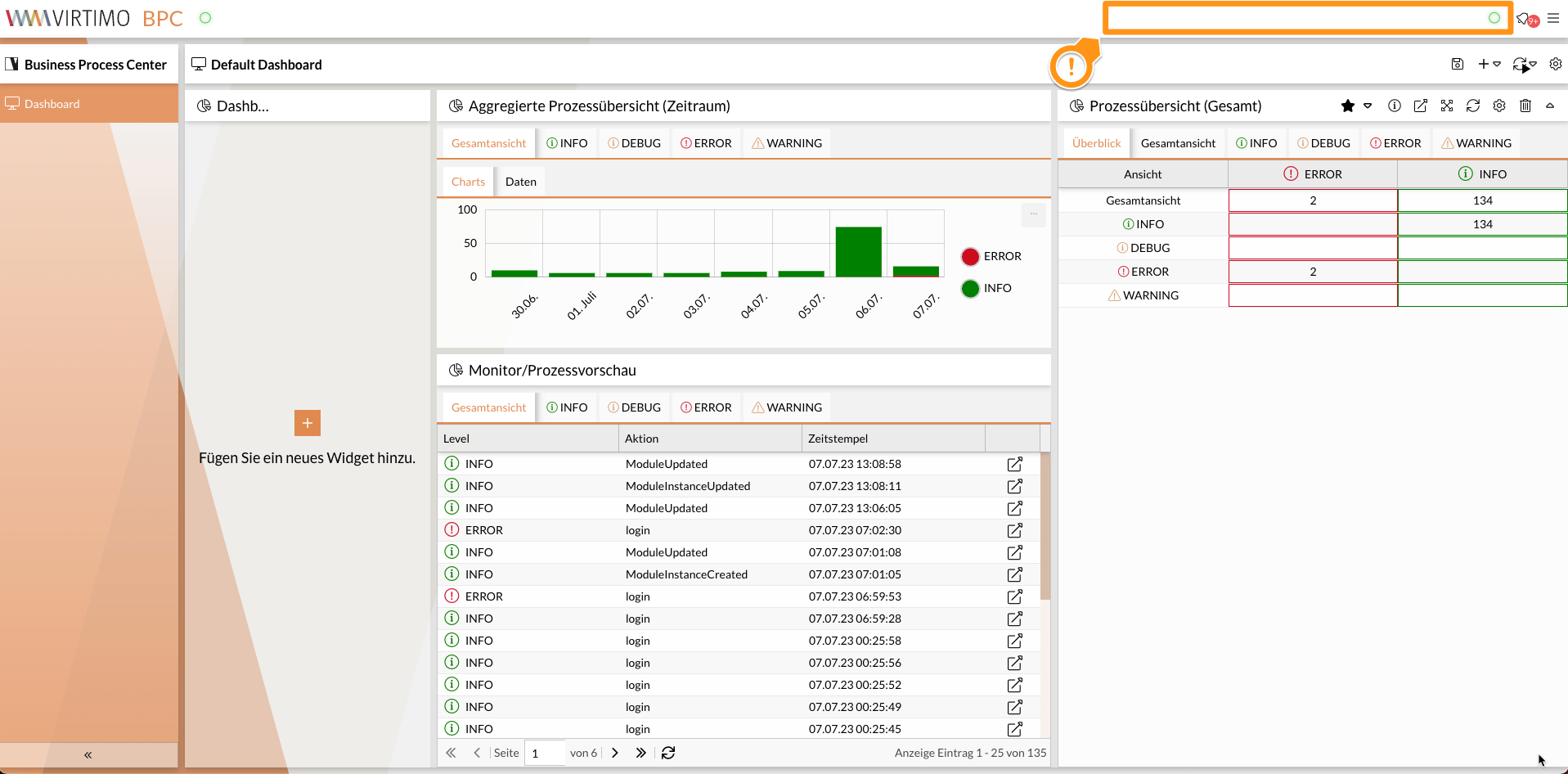
Display of plugins in the module header. This applies globally to all modules and their module headers.
Many modules offer additional hooks for integrating plugins into the module header. However, these apply only to the respective modules.
Admin Tab Panel
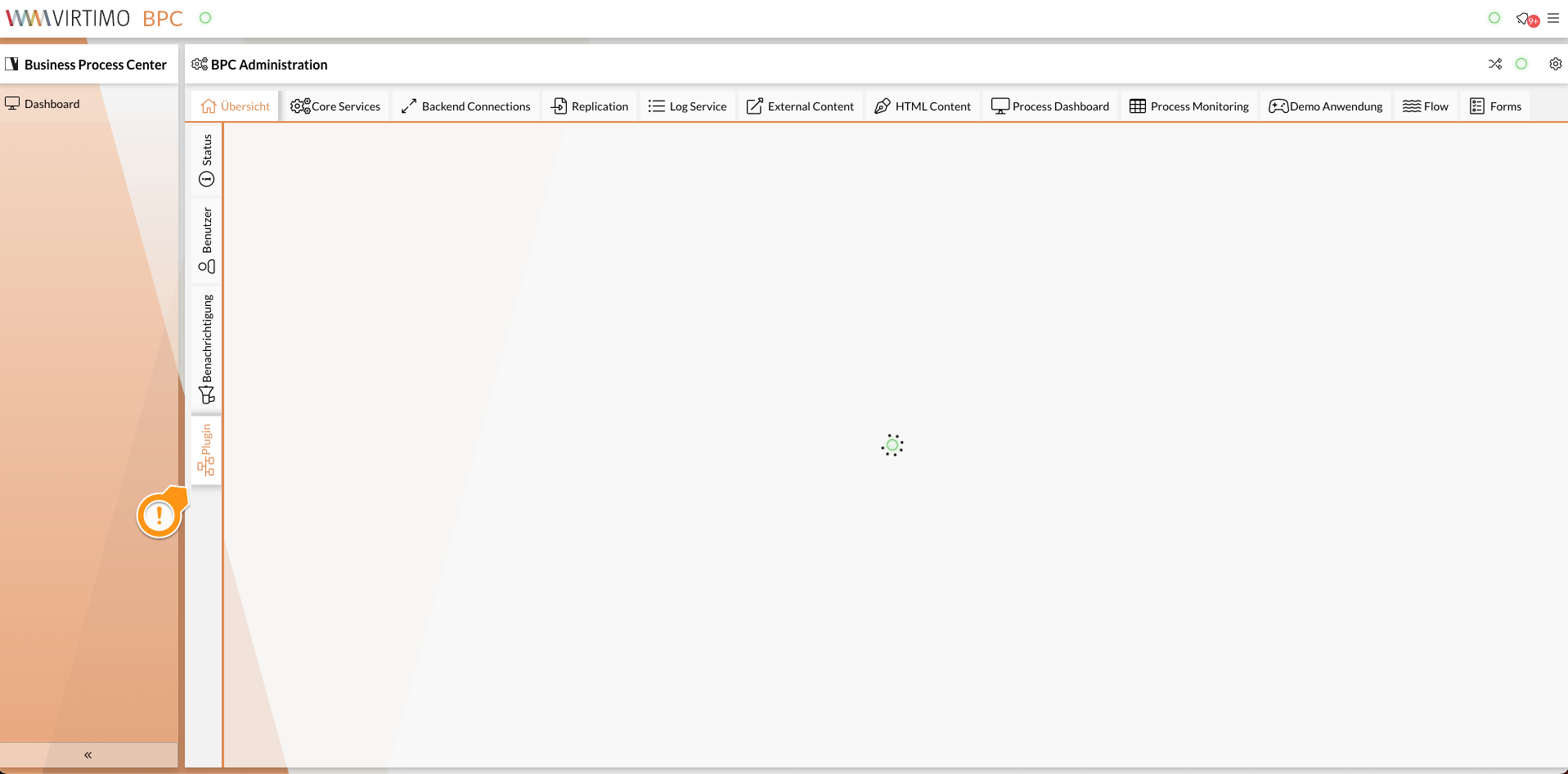
This hook allows plugins to be added as tabs on the overview page in the administration area.
At this point, it’s a good idea to set a title via ` cmpConfiguration ` in the plugin configuration if the plugin hasn’t defined a title.