Develop button types provided by BPC
The various buttons in the BPC system provide a consistent, user-friendly interface that has been specifically optimized for different use cases and user interactions. The following is an overview of the button types and their properties.
Overview of all buttons
The following overview shows the different button styles available in this project, including primary, secondary, destructive, and transparent.
Each of these buttons is designed to support clear user guidance in different use cases and priorities.
The colors and styles automatically adapt to the main theme color so that they fit visually consistently into the design.
Below you will find a detailed description of all styles, supplemented by the corresponding code examples.

|
Each button style in the theme is available in three sizes: small, medium and large. These sizes are implemented by specific mixins that adjust the visual properties of the button according to the selected size. This function is available for all button styles. |
|
For each button implementation, |
Available button types
Transparent button
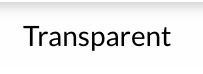
The transparent button in Ext JS is based on the mixin extjs-button-[size]-ui and uses the $ui property with the value "transparent". This button is defined in different sizes and does not display a background.
{
    text    : "Transparent",
    iconCls : "x-fal fa-trash-alt",
    ui      : "transparent"
}
Default Button and Default Toolbar Button
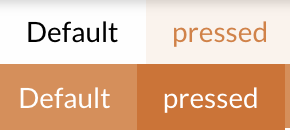
If no specific UI name is specified, a default button is available, which exists in different states, such as Standard and Pressed. For example, Standard and Pressed.
The Pressed state can be controlled by the property pressed, which can either have the value true or false.
There are two variants of the Default button:
-
Toolbar Default Buttonthis button is not filled in and is used by default in toolbars.
-
Normal default button: This button is filled in and is used outside of toolbars.
As the name suggests, the default button is created automatically if no specific style is defined:
{
    text : "Default"
}
Die folgenden Bilder zeigen den default Button in verschiedenen Zuständen:
-
Toolbar Default / Toolbar Default Pressed and Standard Default / Standard Default Pressed:
Primary Button
The primary button is used for high-priority actions and should clearly point users to the main action of an interface.
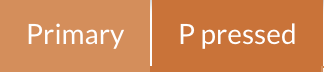
The UI style primary also defines colors and background colors that match the main color of the theme, which makes the button ideal for user guidance.
The following code definition defines the UI properties of the primary button.
It includes the color, the icon (glyph) and background colors that change depending on states such as Hover and Press:
{
    text : "Primary",
    ui   : "primary"
},
{
    text         : "P pressed",
    ui           : "primary",
    enableToggle : true,
    pressed      : true
}
Secondary Button
The secondary button is intended for less dominant actions and is typically placed next to a primary button.
It has a subtle color scheme and stands out gently on mouse-over and focus to allow user guidance without distraction.
The button style is defined using the secondary UI style. This ensures that the button has appropriate colors for standard and hover states.
{
    text : "Secondary",
    ui   : "secondary"
},
{
    text         : "S pressed",
    ui           : "secondary",
    enableToggle : true,
    pressed      : true
}
The secondary button exists in different variants, including a destructive variant, which can be defined as follows:
{
    xtype   : "button",
    ui      : "destructiveSecondary",
    iconCls : "x-fal fa-trash-alt",
    text    : "Small",
    scale   : "small"
},
Diese Version behält die sekundäre Farbgebung bei, weist jedoch zusätzliche visuelle Hinweise auf, die destruktive Aktionen kennzeichnen.
This makes it possible to adapt the secondary button for all UI needs while maintaining a clear differentiation of the button functions.


Destructive button
The destructive button is intended for actions that can have a critical effect, such as deleting content.
The button stands out with a striking color scheme that emphasizes the potential consequences of the action.
The following section shows the required code section for the implementation.
{
    text    : "Destructive",
    ui      : "destructive",
    iconCls : "x-fal fa-trash-alt"
}
Destructive Secondary Button
The destructiveSecondary button is similar to the destructive button, but uses a white background and a red border.
This makes the button look a little more subtle, but still conveys the importance of the action.
This type of button is suitable for less dominant, but still important destructive actions. The following section shows the code required for implementation.
{
    text    : "Destructive Secondary",
    iconCls : "x-fal fa-trash-alt",
    ui      : "destructiveSecondary"
}

Style definition via ui and customization for own modules
The ui attribute is used to define the desired styling for components. This attribute makes it possible to select from predefined styles or to define your own.
If individual designs are required for specific modules, these can be implemented using your own themes. With a custom theme, new styles can be defined that are specific to the respective module. This is done by adding and managing custom ui configurations in the SCSS files.
|
Further details on creating custom themes and creating styles can be found in this theme development guide |
By using the ui attribute and custom themes, the appearance can be flexibly adapted and extended.
