Installation
|
Prerequisites
|
Loading the Process Documentation module in BPC
-
Log in to BPC via the URL
http(s)://<portal hostname>:<port>, such as http(s)://localhost:8181/ -
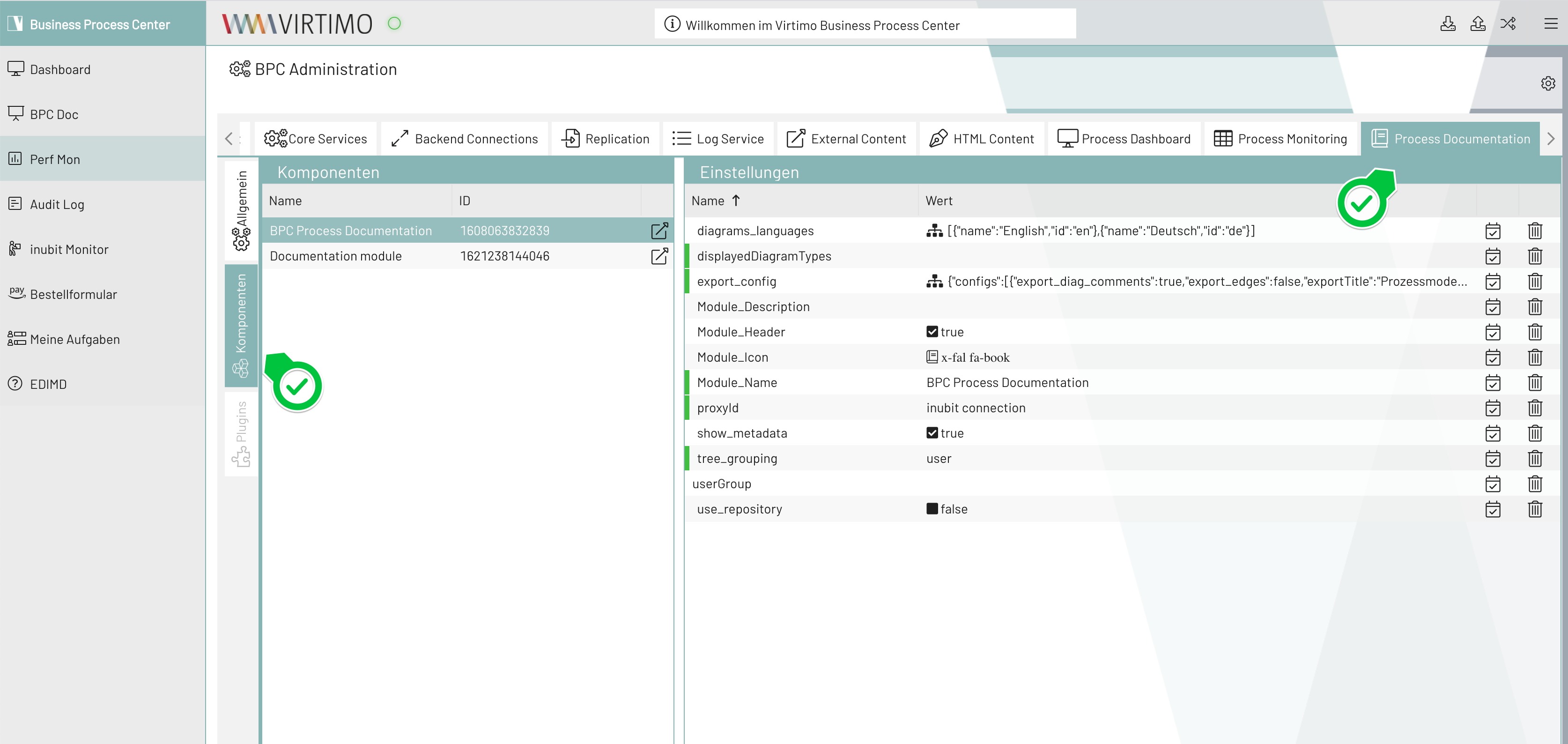
After logging in, navigate to the administration area and select the Process Documentation tab. The deployed documentation modules are located under Components.
-
You can use "displayedDiagramTypes" to limit the diagram types displayed. If the field is empty, all diagram types are allowed. Possible values are (multiple values specified as a comma-separated list):
-
processmap(Process Maps) -
bpd(Business Process Diagrams) -
constraintsdiagram(Business Object Diagrams) -
organigram(Organizational Charts) -
soamap(SOA Maps) -
systemdiagram(System Diagrams) -
technical(Technical Workflows)
-
-
Using the "userGroup" property, the display of this documentation module can be filtered to show only the Diagrams of a specific user or user group (e.g., BusinessProcessCenter). Leave the field blank to apply no restrictions.
-
On the INUBIT Process Engine, there must be at least one Diagram of a type configured in "displayedDiagramTypes"—either globally or within the filtered user/group—that is assigned to at least one process user role (Documentation). The logged-in BPC user must have at least one of these assigned roles so that the tree view is displayed with Diagrams rather than appearing empty.
-
In the component list, click the icon in the Actions column to display the component as a test. For everyday use, add it as a navigation menu item; see Navigation Settings.
