BPC Administration
The administration area contains all relevant information and settings for configuring, customizing the appearance of, and using the BPC and its modules.
|
The administration area is accessible only to users with the role bpcadmin or the permission showBpcConfiguration . |
The BPC Core already includes functional modules that are embedded within the Core. The corresponding settings are located in the administration area.
Accessing
The administration area can be accessed at any time from any "location" within the application via the icon.
The icon is usually located under the BPC toolbar.
"Overview" tab
The Overview tab is the first tab in the administration area and differs fundamentally from the other tabs. Here you will find all general information about BPC, user settings, as well as audit and performance logs.
Status
|
This widget is only available to users with the role The Sessions component, which lists all active BPC sessions, is only available to users with the permission |
The Status tab provides an overview of the current state of the BPC. Information about various status values and associated details is displayed. The values are grouped into different component groups.
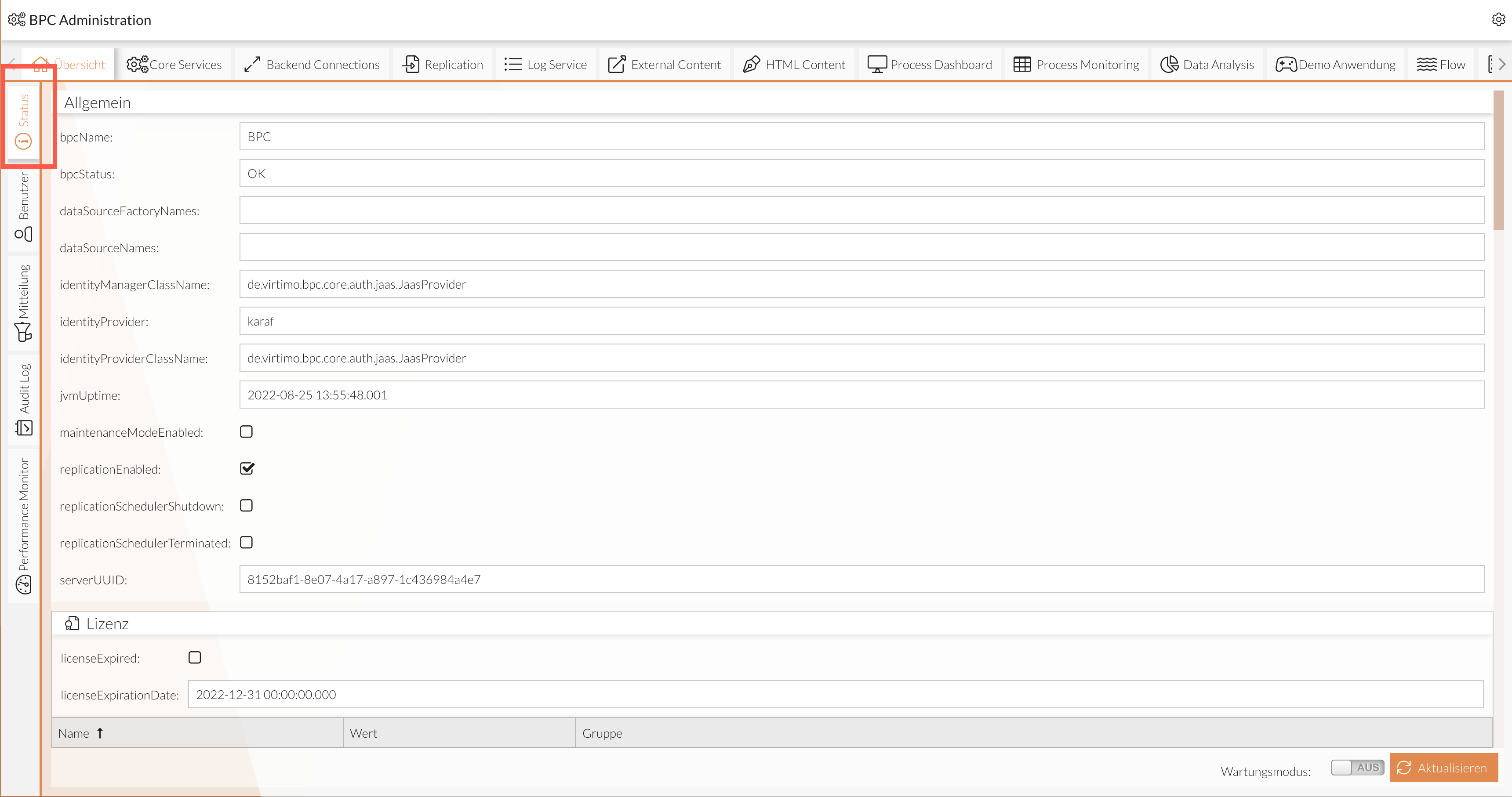
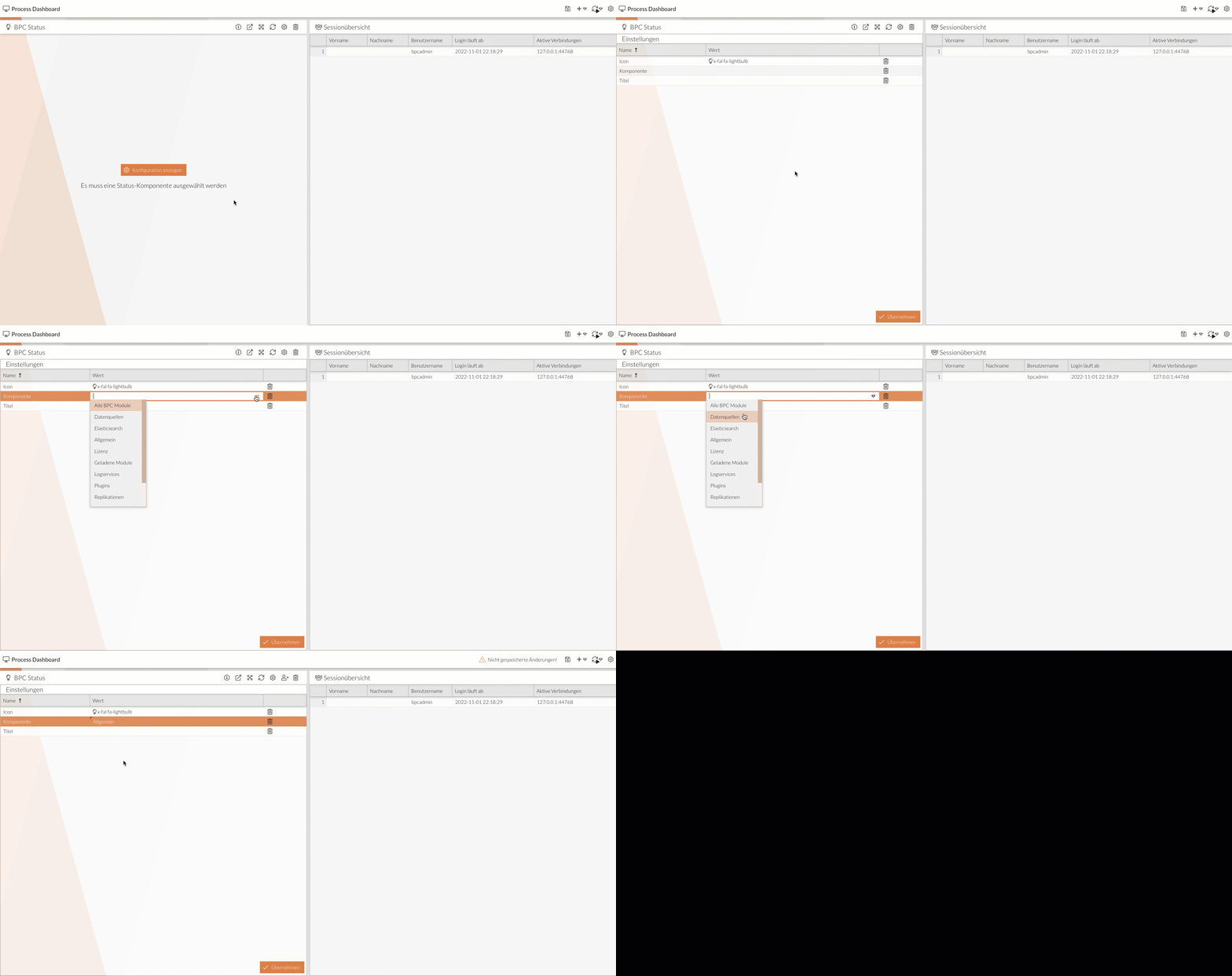
Each individual component can be integrated as a widget in the Process Dashboard.
The component selection is configured directly in the view of the respective dashboard module; see Add Dashboard Widget.
Users
The Users tab contains the following subsections:
-
Active BPC Sessions - An overview of active BPC sessions
-
Identity Manager - User management for users configured for BPC in the selected identity management system, including the organizations, roles, and permissions assigned to them
-
Landing Page Settings - Landing pages that can be defined based on organizations, roles, and permissions
Audit Log
This tab contains the audit log, which records and lists user activities.
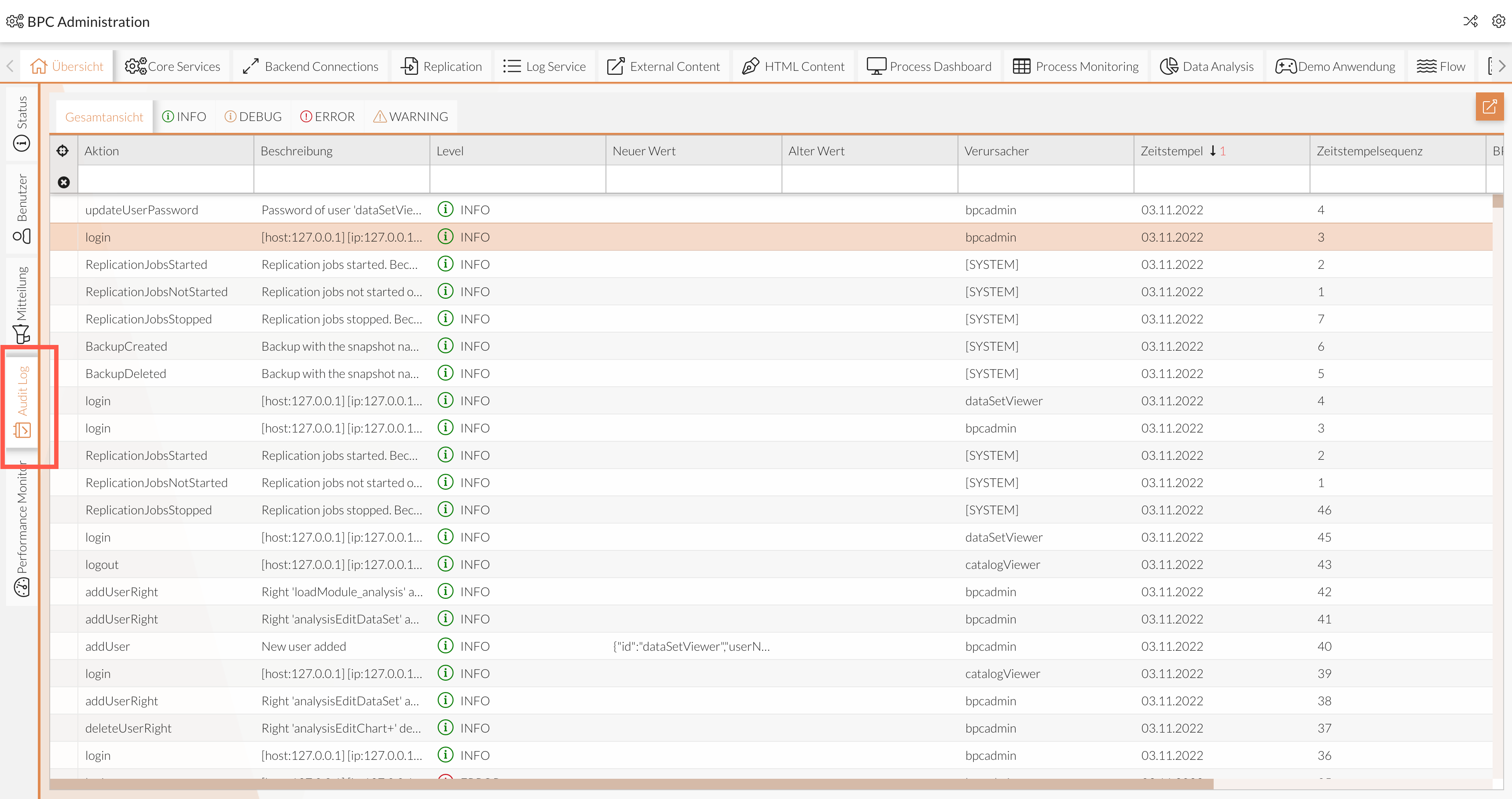
The  button opens the overview in a separate, larger view.
For more information, see Audit Log.
Performance Monitor
This tab contains Performance Monitoring, which records and lists execution times in the user interface.
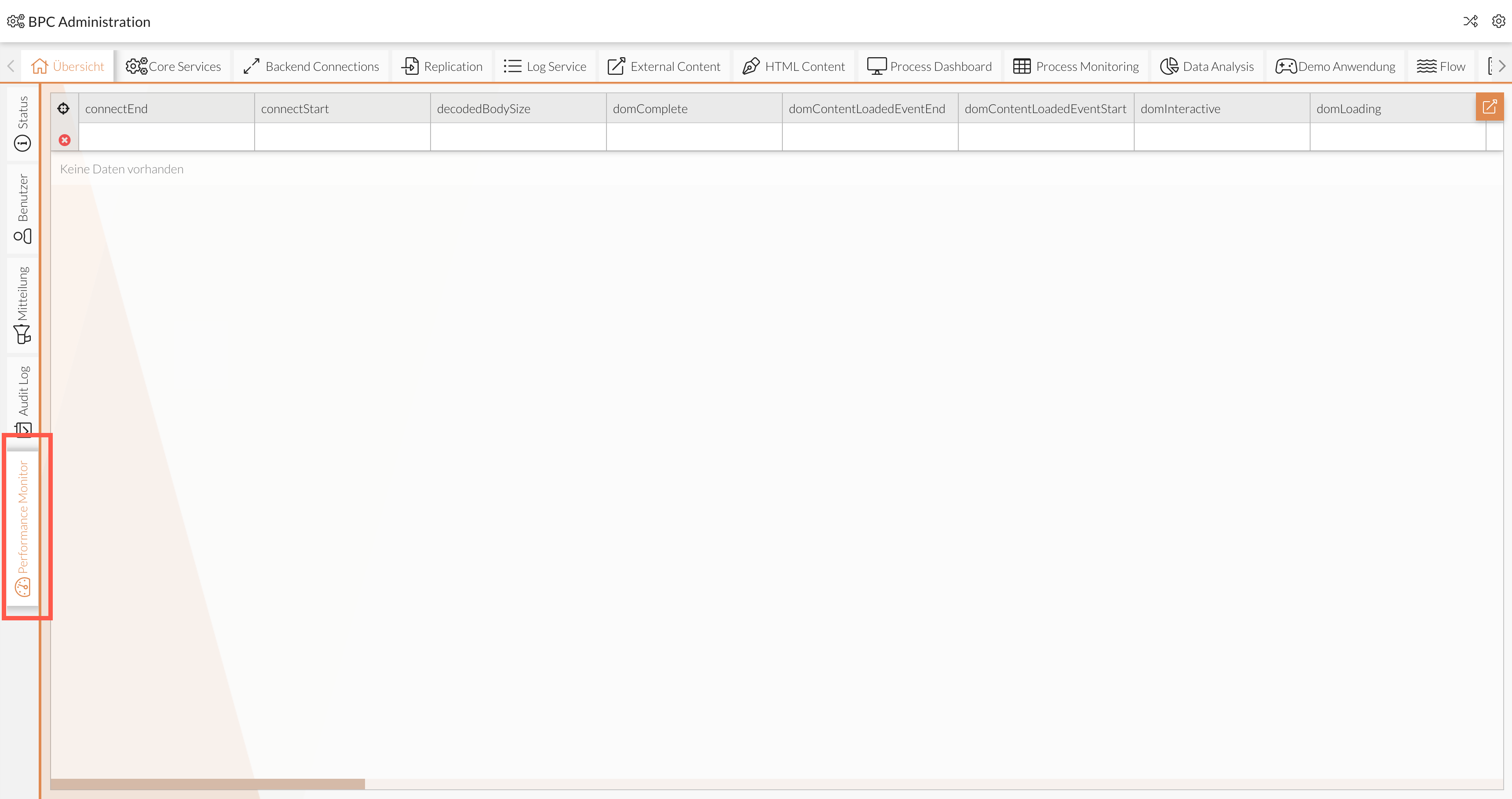
The button opens the overview in a separate, larger view.
For more information, see Performance Monitoring.
Karaf Log
This tab contains the Karaf Log.
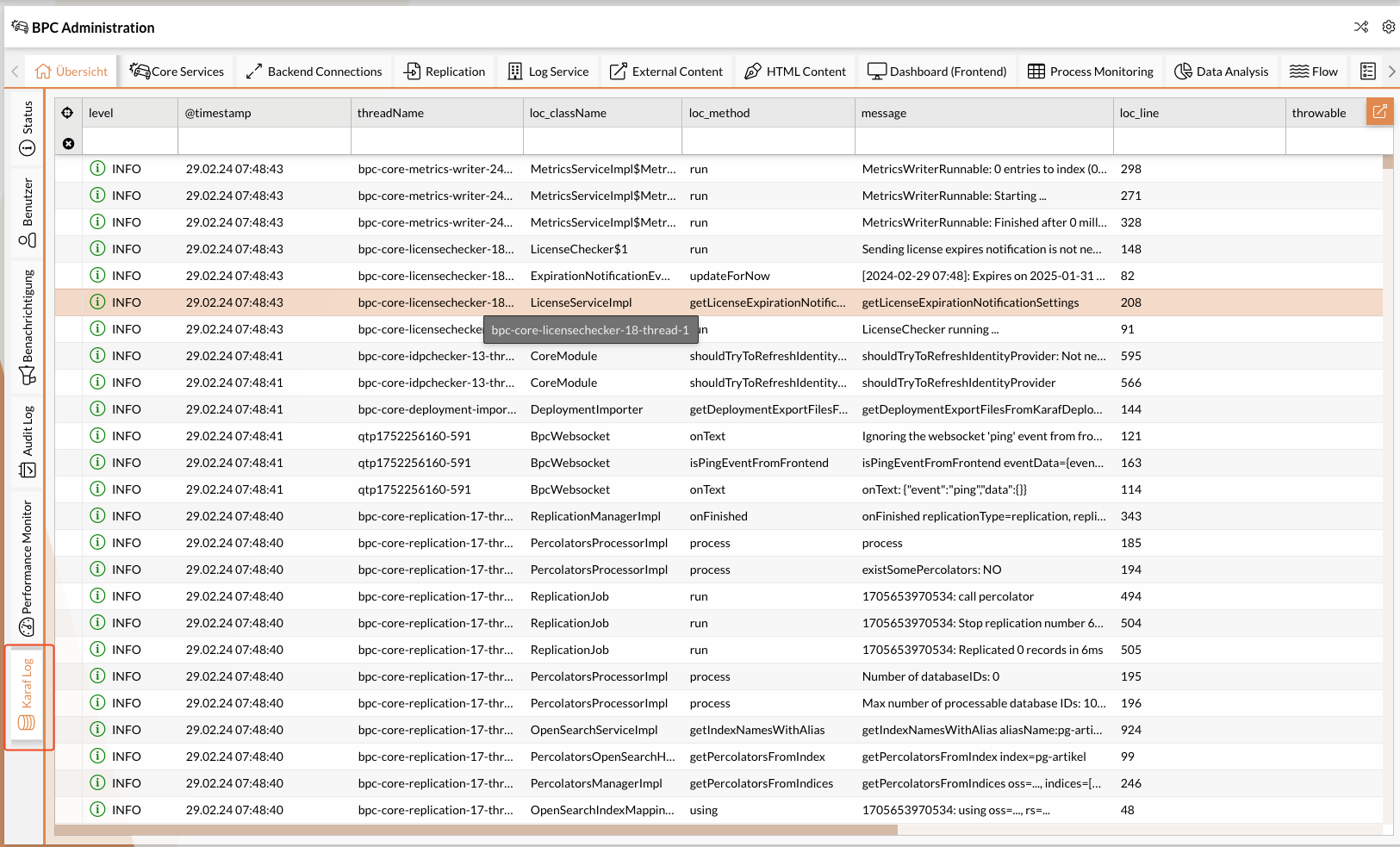
The button opens the overview in a separate, larger view.
For more information, see Karaf Log.
Modules
The administration area lists the core modules as well as the application modules included by default and any additional modules you may have purchased. Each installed module has its own tab.
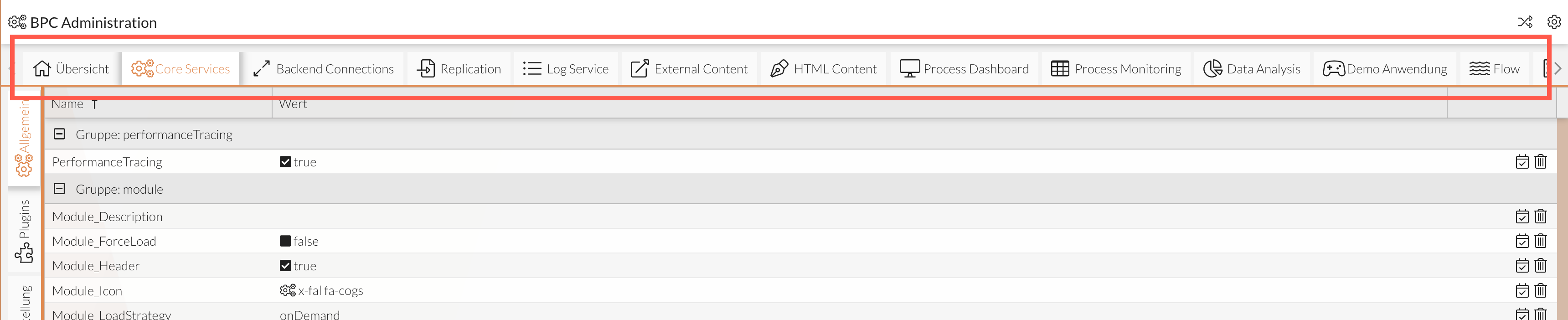
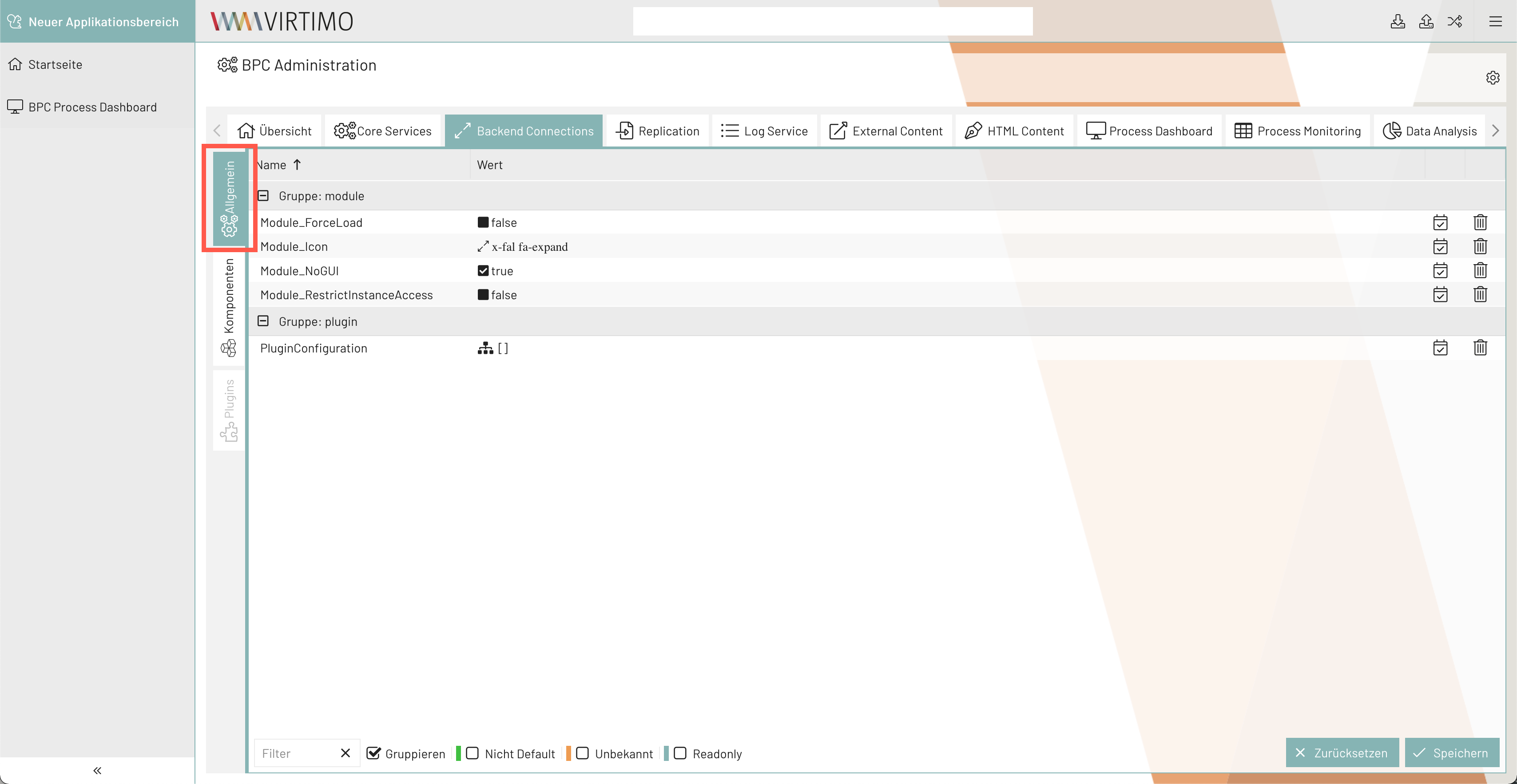
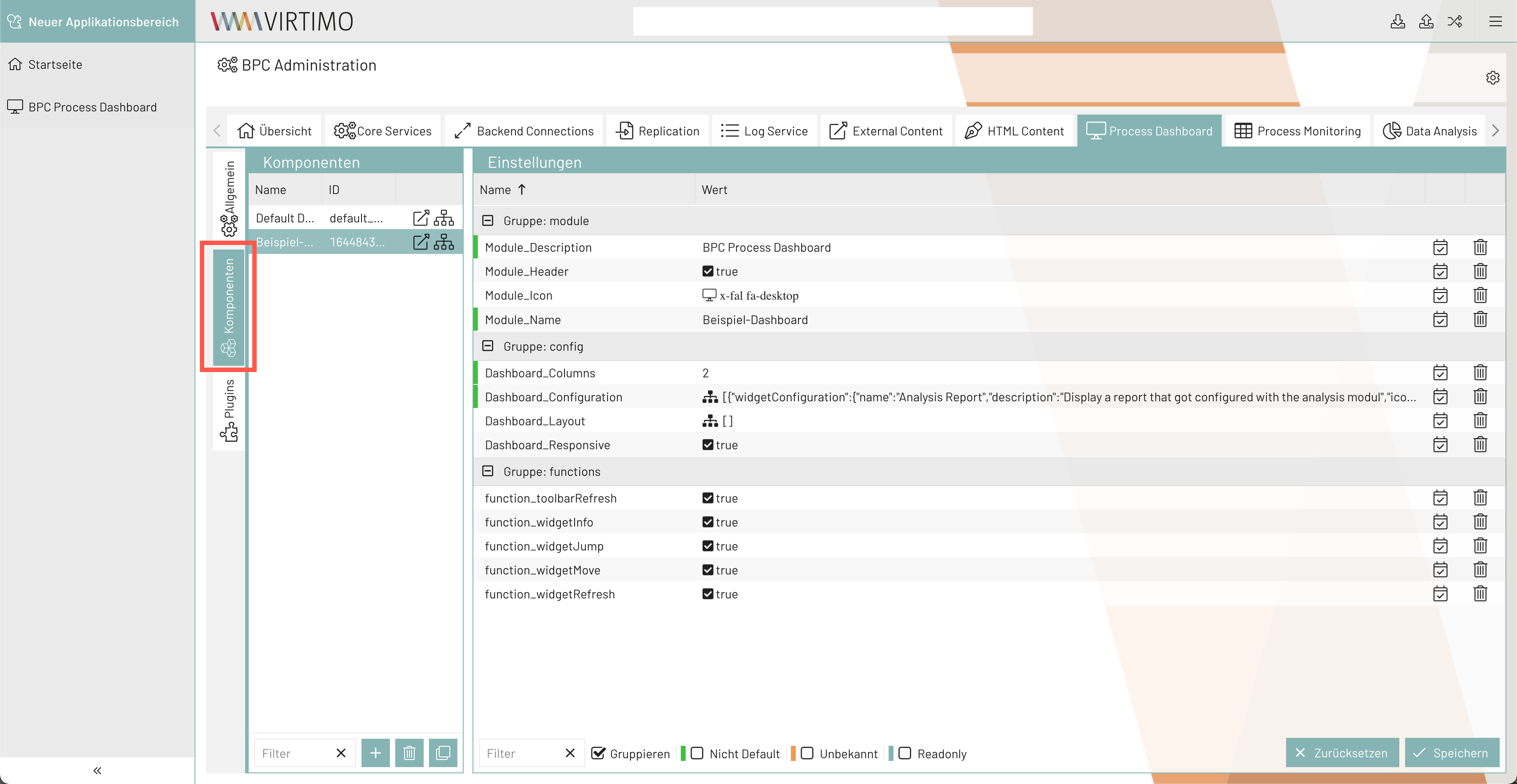
The tabs are further subdivided into sections, some of which are repeated across modules. These include:
-
General
-
Components
-
Plugins
Other tabs are module-specific and therefore only found in individual modules.
All settings for the Core Service module are described in the Core Services.
Setting Parameters
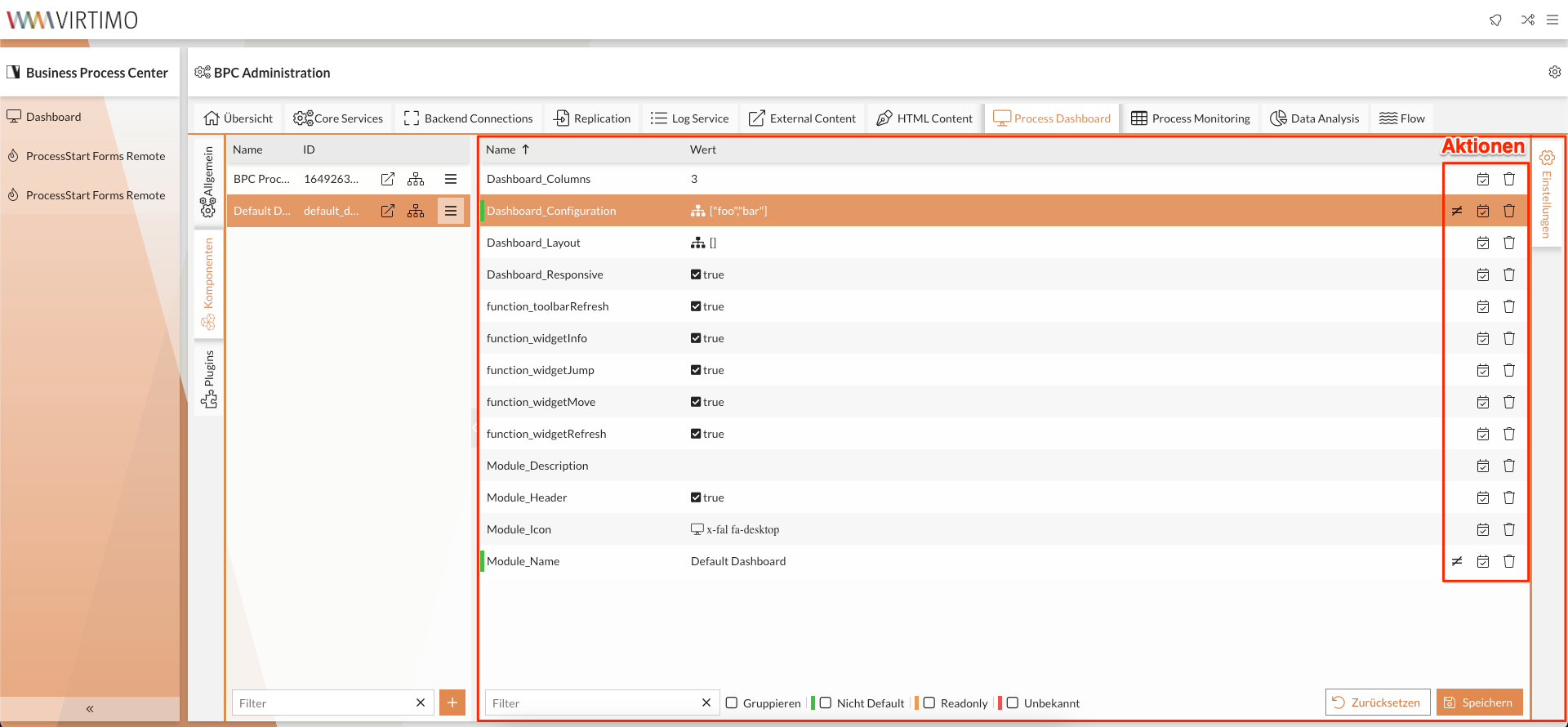
Each row in the parameter tables represents a setting.
The table view can be customized to your preferences, just like any table in BPC; see Customizing Tables.
Settings with specific properties are highlighted with different colors.
The color marker is placed at the beginning of each row.
The properties of the settings are marked with the following colors:
| Color | Description |
|---|---|
Green |
Settings that differ from their default values |
Orange |
Settings that are read-only |
Red |
Settings that are not supported by default (unknown) |
Users with the appropriate permissions can perform actions at the end of each line: search for the setting in the audit log or delete it.
Plugins tab
Plugins are functions of a module that are integrated into another module, allowing for faster access.
See Plugins.
