Switching the Active Organization
A combo box that lists all available organizations. By selecting an organization, You can set it as active.
For more information on active and inactive organizations, see Identity Management.
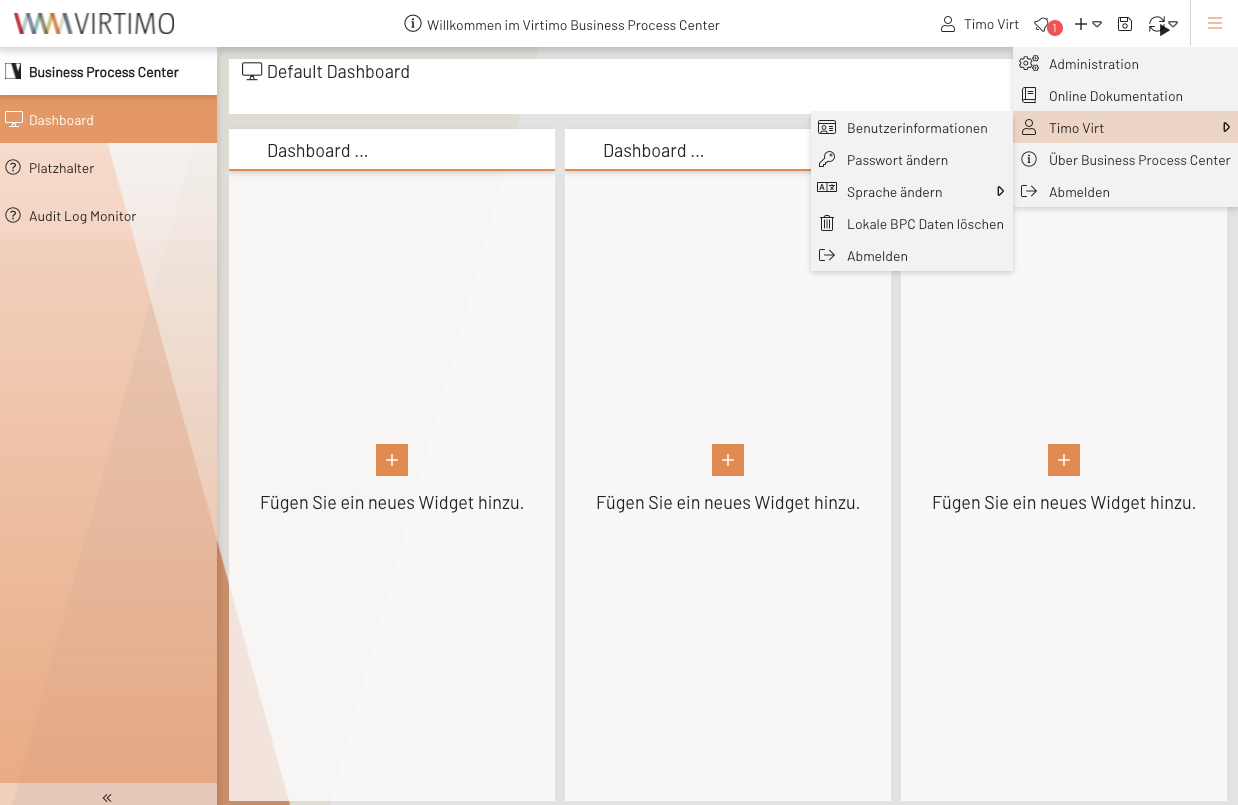
Illustration 1. Sample view of the User Account Menu in the application toolbar (right)
Sample configuration
{
    "label"                      : "", (1)
    "labelIconCls"               : "x-fal fa-users", (2)
    "confirmSelection"           : false, (3)
    "confirmSelectionText"       : "CORE_ACCOUNT_PLUGIN_ORGANISATION_CHANGE_CONFIRMATION", (4)
    "tooltip"                    : "CORE_ACCOUNT_PLUGIN_ACTIVE_ORGANISATION_SELECTOR", (5)
    "width"                      : 200, (6)
    "disableActiveOrganisations" : true, (7)
    "resetUrlOnChange"           : false, (8)
    "selectedOrganisationTpl"    : "{name}", (9)
    "organisationListItemTpl"    : "{name}", (10)
    "organisationFilter"         : [], (11)
}| 1 | Label displayed before the combo box. Language keys can be used here. |
| 2 | Definition of the icon displayed in front of the combo box. |
| 3 | If true, then after selecting an organization, a dialog is displayed in which the user must confirm setting the active organization. |
| 4 | Text displayed in the dialog to confirm the organization change. Language keys can be used here. |
| 5 | Text displayed in the tooltip for the combo box. Language keys can be used here. |
| 6 | Width of the combo box in pixels. |
| 7 | If true, active organizations in the selection list are deactivated. |
| 8 | If true, the user is redirected to their home page when changing organizations.
Otherwise, the current page is reloaded.
However, it is possible that the new organization does not have permission to view this page.
In this case, a corresponding error message is displayed. |
| 9 | Template for displaying an active or selected organization. |
| 10 | Template for displaying an organization in the selection list. This does not affect the icon. |
| 11 | Optional filters for the organizations.
For information on creating filters, see ExtJS Filter Documentation (filterFn is not supported.) |
Keywords:
