User Account Menu
Menu or toolbar (depending on where the plugin is assigned) to display the current user. It contains submenus to trigger various Account Actions.
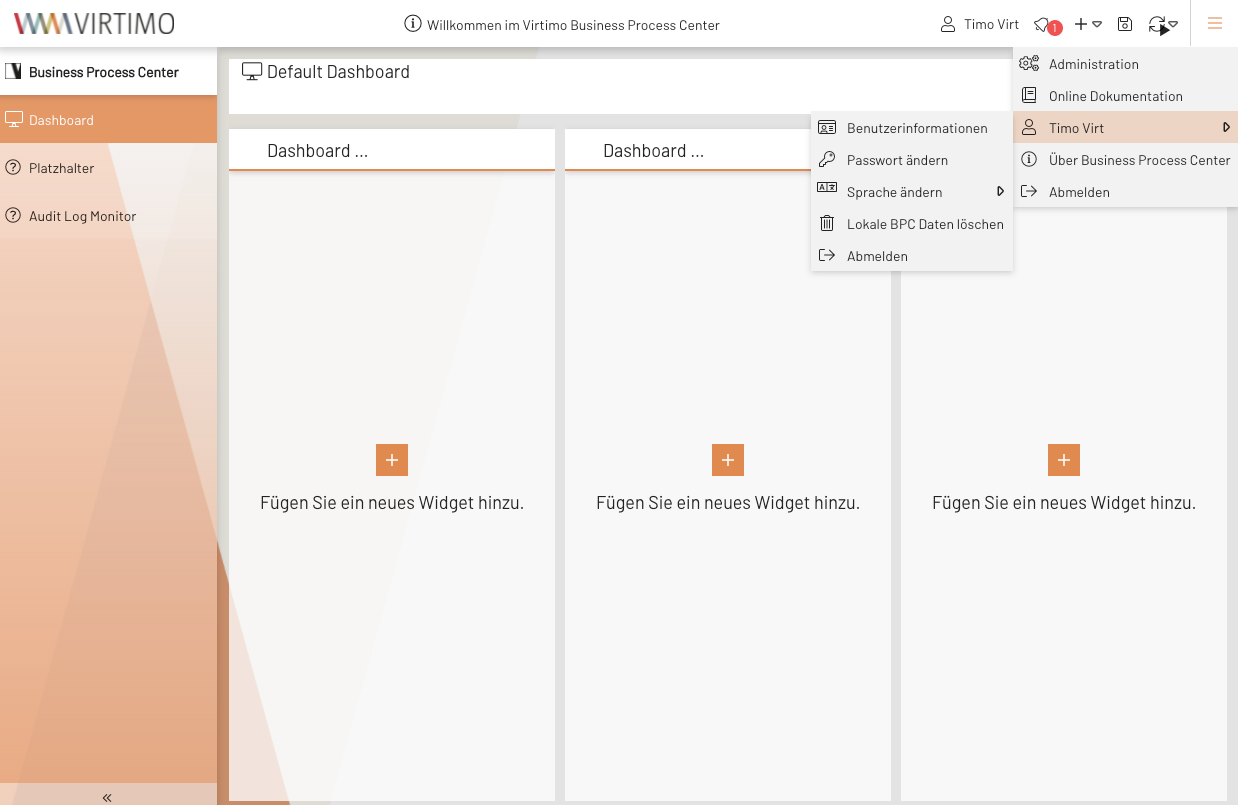
Illustration 1. Example view of the User Account Menu in the application toolbar (right)
Configuration
The following configuration controls, among other things, the order and availability of the Account Actions.
Example configuration
{
    "userTextTpl"        : "Benutzer: {global.userSession.firstName}", (1)
    "userTooltipTpl"     : "{global.userSession.firstName} {global.userSession.lastName} ({global.userSession.loginName})", (2)
    "languageSelector"   : true, (3)
    "accountPage"        : true, (4)
    "logout"             : false, (5)
    "changePw"           : true, (6)
    "icon"               : true, (7)
    "deleteLocalStorage" : true, (8)
    "cookieSettings"     : true, (9)
    "link"               : false, (10)
    "linkTarget"         : "popup,width=320,height=320", (11)
    "linkUrl"            : "https://example.com/auth/realms/MY_REALM/account", (12)
    "linkText"           : "Account Management", (13)
    "linkIconCls"        : "x-fal fa-user-edit", (14)
    "buttonLogout"       : false, (15)
    "avatar"             : true, (16)
    "updateProfile"      : true, (17)
    "configureTotp"      : false, (18)
    "changeOrganisation" : false, (19)
    "menuContent"        : [
        "accountPage",
        "updateProfile",
        "configureTotp",
        "changePw",
        "link",
        "languageSelector",
        "cookieSettings",
        "deleteLocalStorage",
        "changeOrganisation",
        "logout"
    ], (20)
}| 1 | Text label for the menu button.
Information in the UserSession can be accessed here using XTemplate syntax.
If the value is left blank, the first and last name of the current user are displayed. Further details on XTemplate syntax and its application can be found on the XTemplate Syntax page |
||
| 2 | Content of the tooltip available on the menu button. XTemplate syntax can also be used here. | ||
| 3 | If true:
Allows you to change the language in the BPC. + Multiple Language Support See also .
See also Account Action |
||
| 4 | If true:
Navigates to the user information page.
See also Account Action |
||
| 5 | If true:
Logs the user out.
See also Account Action |
||
| 6 | If true:
Allows you to change your password.See also Change Password. See also Account Action |
||
| 7 | If true, an icon is displayed before the text (userTextTpl). |
||
| 8 | If true:
Deletes local data in the browser.See also Resetting local storage. See also Account Action |
||
| 9 | If true:
Display personal privacy settings.This allows you to control whether information for personalization should be stored in addition to necessary information. See also Account Action |
||
| 10 | If true:
Link to an external page (e.g., for account management in the identity provider).
The link destination is defined via linkUrl.
See also Account Action |
||
| 11 | Specifies how the link should be opened.
All valid target values can be entered here to open the link, for example, in a new tab or window.
If the value contains the term popup, a browser popup is created, and all windowFeatures can be used to, for example, adjust the position and size of the popup. |
||
| 12 | Link destination. | ||
| 13 | Text content for the menu item representing the link. | ||
| 14 | Icon displayed next to the menu item for the link. | ||
| 15 | Additional logout button directly next to the account menu. This is only displayed if the account menu is not embedded within another menu (e.g., the global menu). | ||
| 16 | Display an avatar instead of a button.
The avatar is a circular representation of the logged-in user’s initials.
Alternatively, an image can also be displayed.
To enable this, your Identity Provider (OIDC or Keycloak) must correctly set the ` picture ` attribute.
To load images, it may be necessary to include the source servers in the Content Security Policy header.
Avatar display does not work within a menu. |
||
| 17 | If true:
Displays a popup where you can edit your own profile in Keycloak.
See also Account Action |
||
| 18 | If true:
Displays a popup where you can edit your own TOTP configuration in Keycloak.
See also Account Action |
||
| 19 | If true:
Allows you to change the active organization in BPC.See also Changing the Active Organization. See also Account Action |
||
| 20 | This array can be used to control the order of the elements in the menu.
The names of the elements correspond to the attribute names used to enable or disable them.
If you do not want to change the order, you can also remove this parameter.
|
Keywords:
