Structural Layout
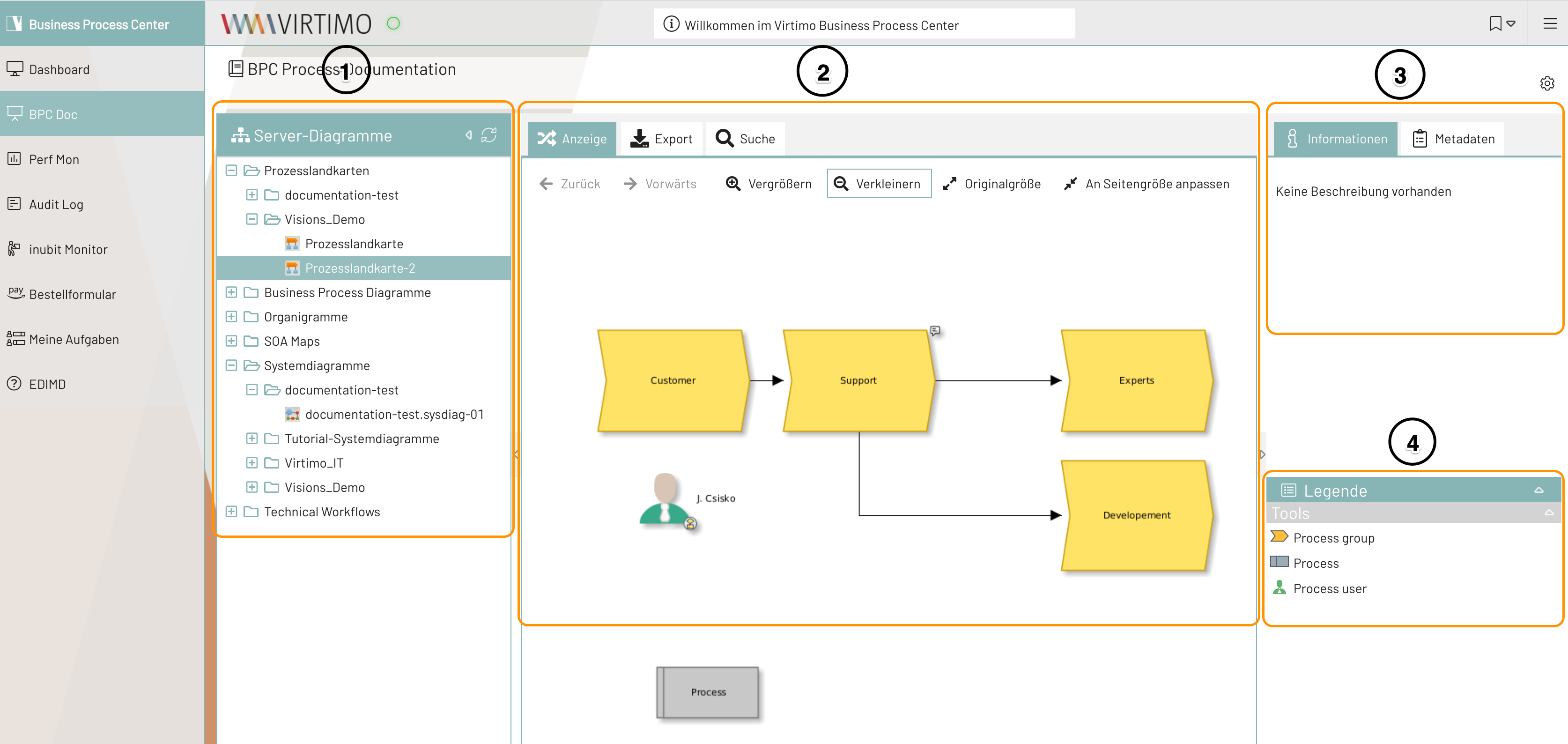
Tree View (No. 1)
This view allows you to show or hide the tree structure of the diagram directories. You can navigate to the diagrams by using the tree. The tree structure can be hidden to provide more space for displaying the diagrams.
The top level of the tree displays the diagram types, followed by the diagram folders that ultimately contain the diagrams. You can specify which diagram types should be visible in the module configuration.
Diagram View | Export | Search (No. 2)
The view displays the contents of the diagram selected in the tree view on the left. Clicking on a diagram element displays additional element information, such as element name, stored metadata (sorted alphabetically or by the "Metadata Manager"), comments, and links. By default, the additional information is displayed in a pop-up window. Use the "Export" tab to export selected Diagrams as PDF files. Using the “Search” function, you can find Diagrams and their content based on search terms.
Information | Metadata (No. 3)
This section displays additional information about a Diagram. In addition to the description, you can also access this detailed information via the “Metadata” tab. By default, this section is always displayed, but it can be hidden along with the legend using the arrow button. You can also use the configuration page to specify that the description should be hidden initially along with the legend.
Legend | Links (No. 4)
The legend displays all elements used in the Diagram and explains them with a short text. If the "Metadata" tab is selected, all links contained in the Diagram are listed here. You can show or hide this section using the push-down button or the arrow button. You can also use the configuration page to specify that the legend and the description should be hidden by default.
