File Storage Overview
Under Settings→Overview→File Storage, the BPC allows you to view files in the BPC file storage, upload new files, and index existing files from the cloud file storage.
File Overview
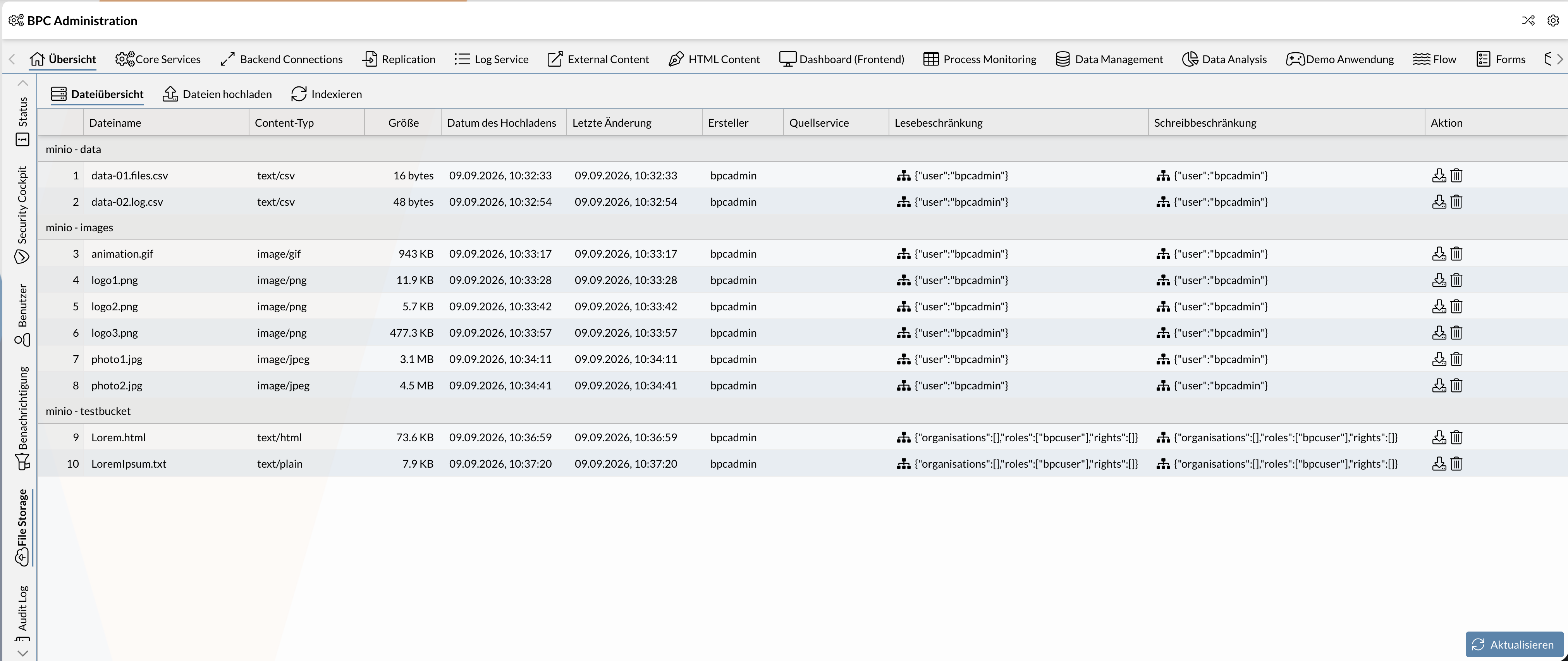
The File Overview tab displays a list of all files, grouped by file storage backend Connection and bucket name. You can download or delete a file using the buttons in the Action column.
Upload Files
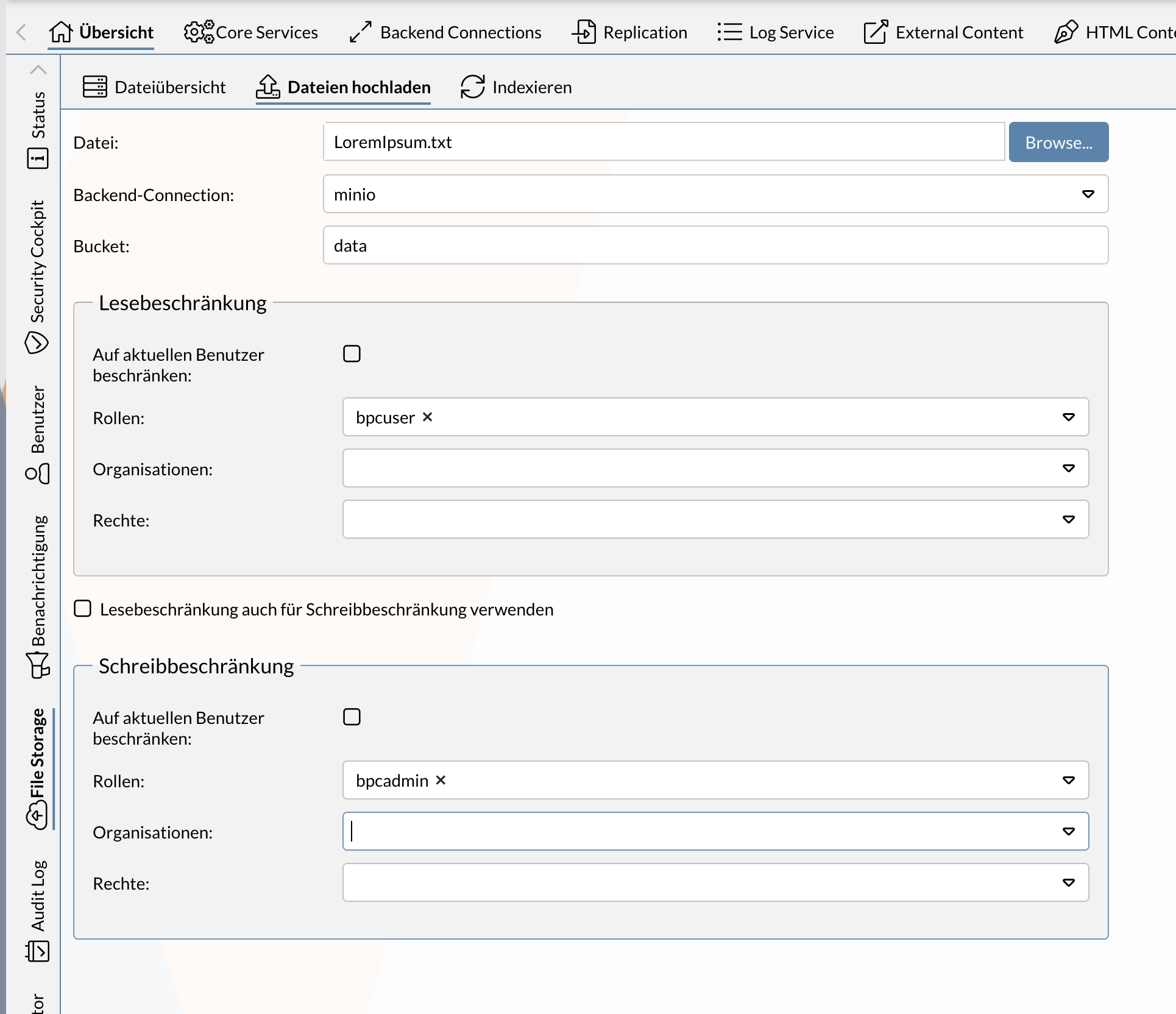
Under the Upload Files tab, you can store files in the file storage. To do this, select the desired file, choose the configured file storage backend connection under Backend Connection, and specify the bucket name. The bucket or container must already have been created with the corresponding storage provider (AWS S3, Azure Blob Storage, Google Cloud Storage).
In addition, read and write permissions are required. These permissions can either apply exclusively to the respective user or be linked to roles, organizations, and permissions. A user need only possess one of the specified roles, organizations, or permissions.
Required permissions: To upload files, the role FILE_STORAGE_ADMIN or the permission FILE_STORAGE_UPLOAD is required.
Indexing
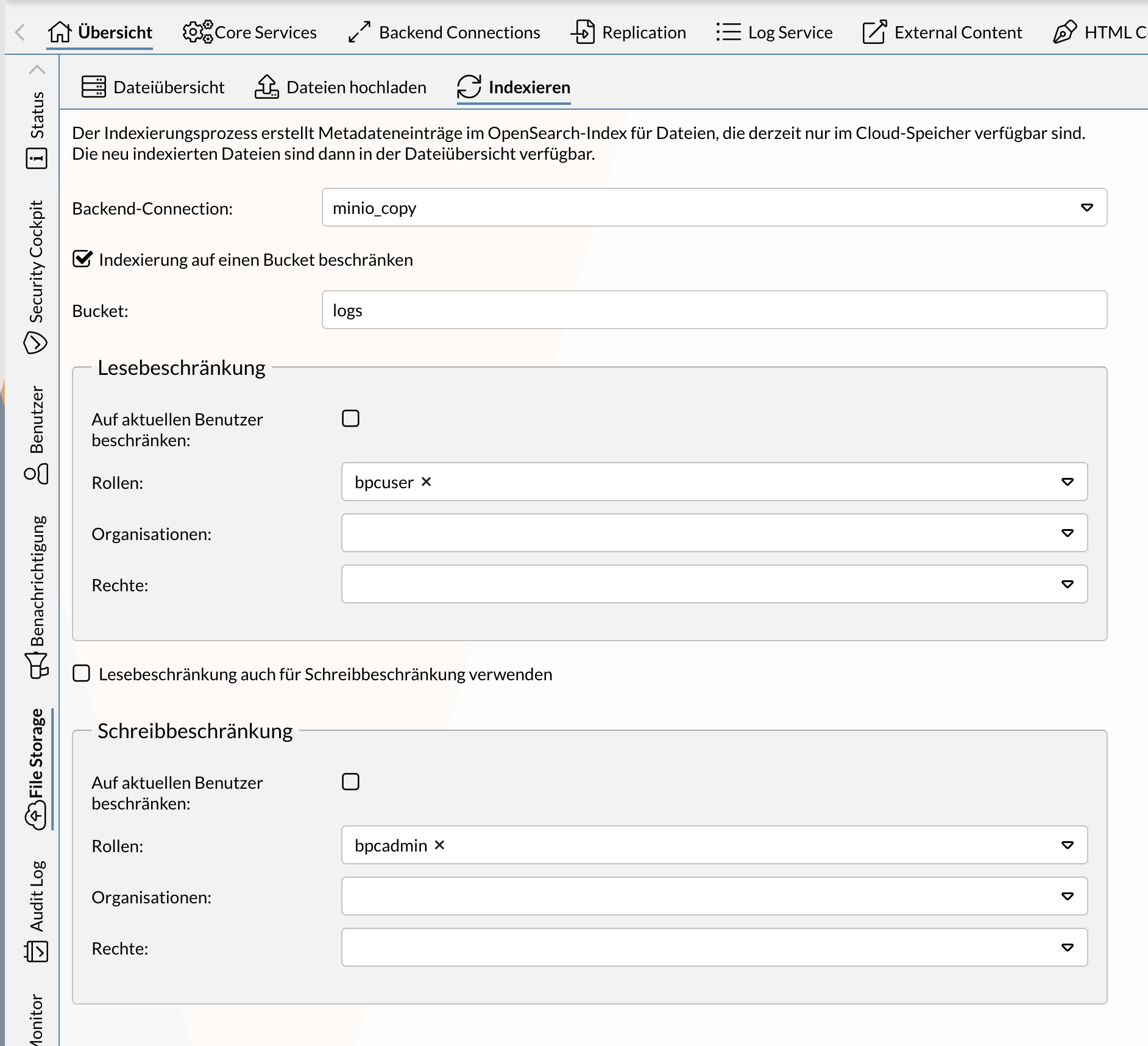
Under the Indexing tab, you can index existing files from cloud storage that have not yet been indexed in File Storage.
This is the case, for example, if files were not uploaded via the BPC. When creating a new File Storage backend connection, you are asked whether an indexing process should be performed, and if necessary, you are redirected to this form.
To index, select the File Storage backend connection and the read and write restrictions that apply to newly indexed files.
You can either index files from all available buckets or select a single bucket.
Required permissions: To perform indexing, you need the “ FILE_STORAGE_ADMIN ” role or the “ FILE_STORAGE_INDEXING ” permission.