User Self Service
This feature allows users in BPC to change their password and/or organization themselves.
Change Password
You can replace their current password with a new one. There are two ways to do this.
|
The availability of this feature can be restricted via the " |
User Menu
The following options require the use of the User Account Menu plugin.
-
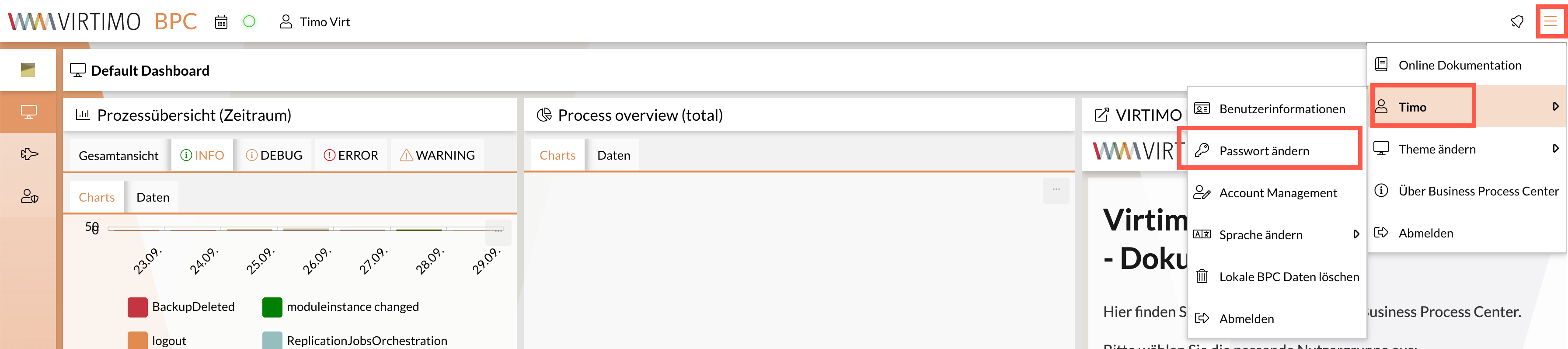
Open the user menu (the position or availability may vary depending on the configuration ).
-
Select “Change Password.”
-
Enter your information.
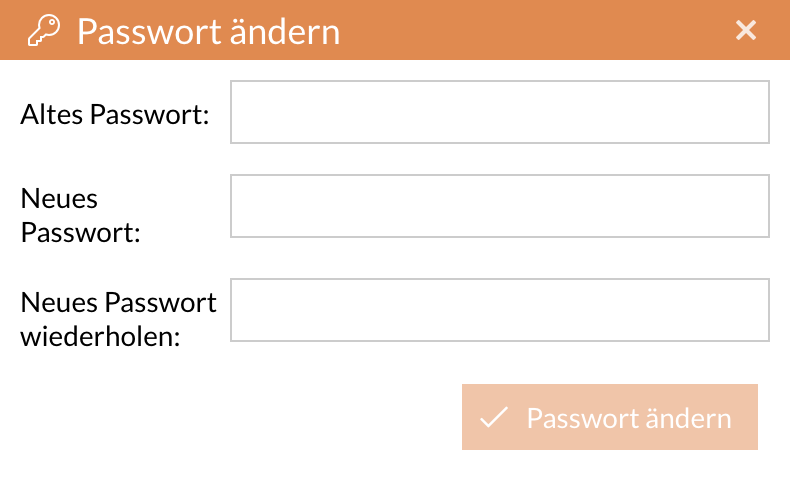
If you use Keycloak as your identity provider, a pop-up will open here with the Keycloak page for changing your password.
User Information Page
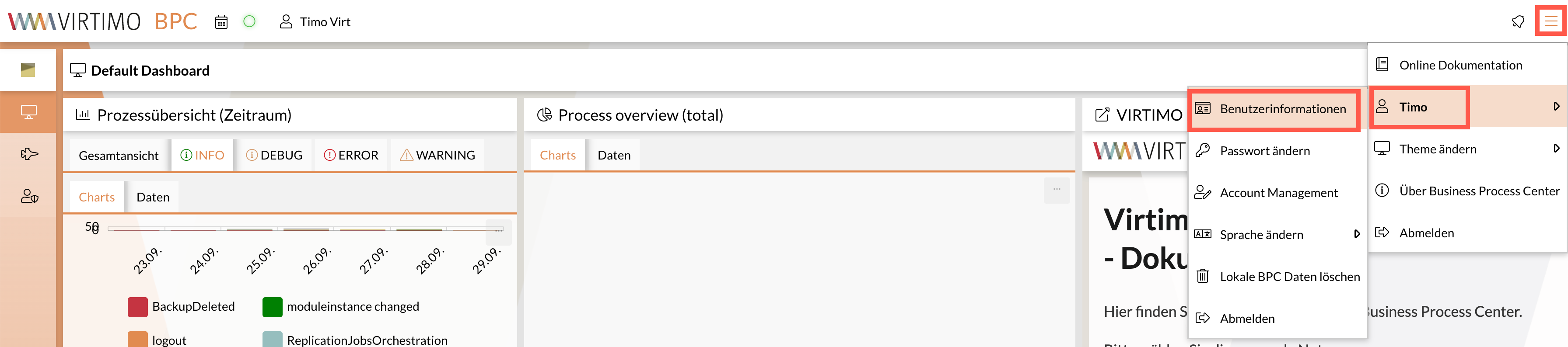
You can change your password via the user information page. You can also access this via the User Account Menu.
-
Open it from the user menu containing user information (the location or availability may vary depending on the configuration ).
-
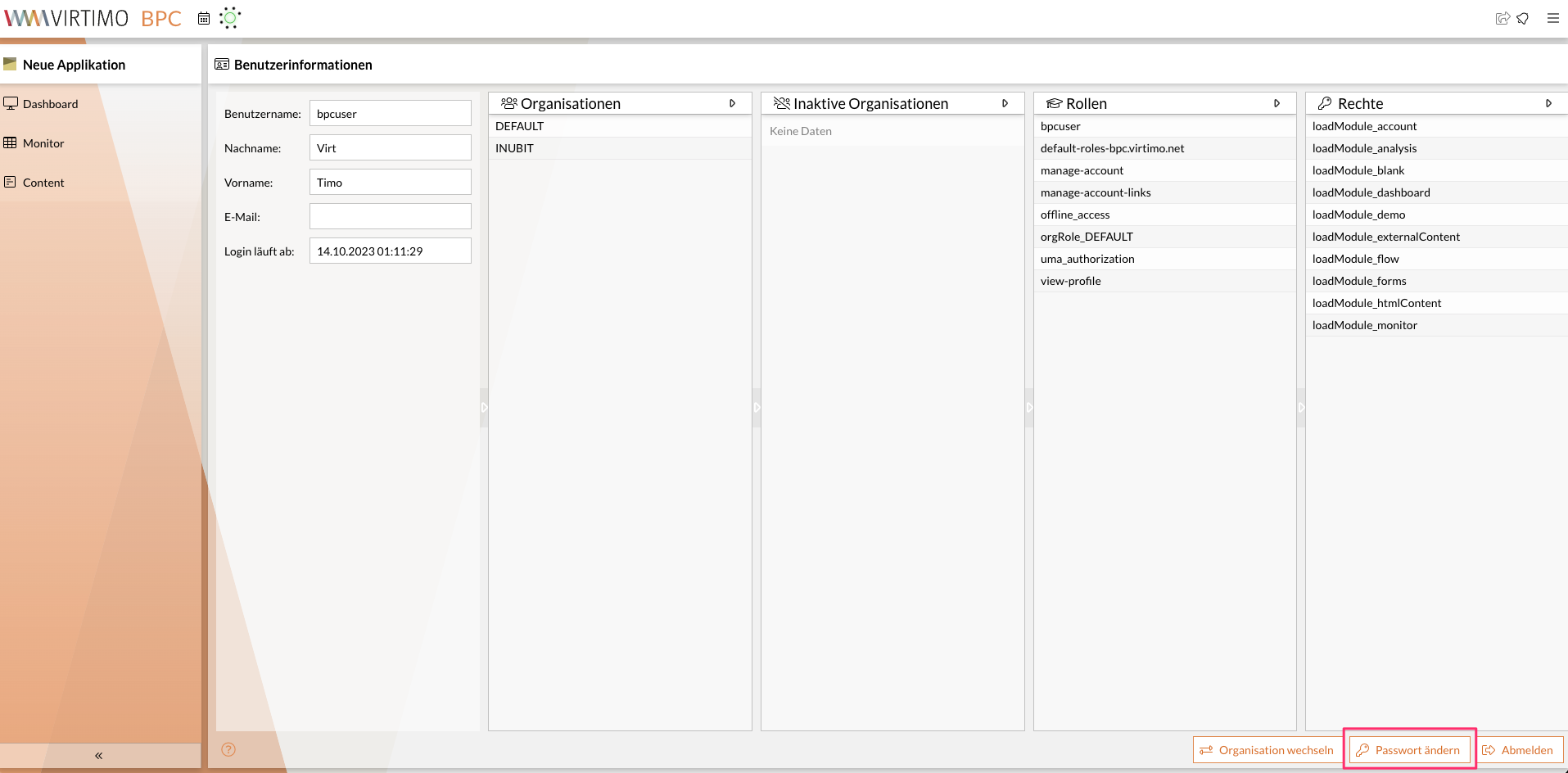
Select “Change Password.”
-
Enter your information.
If you use Keycloak as your identity provider, a pop-up will open here with the Keycloak page for changing your password.
Switching the active organization
You can specify which of your assigned organizations should be active. There are two options available for this.
|
The availability of this feature can be restricted via the setting |
User Menu
The following options require the use of the User Account Menu plugin.
-
Open the user menu (the position or availability may vary depending on the configuration ).
-
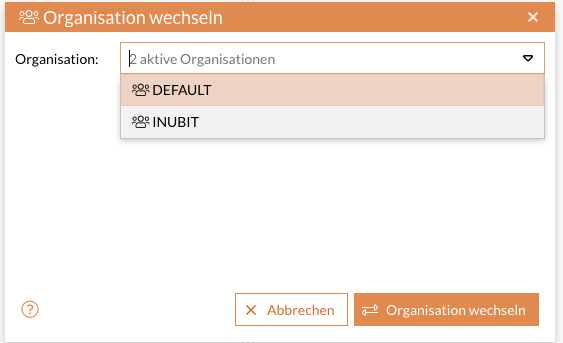
Select “Switch Organization.”
-
Select the desired organization and confirm the dialog.
User Information Page
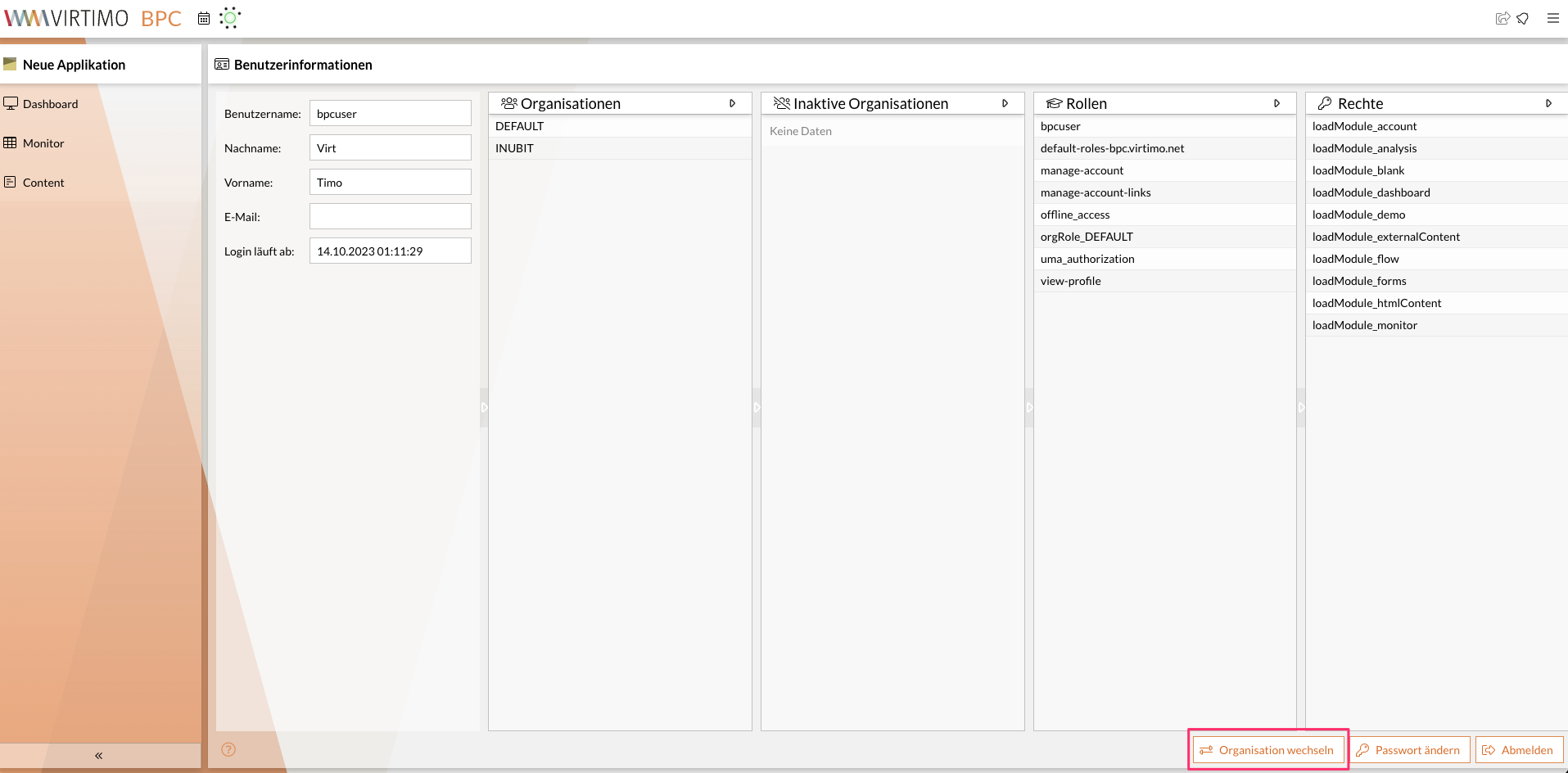
You can change the active organization via the user information page. You can also access this via the User Account Menu.
-
On the User Information page, select “Switch Organization” (the location or availability may vary depending on the configuration ).
-
Select the desired organization and confirm the dialog.
Further information on active and inactive organizations can be found at Authentication and Authorization in BPC.
