Search and filter Leader data
The overview page offers search and filter options that make it easy to find the desired records. To simplify use in common scenarios, search queries can be saved as favorites and retrieved at any time. This can be done both on an individual user basis and collaboratively within a team, so that all team members have access to the same favorites. Clicking on a data record opens the corresponding detail view, which displays all relevant technical information.
For ease of use and flexible application in various use cases, the interface consists of a central search field for locating relevant Leader data and a corresponding detail view that displays the configured content.
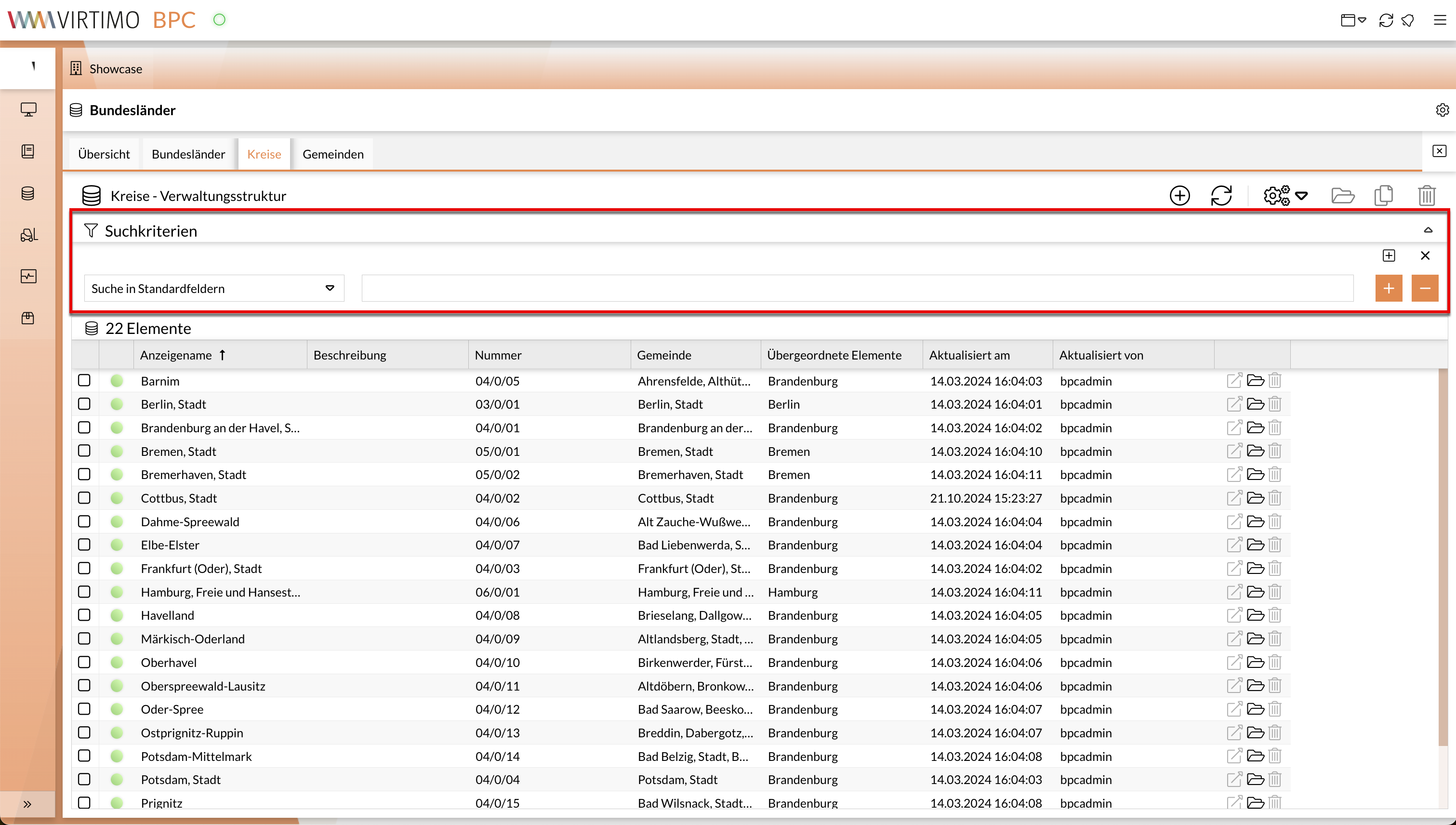
Search
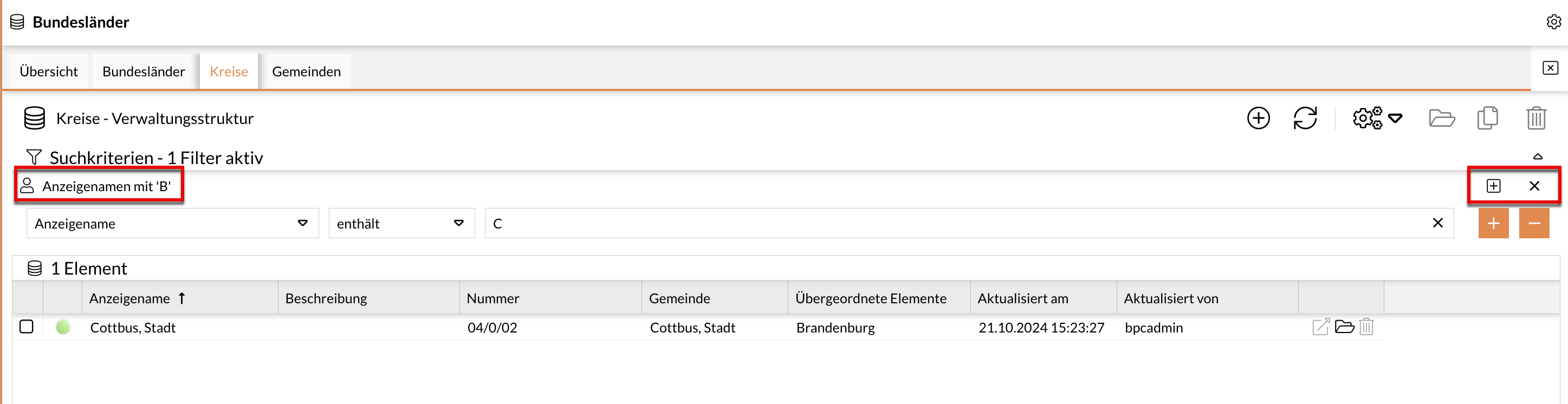
This section describes how to perform a simple search for Leader data objects based on specific properties or criteria, as well as how to save search results as favorites.
Search and Filter Options
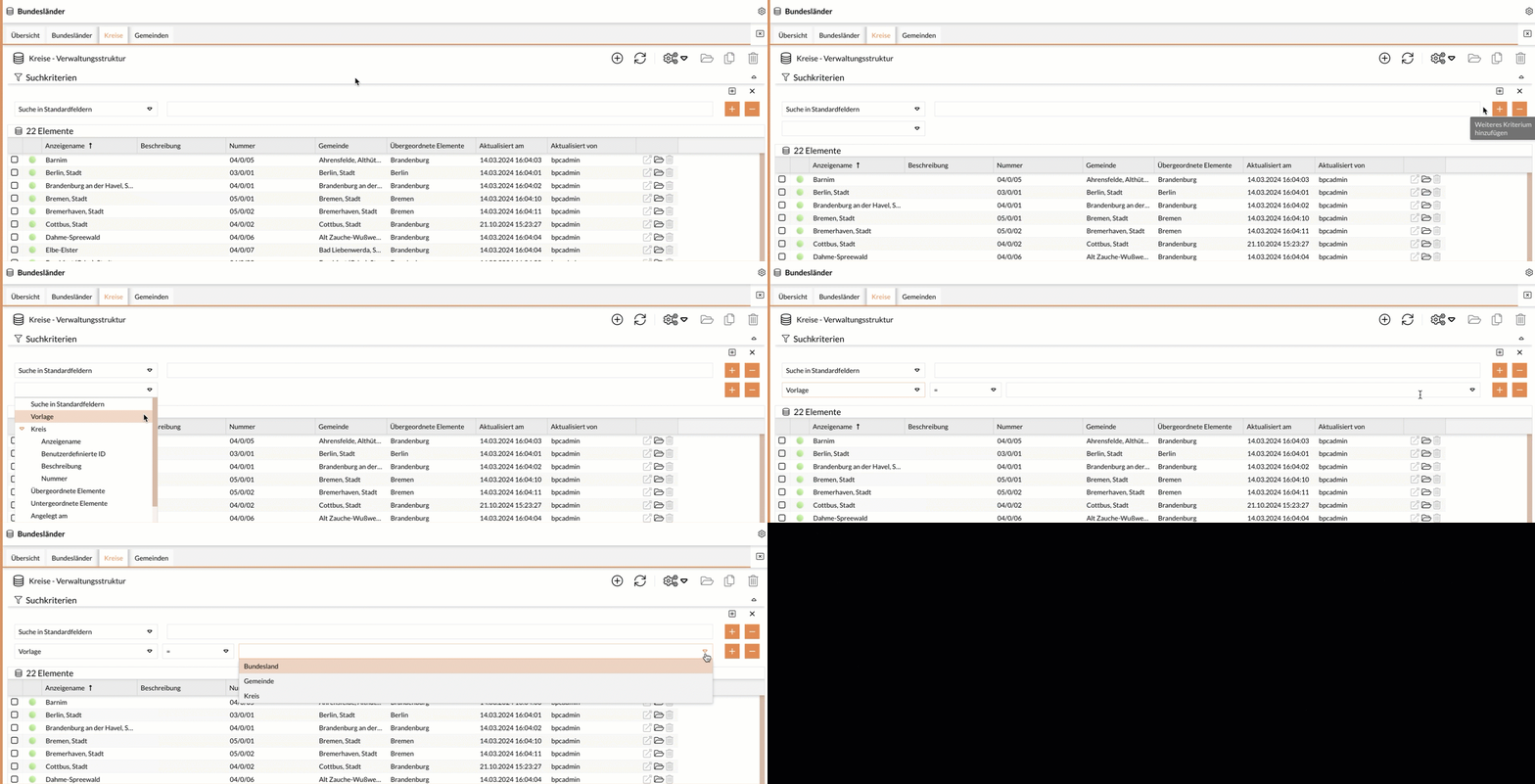
Using the drop-down menu, you can select a specific search criterion.
For example, if you are searching for a specific county and its county number, select the “County” category and “Display Name.”
You can now enter the name of the county in the free-text field.
Additional filtering options (advanced search) are available via the plus sign, which further narrows the search—for example, by selecting one of the subordinate municipalities.
You can remove the filter again using the minus sign.