Configuring Process Actions
Actions can be offered on data records in the monitor that You can trigger on existing processes. An action typically calls a backend system, such as the INUBIT Process Engine, and initiates the processing of the action there. For example, this allows data to be modified or business processes to be initiated.
Available process actions are stored via corresponding entries in the data records and then displayed in the user interface.
-
Toolbar Function
Available actions are displayed in the toolbar via function icons. -
Context Menu
The available actions are displayed via the context menu (right-click on a data record). -
Action Column
If an action column is configured, a button providing access to the action(s) appears in the data record’s row; see Action Column. -
Detail View
See Process Actions in the Monitor Detail View.
The user documentation for this feature can be found here.
Access Rights
For a user to use process actions, they need the right bpcMonitor_processAction.
If the system processing the process action is accessed via a backend connection, all users of the feature require the right loadModule_backendconnection.
Providing Actions via Data Records
To offer actions, the data must provide a field with the prefix ACTION_.
To do this, a new column is typically created in the underlying database.
|
Multiple fields with this prefix can be used to offer more actions. In addition, multiple actions can be provided via a single field. |
The following sections describe how the contents of the fields are interpreted.
Single Action
A simple text value (without a separator; see Action List) is offered directly as an action. In this case, the value serves as both the action’s ID and its label on the user interface.
Example: Freigeben
Action List
A text value containing separators (usually a comma ","). The text is split at the separators, and an action is offered for each part. The ID and label consist of the respective separated text segment.
Example: "ACTION_Mehrere" : "Freigeben,Ablehnen,Löschen"
Detailed Action Configuration
It is also possible to save a JSON string.
This can contain one or more actions.
The following attributes can be specified:
-
id
(string)
ID -
name
(string)
Label
At least one of the attributesnameoridmust be set. -
label
(string, languageKey, object)
Label, overridesname
If neitherlabelnornameis set, no label is displayed. A language key or an object containing localizations can be used. -
tooltip
(string, languageKey, object)
Additional information displayed on mouseover of the label
A language key or an object containing localizations can be used. -
iconCls
(string)
Icon (Font Awesome icons—see the Font Awesome library) -
sortValue
(number)
Order (should be a number).
(default is 1; items are sorted first in descending order bysortValueand then in ascending order byname) -
requireConfirmation
Confirmation is required before a user performs the action.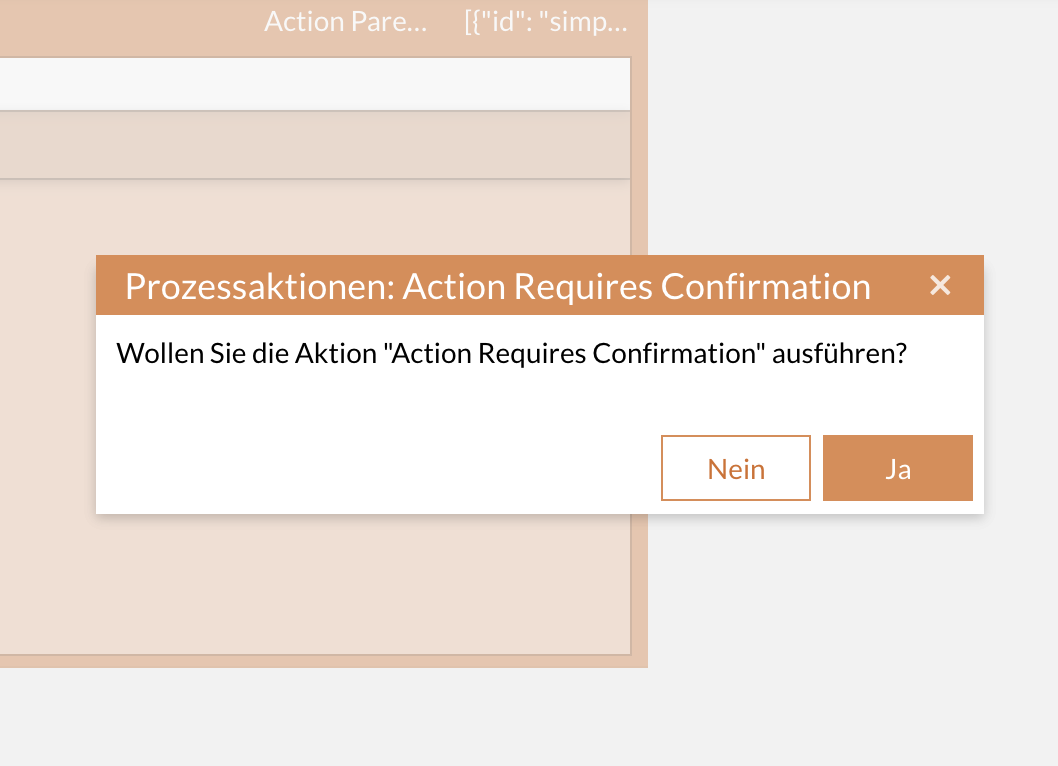
-
requireComment
(boolean)
A comment is required before a user performs the action.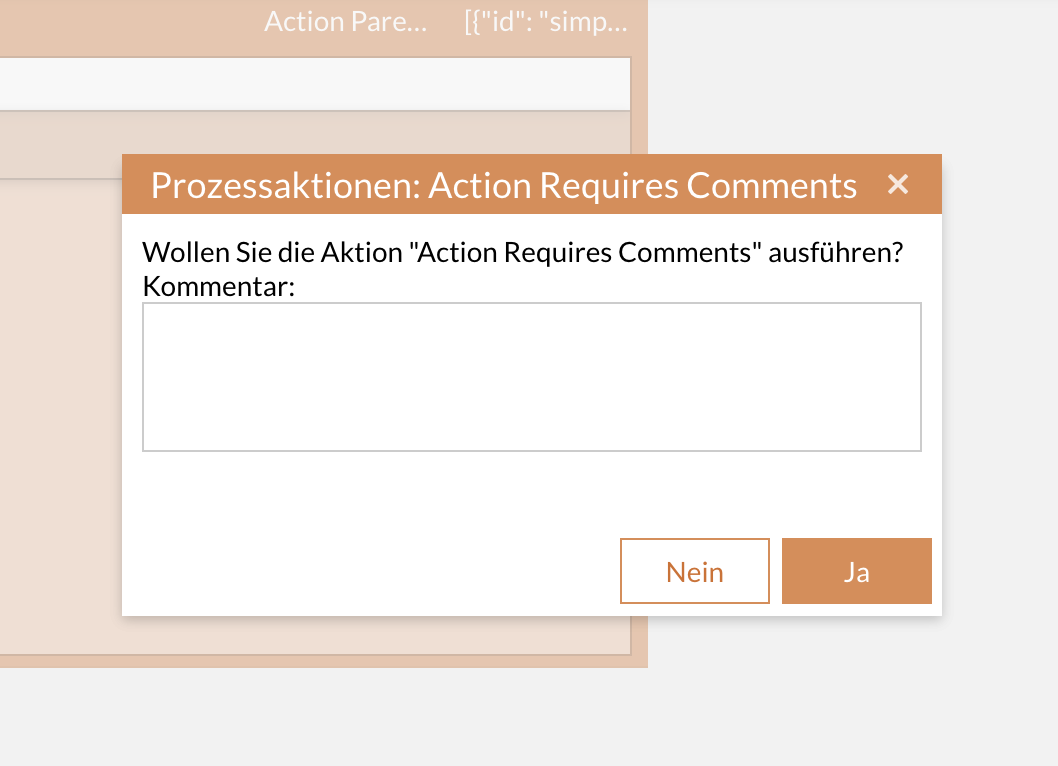
-
confirmationText
(string, languageKey)
Confirmation text for the confirmation box (requireConfirmationmust be set to true). A language key can also be used here. If not configured, the text is set to the default as shown above. -
role
(array)
Restrict the display based on the user’s role.This is only a visibility restriction. The backend system must check the user’s roles and permissions itself when the page is loaded.
-
right
(array)
Restricting the display based on the user’s permissions.This is merely a visibility restriction. The backend system must verify the user’s roles and permissions itself when the request is made.
-
organisation
(array)
Restricting the display based on the user’s organization or group.This is merely a visibility restriction. The backend system must verify the user’s roles and permissions itself when the request is made.
-
target
(string)
This parameter specifies the target of the action. Possible options are:-
processStarter- Calling the Process Starter via an Action -
forms- Controlling forms via an action
-
-
params
(object)
This attribute can be used to provide an object with additional parameters. Used, for example, for Calling the Process Starter via an Action.
[
    {
        "id": "Annehmen",
        "name": "Qualitätsprüfung erfolgreich",
        "iconCls": "fas fa-award",
        "sortValue": 1,
        "requireComment": true
    }
][
{
"id": "Ablehnen",
"name": "Fehler melden/Ablehnen",
"iconCls": "fas fa-times-circle",
"sortValue": 2,
"role": ["bpcadmin"]
}
]|
Additional user-defined attributes are permitted but do not contribute to the action configuration. |
Calling the Process Starter via an Action
An action can also be used to call the Process Starter for a specific process. This process action is configured using a JSON object (see Detailed Action Configuration).
The value processStarter is set as the target.
Using params, the key target process can be specified in the process attribute.
[
    {
        "id": "start-process",
        "name": "Prozessstarter",
        "iconCls": "x-fal fa-play",
        "target":"processStarter",
        "params":{
            "process":"testProcess"
        }
    }
]|
This method can also be used to call process starters for processes that are hidden by specifying |
Controlling forms via an action
Actions can also be used to control forms. Configuration is performed via a JSON object (see Detailed Action Configuration).
The value forms is set as the target.
By default, the submit action is triggered for the first form found.
|
Only visible forms can be triggered. This feature is therefore particularly useful in the monitor’s detail view, where process actions and forms can be displayed side by side. |
Form Selection via Selector
A selector can be used to ensure that the submit is triggered for the correct form.
The selector is set at params using the selector attribute.
FORMS-KOMPONENTEN-ID[
{
"id": "start-process",
"name": "Prozessstarter",
"iconCls": "x-fal fa-play",
"target":"forms",
"params":{
"selector":"moduleId=FORMS-KOMPONENTEN-ID"
}
}
]Advanced Calls
To trigger actions other than a submit,
an action can be specified via action within params.
Additional settings for the action can be passed via payload.
This allows, for example, user-defined submits with specific payload settings (content, metaData, or different url) to be triggered.
[
  {
    "id": "start-process",
    "name": "Trigger custom submit",
    "iconCls": "x-fal fa-fire",
    "target": "forms",
    "params": {
      "action": "submit",
      "payload": {
        "content": {
          "records": "${/records}",
          "data": "${/data}"
        }
      }
    }
  }
]
Process Actions in the Monitor Detail View
Process actions can also be triggered in the monitor’s detail view. See “Configuration of the Monitor Detail View” for more information.
Action Column
To display a column in the monitor that provides direct access to the available actions, a column of type “ gridActionColumn ” must be added in the “ Monitor_ColumnConfig.”
The parameter “ showIconOnly ” can be used to control whether only the icons should be displayed on the button.
This action column can also be used in the history grid in the same way as in the monitor.
Monitor_Column_Config{
"xtype": "gridActionColumn",
"localized": {
"text": "Aktionen"
},
"showIconOnly": true
}Expected response format
The client expects a JSON response from the server.
|
Ensure that the
|
Response to submitting the process
{
    "success": false,
    "msg": "Fehlermeldung"
}{
"success": true,
"msg": "Aktion vom Prozess 4711 erfolreich"
}{
"success": true,
"msg": "Alles toll. Siehe Datei!",
"download": {
"data": "UHJvemVzc2FrdGlvbiBEb3dubG9hZCE",
"fileName": "processAction.txt",
"contentType": "text/plain"
}
}OpenAPI Specification
A detailed description of all endpoints can be found in our OpenAPI specification.
