Customizable Landing Page for BPC Users (Landing Page)
General
BPC allows you to define a specific landing page for users based on their organization, role, or permissions. This page is automatically loaded and displayed first after successful login.
Overview
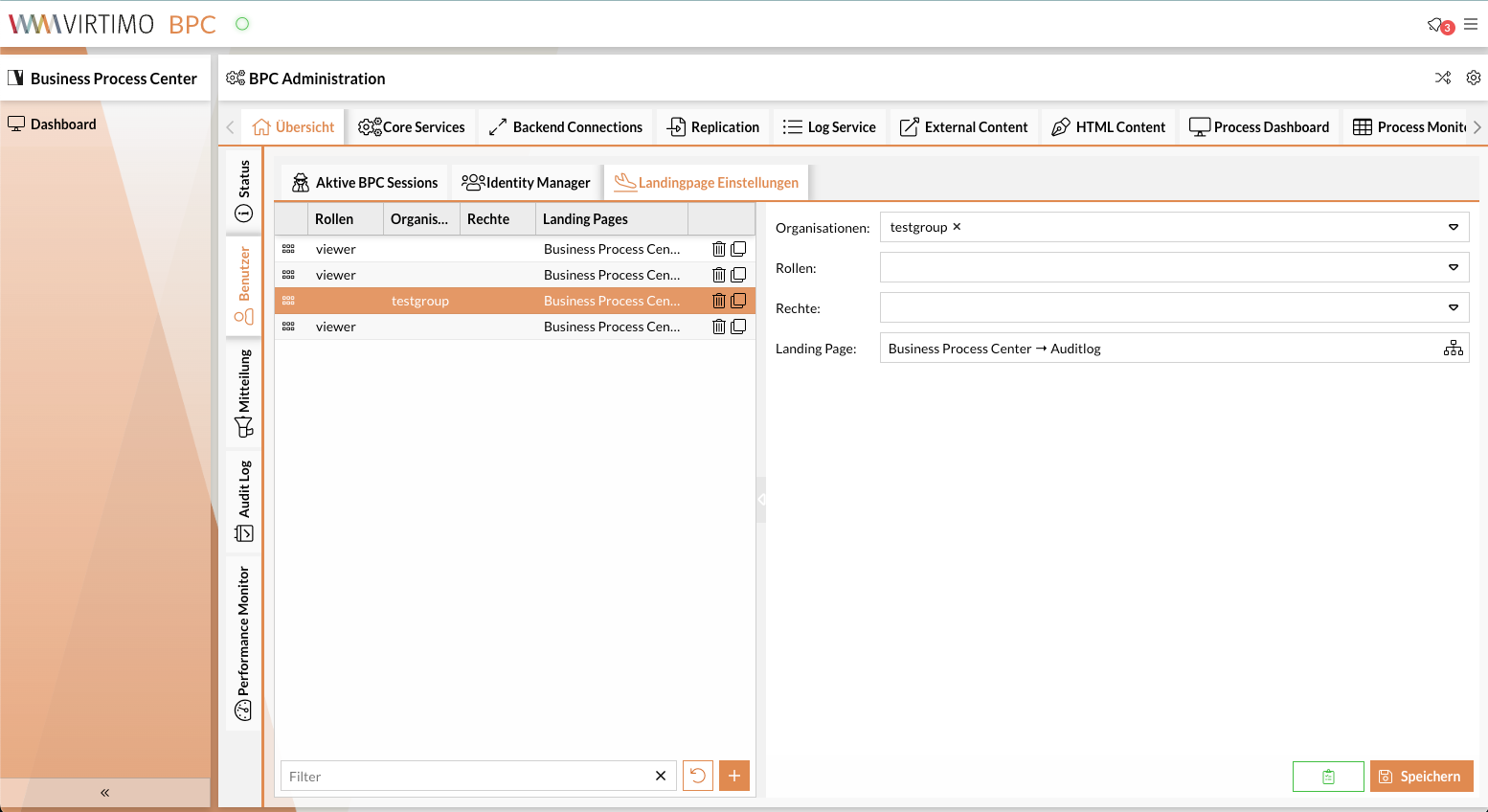
For example, in the screenshot (first entry), the landing page with the route /1/13 is used for users who have the "viewer" role. This means that after logging in, the system checks whether the user has the "viewer" role. If the user has that role, they are redirected to /1/13. If not, the user’s roles, permissions, and organizations are compared with the remaining entries (in the order listed in the table).
Another example: The user is in the "admingroup" organization and does not have the "viewer" role. The match is found with the third entry, so the user is redirected to the “Audit Log” page.
It is possible for a user to have multiple roles, permissions, and organizations. For example, a user has the role “manager” and belongs to the organization “admingroup.” The match is found with the 5th entry, since the user possesses all roles, permissions, and organizations, and the user is redirected to the page /1/11.
Configuration Prioritization
A user may have roles, permissions, and organizations that appear in different entries on the Configuration home page. In this case, the user’s roles, … are compared with the configurations in the order they appear in the table. The first matching configuration is applied to the user. For example, the user has the “viewer” role, which appears in the first, second, and third entries. The first landing page configuration is then applied to the user, meaning they are redirected to the page /1/13 after logging in.
Configuration
The settings for the landing page can be configured in the administration area. The configuration can be done either via JSON (Core Settings → Login_LandingPage) or through the user interface.
To navigate to the settings panel, follow these steps:
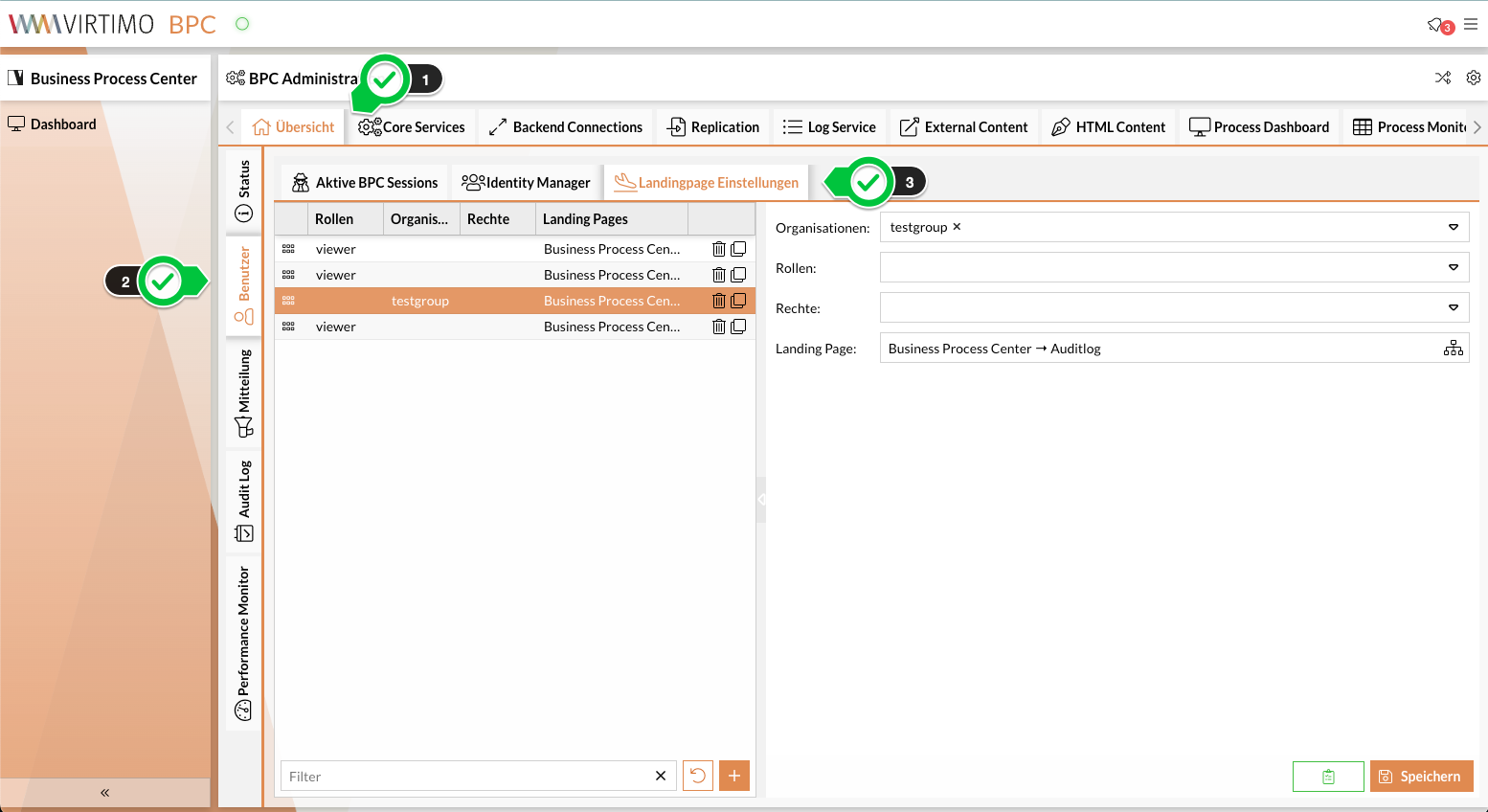
Adding Landing Page Settings
You can add a new landing page setting via the user interface.
-
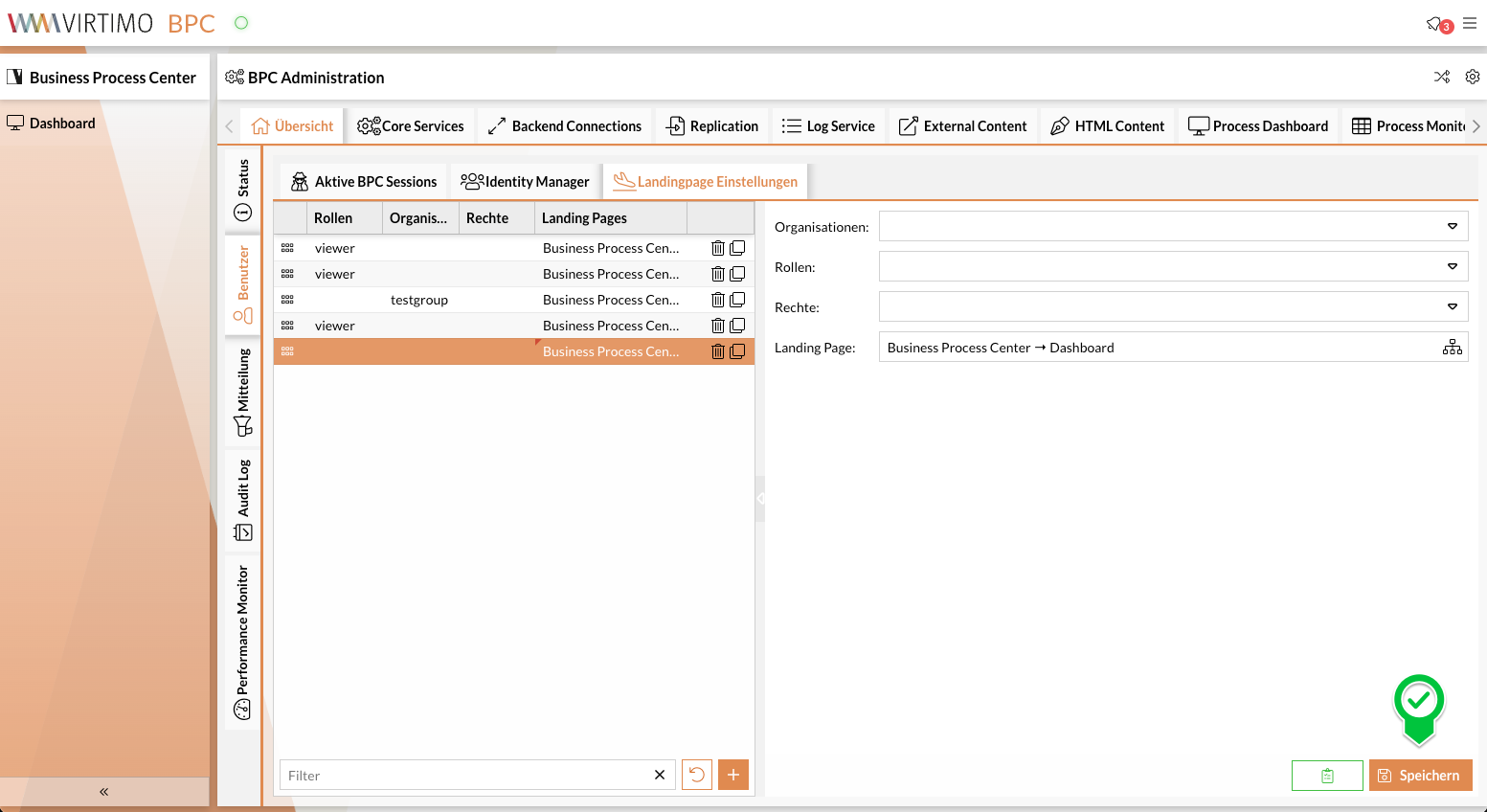
After navigating to the settings panel, click the + button:
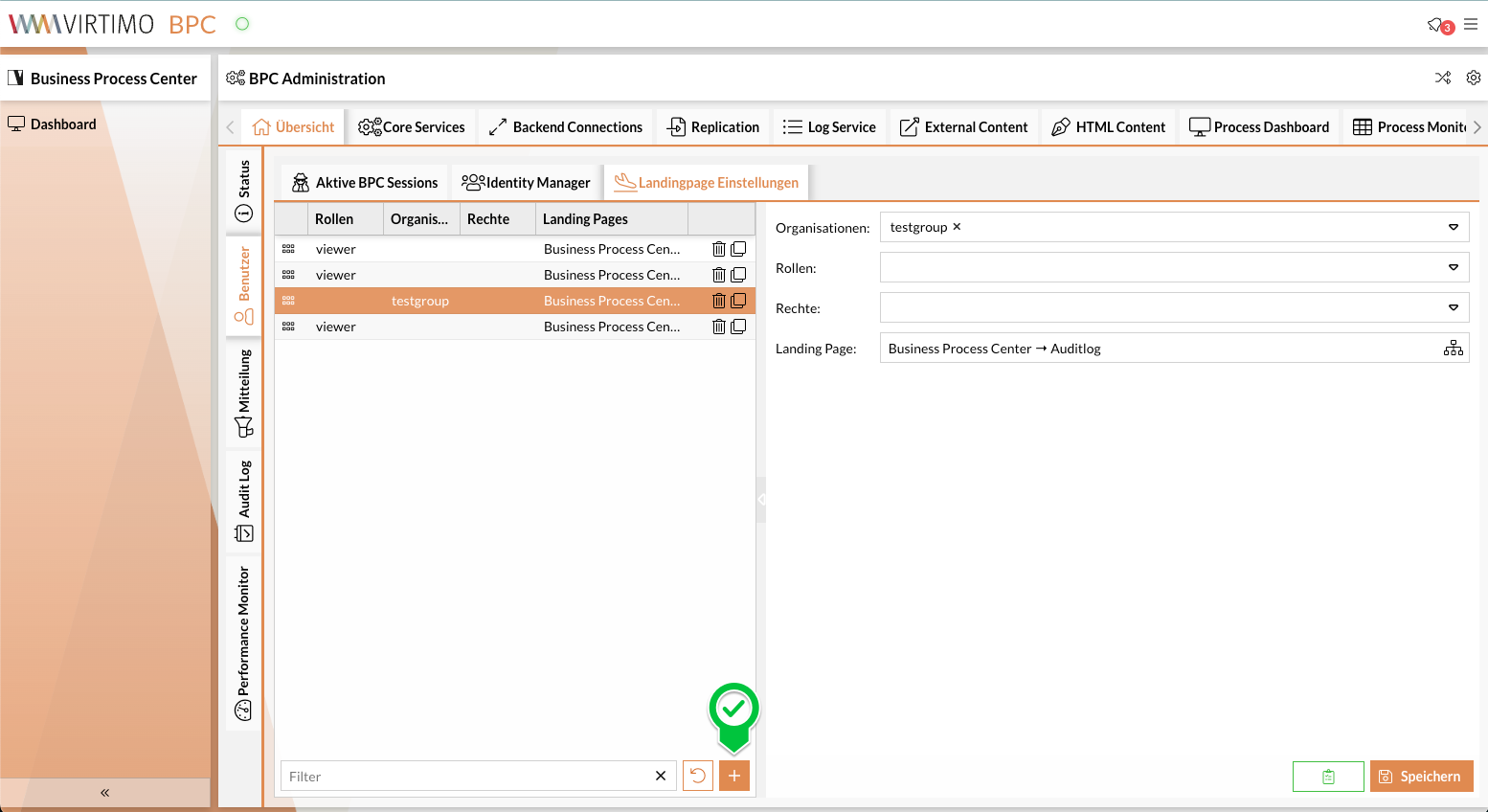
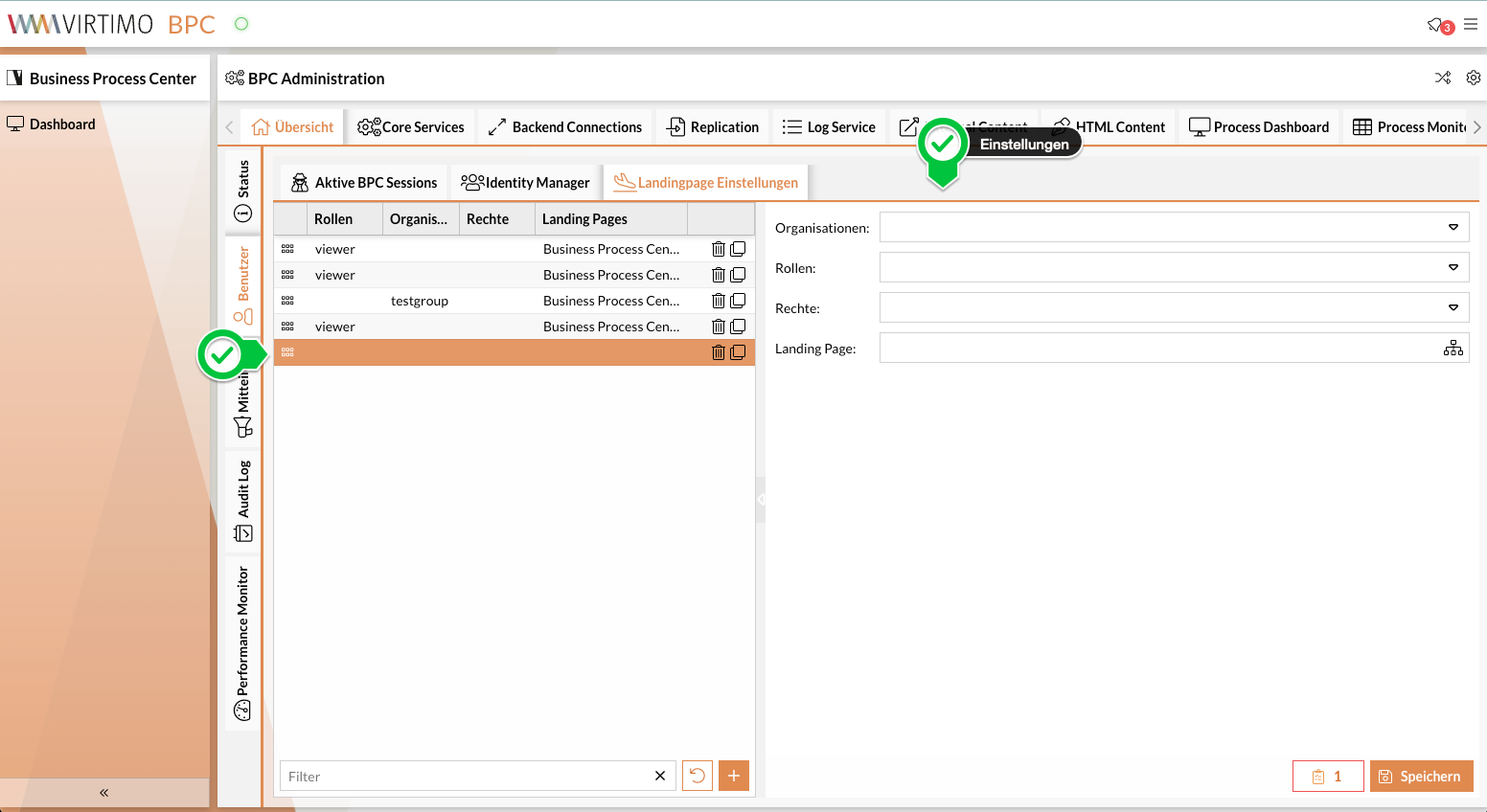
A new entry is added to the list and automatically selected.
The settings are available in the right-hand panel.
-
In the panel, you can now configure for which users—based on their roles and permissions—and in which organizations the setting should apply.
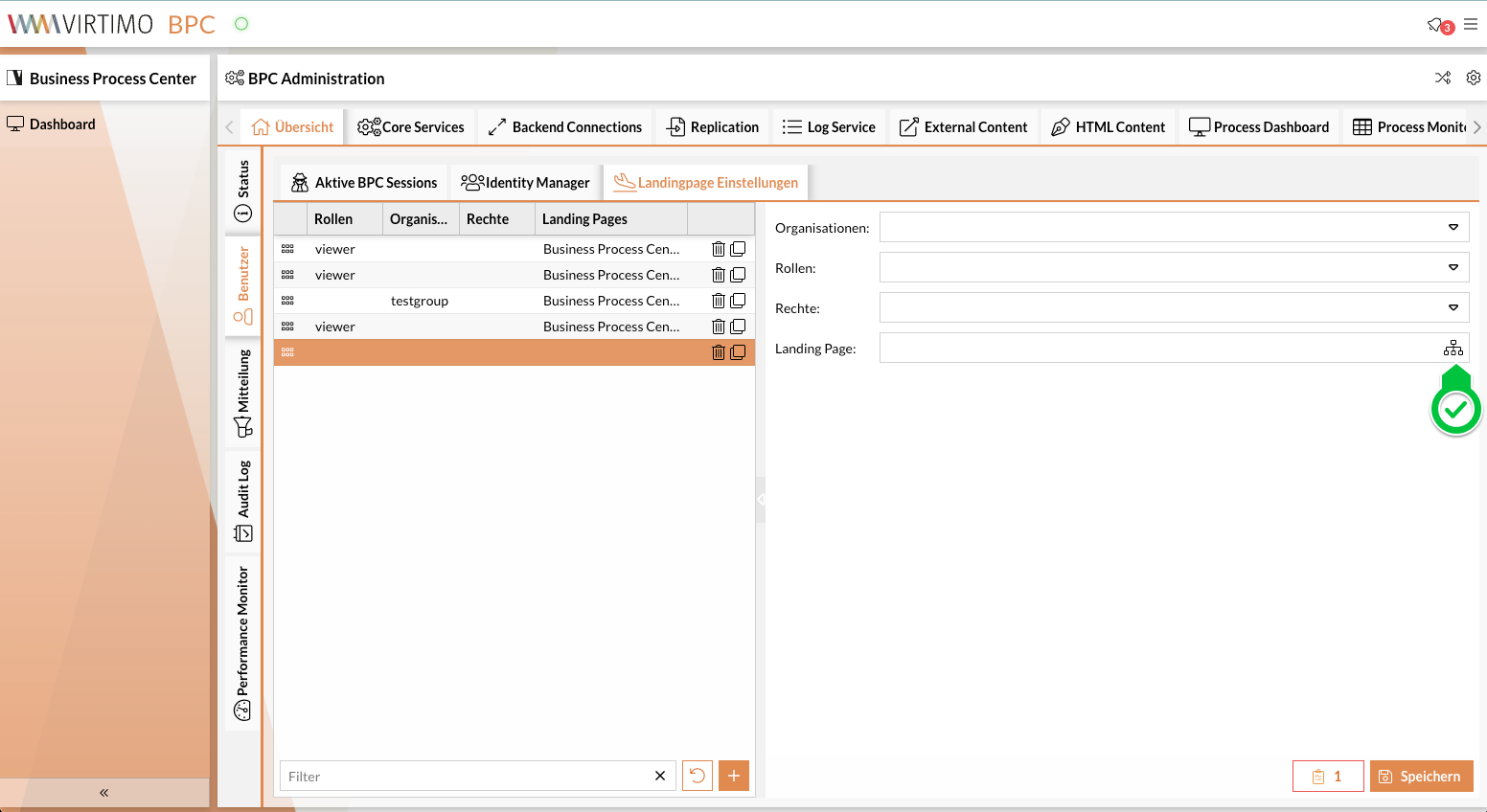
You can set the landing page using a deep link, or more easily using the navigation settings:
-
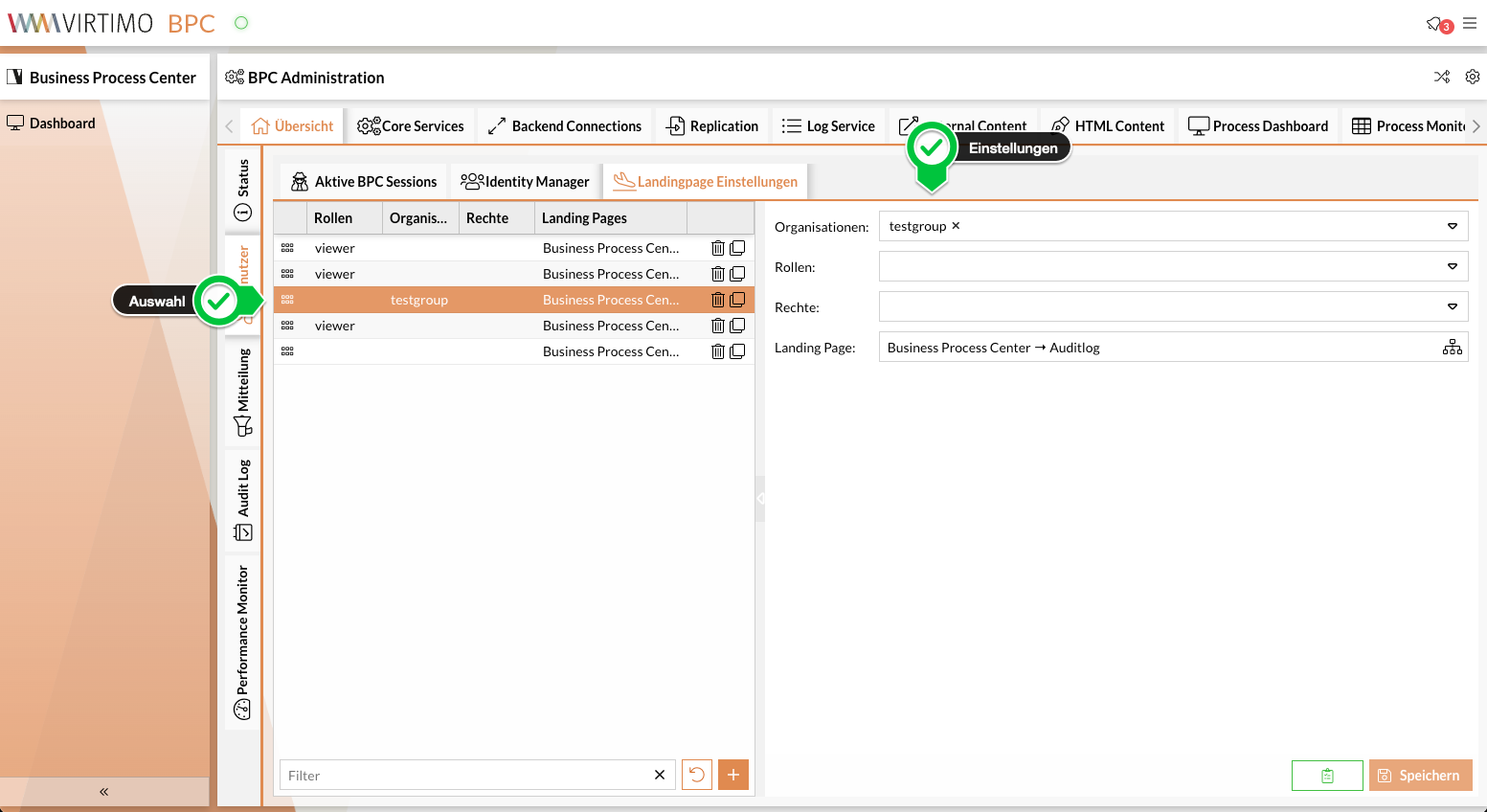
Open landing page settings.
-
Select a user.
-
Open navigation settings.
-
Select a page, which will then become the landing page for users with the role, permissions, and organizational settings specified above.
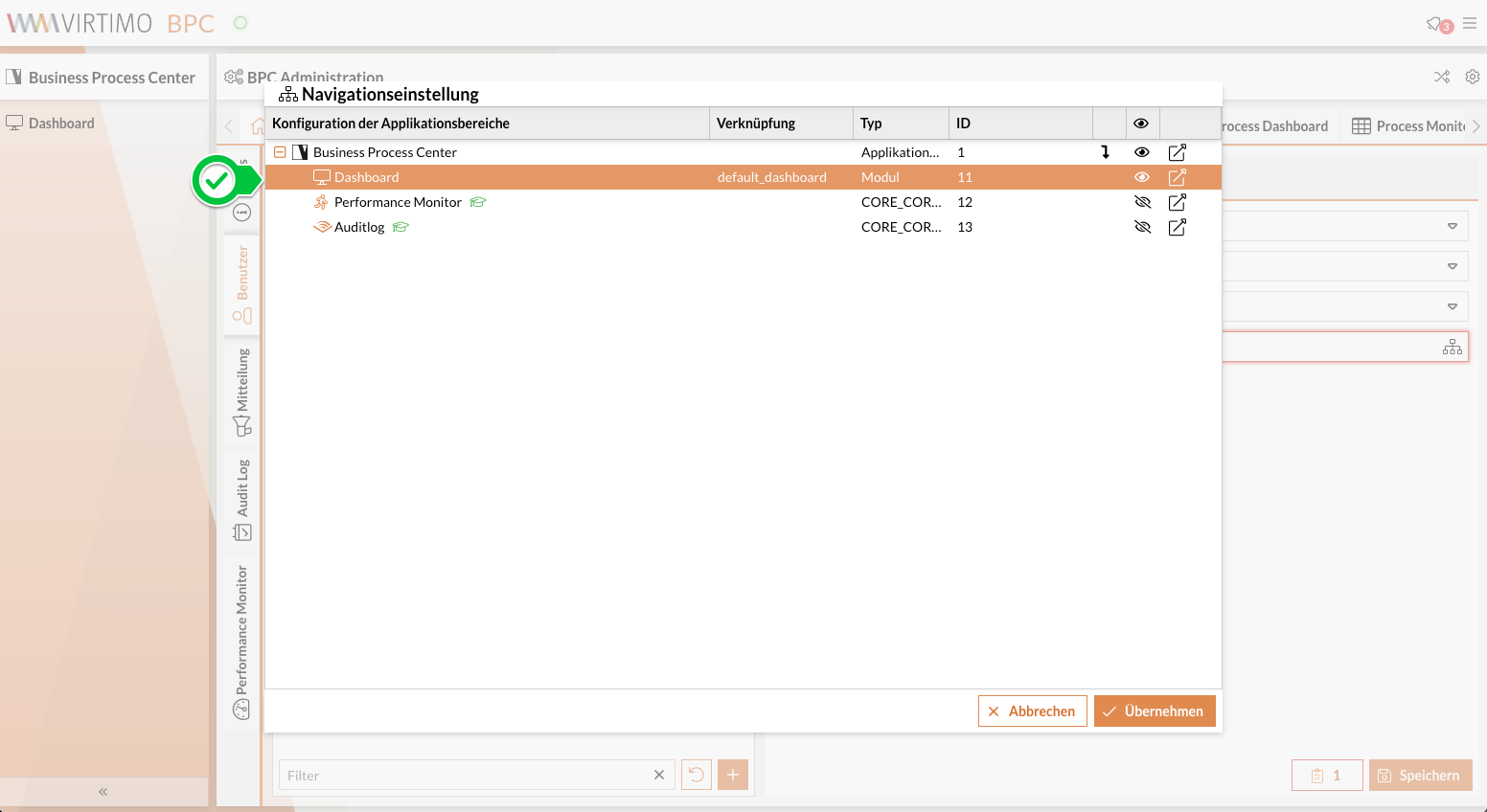
-
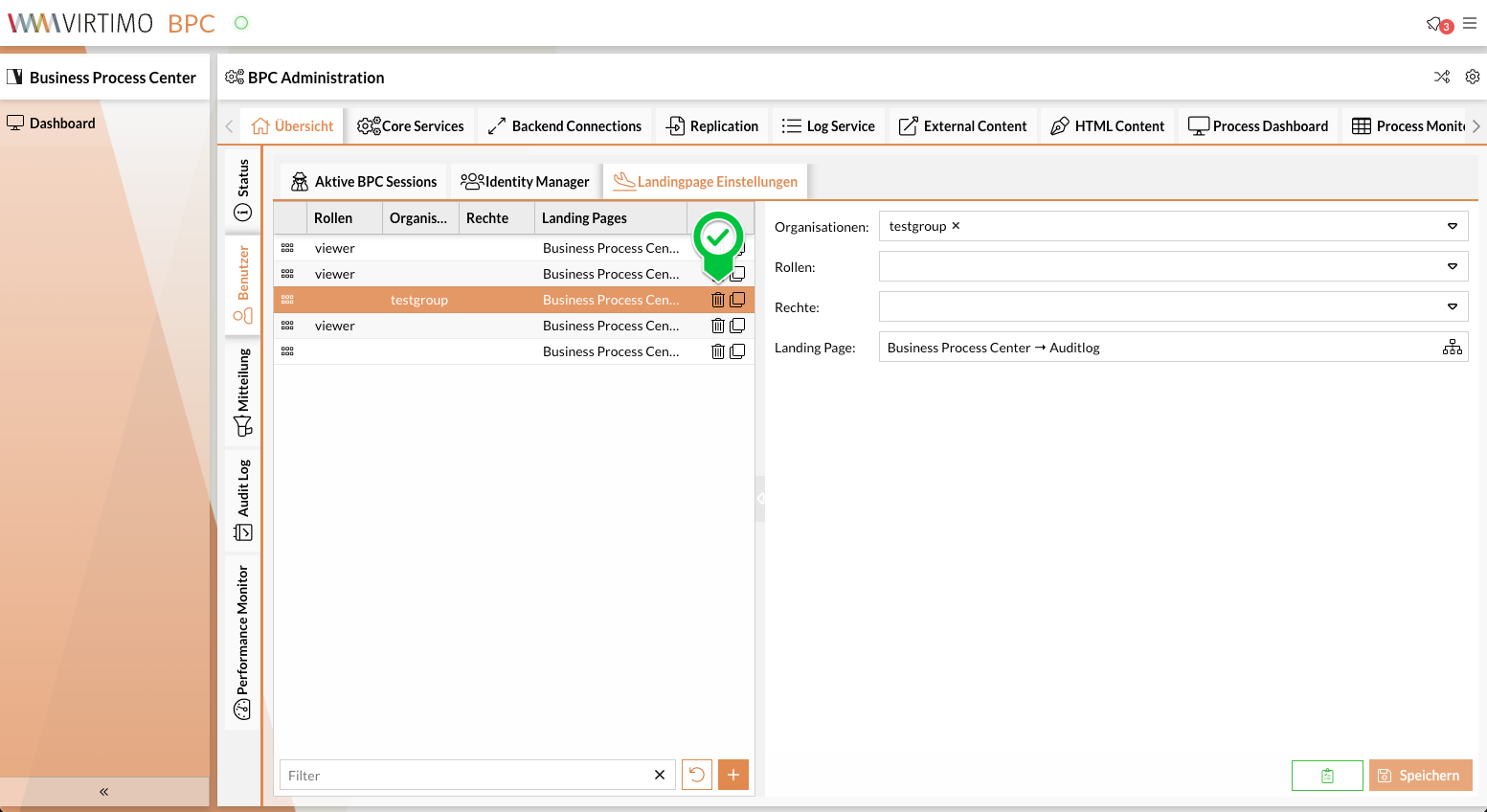
Click " Apply."
A deep link from the page is applied in the settings field.
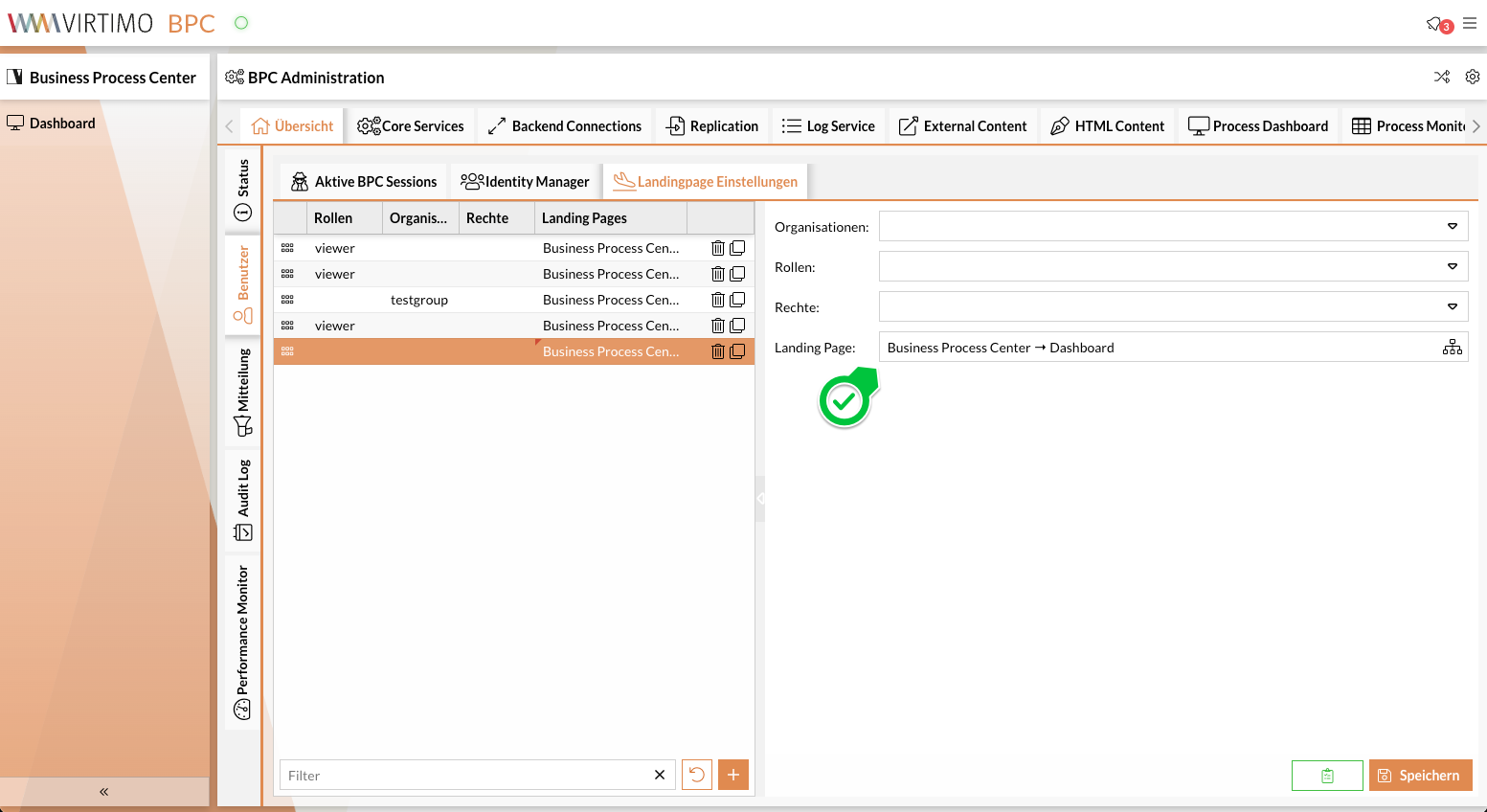
-
Click " Save."