Installation
The following instructions outline the steps required to install the INUBIT Process Documentation module.
Prerequisites
-
BPC Server installed, configured, and running.
-
INUBIT Process Engine running.
-
BPC must be configured as a portal server in INUBIT. If BPC is not installed on the same computer as the INUBIT Process Engine,
localhost:8181should be replaced with the name and Port of the computer on which BPC is installed. -
Documentation modules have been deployed from INUBIT to BPC.
-
BPC is configured as a process user server in INUBIT.
-
All Diagrams to be displayed in the Process Documentation module are linked to at least one BPC process role in INUBIT.
Loading the Process Documentation module in BPC
-
Log in to BPC via the URL
http(s)://<portal hostname>:<port>, such ashttp(s)://localhost:8181/. -
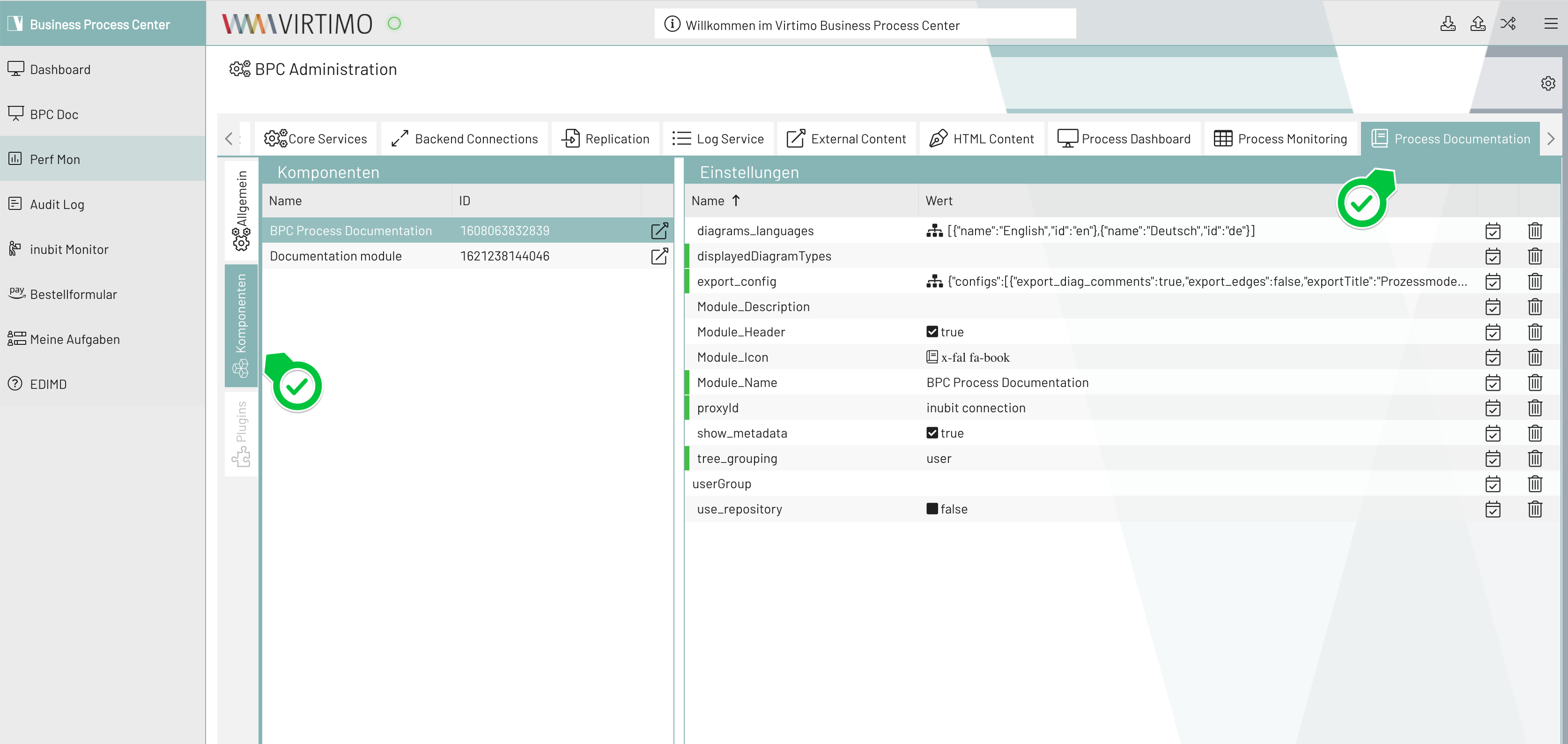
After logging in, navigate to the administration area and select the Process Documentation tab. The deployed documentation modules are located under Components.
-
You can use "displayedDiagramTypes" to limit the diagram types displayed. If the field is empty, all diagram types are allowed. Possible values are (multiple values specified as a comma-separated list):
-
processmap(Process Maps) -
bpd(Business Process Diagrams) -
constraintsdiagram(Business Object Diagrams) -
organigram(Organizational Charts) -
soamap(SOA Maps) -
systemdiagram(System Diagrams) -
technical(Technical Workflows)
-
-
Using the "userGroup" property, the display of this documentation module can be filtered to show only the Diagrams of a specific user or user group (e.g., BusinessProcessCenter). Leave the field blank to apply no restrictions.
-
On the INUBIT Process Engine, there must be at least one Diagram of a type configured in "displayedDiagramTypes"—either globally or within the filtered user/group—that is assigned to at least one process user role (Documentation). The logged-in BPC user must have at least one of these assigned roles so that the tree view is displayed with Diagrams rather than appearing empty.
-
In the component list, click the icon in the Actions column to display the component as a test. For regular use, it can be added as a navigation bar element (see Navigation Settings).
