Display Task Information
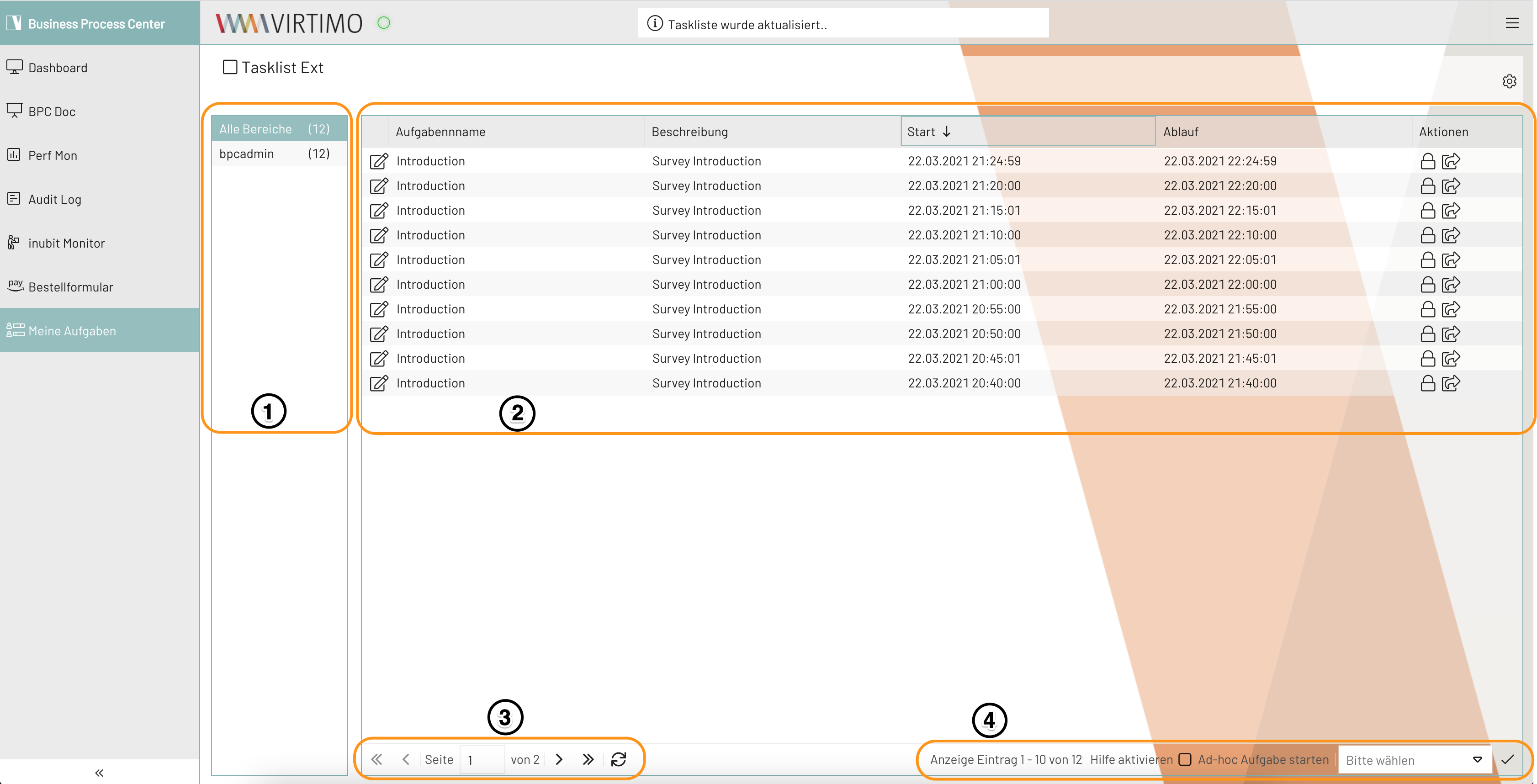
Process Roles (No. 1)
This section displays all process roles of the current user for which tasks exist. Select the appropriate role here to view the list of all tasks.
Task List (No. 2)
All tasks are displayed in a table. You can sort and filter the tasks using the columns to narrow down the list, enabling quick processing. The "Actions" column allows you to accept or delegate tasks directly. Double-clicking a task opens it.
Task Name
Displays the name of the task. The name comes from the corresponding dialog box that was filled out or generated when the task was created.
Description
A brief description from the dialog box of the same name that was filled out when the module was created.
