Monitor Plugins/Hooks
Plugins
The plugins provided by the Process Monitoring module can be integrated both within a monitor and across modules in the hooks of other modules (e.g., Process Dashboard or Core Services).
To do this, assign the desired plugin to the respective target module in the administration area and reference the desired monitor instance in the plugin configuration via moduleId.
Process Starter Plugin
This plugin provides a button that allows Process Starters configured on a monitor to be launched from anywhere in BPC. Using the plugin mechanism, the button can be placed not only within the Monitor itself but also in other modules, such as in the header of a Process Dashboard or globally in the BPC toolbar.
See also Process Starter Plugin
Process Starter Plugin Panel
This plugin provides a Process Starter form as a panel that allows processes configured on a monitor to be started directly. Using the plugin mechanism, the form panel can be embedded in any panel or tab hook in the BPC, e.g., in a monitor’s detail view or in the admin tab panel.
See also Process Starter Plugin Panel
Monitor Wrapper Plugin
This plugin displays a complete monitor—but without the module header and toolbar—within a plugin hook. Using the plugin mechanism, a monitor can thus be embedded both in the detail view of another monitor and in panel or tab hooks of other BPC modules.
See also Monitor Wrapper Plugin
Hooks
You can use the following hooks to embed plugins at various points within a Monitor instance.
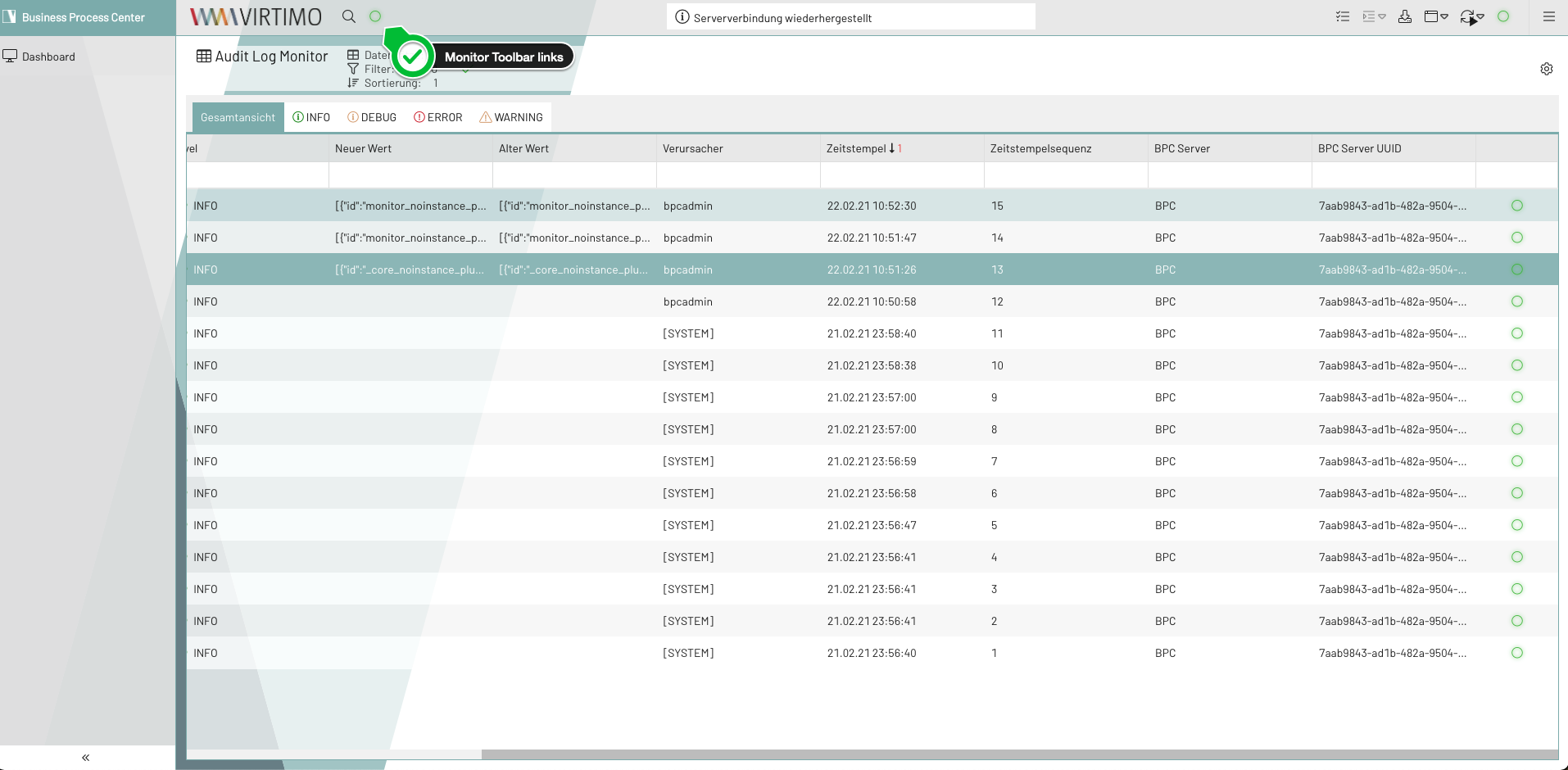
Monitor Toolbar Left
Places plugins on the left side of the BPC toolbar as soon as a monitor is opened (hook display name: Monitor Toolbar Left).
You can control the position relative to the other monitor quick functions via the entry "plugins" in the settings at appToolbarLeftContent.
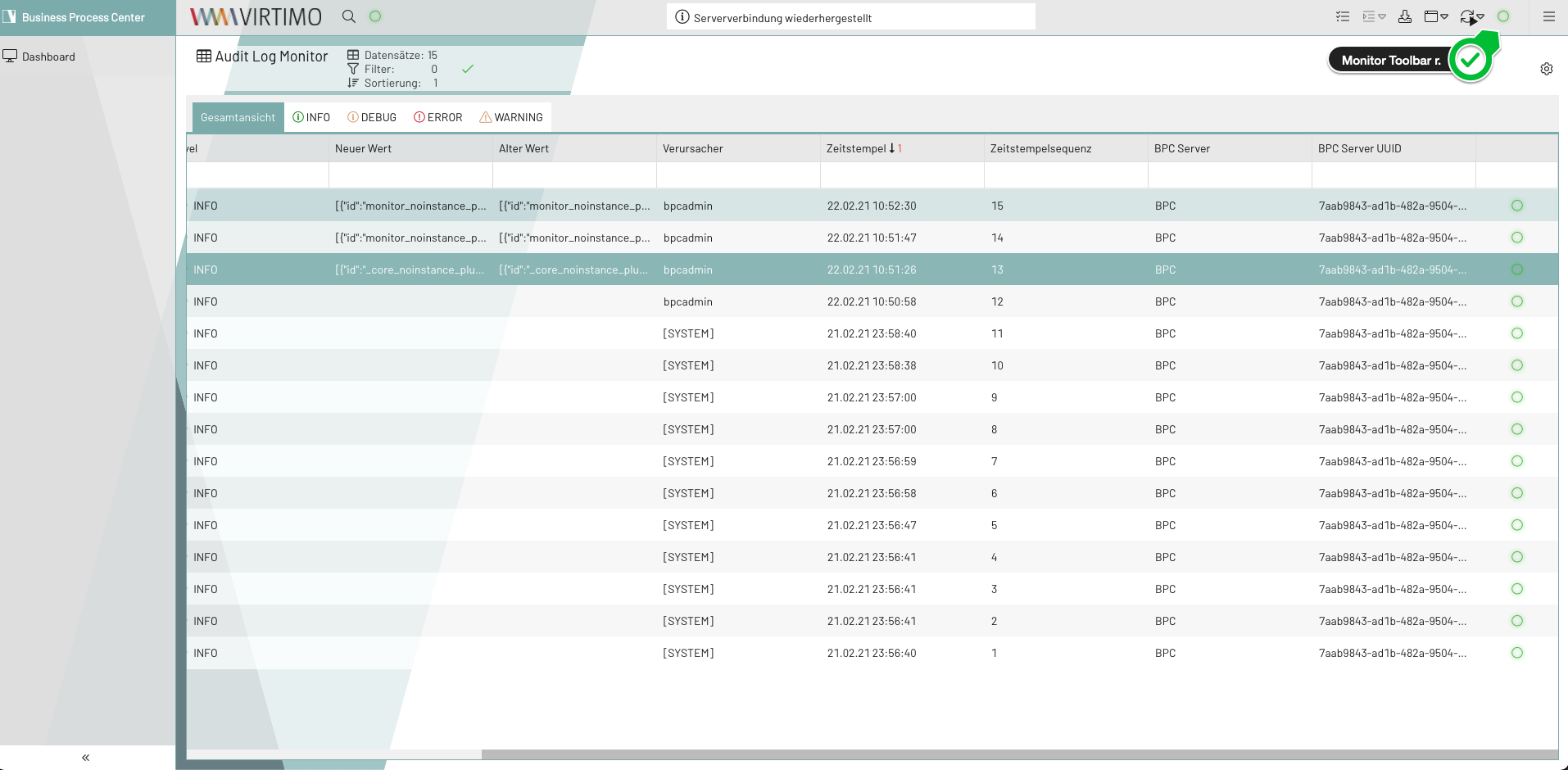
Monitor Toolbar Right
Places plugins on the right side of the BPC toolbar as soon as a monitor is opened (hook display name: Monitor Toolbar Right).
You can control the position relative to the other monitor quick functions via the entry "plugins" in the setting appToolbarRightContent.
Monitor Toolbar in Module Header
Places plugins directly in the Monitor’s module header (hook display name: Monitor Toolbar Module Header).
You can control the position within the module header via the “ "plugins" ” entry in the “ moduleHeaderContent ” setting; see Monitor Quick Actions.
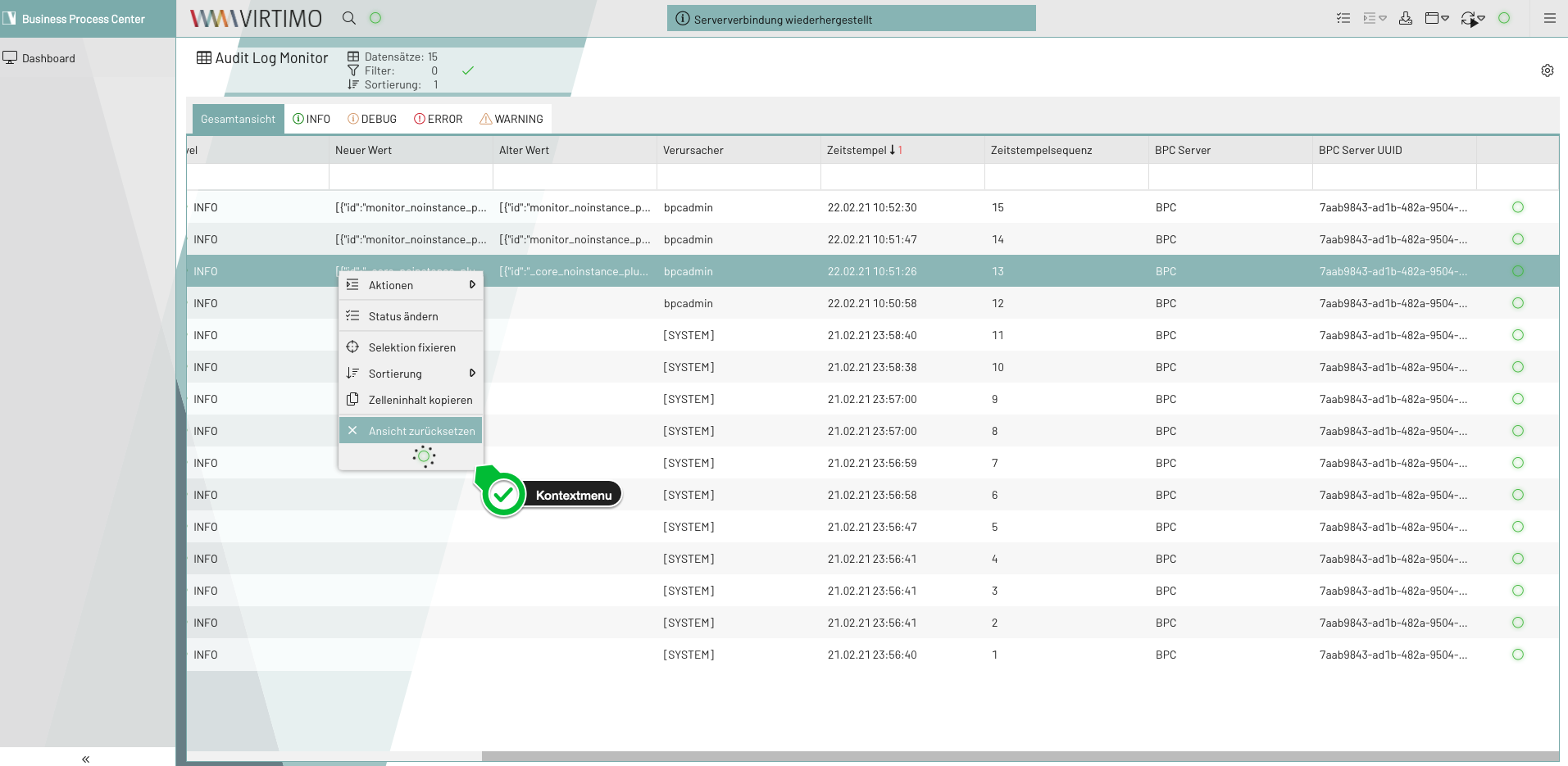
Context Menu
Adds plugins as entries at the end of the context menu in the monitor (hook display name: Monitor Context Menu).
Through the hook context, the plugin has access to the currently selected records (selection) as well as the monitor’s moduleId.
Detail View
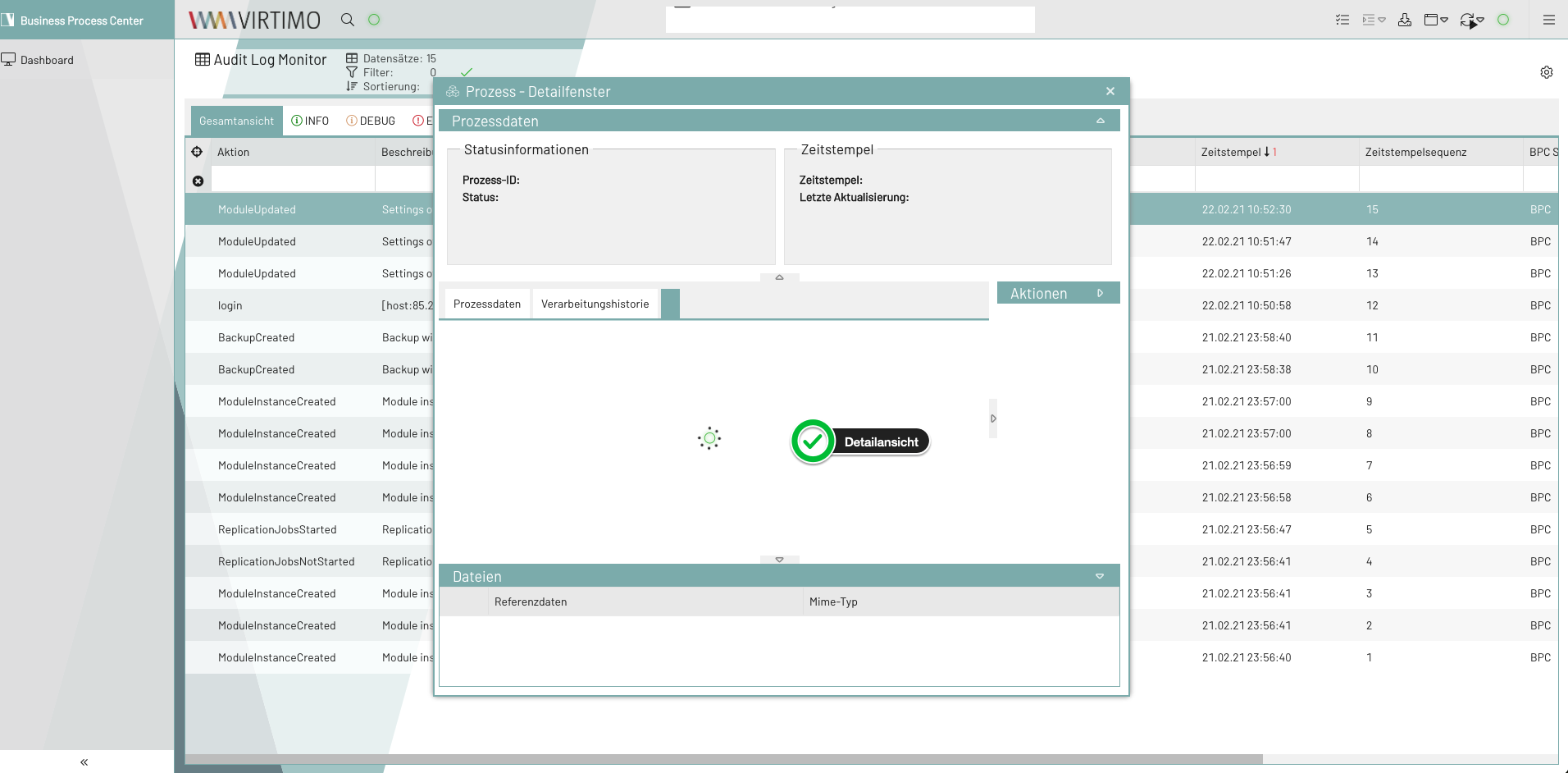
Embeds plugins into the detail view of a selected process entry (hook display name: Detail View).
The hook context passes the selected record in the record attribute as well as the monitor’s moduleId.
For more information on positioning, pluginTarget, and using multiple detail view hooks via hookSubId, see monitor:admin/configuration-detail-view.adoc#plugin.
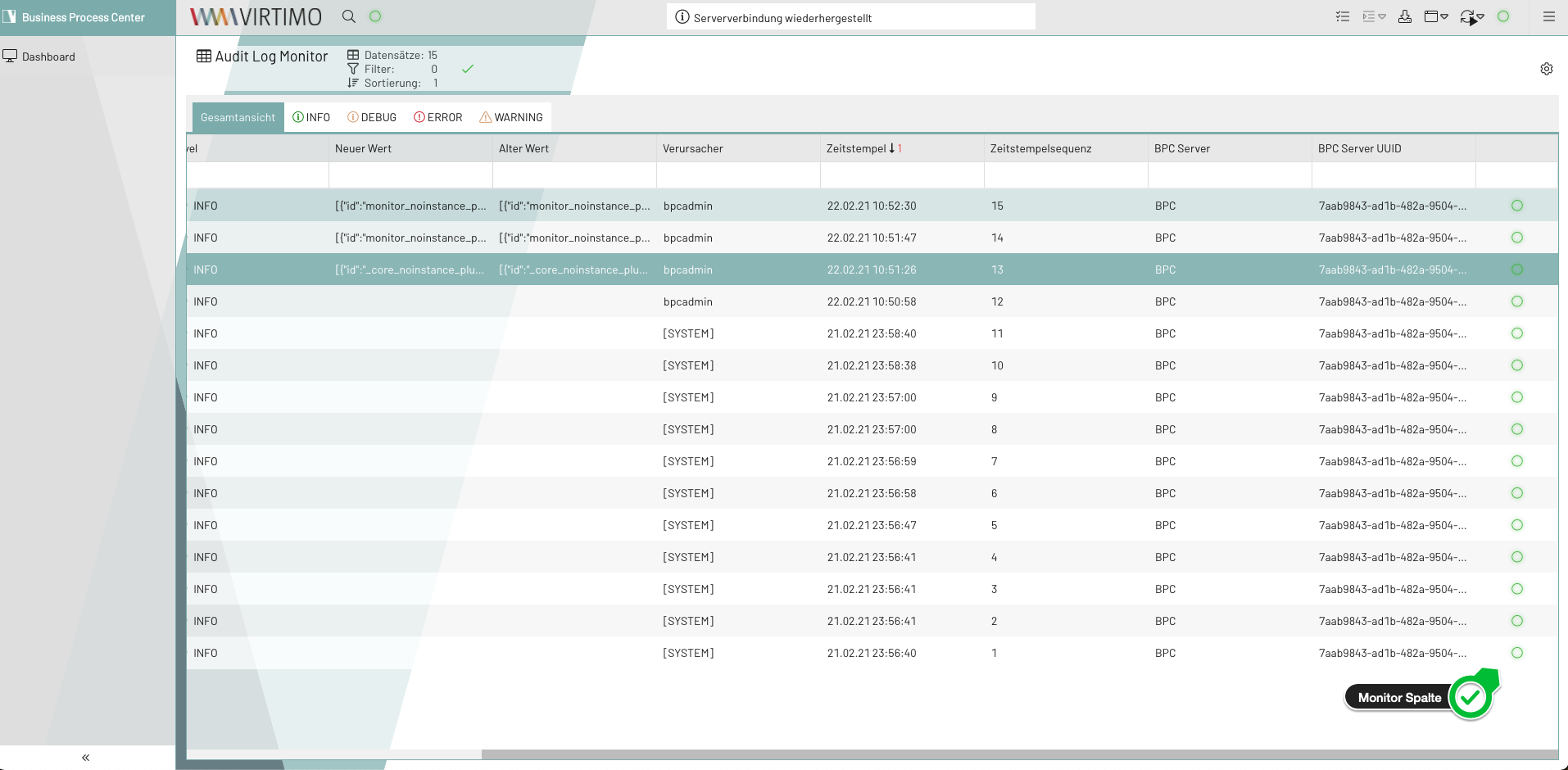
Monitor Column
This hook (display name: Column) adds a plugin as a column in the monitor table.
By default, plugin columns are appended to the end of the table.
To insert the column at a specific location, add the following entry in the column configuration (column_config) at the desired target position:
{
    "xtype": "monitorColumnHook"
}
If the plugin itself is not a table column, you must set ` "wrap": true ` in the plugin configuration so that the plugin is embedded in a widget column:
{
    "wrap": true
}
You can customize the column’s properties (e.g., dataIndex, width, or text) in the plugin configuration via columnConfig:
{
    "columnConfig": {
        "dataIndex": "level",
        "width": 200,
        "text": "Spaltentitel"
    }
}|
Columns of type |